Commodore 64 Programming #3: 6502 arithmetic’s

image

Update: All needed files for this tutorial can be found in the GitHub repo linked in the bottom of this page.

Continuing from the previous tutorial, this tutorial will focus on basic arithmetic’s on 6502/6510 microprocessor programming – to get you all started.

Let’s say we got a program that got a black background. If something happens, we would like to change that background into a brown color. If you take a look at figure 3.1, you can see that the black color is the index 00, and the brown color is the index 08.

image
Figure 3.1 – some colors

To do this, we create an application that increases the color 8 times, and put that into the color display.

Listing 3.1 – INY

    processor   6502
org    $1000

loop:    ldy #$00
sty $d020
iny
iny
iny
iny
iny
iny
iny
iny
sty $d021
jmp loop

In listing 3.1, we store the index of the black color in Y and then copy it to the border and main window memory. Then “something happens” and we would like to create the main window brown by increasing the index stored in Y eight times.

Let’s say we would like to increase this 55 times. That would have been many INY instructions, and also a big and messy code. We could also use a loop. But the 6502 language got a specific set of instruction to do addition and subtraction.

Let me introduce you to the add with carry (ADC) and subtract with carry (SBC)

Add and subtract
You can add a value to the accumulator ( A ) register by using the ADC instruction. If you load the value of #$00 into the A register, and want to add #$08 to it, so the A register will contain #$00+#$08 = #$08, you can use the ADC instruction. But before you use the ADC instruction, you need to clear the carry flag with the CLC instruction. Let’s take a look at an example.

Create a new asm source file, and name it something like example5.asm.
Start by doing the usual stuff:

    processor   6502
org    $1000

Next, we create our main loop. We start by loading the A register with the value of #$00 (color black) and store it in the border memory.

loop:    lda #$00
sta $d020

Next we clear the carry flag:
             clc

Then we use it to add #$08 to the existing value in the A register
             adc #$08

..and store it in the main screen area.
             sta $d021
jmp loop

The whole source should look like Listing 3.2.

Listing 3.2 – ADC/CLC

    processor   6502
org    $1000

loop:    lda #$00
sta $d020
clc
adc #$08
sta $d021
jmp loop

The result should be similar as in the image below:
image

It’s also possible to subtract a value from the A register by using SBC and the Set Carry SEC. The next example is quite similar, but here we set the border to brown, and then set the main window to black.

Listing 3.3 – SBC/SEC

    processor   6502
org    $1000

loop:    lda #$08
sta $d020
sec
sbc #$08
sta $d021
jmp loop

The result should be similar to this:

image

Bit shifting
The last thing we will go through in this tutorial is bit shifting. If we shift the bits that are in a given memory to the left, the value there will be multiplied by two, and if you shift them to the right, the value will de divided by two.

Say you got the following bits:

0010 = 2

Shifting this to the left:

0100 = 4

and again:

1000 = 8

and vice versa when going to the right.

To shift to the left, use the instruction ASL, and to shift to the right, use the instruction LSR.

Listing 3.4 shows a program that does shifting. It first displays a purple color (index 4 in Fig 3.1) and then shifts the bits to the left, making it to index 8 (brown).

Listing 3.4 – ASL

    processor   6502
org    $1000

loop:    lda #$00
sta $d020
clc
adc #$04
sta $d021
asl $d021
jmp loop

image

As you can see the in the image, the color changes between the purple and the brown color.

Downloads
Download the source from GitHub:
https://github.com/petriw/Commodore64Programming/tree/master/3-6502%20Arithmetics

Posted in Commodore 64 | 4 Comments

Commodore 64 Programming #2: Intro to 6502 microprocessor programming

image

Update: All needed files for this tutorial can be found in the GitHub repo linked in the bottom of this page.

Now that I started writing about C-64 programming, I decided to write one more article about it. If you want more, please comment so I know if this is an interesting topic.

This article is all about writing code for the heart of the Commodore 64, the 6502 microprocessor. It’s function is to control the C-64, so you can think of it as the C-64s brain.

You control the brain by giving it instructions. These instructions are given to the processor by writing the 6502 machine language.

In the previous article about C-64 we created a simple program that changed the background of the border and the main screen to a lot of different random colors. In this tutorial, we are going more deep into the general 6502 microprocessor language.

Programming the 6502 Microprocessor
The 6502 microprocessor language consists of many different instructions and commands, that all work together to give functionality and graphics to your own programs. You can move data between registers (a register is basically a container(variable) where you can store data), and execute commands. You can move data into registers, and from registers to memory locations.

We got three registers in the 6502 that can be used to move data.

Register Decimal Hex Binary
A 0-255 00 – FF 00000000 -11111111
X 0-255 00 – FF 00000000 -11111111
Y 0-255 00 – FF 00000000 –11111111

Table 1 – 6502 registers

In table 1, we can see the different registers. We got the A register (accumulator), and the X and Y registers. Each of them can hold one byte (0-255 in decimal, 00-FF in hex and 00000000-11111111 in binary).

To move data to/from a register, we can use various move-instructions:

Instruction Function
STA Move the byte in A into a memory location
LDA Stores a byte into A
STX Move the byte in X into a memory location
LDX Stores a byte into X
STY Move the byte in Y into a memory location
LDY Stores a byte into Y

Let’s write a program that changes the background color of both the border and the main screen into a specific color.

First we will need to tell DASM that we are writing a program for the 6502 processor, and that our program should start in the memory located at $1000.

    processor   6502
org    $1000

Next we create the loop that changes the color of our border/main screen into a cyan color. First we create the loop label, and load the Accumulator register with the value of 3. If you write a hex number with the # symbol in front of it, it will load the Accumulator (A) with the hex number as a value. If you load it without the # symbol, it will load A with the content of the memory location.
loop:    lda #$03

Next, we will move the value in the A register into the register that holds the color for the background/main screen.
sta $d021
sta $d020

And then we jump back to the loop label, so the program doesn’t end in a split second.
jmp loop

The complete listing of the program should be like this:
Listing 2.1 – Change screen to a given color.

    processor   6502
org    $1000

loop:    lda #$03
sta $d021
sta $d020
jmp loop

Now, compile this code by browsing to the source code file and writing the command
”dasm example2.asm –oexample2.prg”. Then load this into the emulator by writing the command “x64 example2.prg”.

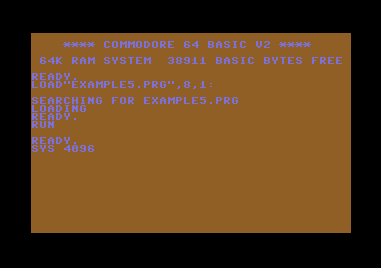
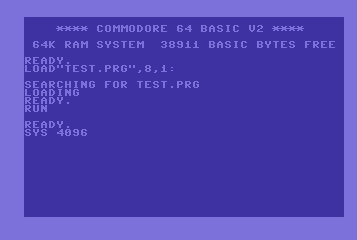
Now that the program is loaded, run it from the emulator by writing “SYS 4096” and hit [Enter].

The result should be like this:
image

Pretty nice, right?

Next, let’s do some more work with moving data between the registers.

Instead of using the A register, you could have used the X or Y register instead. So in all, you can use all three registers to move or copy bytes between registers and memory locations.

Relative addressing
Let’s put the X-register to use. Let’s create a new program that displays the exact same result as the example above, but instead we use relative addressing.

Listing 2.2 – Relative addressing

    processor   6502
org    $1000

loop:    ldx #$20
lda #$03
sta $d000,X
sta $d001,X
jmp loop

As you can see, the code for this program is quite different, but the result is the same as above. First we store the value of $20 in the X register, and the value of $03 in the A register (cyan). Then we copy the value of A (color $03) into the memory location $d000+X that equals $d000+$20 (=$d020, the border color), and then we copy A into $d001+$20 (=$d021, the main screen). The result is the same as above, but we use relative addressing when storing data into the memory.

We can also move data between registers by using instructions named TXA, TYA, TAX and TAY. TXA transfers the data in X to A, TAX moves the data in A to X and so on. Only the register that the data is moved to will be affected by the transfer.

We have seen that the INC command can increase the value in a memory location by 1 (same as memorylocation += 1, or memorylocation = memorylocation + 1). You can also decrease it using DEC. It is also possible to increase and decrease the X and Y registers by using INX, INY, DEX, DEY.

In the next example, we are making a program that colors the border with the cyan color (#$03) and then colors the main screen with the cyan color + 1 (#$04) = purple.

Listing 2.3 – Increase/decrease registers

    processor   6502
org    $1000

loop:    ldy #$03
sty $d020
iny
sty $d021
jmp loop

In this example, we simply load #$03 into the Y register, and store in into the border memory location $d020. Then we increase Y = #$03 + #$01 = #$04 = the code for purple, and store that into the main screen memory $d021.

The result can be seen in the image below.

image

And that’s how far this tutorial goes. Until next time! Smile

Downloads
Download the source from GitHub:
https://github.com/petriw/Commodore64Programming/tree/master/2-6502%20Microprocessor%20Basics

Posted in Commodore 64 | 18 Comments

Commodore 64 Programming #1: A quick start guide to C-64 assembly programming on Windows

image

Update: All needed files for this tutorial can be found in the GitHub repo linked in the bottom of this page.

I noticed that a lot of people are creating graphical programs to the Commodore 64 again, so I decided to let you know of the tools I use, and how you can use them to create C-64 apps in Windows. I might write more articles on C-64 programming if there’s an interest for it. If you want more, let me know by writing a comment to this article

Note: You do not need to own a Commodore 64 to create programs. In this article, I’m going to use a cross assembler and an emulator.

Cross Assembler?
A cross assembler enables you to assemble the code on your computer, and then later transfer the code to a real C-64 or an emulator to run the program. In my opinion, this makes it a lot easier to create programs as the editors in Windows is a lot easier to use then the editors on the C-64.

The cross assembler I’m using is named DASM, and can be downloaded from here. Download this now, as this is the assembler we are going to use in this article.

Emulator?
Next you will need an emulator. The emulator will make it possible to run any Commodore 64 program on your PC. If you are creating a program for a C-64 using an emulator, remember to test the program on a real device as there might be some differences.

The emulator I use is named WinVICE, and you can get it from here. Download this now, as this is the emulator we are going to use in this article.

Set up the tools, and running them
Let’s see how the tools work. The assembler, DASM, is very simple to use. I usually add the DASM.exe to the environment variables, as well as the emulator x64.exe.

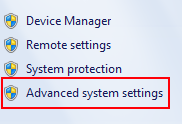
To add them to the environment variables (Microsoft Windows 7), go to control panel, and open System. Then click “Advanced system settings”:
image

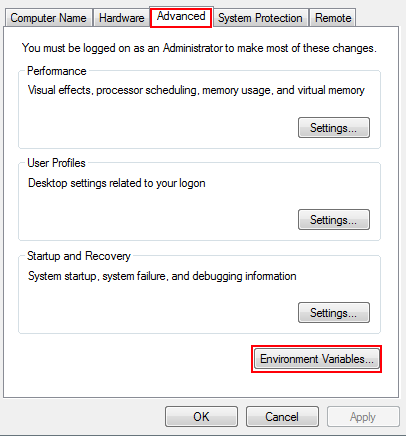
Then on the Advanced tab, click the [Environment Variables…] button:
image

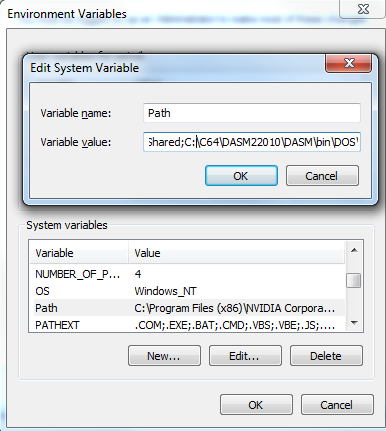
In the popup under System variables (or for the user if you only want it to be available for one user) find the variable Path and add the paths to the exe files behind the other paths. the semicolon is the splitter between different paths:

;C:\C64\DASM22010\DASM\bin\DOS\;C:\C64\WinVICE-2.2-x86\;

image

Now you should be able to run the emulator and assembler from wherever you are on the system. Lets try them.

Start cmd.exe and type dasm. The result should be something like below:
image

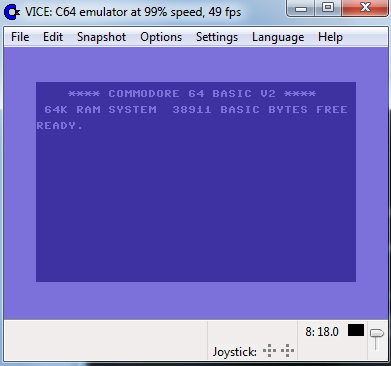
Now, the assembler is working. Next, type x64 to run the emulator. A new window will pop up with the classic C-64 screen:
image

Now, close the emulator and the cmd screen if you want.

Programming your first C-64 program
The first thing you need when writing a program for the C-64 on Windows is a text editor. I use Visual Studio 2010 for this, but feel free to use whatever text-editor you want (Notepad, UltraEdit, …).

Create a new source code file names test.asm. You should now be in a blank test.asm file and be ready to type in some code.

We are going to write some code, then compile the code to a .prg file using DASM, and then run it using x64. There are many different assemblers for compiling C-64 programs (6502 microprocessor), and as they all got their differences I suggest you learn one and stick with it.

The first thing DASM needs is to know what processor we are going to target. The C-64 got a 6502 microprocessor, so this is the processor we want to target.

The first line of our program is:
    processor   6502

Next we need to tell the compiler where in the memory the program should start. We want to start it at the memory address $1000 (hex decimal). If you convert this to the decimal system, you get 4096.
    org    $1000

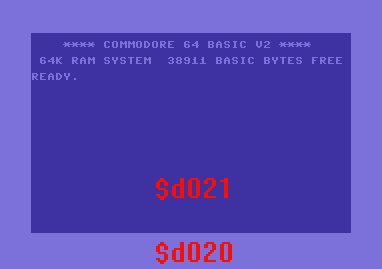
We want this program to change the background of the main window. If you take a look at the image above where the emulator is running, you can see that we got a light blue border, and a dark blue “main window” area. To do this, we need to change a value that represents the color in a specific memory location. The main window color is stored in the memory located at $d021, and the border color is located at $d020.

image

We are going to loop this process and change the screen color based on the number we have in $d021 before, and increase this by using a loop.

loop:    inc $d021
jmp loop

We start by creating a label in the code named “loop” followed by a colon. This will make it possible to jump to this location from other parts of our code. Next, we increase the number that already exist in $d021, and then we jump back to the line of code that is located after the loop label.

Your code should look something like this:

Listing 1.1 – Change color of the main area.
     processor   6502
org    $1000

loop:
     inc $d021
jmp loop

Building the code
Now, all that is left is to build our program and run it on the emulator.
Start cmd again again and browse to the folder your code is located. Assuming that you correctly added the location to DASM.exe in your Paths variable, you will be able to build a program from wherever you want in your system.

To build our program, write the following command into cmd.exe
”dasm test.asm –otest.prg”

Please note the spacing before the first two lines (processor and org), dasm requires this to compile.

The program should compile without errors. If so, the output should be something like this:
image

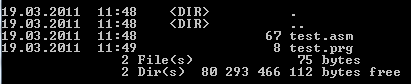
If you type the command dir, you should be able to see your program:
image

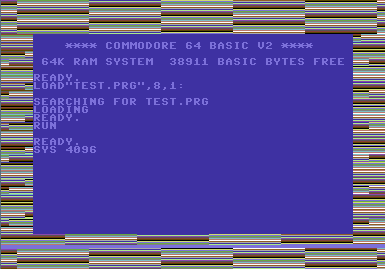
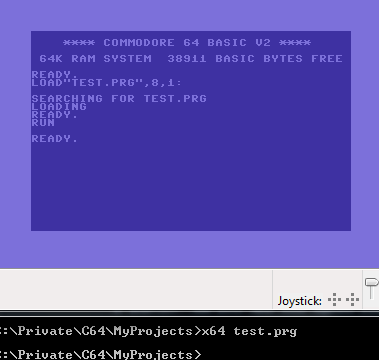
Let’s run it in the emulator. Type the command x64 test.prg and hit [Enter]. Then  you will see the emulator starting, and loading the program TEST.PRG into the memory.
image

All that is left is to run the application from the emulator. To do this, type the command “SYS 4096” in the emulator….
image

….and hit ENTER.

The application should now be running, giving you a result that looks something like this:
image

The reason you had to type SYS 4096 in the emulator was because we specified that we want out application to start at that memory location.

Congratulations, you just made your first C-64 program!

Let’s change the color of the boarder instead of the main area. All you need to do is to change the value in  $d020 instead of $d021. Go and change this value, compile and load it in the emulator. Run it to see that we are now changing the main border instead of the main screen area.
image

An exercise for you is to change the color of both the boarder and the main area, so the result will be something like this:

image

Downloads

Download the source from GitHub:
https://github.com/petriw/Commodore64Programming/tree/master/1-Quickstart

Posted in Commodore 64 | 66 Comments

Parallel Computing using the GPU – Tutorial 5: Grids

image

Welcome to part 5 of the Parallel Computing tutorial. In this short tutorial, we will look at how to launch multidimensional blocks on the GPU (grids). We will create the same program as in the last tutorial, but instead display a 2d-array of blocks, each displaying a calculated value.

These types of blocks work just the same way as the other blocks we have seen so far in this tutorial. But since they are 2d, you can think of them as a coordinate system where you have blocks in the x- and y-axis. Basically, it’s all the same as before, but we used multidimensional indexing.

How do we do this? First of all, we will need to use a keyword from the CUDA C library, and define our variable.

dim3 multiBlockArray(X,Y);

So, why is it dim3? Well, in the future CUDA C might support 3d-arrays as well, but for now, it’s only reserved, so when you create the array, you specify the dimension of the X-axis, and the Y-axis, and then the 3rd axis automatically is set to 1.

Implementing our test solution
First of all, include stdio.h and define the size of our block array:

#include <stdio.h>

#define BLOCKS 10

Next, we create our main-function.
int main( void )
{

Then we define a 2d array, a pointer for copying to/from the GPU and our dim3 variable:
int hostArray[BLOCKS][BLOCKS];
int *deviceArray;

Next, we allocate the memory needed for our array on the device. As you can see, we take care of a two dimensional array, using BLOCKS*BLOCKS when allocating:

cudaMalloc( (void**)&deviceArray, BLOCKS * BLOCKS * sizeof(int) );
cudaMemcpy( deviceArray,
hostArray, BLOCKS * BLOCKS * sizeof(int),
cudaMemcpyHostToDevice );

Once we got the space we need on our device, it’s time to launch our kernel and do the calculation needed from the GPU..
generateArray<<<multiBlockArray,1>>>( deviceArray );

The only difference here is that we pass the multiBlockArray we created earlier as the argument to how many blocks we want to run, and then proceed as normal.

Next we copy the array our GPU worked on back to the host, so we can display it:

cudaMemcpy( hostArray,
deviceArray,
BLOCKS * BLOCKS * sizeof(int),
cudaMemcpyDeviceToHost );

for (int i=0; i<BLOCKS; i++)
{
    printf( “Thread ID running: %d”, hostArray[0][i] );
    for (int j=1; j<BLOCKS; j++)
    {
        printf( ” %d”, hostArray[j][i] );
    }
    printf( “\n” );
}

cudaFree( deviceArray );

Nothing new here, except that we now copy BLOCKS*BLOCKS from the device as well, and loop through each block and print out it’s content.
Last thing missing is the end of main bracket }.

Now, let’s add the kernel:

__global__ void generateArray( int *hostArray )
{
    int ThreadIndex = blockIdx.x + blockIdx.y * gridDim.x;
    hostArray[ThreadIndex] = ThreadIndex;
}

This looks quite the same as before. blockId.x is used to get what block we are working on in the x-dimension, and the blockId.y is used to get the block we are working on in the y-dimension. gridDim is the maximum length of the dimension of our grid; .x for the x-axis and .y for the y-axis. This is the same number as the one you specified when creating the block array.

If you run the example, you will get a result similar to this:
image

As you might see, there are many different scenarios where multidimensional indexing is better. Another example is when working with 2d images, where you can create one block for each pixel, in the same coordinate system as the image.

Complete listing:
#include <stdio.h>

#define BLOCKS   10

__global__ void generateArray( int *hostArray )
{
    int ThreadIndex = blockIdx.x + blockIdx.y * BLOCKS;
    hostArray[ThreadIndex] = ThreadIndex;
}

int main( void )
{
    int hostArray[BLOCKS][BLOCKS];
    int *deviceArray;

    dim3 multiBlockArray(BLOCKS,BLOCKS);
   
    cudaMalloc( (void**)&deviceArray, BLOCKS * BLOCKS * sizeof(int) );
    cudaMemcpy( deviceArray,
                hostArray, BLOCKS * BLOCKS * sizeof(int),
                cudaMemcpyHostToDevice );
               
   
    generateArray<<<multiBlockArray,1>>>( deviceArray );

    cudaMemcpy( hostArray,
                deviceArray,
                BLOCKS * BLOCKS * sizeof(int),
                cudaMemcpyDeviceToHost );

    for (int i=0; i<BLOCKS; i++)
    {
        printf( “Thread ID running: %d”, hostArray[0][i] );
        for (int j=1; j<BLOCKS; j++)
        {
            printf( ” %d”, hostArray[j][i] );
        }
        printf( “\n” );
    }

    cudaFree( deviceArray );

    return 0;
}

Posted in Uncategorized | Tagged , , , | 2 Comments

Parallel Computing using the GPU – Tutorial 4: Kernels in parallel

image
Until now, we haven’t really touched parallel programming yet. But this is something we will do in this tutorial!

Recall that we earlier launched a function on a device using kernelFunction<<<1,1>>>(..). This tutorial is all about the parameter N1, <<<N1,1>>>, where some of the parallel magic happens.

N1 is the number of blocks that we want to run in parallel. If we call kernelFunction<<<5,1>>>(..), the function will have five copies running in parallel, where each copy is named a block.

The next thing that we must do is to use an index to make each copy work on different parts of our solution, not much need of parallel computing if all threads will to the exact same thing, right. Luckily, this is easy as well. CUDA got a build in variable that keeps track of every single block running, blockIdx.

blockIdx is is a 2D variable, containing x and y. You either use x or both x and y, depending on what problem we want to solve. One handy usability of both x and y is to process 2D images, making one thread for each pixel on the x- and y-axis. You can also just use x if you want, there are no rules. More on this later.

Now, we know the id of the thread running by checking blockIdx.x, and we know how to run kernels in parallel, let’s create a simple example.

In this example, we will create an application that generates an array entirely in parallel kernels. The array will contain the threadID of each running thread. After the threads are completed, we will print out the result using printf.

Implementing the Kernel
Let’s start by looking at the kernel code:

__global__ void generateArray( int *hostArray )
{
    int ThreadIndex = blockIdx.x;
    hostArray[ThreadIndex] = ThreadIndex;
}

Recall, __global__ will tell the host that this function will run on the device. It takes one array as the output, store the blockIdx.x in a variable named ThreadIndex, and then put this value at the correct position in our array.

The blockIdx will generate an ID for each block running, starting for 0. This will make it a perfect index for arrays.

Implementing main()
Next, we will take a look at our main function. Shouldn’t be anything new here:

int main( void )
{
    int hostArray[BLOCKS];
    int *deviceArray;

    cudaMalloc( (void**)&deviceArray, BLOCKS * sizeof(int) );
    cudaMemcpy( deviceArray,
                hostArray, BLOCKS * sizeof(int),
                cudaMemcpyHostToDevice );
               
    generateArray<<<BLOCKS,1>>>( deviceArray );

    cudaMemcpy( hostArray,
                deviceArray,
                BLOCKS * sizeof(int),
                cudaMemcpyDeviceToHost );

    for (int i=0; i<BLOCKS; i++)
    {
        printf( “Thread ID running: %d\n”, hostArray[i] );
    }

    cudaFree( deviceArray );

    return 0;
}

First, we create an Array at the size of BLOCKS, allocate space for the array on the device, and call:
generateArray<<<BLOCKS,1>>>( deviceArray );.

This function will now run in BLOCKS parallel kernels, creating the entire array in one call.

Once this is done, we copy the result from the device to the host, print it to the screen, frees the array and exits!

The source for the entire application:

#include <stdio.h>

#define BLOCKS   25

__global__ void generateArray( int *hostArray )
{
    int ThreadIndex = blockIdx.x;
    hostArray[ThreadIndex] = ThreadIndex;
}

int main( void )
{
    int hostArray[BLOCKS];
    int *deviceArray;

    cudaMalloc( (void**)&deviceArray, BLOCKS * sizeof(int) );
    cudaMemcpy( deviceArray,
                hostArray, BLOCKS * sizeof(int),
                cudaMemcpyHostToDevice );
               
    generateArray<<<BLOCKS,1>>>( deviceArray );

    cudaMemcpy( hostArray,
                deviceArray,
                BLOCKS * sizeof(int),
                cudaMemcpyDeviceToHost );

    for (int i=0; i<BLOCKS; i++)
    {
        printf( “Thread ID running: %d\n”, hostArray[i] );
    }

    cudaFree( deviceArray );

    return 0;
}

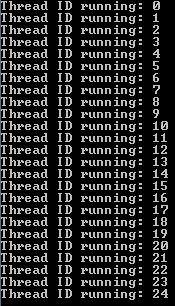
Now compile and run the code, and you will see an output something like this:
image

Congratulations, you just made your first parallel application in CUDA! Smile

Download: Source+Executable Visual Studio 2008 + CUDA C 3.2 (Soon available, no access to FTP from my cottage)

Posted in CUDA, Parallel Computing | 1 Comment

Parallel Computing using the GPU – Tutorial 3: Integrate CUDA 3.2 into Visual Studio 2008

image

Now that CUDA Toolkit 3.2 was released, the integration with Visual Studio 2008 is a lot easier than before. In this tutorial, we will see how we can create a CUDA application using Visual Studio 2008!


Getting the free version of Visual Studio 2008

Visual C++ 2008 Express is free to download and use, so if you don’t have Visual Studio 2008 and don’t want to buy it, start by downloading it from here:

When the page is loaded, click the Visual Studio 2008 Express link (so you won’t download VS2010, which is not yet supported):
image

And from the list, select Visual C++ 2008 Express Edition and click Free Download (80mb):
image

The installation process might take a while.

CUDA in Visual Studio 2008

Start Visual Studio 2008 and create a new Win32 Console Application (C++) project:
image

Give it a name, like “CUDAinVS2008”, and click OK. The Win32 Application Wizard will start, click “Next >”. On the next screen, set this to be an Empty project and click Finish:
image

Next, lets add a .cu file and write a simple CUDA application that we will compile.

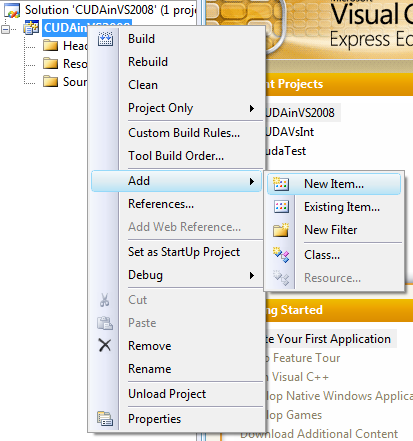
Right click on the Project and select Add->New Item…:
image


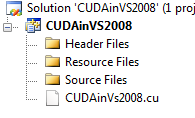
Now, you get the “Add New Item” screen. Select the C++ File(.cpp) and name it “CUDAinVs2008.cu”. You can name this anything you want, but remember to give it the surname .cu. If not, you can also rename the file by right clicking the .cpp file in the project tree and select Rename.

Click Add to add the new cu file to our project.
image

The file should now be opened (blank file), but if now, simply double click it to open it in the editor.
Let’s type in a really simple CUDA C program:

int main(void)
{
        return 0;
}

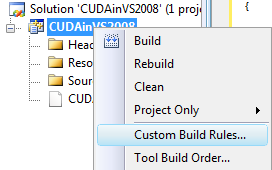
Right now, Visual Studio doesn’t recognize the .cu file, so it’s not possible to compile this. To overcome this, CUDA comes with some custom rules that we can apply to our project. Right click the project and select Custom Build Rules…:
image

A new dialogue pops up, click “Find Existing…” and browse to the \extras\visual_studio_integration\rules-folder in your CUDA installation directory. On my system, this is located here:
C:\Program Files (x86)\NVIDIA GPU Computing Toolkit\CUDA\v3.2\extras\visual_studio_integration\rules.

From here, select NvCudaDriverApi.v3.2.rules and click Open, do the same again to addthe NvCudaRuntimeApi.v3.2.rules. Next, select these two from the Custom Build Rule File dialogue and press OK.

image

Now that we set the custom build rule to include the CUDA rules, we just need to include the CUDA library in our project, so we get the CUDA functionality!

Again, right click the project and select Properties.

image

From the Properties window, select Configuration Properties>Linker>General:
image

On the Additional Library Directory, add the path to the lib folder in your CUDA installation:
C:\Program Files (x86)\NVIDIA GPU Computing Toolkit\CUDA\v3.2\lib\Win32
image

Next, select Configuration Properties>Linker>Input and add “cudart.lib” in the Additional Dependencies property:

image

Next, click OK.

Now, the project should be ready for compiling CUDA C projects. Try to compile it and run the application (press image). You should see it compile, and then the console windows flashes. This is because the application starts and then quits as that’s what we programmed our application to do.

But, we got CUDA running from Visual Studio 2008! Now I suggest creating a new project and doing these steps so you remember it, it might seem a lot but it usually just take a few seconds to set up.

Posted in CUDA, Parallel Computing, Tutorial | 24 Comments

Fundamentals of Fractals 5: The Mandelbrot Set

image

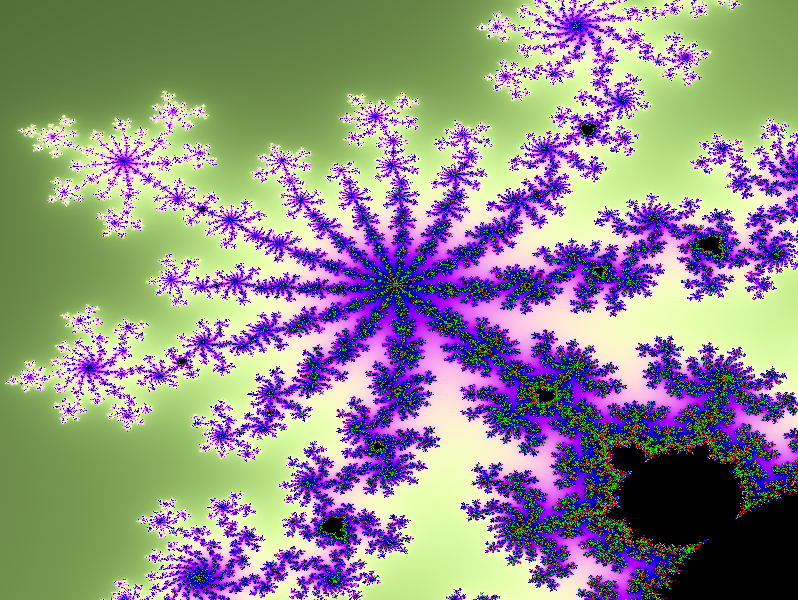
I give you the same question Neo got; do you take the red pill or do you take the blue pill? After studying the Mandelbrot set, the complexity, rich and beauty of a simple definition, the endless iteration of a function, it will suck you into a world of fractals.

Again, we welcome Iterated Function Systems, whom will help us generate the Mandelbrot set. The Mandelbrot is simply just a group of numbers that display properties, and is based on iterated functions on a complex plane (see tutorial 1). In other words, the Mandelbrot set is a visual representations of an iterated function on the complex plane.

Let’s take a look at the Mandelbrot set:

image

It got a few inner black bulbs with a nice and REALLY complex pattern of pears around them. The complexity of the pattern can be seen below:

image

Basically, you can dive deep into the pattern of this border, without ever reaching the end, it’s and infinite complex pattern, a fractal curve.

So how is it possible that a simple function produces something like this? Let’s start with the function:
image

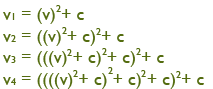
As you can see, this is an iterative function, where c is a complex number. This function takes z as the input, squares the input and adds a constant complex number c to it. Example: The functions starts with a value v, and generates the rest of the values using the previous v as the input:

image

As an example with actual data, lets try to calculate f(2).
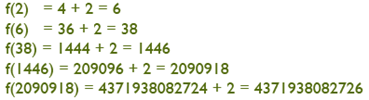
image

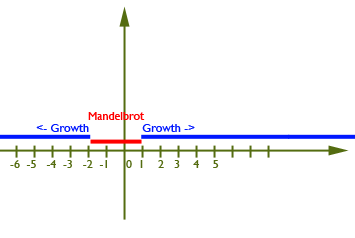
We see that the output is getting really large at a fast pace. If we try to put in any number greater than 1, and less than –2, this will happen. But in between, something magical is happening.
image
This behavior is explained by squaring numbers. We know that when squaring a number less than one, we will get a smaller number, so 0,2*0,2 is 0,04. So iterating this will decrease the output of the squaring, plus the value in c, increasing the output with smaller and smaller amounts. You can actually iterate this function without ever getting the result of 1.

Next, from tutorial 1, we know that all negative numbers have positive squares.

Lets take another look at our complex plane, using the function image.

image

As the real number grows outside –2 and 1, any imaginary number will grow outside –2i and 2i. On other words, all imaginary numbers inside the red circle do not grow. These numbers are called the M-Set.

The red circle is showing all possible numbers within the Mandelbrot set, where the output after the first iteration, is still inside. Let’s give all these numbers that are still inside after the first iteration a color of blue. Now we got one circle of blue like the one above. Doing another iteration, let’s color all of the numbers that fall outside the blue circle yellow. Now we got a blue circle with a yellow circle inside. Again, after the next iteration, we color the numbers that fall outside the yellow circle another color, and then we continue this way untill we have reached the desired iteration.
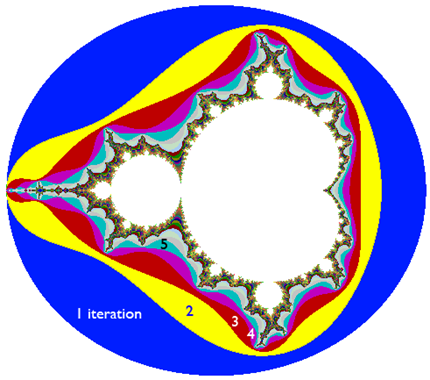
image

We can see that our fractal becomes more and more detailed for every iteration we take. Normally, a really detailed Mandelbrot set requires a huge amount of iterations. The image you see above is the set all complex numbers c that produces a finite orbit of 0. If the point is not in M, it will explode (outside of –2 to 1 R, or –2 to 2 i).

Continuous coloring
In the image above, we have used an algorithm named escape time algorithm. This method for coloring our fractal creates bands of colors, like in the image above. The way this works is to count the amount if iterations before a point reaches the infinity, or the escape point. Typically, you use a dark color for the everything that falls outside our circle, and then increasing the brightness of this color for each iteration. But, we want to have a smooth and continuous color on our fractal.

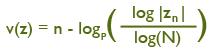
In order to be able to have a smooth transition between the iterations, we can use an algorithm named Normalized Iteration Count. The formula for this is:

image

v(z) is a real number, where n is the iteration, z is x*x + y*y and N is 2.0.
For more information, visit the wikipedia page. This function outputs a number in the interval [0,1], and we can use this result in the color channels for rgb, scaling components as we want.

Implementing the Mandelbrot Set
Now that you know how the Mandelbrot works, let’s try and implement this.
The implementation is based on a HLSL pixel shader only, using DirectX 11.

In this example, nothing is done outside of the shader, except drawing a quad that fills the entire screen, and then pushing that quad through our vertex and pixel shader. The rest is up to the GPU and DirectX 11! Smilefjes

We start by defining the pixel shader:

float4 PS_Mandelbrot( PS_INPUT input) : SV_Target
{

}

Then we find the current position of the point we are going to work with, using the texture coordinates of our model. We store this in a variable named C, and another named v. These will be our starting values.

float4 PS_Mandelbrot( PS_INPUT input) : SV_Target
{
    float2 C = (input.Tex – 0.5)*4;
    float2 v = C;
}

Next, we must know how many iterations we want the fractal to go through, and we also define an index i that will contain the current iteration, starting from 0, and also another variable named prevIteration that will start with the highest iteration number.

float4 PS_Mandelbrot( PS_INPUT input) : SV_Target
{
    float2 C = (input.Tex – 0.5)*4;
    float2 v = C;

    int Iterations = 29;
    int prevIteration = Iteration;
    int i = 0;
}
Now, we will create the Mandelbrot value itself. This is done in a do/while loop, where we go through all of the iterations and calculate the Mandelbrot value:

float4 PS_Mandelbrot( PS_INPUT input) : SV_Target
{
    float2 C = (input.Tex – 0.5)*4;
    float2 v = C;

    int Iterations = 29;
    int prevIteration = Iterations;
    int i = 0;

    do
    {
        v = float2((v.x * v.x) – (v.y * v.y), v.x * v.y * 2) + C;
        i++;
        if ((prevIteration == Iterations) && ((v.x * v.x) + (v.y * v.y)) > 4.0)
        {
             prevIteration = i + 1;
        }
    }
    while (i < prevIteration);
}

Here, we calculate our point v with the previous content of v as the input, and then we add C. Can you see what function this is?
image

The last thing we do is to take the Mandelbrot value v, the iteration we are on and calculate the NIC (Normalized Iteration Count) using the following formula:image

Now, we know that this function returns a number between 0 and 1. This can be used in a periodic function like sinus or cosnius. We can also scale the color in each RGB channel to get a nice looking color on our fractal. This is how our pixel shader so far:

float4 PS_Mandelbrot( PS_INPUT input) : SV_Target
{
float2 C = (input.Tex – 0.5)*4;
float2 v = C;

int Iterations = 29;
int prevIteration = Iterations;
int i = 0;

do
{
v = float2((v.x * v.x) – (v.y * v.y), v.x * v.y * 2) + C;

i++;

if ((prevIteration == Iterations) && ((v.x * v.x) + (v.y * v.y)) > 4.0)
{
prevIteration = i + 1;
}
}
while (i < prevIteration);

float NIC = (float(i) – (log(log(sqrt((v.x * v.x) + (v.y * v.y)))) / log(2.0))) / float(Iterations);
return float4(sin(NIC * Color.x), sin(NIC * Color.y), sin(NIC * Color.z), 1);
}

We still need to be able to control our movement in the fractal. Right now, compiling and running this will render a good looking fractal from a distance, with no movement.
image

To add movement, all we need to do is to modify this line of code:

float2 C = (input.Tex – 0.5)*4;

C will be used as our constant C, and is a 2d coordinate. It contains the position of the pixel we are working on. Now, if we add a few parameters to our shader, we can start using these to control C.

float2 Pan;
float Zoom;
float Aspect;

Pan will be used for moving left, right, up and down, zoom will be used to move in or out of the fractal, and aspect will be used as the aspect ratio for our fractal. Taking these into our calculation, we end up with a line of code that look like this:
float2 C = (input.Tex – 0.5) * Zoom * float2(1, Aspect) – Pan;

..and while at it, let’s add another parameter for the number of Iterations as well.
The final shader looks like this:

//————————————————————————————–
// Constant Buffer Variables
//————————————————————————————–

cbuffer cbShaderParameters : register( b0 )
{
int Iterations;
float2 Pan;
float Zoom;
float Aspect;
float3 Color;
float dummy1;
int dummy2;
};

//————————————————————————————–
// Input structures
//————————————————————————————–
struct VS_INPUT
{
float4 C : POSITION;
float2 Tex : TEXCOORD0;
};

struct PS_INPUT
{
float4 C : SV_POSITION;
float2 Tex : TEXCOORD0;
};

//————————————————————————————–
// Vertex Shader
//————————————————————————————–
PS_INPUT VS( VS_INPUT input )
{
PS_INPUT output = (PS_INPUT)0;
output.C = input.C;
output.Tex = input.Tex;

return output;
}

//————————————————————————————–
// Pixel Shader
//————————————————————————————–
float4 PS_Mandelbrot( PS_INPUT input) : SV_Target
{
float2 C = (input.Tex – 0.5) * Zoom * float2(1, Aspect) – Pan;
float2 v = C;

int prevIteration = Iterations;
int i = 0;

do
{
v = float2((v.x * v.x) – (v.y * v.y), v.x * v.y * 2) + C;

i++;

if ((prevIteration == Iterations) && ((v.x * v.x) + (v.y * v.y)) > 4.0)
{
prevIteration = i + 1;
}
}
while (i < prevIteration);

float NIC = (float(i) – (log(log(sqrt((v.x * v.x) + (v.y * v.y)))) / log(2.0))) / float(Iterations);

return float4(sin(NIC * Color.x), sin(NIC * Color.y), sin(NIC * Color.z), 1);
}

And there we have a nice and beautiful Mandelbrot set. Be aware on your journeys through it, you might get lost Smilefjes
image
The above picture is rendered with 29 iterations. Let’s increase this to 515!

image
The amount of details increases, and you can move deep into it and still see the details.

Examples
This is some images taken from my last trip into the world of the Mandelbrot Set:

imageimage
imageimageimageimage

imageimageimageimage

Any feedback is welcome. I want to correct these and provide you guys with good tutorials.

Download: Source + Executable (DirextX11 + Visual Studio 2010)

Posted in DirectX11, Fractal, Graphics, Math, Tutorial | 11 Comments

Fundamentals of Fractals 4: The Sierpinski carpet

image

In the last tutorial, we plotted a Sierpinski gasket using dots. I figured that I wanted to introduce the Sierpinski Carpet as well, before moving into more heavy fractals.

The Sierpinski Carpet is very simple as well, but we are approaching this problem from another perspective. In this example, we are going to draw a grid of white quads, where each quad is evaluated towards a function that decides if a given quad is in the Sierpinski carpet or not. If yes, we draw the quad, if not, we don,t.

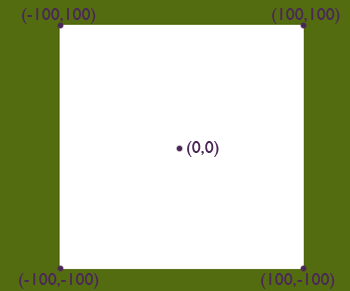
First of all, we need to set up our grid. We are doing this by rendering 200×200 squares, each square representing a “pixel” in our image. If we render the whole thing, we will get a big white square:
image

Now, this white square is made up of 200×200 small squares. Removing a square will make a green spot where the square was located, making this a drawing area with two colors, white and green.

To render our white square, we iterate through all the quads and render them one by one. Each quad is also scaled by 0,5 to make them fit with no space between each quad, or any overlap with neighboring quads.

for(int x = 0; x < 200; x++)
    {
        for(int y = 0; y < 200; y++)
        {
            g_World1 =  XMMatrixScaling( 0.5f, 0.5f, 1.0f ) * XMMatrixTranslation( -100+x, -100+y, 1.0f );

            CBShaderParameters cb1;
            cb1.mWorld = XMMatrixTranspose( g_World1 );
            cb1.mView = XMMatrixTranspose( g_View );
            cb1.mProjection = XMMatrixTranspose( g_Projection );
            g_pImmediateContext->UpdateSubresource( g_pCBShaderParameters, 0, NULL, &cb1, 0, 0 );

            // Render a triangle
            g_pImmediateContext->VSSetShader( g_pVertexShader, NULL, 0 );
            g_pImmediateContext->VSSetConstantBuffers( 0, 1, &g_pCBShaderParameters );
            g_pImmediateContext->PSSetShader( g_pPixelShader, NULL, 0 );
            g_pImmediateContext->PSSetConstantBuffers( 0, 1, &g_pCBShaderParameters );
            g_pImmediateContext->UpdateSubresource( g_pCBShaderParameters, 0, NULL, &cb1, 0, 0 );
            bool isInside = isSierpinskiCarpetPixelFilled(x,y,200,200);
            g_pImmediateContext->Draw( 6, 0 );
        }
    }

Now, we will work on the function that will decide if we want to draw a quad or not. If we don’t want to draw a given quad, we must skip the code (marked in red above) that renders the quad.

This is where our evaluation function comes into play. This function will return true or false if a given quad is inside or outside the Sierpinski carpet.

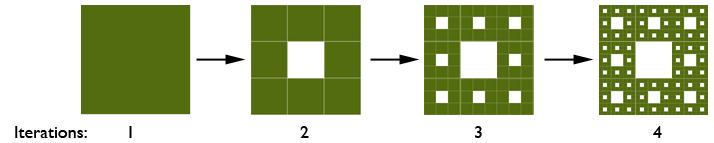
To generate a Sierpinski Carpet, we must start with a quad (1). This quad is cut into 9 similar quads in a 3×3 grid, where the interior of the center quad is removed(2).

image

Next, we do the same for each of the solid quads in 2, remove the middle quad from each.(3). Then we repeat the same step to get to 4 and forward.

Let’s take a look at the code:

bool isInsideSierpinskiCarpet(int x, int y, int w, int h)
{
    if (x <= 1)
    {
        return true;
    }

    // This is where we split the quad into 9 parts
    // Now, the pixel/quad we are processing, what
    // part of the 9 quads does this belong?
    int x2 = x * 3 / w;
    int y2 = y * 3 / h;

    // Is the quad we are inside of the center?
    // if yes, this quad must not be rendered
    if (x2 == 1 && y2 == 1)
        return false;

    // Not center? prepare us for a recursice call in
    // order to split the current cube into even
    // smaller cubes
    x -= x2 * w / 3;
    y -= y2 * h / 3;

    // ..and go!
    return isInsideSierpinskiCarpet(x, y, (w / 3) + 1, (h / 3) + 1);
}
This code is based on the code found on this subject at Wikipedia

In here, we see that we are splitting the quad being processed into 9 smaller quads, and find out what quad the point x,y is inside:

    int x2 = x * 3 / w;
    int y2 = y * 3 / h;


Then we check if the the new x is in the middle-quad, and if so, return from the function and indicate that this quad should not be rendered.

if (x2 == 1 && y2 == 1)
    return false;

If not, we move forward and prepare to split the smaller quad into an additional 9 quads and use the same function again on the subset. The resolution is divided by 3, so the next function is only working on that subset of the Sierpinski carpet.

x -= x2 * w / 3;
y -= y2 * h / 3;

return isInsideSierpinskiCarpet(x, y, (w / 3) + 1, (h / 3) + 1);

Now that we got out function to evaluate if a quad should be drawn or not, we can use this to finish our fractal. In the render code, use this function to evaluate if quad x,y should be drawn:

for(int x = 0; x < 200; x++)
{
    for(int y = 0; y < 200; y++)
    {
        if(isInsideSierpinskiCarpet(x,y,200,200))
        {
            g_World1 =  XMMatrixScaling( 0.5f, 0.5f, 1.0f ) * XMMatrixTranslation( -100+x, -100+y, 1.0f );

            CBShaderParameters cb1;
            cb1.mWorld = XMMatrixTranspose( g_World1 );
            cb1.mView = XMMatrixTranspose( g_View );
            cb1.mProjection = XMMatrixTranspose( g_Projection );
            g_pImmediateContext->UpdateSubresource( g_pCBShaderParameters, 0, NULL, &cb1, 0, 0 );

            // Render a triangle
            g_pImmediateContext->VSSetShader( g_pVertexShader, NULL, 0 );
            g_pImmediateContext->VSSetConstantBuffers( 0, 1, &g_pCBShaderParameters );
            g_pImmediateContext->PSSetShader( g_pPixelShader, NULL, 0 );
            g_pImmediateContext->PSSetConstantBuffers( 0, 1, &g_pCBShaderParameters );
            g_pImmediateContext->UpdateSubresource( g_pCBShaderParameters, 0, NULL, &cb1, 0, 0 );

            g_pImmediateContext->Draw( 6, 0 );
        }
    }
}

This is done by using the return value from our function on a given quad, and render it based on the result.

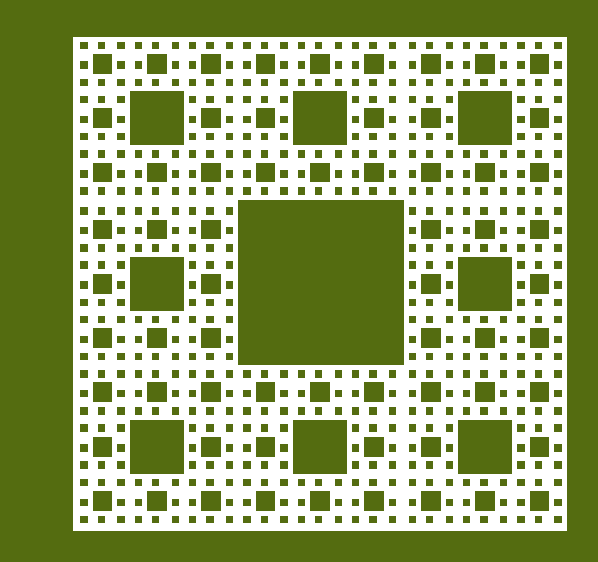
The result should be something like this:
image

Download: Source and Executable (DirectX11, Visual Studio 2010)
Posted in DirectX11, Fractal, Math, Tutorial | Leave a comment

Fundamentals of Fractals 3: The Sierpinski gasket

image

The Sierpinski gasket is a fractal and a very basic fractal of self-similar sets, a mathematically generated pattern with similar patterns. The Sierpisnki gasket is typically generated using triangles, but you can render any shape you want in the space, and it’s an example of an iterated function system (IFS).

The Sierpinski gasket can be generated in many different ways. You can create a triangle, and cut out the parts that that’s not part of the Sierpinski gasket, or draw dots that after many plots, fill out the entire thing.
image_thumb3


image

Programming your first fractal using dots
Implementing the Sierpinski gasket using dots is actually very simple. All you need to know is how to divide! You draw dots many at given positions, using the previous position as the input to the next position.
image

So, each point Sk is based in the previous point Sk-1.

Next we need to know what the function f(x) does, except for returning the coordinate of a point inside the Sierpinski gasket.
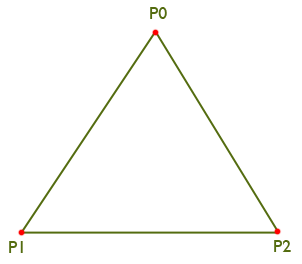
1. First of all, you need to select three points that form a triangle of any sort. These three points is defining the edges of the triangle:
image

Here we define point P0, P1 and P2 in a 2d coordinate system.

2. Next, use a random function to select any of the three points as a starting point. Let’s name this Pstart.

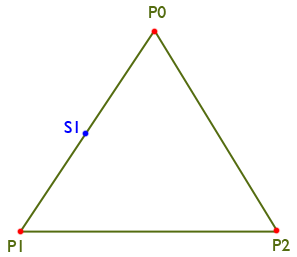
3. Create the next point Sk as the midpoint between a random edge point P and the previous point Sk-1:
image

4. Draw Sk.

5. Jump to step 3

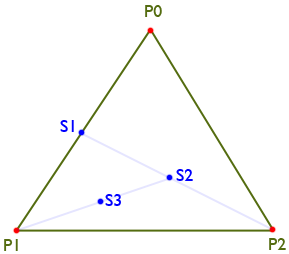
After a few iterations, this is what you will see:
image

S1 is the midpoint between P0 and P1, S2 is the midpoint between S1 and P2, and S3 is the midpoint between S2 and P1.

Implementing the Sierpinski gasket in DirectX 11
First, we need to define the edges of the Sierpinski gasket:

XMFLOAT2 EdgePoints[3];
EdgePoints[0].x = 0;
EdgePoints[0].y = 100;

EdgePoints[1].x = -100;
EdgePoints[1].y = -100;

EdgePoints[2].x = 100;
EdgePoints[2].y = -100;

Here, we create a triangle that is looking like the one in the figure above, it’s 200 wide and 200 high, ranging from –100 to 100 on both the x- and the y-axis.

Next, we need to select one of the edgepoints P at random:

int index = rand()%3;
XMFLOAT2 StartPoint = EdgePoints[index];
SierpinskiPoints[0] = StartPoint;

In the code above, we use a random-function as the lookup value into our edge points, grab the coordinate and store it in an array named SierpinkiPoints as the first element. This array will contain all our points, including the start coordinate. This means that this array will need to have the same size as how many dots we want to draw our Sierpinski gasket with.

Then we need to calculate the rest of the points:

for(int i = 1; i < Iterations; i++)
{
    index = rand()%3;
    StartPoint.x = (StartPoint.x + EdgePoints[index].x)/2.0f;
    StartPoint.y = (StartPoint.y + EdgePoints[index].y)/2.0f;
    SierpinskiPoints[i] = StartPoint;
}

Here, we will loop through step 3 to step 5 “Iterations” number of times, starting from element 1 as 0 is the starting point we created earlier. Then we select another random starting point and calculate the midpoint between the previous point that exist in StartPoint and the randomly selected EdgePoint. After that, we store our point in the SierpinskiPoints array and continue with the next point until all Iterations have been processed.
And that’s it, all we need to do now is do render all the points in the SierpinskiPoints array. But first, let’s take a look at the entire function we just wrote:

// Sierpinski gasket
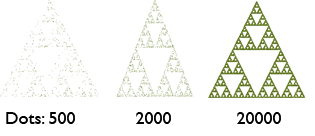
const int Iterations = 20000;
XMFLOAT2 SierpinskiPoints[Iterations];

void BuildSierpinski()
{
    XMFLOAT2 EdgePoints[3];
    EdgePoints[0].x = 0;
    EdgePoints[0].y = 100;

    EdgePoints[1].x = -100;
    EdgePoints[1].y = -100;

    EdgePoints[2].x = 100;
    EdgePoints[2].y = -100;

    int index = rand()%3;
    XMFLOAT2 StartPoint = EdgePoints[index];
    SierpinskiPoints[0] = StartPoint;

    for(int i = 1; i < Iterations; i++)
    {
        index = rand()%3;
        StartPoint.x = (StartPoint.x + EdgePoints[index].x)/2.0f;
        StartPoint.y = (StartPoint.y + EdgePoints[index].y)/2.0f;
        SierpinskiPoints[i] = StartPoint;
    }

}

I’m using a square as the dot that will be rendered at every point in the SierpinskiPoints array.

// Clear the back buffer
float ClearColor[4] = { 0.33f, 0.4235f, 0.0627f, 1.0f }; // red,green,blue,alpha
g_pImmediateContext->ClearRenderTargetView( g_pRenderTargetView, ClearColor );
g_pImmediateContext->ClearDepthStencilView( g_pDepthStencilView, D3D11_CLEAR_DEPTH, 1.0f, 0 );

// Render our startpoint
g_World1 = XMMatrixScaling( 0.5f, 0.5f, 0.5f ) * XMMatrixTranslation( SierpinskiPoints[0].x, SierpinskiPoints[0].y, 0.0f );

CBShaderParameters cb1;
cb1.mWorld = XMMatrixTranspose( g_World1 );
cb1.mView = XMMatrixTranspose( g_View );
cb1.mProjection = XMMatrixTranspose( g_Projection );
g_pImmediateContext->UpdateSubresource( g_pCBShaderParameters, 0, NULL, &cb1, 0, 0 );

// Render a triangle
g_pImmediateContext->VSSetShader( g_pVertexShader, NULL, 0 );
g_pImmediateContext->VSSetConstantBuffers( 0, 1, &g_pCBShaderParameters );
g_pImmediateContext->PSSetShader( g_pPixelShader, NULL, 0 );
g_pImmediateContext->PSSetConstantBuffers( 0, 1, &g_pCBShaderParameters );
g_pImmediateContext->UpdateSubresource( g_pCBShaderParameters, 0, NULL, &cb1, 0, 0 );
g_pImmediateContext->Draw( 3, 0 );

for(int i = 1; i < Iterations; i++)
{
    g_World1 =  XMMatrixScaling( 0.5f, 0.5f, 0.5f ) * XMMatrixTranslation( SierpinskiPoints[i].x, SierpinskiPoints[i].y, 0.0f );

    CBShaderParameters cb1;
    cb1.mWorld = XMMatrixTranspose( g_World1 );
    cb1.mView = XMMatrixTranspose( g_View );
    cb1.mProjection = XMMatrixTranspose( g_Projection );
    g_pImmediateContext->UpdateSubresource( g_pCBShaderParameters, 0, NULL, &cb1, 0, 0 );

    // Render a triangle
    g_pImmediateContext->VSSetShader( g_pVertexShader, NULL, 0 );
    g_pImmediateContext->VSSetConstantBuffers( 0, 1, &g_pCBShaderParameters );
    g_pImmediateContext->PSSetShader( g_pPixelShader, NULL, 0 );
    g_pImmediateContext->PSSetConstantBuffers( 0, 1, &g_pCBShaderParameters );
    g_pImmediateContext->UpdateSubresource( g_pCBShaderParameters, 0, NULL, &cb1, 0, 0 );
    g_pImmediateContext->Draw( 6, 0 );
}

All we do here is to first transform our first quad to the first point in the SierpinskiPoints array, the starting point, and draw the quad at this position. Next we iterate through the entire array, transforming and drawing each quad at it’s position in the Sierpinski gasket.

The result will be a Sierpinski gasket created entirely with dots:

image

You could also create this in a pixel shader, where you evaluate if every point on the screen is inside the Sierpinski or not.

Download: Source and executable (DirectX11, Visual Studio 2010)
Any feedback is very welcome, and please tell me if there are any mistakes here!

Posted in DirectX11, Fractal, Graphics, Math, Tutorial | Leave a comment

Fundamentals of Fractals 2: What is a fractal?

image
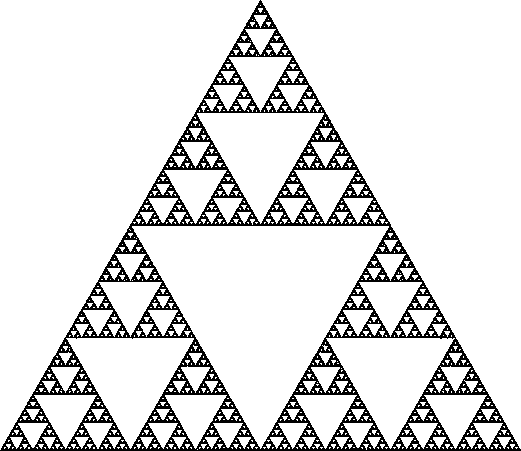
There are many answers to this question, but let’s take a look at the common definitions:
”A set of points whose fractal dimension exceeds its topological dimension” -Paul Bourke
”A fractal is a rough or fragmented geometric shape that can be split into parts, each of which is a reduced-size copy of the whole” – Wikipedia
”A geometric pattern that is repeated at ever smaller scales to produce irregular shapes and surfaces that cannot be represented by classical geometry” – Dictionaries

A fractal usually have these features:

  • Self-similar
  • Finite structures
  • Simple definition
  • Recursive

This means that a fractal is a self-similar geometry, the geometry is built by parts that is similar with itself at a finite scale, based on a simple and recursive definition. This will make the fractal look very similar at an infinite magnification, meaning that you can zoom into infinity and loose yourself in the beauty of complex numbers.

Examples of fractals
The following table contain images of various and common fractals:

Sierpinski gasket
(Image from Wikipedia)
Sierpinski carpet
(Image from Wikipedia)
Sierpinski carpet.png
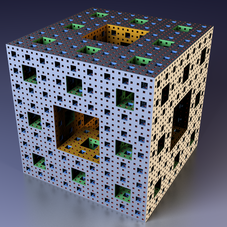
Menger sponge
(Image from Wikipedia)
image
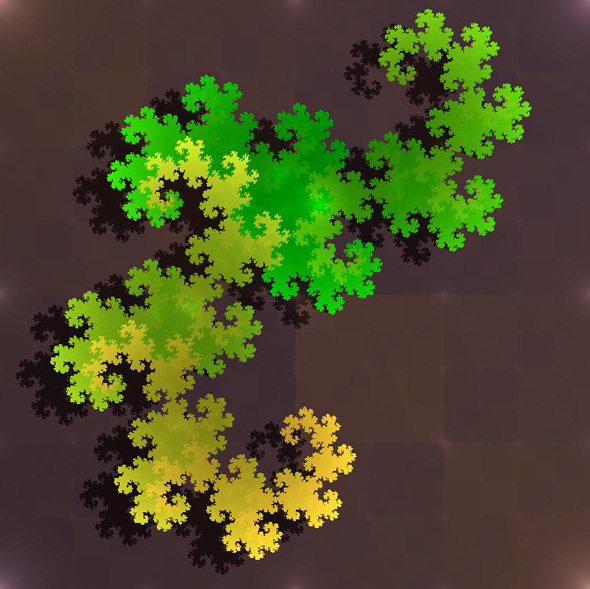
Heighway dragon
(Image from Wikipedia)
File:Fractal dragon curve.jpg
Koch snowflake
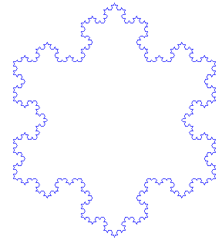
(Image from Wikipedia)
image
Julia Set
(image from Paul Nylander)

Mandelbrot
3d Julia Set
(Image from Paul Nylander)
3D Mandelbrot set
(Image by Krzysztof Marczak)
Mandelbox
(Image from Wikipedia)

This is only a fraction of the various forms of fractals that exist, and in later tutorials, we will dive into a few, and learn how to generate them using HSLS and DirectX11. If your not using DX11, don’t worry, the algorithm and shaders will be easy to convert into other technologies as well.

How to generate fractals
We typically got four different techniques for generating fractals.

Iterated function systems Created with a fixed geometric replacement rule. Typically, the Sierpinski carpet and gasket, Kock Snowflake, Heighway dragon and Menger sponge is created this way.
Escape – time fractals Fractals that are defined by using recurrence or a formula at each point. Typically, the Mandelbrot and Julia set is created this way.
Random fractals Created by a stochastic process.
Strange attractors Created by the iteration of maps.

This tutorial will be updated over time. Feel free to give me some feedback on mistakes or if I’m missing something important.

Posted in DirectX, DirectX11, Graphics, Math, Tutorial | 1 Comment