Unity for Windows IV–Creating UI and saving the highscore

image

Hi and welcome back to the Unity for Windows tutorial series. In this part we will add a GUI to our game (or you can follow these steps to add it to your own game) and then display the current score and save the highscore if you play well!

Resources

Downlod the starting project here (Part I): http://sdrv.ms/1dXRQBK

Download final project and assets from here: http://sdrv.ms/1dXRBqr


Open the project from Tutorial 1, or another project where you want to add the GUI.

1) Creating the GUI Game Object

a) First of all, we need to create a GameObject that will hold our GUI. Click GameObject->Create Empty
image

b) Now, click the new GameObject from the Hierachy and rename it to GUI:
image

c) Create another GameObject, but this time click Create Other –> GUI Texture:
image

d) A new GUI Texture GameObject is added to the Hierarchy:

image

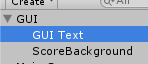
e) Change the name of this to ScoreBackground and drag it in the GUI Game Object:

image

f) Cope the ScoreBG.png file from this tutorials assets folder to the games Textures folder

ScoreBG

image

This texture will be used as the background for the players score,  just to make it have some sort of container instead of just floating around in space.

g) Let’s position this by altering the properties of our new GUI Texture Game Object. Click it to see the properties:

image

First of all, we need to change the position of the GUI Texture. We do this by altering the Position Transform:
image

We set this to X:0 and Y:1.

This is because we want to have the texture in the upper-left corner of the screen.

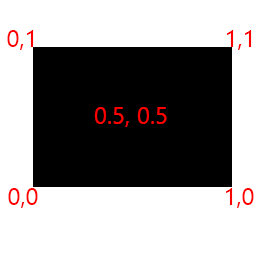
This is how the coordinate system looks:
image

As we can see, setting the coordinates to 0,1 will put it in the upper-left corner of the screen. Think of the range between 0 and 1 as percentage. 1 is 100%. What we are saying is that the texture should be 0% from the left side of the screen and 100% from the bottom of the screen (in other words top)

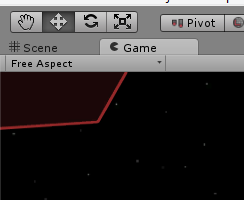
If we press play, we can see the texture in the upper corner.. but right now, the center of our texture is placed at 0,1:

image

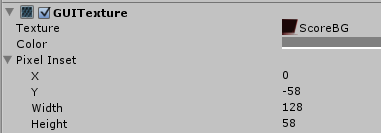
This doesnt look right. We want the upper left corner of our GUI Texture to be the center. If we change the values in the Pixel Inset property of the GUI Texture, we can change where the center of the texture should be.

If we change the X to 0 and the Y to –58 (height of the texture) we set the upper left corner of the texture to:

image

This is basically the same as 0,1 when we placed the position of the texture but now we operate with pixels instead of percent.

Press play now to see the GUI Texture at the correct position! Smilefjes

image

h) Next we need a font. First, inside the Textures folder, add a new folder called Fonts. Then add the Segoe UI font from your Windows folder to the project (it can be any True Type Font) by just drag it from the Windows Folder to the Textures folder of the project.

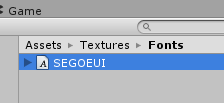
They should now be in the Fonts folder:
image

Delete all of them except the one named SEGOEUI my marking them and pressing Delete.

Now, click the SEGOEUI font:

image

And then click GameObject->Create Other->GUI Text

image

Drag the GUI Text Game Object inside the GUI Game Object:
image

Now, if you click it to view the properties, you can see that it got the font we highlighted when we created it. Smilefjes

If you press play, you can see the text in the center of the screen saying GUI Text.

We must now place this above the GUI Texture created earlier. Change the position of the GUI Text to this:
image

We place the text a few fixels from the left side of the screen and also a few pixels from the top of the screen.

We also set the Z to 0. This means that it should be rendered above the items at Z:0 like our GUI Texture. The Z is used to control the order of the items we want to render in the GUI.

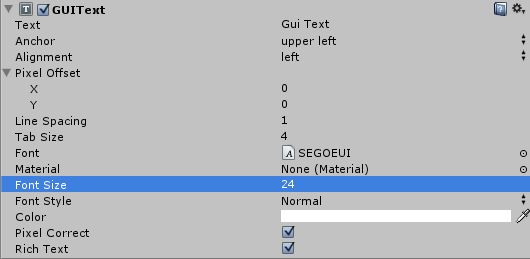
Let’s also change the size of the font to 24:

image

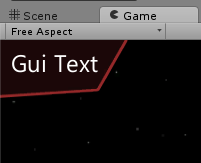
Press play now to see our score container in action!
image


2) Setting the score and saving highscore

Next, we need to set the score of the player, and then when Game Over, check it against the high score. We also need to store the high score so we don’t loose it when we quit the game.

To do this, we got something called PlayerPrefs. It’s a way Unity can store simple data like integeres (numbers) and text.

a) In the GameController class, add a new GUIText variable called scoreText:

using UnityEngine;
using System.Collections;

public class GameController : MonoBehaviour {
    public GameObject enemy;
    public GameObject laser;
   
public GUIText scoreText;

    float spawnTimer;
    float shootTimer;

    // Use this for initialization
    void Start () {
        spawnTimer = 1.0f;
    }

   
    // Update is called once per frame
    void Update () {
        spawnTimer -= Time.deltaTime;
        shootTimer -= Time.deltaTime;

        if (spawnTimer <= 0.0f)
        {
            GameObject instance = (GameObject)Instantiate(enemy,
                new Vector3(10,Random.Range(-4.0f,4.0f),-2.0f),
                transform.rotation);
            spawnTimer = 1.0f;
        }
        if (shootTimer <= 0.0f)
        {
            if (Input.GetButton(“Fire1”))
            {
                Vector3 spawnLaserPos = Camera.main.ScreenToWorldPoint(
                    new Vector3(-5.0f,
                        Input.mousePosition.y,
                        8));

                Instantiate(laser, spawnLaserPos, Quaternion.identity);
                shootTimer = 0.4f;
            }
        }
    }
}

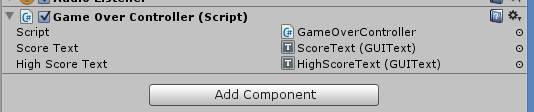
Now save the script and go to Unity, and click the Main Camera object to view the properties. You can see the GUI Text scoreText:
image

Now, drag the GUI Text Game Object we created inside the GUI Game Object to this property:

image

b) Next, we need to connect this filed with the players score. Go back to the GameController script and add a new line in the update function:

using UnityEngine;
using System.Collections;

public class GameController : MonoBehaviour {
    public GameObject enemy;
    public GameObject laser;
    public GUIText scoreText;

    float spawnTimer;
    float shootTimer;

    // Use this for initialization
    void Start () {
        spawnTimer = 1.0f;
    }

   
    // Update is called once per frame
    void Update () {
        spawnTimer -= Time.deltaTime;
        shootTimer -= Time.deltaTime;

        scoreText.text = PlayerPrefs.GetInt(“CurrentScore”, 0).ToString();

        if (spawnTimer <= 0.0f)
        {
            GameObject instance = (GameObject)Instantiate(enemy,
                new Vector3(10,Random.Range(-4.0f,4.0f),-2.0f),
                transform.rotation);
            spawnTimer = 1.0f;
        }
        if (shootTimer <= 0.0f)
        {
            if (Input.GetButton(“Fire1”))
            {
                Vector3 spawnLaserPos = Camera.main.ScreenToWorldPoint(
                    new Vector3(-5.0f,
                        Input.mousePosition.y,
                        8));

                Instantiate(laser, spawnLaserPos, Quaternion.identity);
                shootTimer = 0.4f;
            }
        }
    }
}

What we do here is to set the texture property of our GUI Text object. It can be whatever you want. We set it to the integer found in the PlayerPrefs called CurrentScore. It does not exist yet, so it will be set to 0 as thats the default value we have chosen for it.

PlayerPrefs.GetInt(“CurrentScore”, 0).ToString();

In other words, the code does this. Find the integer CurrentScore from Player prefs. If it doesnt exist, set it to 0.

c) Now, we must give the player some score when he/she manages to shoot down a spaceship!

In the enemy script EnemyController.cs, let’s add a function that gives the player some score, and then call the script when an enemy dies:

using UnityEngine;
using System.Collections;

public class EnemyController : MonoBehaviour {
    public float speed;
    public GameObject explosion;
    // Use this for initialization
    void Start () {
    }

    void AddScore()
    {
        int _tempScore = PlayerPrefs.GetInt(“CurrentScore”);
        _tempScore += 10;
        PlayerPrefs.SetInt(“CurrentScore”, _tempScore);
    }

    void OnCollisionEnter(Collision other)
    {
        if (other.gameObject.tag.Equals(“Laser”))
        {
            Destroy(other.gameObject);
            Destroy(this.gameObject);
            Instantiate(explosion, this.transform.position, this.transform.rotation);
            AddScore();
        }
    }

    // Update is called once per frame
    void Update () {
        this.transform.position -= new Vector3(speed, 0, 0) * Time.deltaTime;

        if (this.transform.position.x <= -10.0f)
        {
            GameOver();
        }
    }

    void GameOver()
    {
        Application.LoadLevel(1);
    }
}

What we do here is to get the score stored in PlayerScore, add 10 to it, and then store it back. There are MANY ways to do this, like using a singelton or a static integer, but just to show you the PlayerPrefs class, I decided to go this way.

The problem with this score right now is that it will not be reset if you quit the game or when you start a new game after game over. In the GameController script, we must set this to 0 when we start the game. Let’s do this now. Open the GameController script and make the following changes:

using UnityEngine;
using System.Collections;

public class GameController : MonoBehaviour {
    public GameObject enemy;
    public GameObject laser;
    public GUIText scoreText;

    float spawnTimer;
    float shootTimer;

    // Use this for initialization
    void Start () {
        spawnTimer = 1.0f;
        PlayerPrefs.SetInt(“CurrentScore”, 0);
    }

   
    // Update is called once per frame
    void Update () {
        spawnTimer -= Time.deltaTime;
        shootTimer -= Time.deltaTime;

        scoreText.text = PlayerPrefs.GetInt(“CurrentScore”, 0).ToString();

        if (spawnTimer <= 0.0f)
        {
            GameObject instance = (GameObject)Instantiate(enemy,
                new Vector3(10,Random.Range(-4.0f,4.0f),-2.0f),
                transform.rotation);
            spawnTimer = 1.0f;
        }
        if (shootTimer <= 0.0f)
        {
            if (Input.GetButton(“Fire1”))
            {
                Vector3 spawnLaserPos = Camera.main.ScreenToWorldPoint(
                    new Vector3(-5.0f,
                        Input.mousePosition.y,
                        8));

                Instantiate(laser, spawnLaserPos, Quaternion.identity);
                shootTimer = 0.4f;
            }
        }
    }
}

This sets the CurrentScore to 0 when a new game is started (the Start() function will run only once when the GameController script is executed for the first time).

3) What about the highscore?

a) In the gameOver scene, we want to display the highscore. First of all, we need to check if the player got a highscore, and if yes, save it. Open the GameOverController script and make these changes:

using UnityEngine;
using System.Collections;

public class GameOverController : MonoBehaviour {
    float gameOverTimer;

    void CheckHighscore()
    {
        int _score = PlayerPrefs.GetInt(“CurrentScore”, 0);
        int _highscore = PlayerPrefs.GetInt(“HighScore”, 0);
        if (_score > _highscore)
            PlayerPrefs.SetInt(“HighScore”, _score);
    }

    // Use this for initialization
    void Start () {
        gameOverTimer = 5.0f;
        CheckHighscore();
    }
   
    // Update is called once per frame
    void Update () {
        gameOverTimer -= Time.deltaTime;
        if(gameOverTimer <= 0.0f)
            Application.LoadLevel(0);
   
    }
}

Nothing should be new here. We get the score and the highscore and check if we got a score better than the highscore. if yes, store them.

b) Now, it would be nice to see the highscore and what score the player got. Create another Game Object in the Game Over scene and name it GUI, and select the SEGOEUI font:
image

Create a new GUI Text like we did before and name this ScoreText. Do the same step to create another GUI Text named HighScoreText.

You should now have two GUI Text objects:

image

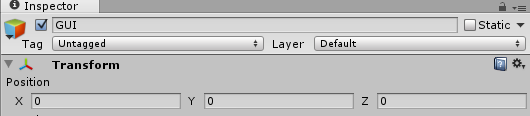
c) Set the transform of the GUI Game Object to X:0, Y:0 and Z:0
image

d) Set the transform of the ScoreText to this:

image

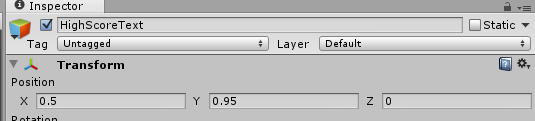
e) Set the tranform of the HighScoreText to this:

image

Your result should be something like this:

image

f) Let’s set these in the script:

using UnityEngine;
using System.Collections;

public class GameOverController : MonoBehaviour {
    float gameOverTimer;

    public GUIText scoreText;
    public GUIText highScoreText;

    void CheckHighscore()
    {
        int _score = PlayerPrefs.GetInt(“CurrentScore”, 0);
        int _highscore = PlayerPrefs.GetInt(“HighScore”, 0);
        if (_score > _highscore)
            PlayerPrefs.SetInt(“HighScore”, _score);
    }

    // Use this for initialization
    void Start () {
        gameOverTimer = 5.0f;
        CheckHighscore();

        scoreText.text = “Score: ” + PlayerPrefs.GetInt(“CurrentScore”, 0);
        highScoreText.text = “Highscore: ” + PlayerPrefs.GetInt(“HighScore”, 0);
    }
   
    // Update is called once per frame
    void Update () {
        gameOverTimer -= Time.deltaTime;
        if(gameOverTimer <= 0.0f)
            Application.LoadLevel(0);
   
    }
}

What happens here is that we create two new public containers for our GUI Text objects, and then we set these to the values we find in the PlayerPrefs world.

Now, in Unity, drag the two GUI Text objects to the correct containers in the property view of Main Camera:

image

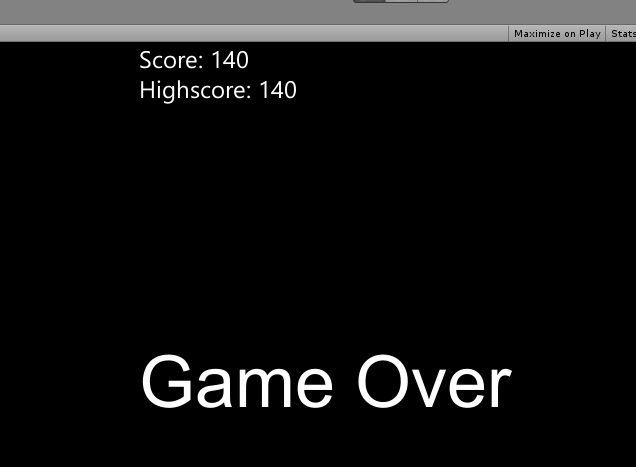
Go back to the gameScene and press play. Play the game for a while (it’s currently very easy) and die. You should now see the score system working well! Smilefjes

image

image

Final words

In this tutorial we have created one component of the UI. This component is set relative to the screen. When designing UI for devices with variable resolutions it’s very important to keep in mind that you want the have a flexible UI. By creating a UI of many objects that are placed say 10% from the left side of the screen and so on, the UI adapts to different resolutions.

Many are creating a picture that is having the resolution of the screen and then just scales this based on the games resolution. This will mostly be ugly on different devices and is hard to work with.

The UI in this game will look about the same on all devices like mobiles, tablets and computers.

Download final project and assets from here: http://sdrv.ms/1dXRBqr

Posted in Unity, Windows 8, Windows Phone | 1 Comment

Unity for Windows: III–Publishing your unity game to Windows Phone Store

image

In Part II we covered how you can publish your game to Windows Store, so it runs on Windows 8 driven devices.

Today we are going to export our game to Windows Phone 8, and publish it to the Windows Phone Store, making it available to Windows Phone 8 devices! Smilefjes

Important: This guide is general and can be of help for all Unity games, not just the example here. It’s a living document and will be updated as I learn new stuff.

The Windows Phone Store gives your app a place to live, where millions of users might buy the game you worked hard to create.

Again, you can follow these steps (ish) to publish any game you might have created for Windows Phone using Unity.

I. Handling the Back button

All Windows Phone devices is equipted with a back button:
image

It’s the tiny arrow on the left side. It is a requirement from the Windows Phone Store that this button is handeled. Luckily, this is very easy to do.

Unity comes with a nice set of tools to handle keyboard input – as you know. The back button on Windows Phone 8 is the same as the Escape key, so to implement logic on your back button, just check if the Escape key was pressed and handle it correctly:

if (Input.GetKeyDown(KeyCode.Escape))
{
    HandleBackbutton();
}

Then the body of this function in  a level might look like:

void HandleBackbutton()
{
    Application.LoadLevel(“MainMenu”);
}

or on the main menu:

void HandleBackbutton()
{
    Application.Quit();
}


In your game handler logic for all the various scenes you might have, add this to every scene to make sure the back button is handled correctly! Smilefjes

Simple, right? Smilefjes som blunker

II. Setting publishing settings in Unity and exporting

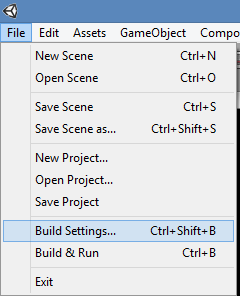
Open the game you want to export (we are using the game from Part I) in Unity, click File->Build Settings.. to open the project settings properties:

image

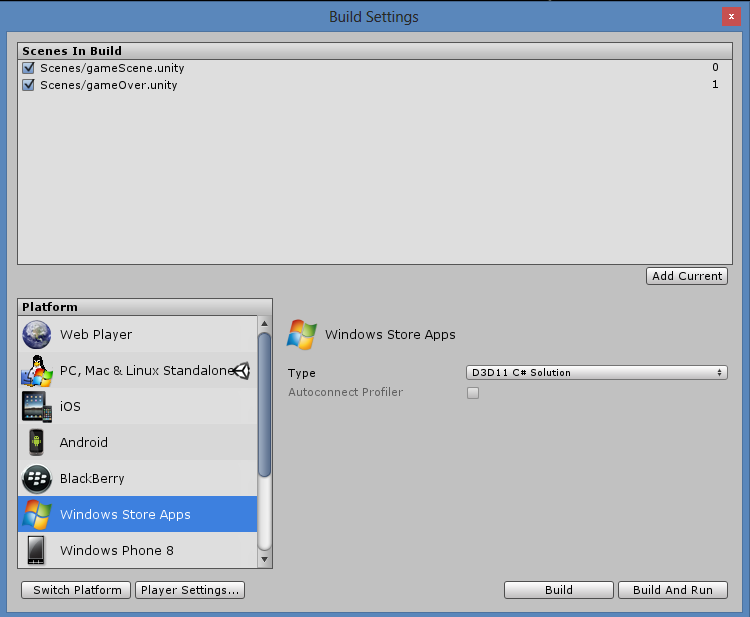
Select Windows Phone 8 and click Switch Platform.

Now the main platform for the game is Windows Phone 8, but you can still export to the other platforms as well.

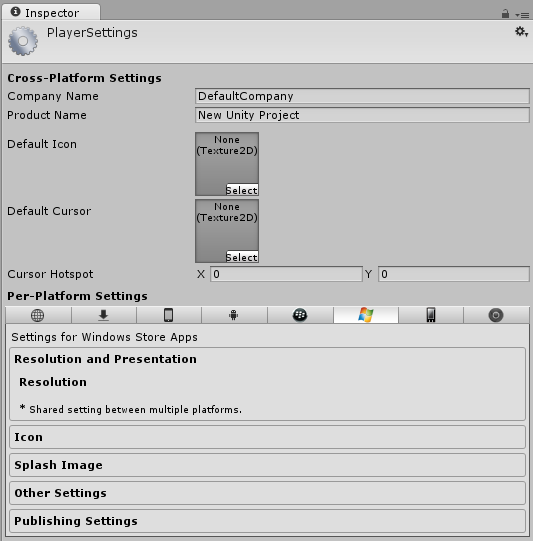
Click Player Settings.. to open the player settings properties:

image

Set the Orientation to Auto Rotation:
image

Then select the orientations you want to support:
image

Click Build from the Build Settings screen and select a folder where to place the solution. I created a folder named WindowsPhone8 in the Unity project folder. Let it build the solution, it might take a few minutes.

Unity will now open the directory where the solution was exported.
image


To open this, you will need Visual Studio 2012. If you are a student you might can get a licence from www.dreamspark.com, if not, you can download the express version for free here: http://www.microsoft.com/visualstudio/eng/products/visual-studio-express-for-windows-phone

When installed, open the Invad0rs solution. You can see the project is loaded:

image

Here you can change the splash screen by editing the SplashScreenImage.jpg, and the game tiles (app icons that can be seen on the phone):

image

Now, test if the application runds by either running it on a Device or in the Simulator (included in Visual Studio 2012).

If you want to run on a device, just connect it to the computer and press play in Visual Studio:
image

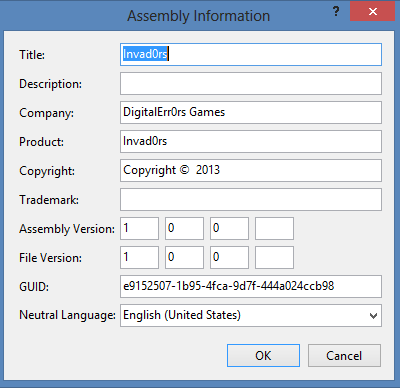
Next, we need to set a few properties for the assembly we will generate. Click PROJECT->Invad0rs properties
image

In the Application tab, press the Assembly Information button:

Set the language to the main language of the game (must!), and if needed, change the rest of the properties.

image

Click OK.

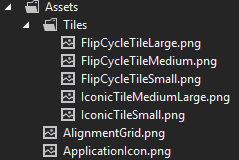
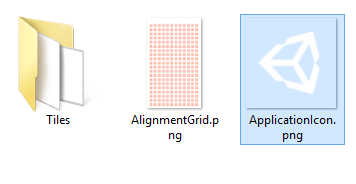
Next, we must change the Applications Tiles (the icon/tile the player sees on the phone). Go to the Assets folder of the exported solution (not in the Unity solution) and edit the files you see there (don’t change the resolution):

image

(Don’t worry about the AlignmentGrid – just leave it)

Also, change the files in the Tiles folder:
image

III. Adding support for Fast App Resume

To explain this simple, Fast App Resume will resume the game from where it left if you decide to go out of the game (using the Windows button) and then relaunch the game.

Open your solution and right click the WMAppManigest.xaml file and select View Code:

image

The start of the code looks something like this, and I’m highlighting the line of interest:

<?xml version=”1.0″ encoding=”utf-8″?>
<Deployment xmlns=”
http://schemas.microsoft.com/windowsphone/2012/deployment” AppPlatformVersion=”8.0″>
  <DefaultLanguage xmlns=”” code=”en-US” />
  <App xmlns=”” ProductID=”{8F1EA4A3-0B57-4556-970D-D27298EA5B45}” Title=”SteamLands” RuntimeType=”Silverlight” Version=”1.0.0.0″ Genre=”apps.normal” Author=”Crust Development” Description=”You got lost in the wrong streets of SteamLands. Survive.” Publisher=”Crust Development” PublisherID=”{36e0404a-2921-4b73-8632-3bf364496337}”>
    <IconPath IsRelative=”true” IsResource=”false”>Assets\ApplicationIcon.png</IconPath>
    <Capabilities>
      <Capability Name=”ID_CAP_IDENTITY_DEVICE” />
      <Capability Name=”ID_CAP_MEDIALIB_AUDIO” />
      <Capability Name=”ID_CAP_MEDIALIB_PLAYBACK” />
      <Capability Name=”ID_CAP_NETWORKING” />
      <Capability Name=”ID_CAP_SENSORS” />
    </Capabilities>
    <Tasks>
      <DefaultTask Name=”_default” NavigationPage=”MainPage.xaml” />
    </Tasks>
    <Tokens>

This line is where we will all the Fast App Resume attribute:
ActivationPolicy=”Resume”

Modify the line so it looks like this:
<DefaultTask Name=”_default” NavigationPage=”MainPage.xaml” ActivationPolicy=”Resume”/>

Done – if you run the game on your device, and play for a while, then press the Windows key to do something else or make a call, and then press the app tile again to relaunch the game – it will continue from where you left!

IV. Setting the build to Master
When publishing a Windows Phone 8 game, you need to set the build settings to Master. This is to get rid of the Development Build message in the bottom right side of the app.

image

V. Testing the solution with the built in Store Test Kit
Before we can send in the app, we need to do a Store Test on the app. Click PROJECT->Open Store Test Kit
image

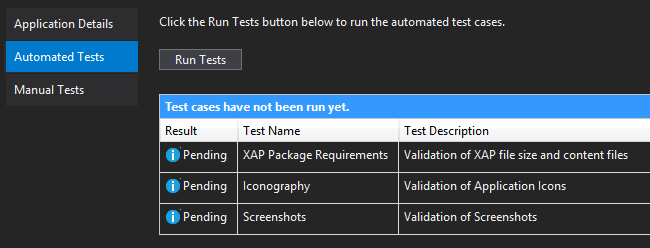
Run the automated tests to make sure the first test is passed (the XAP Package Requirements):
image

Build the solution in Release mode:
image

You can find the package in the Bin folder of the generated Visual Studio 2012 solution Unity created for us:
image


VI. Creating you Windows Phone Store developer account
Go to http://dev.windowsphone.com to register your Windows Phone Developer Account.


VII. Submit the Windows Phone 8 game
Submitting the app is simple. Go to http://dev.windowsphone.com and click Dashboard:
image

Now, click SUBMIT APP:

image


Follow these steps and upload the XAP file you created earlier at step 2:
image

After this, click Review and submit to send the app for review. This can take a few days.

If it passes, congratulations! If not, fix the issues and try again, but don’t give up! Smilefjes

Good luck!

Posted in Tutorial, Unity, Windows Phone | 10 Comments

Unity for Windows: II – Publishing Unity games to Windows Store

image

Windows 8 is a new OS with a Windows Store where you can distribute your apps to millions of users world wide, for both PC, laptops and tablets.

You can sell your apps, use in-app purchases or/and use ads to monetize!

image

(Publishing to Windows Phone 8 will be covered in part III)

Today we are going to export the game we created in part I of the tutorial as a Windows Store solution that runs on all devices using Windows 8.

Start with opening the game from part I (download here) in Unity and check if it runs like it should (open gameScene and run the game).

image

You should be able to play and come to the game over screen if an invader gets to the left side of the screen.

Download: Tutorial part II assets

I. Handling the snapped view ( snap view )

To make our game pass the Windows Store certification (so it gets publishes), we need to handle snapped view mode in our unity game – when the player decides to snap the game of the side of the screen.

What games got in common is that it’s hard to play in snap mode (Really just a resolution change).

A common way to handle snap mode is by simply pausing the game! But how do we pause the game? Let’s write a script that sets the game in pause – and that will be invoked from the exported solution we soon will create.

Add a new Script to the Scripts folder

using UnityEngine;
using System.Collections;

public static class Windows8Handler {
    public static void PauseGame(bool p)
    {
        if (p)
        {
            Time.timeScale = 0.0f;
        }
        else Time.timeScale = 1.0f;
    }
}

This function is a public static function – we can call it from wherever we want and don’t need to create an instance of the class to use it.

Ok! This is all we need from Unity, the next step in handling snap view will be from the exported solution.


II. Getting ready to export the Windows Store App

Create a new folder named Publishing in the Assets folder and add the three logo textures for our game (you can find them in the assets zip for this tutorial):
image

Setting the platform to Windows Store
Click File->Build Settings…

image

Scroll down on the platform selector and select Windows Store Apps:

image

Click the Switch Platform button to make the Windows 8 platform our standard (you can still export to the other platforms).

Now, click the Player Settings… button to view the properties for this platform in this solution.

image

This screen will let you change a lot of properties based on the platform you want to publish to. Clicking the Publishing Settings tab in the bottom will open the spesific settings for the selected platform. Click this now:
image

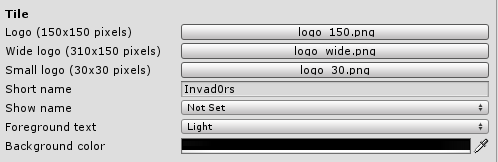
Set the Tile logo properties like this, using the three textures we added to the publishing folder:
image

This sets the game tiles for our game (Icons from the start menu).

We also need to set the splash screen for our game. Set it to splash.png from the tutorials assets folder:

image


III. Exporting the package

To export your game, go the Build Settings (File->Build Settings…) again and click Build:

image

Save it in a folder of your choice (I created a Windows8 folder in the Unity solution). A Visual Studio solution is now built for the game. It might take a couple of minutes..

A folder where the project is located will be openet and will look something like this:
image

IV. Opening the project in Visual Studio to build the store pacakge

To open this, you will need Visual Studio 2013. If you are a student you might can get a licence from www.dreamspark.com, if not, you can download the express version for free here: http://www.microsoft.com/visualstudio/eng/products/visual-studio-express-for-windows-8

Once this is installed, open the Invad0rs.sln in Visual Studio 2012.

The project is now loaded in Visual Studio 2012:
image

Now change the build arcitecture to the correct one (probably x86):
image

Click Play on Local Machine (Windows 8) to build the Windows Store app package (.appx) and run the game:

image

The game will now deploy on your Windows 8 device, and run perfectly. You can also see from the start menu that the tiles we created are used:
image


V. Continue the implementation / support of Snapped View

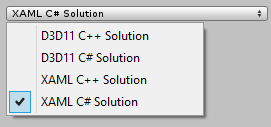
How we do this depends on what you selected when exporting the project. There was a drop down list in Unitys export tool:
image

a) XAML C# Solution

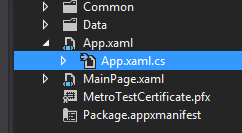
Open the App.xaml.cs file:
image

The file will look like this (I will show you the entire code – everything is not very interesting here, I will highlight the important things:

using System;
using System.Collections.Generic;
using System.IO;
using System.Linq;
using Windows.ApplicationModel;
using Windows.ApplicationModel.Activation;
using Windows.Foundation;
using Windows.Foundation.Collections;
using Windows.UI.Core;
using Windows.UI.Xaml;
using Windows.UI.Xaml.Controls;
using Windows.UI.Xaml.Controls.Primitives;
using Windows.UI.Xaml.Data;
using Windows.UI.Xaml.Input;
using Windows.UI.Xaml.Media;
using Windows.UI.Xaml.Navigation;
using UnityPlayer;
using Windows.UI.ViewManagement;
// The Blank Application template is documented at
http://go.microsoft.com/fwlink/?LinkId=234227

namespace Template
{
    /// <summary>
    /// Provides application-specific behavior to supplement the default Application class.
    /// </summary>
    sealed partial class App : Application
    {
        private WinRTBridge.WinRTBridge _bridge;
        private AppCallbacks appCallbacks;
        /// <summary>
        /// Initializes the singleton application object.  This is the first line of authored code
        /// executed, and as such is the logical equivalent of main() or WinMain().
        /// </summary>
        public App()
        {
            this.InitializeComponent();
            appCallbacks = new AppCallbacks(false);
        }

        /// <summary>
        /// Invoked when the application is launched normally by the end user.  Other entry points
        /// will be used when the application is launched to open a specific file, to display
        /// search results, and so forth.
        /// </summary>
        /// <param name=”args”>Details about the launch request and process.</param>
        protected override void OnLaunched(LaunchActivatedEventArgs args)
        {
            Frame rootFrame = Window.Current.Content as Frame;

            // Do not repeat app initialization when the Window already has content,
            // just ensure that the window is active
            if (rootFrame == null)
            {
                var mainPage = new MainPage();
                Window.Current.Content = mainPage;
                Window.Current.Activate();

                // Setup scripting bridge
                _bridge = new WinRTBridge.WinRTBridge();
                appCallbacks.SetBridge(_bridge);

                appCallbacks.SetSwapChainBackgroundPanel(mainPage.GetSwapChainBackgroundPanel());

                appCallbacks.SetCoreWindowEvents(Window.Current.CoreWindow);

                appCallbacks.InitializeD3DXAML();
            }

            Window.Current.Activate();

            Window.Current.SizeChanged += Current_SizeChanged;
        }

        void Current_SizeChanged(object sender, WindowSizeChangedEventArgs e)
        {
            ApplicationViewState myViewState = ApplicationView.Value;
            if (myViewState == ApplicationViewState.Snapped)
            {
                AppCallbacks.Instance.InvokeOnAppThread(new AppCallbackItem(() => {
                    Windows8Handler.PauseGame(true);
                }), false);
            } else {
                AppCallbacks.Instance.InvokeOnAppThread(new AppCallbackItem(() => {
                    Windows8Handler.PauseGame(false);
                }), false);
            }
        }
    }
}

First of all, we add a using statement for the Windows.UI.ViewManagement, then we add a listener to the SizeChanged event, this is the event the app uses to know how to handle a change in resolution/screen size – what snap view really is.

Now, the body of this function looks a bit strange.

What we do here is to get the new state our app is in, and then check if this state is the snapped state.

What’s next is that we use the AppCallbacks.Instance.InvokeOnAppThread to communicate with “our game” on the same thread, meaning we simply can call Windows8Handler.PauseGame(true); Smilefjes med åpen munn

If it’s not snapped view, we unpause the game.

Simple? Smilefjes


b) XAML C++ Solution

Not yet written..

c) D3D11 C# Solution

Not yet written..

d) D3D11 C++ Solution

Not yet written..


VI. Setting some important project properties before we are ready to submit

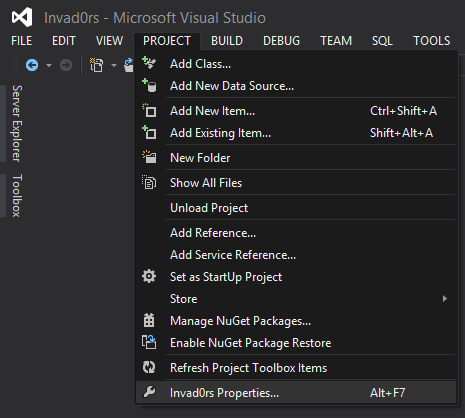
Now, there is a couple of things we need to do before we can send this to the Windows Store for publishing. Click PROJECT->Invad0rs Properties…
image

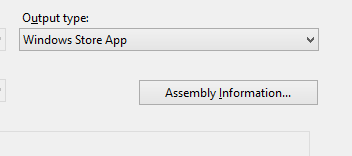
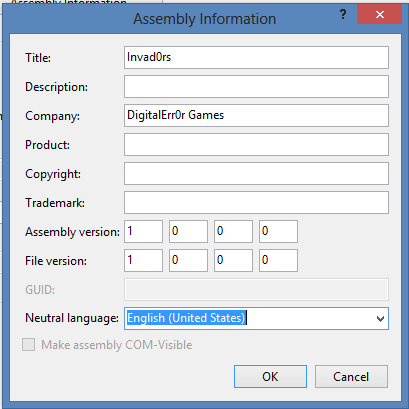
On the Applications tab, click Assembly Information:
imageimage

Set the Language to the language of the app:
image

Also, fill out the fields you need, and click OK.


VII. Creating a publishing account on Windows Store and create your app project in the portal

Creating an account and registering as a publisher is quite easy. Just go to http://dev.windows.com, register your account and get it verified (might take a few minutes to a couple of days).

Creating a project on Windows Store
Go to dev.windows.com, log in with your account and click “DASHBOARD”:
image

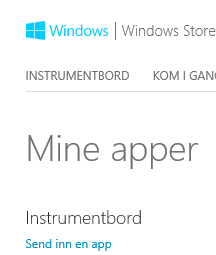
Now click Submit new app (or something similar):
image

(Screenshot is Norwegian but should be the same)

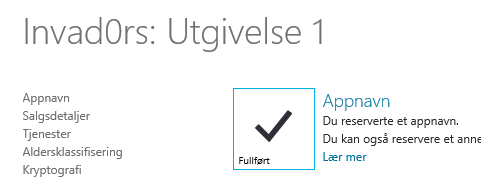
Now, the first thing we want to do is to reserve an app name so nobody else takes it. Do this now (step 1 on the page) and save:

image

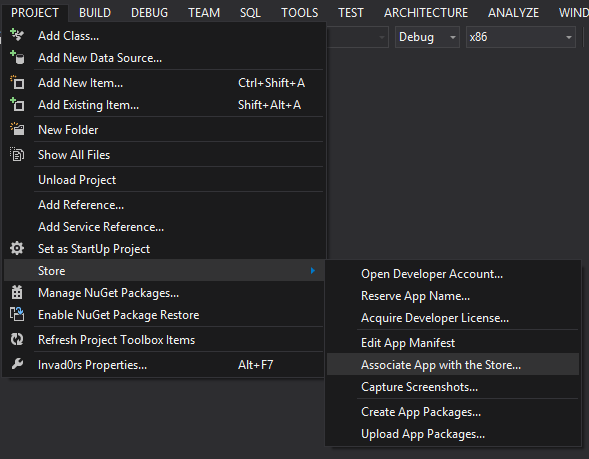
Binding the app in Visual Studio 2012 to the new App name we just created is simple. Go to Visual Studio 2012, make sure the game project is opened and click Project->Associate App with Store…

image

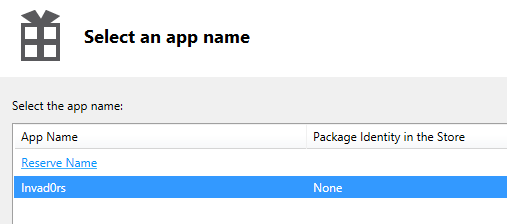
Sign in with your developer account. A list of your apps in Store will be displayed. Find the one you just reserved for this project:
image

Click the project name, and click next.

Then review that it looks right, and click Associate:
image

Now we are ready to create the App Package for publishing.

VIII. Building the appx file
Click PROJECT->Store->Create App Packages:
image

Select Yes that you want to upload the package:
image

And click Sign in.
Select the app from the list again:
image

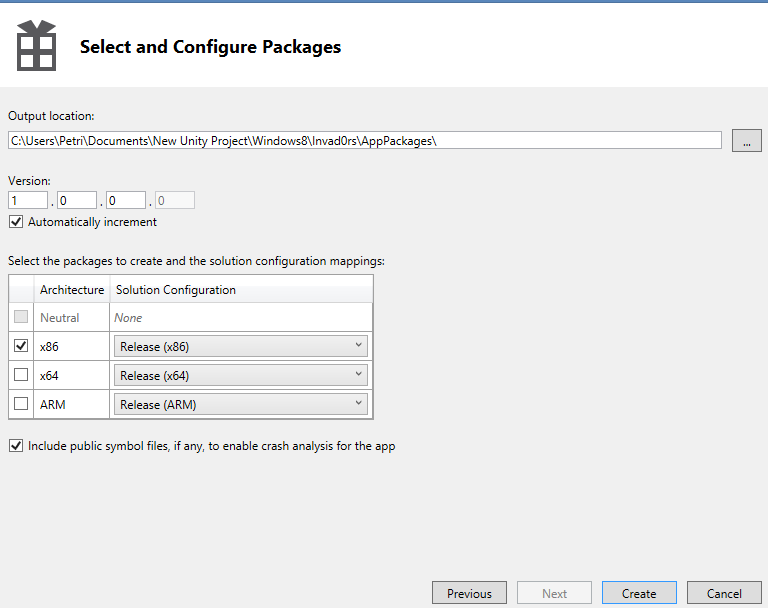
Click next, note the path where the App Package will be generated, and check of the different architectures you want the app on:
image

Click Create to generate the package. A few tests will be run on the packages to ensure you meet a lot of store requirements like memory usage, performance, startup time and so on. Just leave it running and let your computer be for the tests.. don’t disturb it! Smilefjes

Once done, the appx file is created.

Now, go back to the Windows Store page where you reserved the name, follow the rest of the steps and upload the appx file. Then submit the app and it will be sent for testing. This can take a few days.

If your app is accepted, it can be found in the Windows Store. If not, fix the errors they found and resumit (just dont give up!).

And.. good luck with your sales! Smilefjes

Download: Tutorial part II assets

Posted in Tutorial, Unity, Windows 8 | 13 Comments

Unity for Windows: I – Getting started

image

Hi, and welcome to the first part of the Unity game programming for Windows tutorial series. This  first part will introduce you to Unity and help you create your first simple game. In part II and III we will export the game for Windows 8 and Windows Phone 8.

DRAFT VERSION

Unity?

Unity is a game development engine that let’s you export your game to multiple platforms (Mac, PC and Linux desktop computers, Windows Store the Web, iOS, Android, Windows Phone 8, Blackberry 10, Wii U, PS3 and Xbox 360.).
image

Unity comes with a development environment for building your game, and then your logic is written using C#, JS and/or Boo.

Basically it’s a complete toolset for creating games (or other interactive projects) making game development easier and saves you a lot of time due to its rapid approach.

image

Many indie game developers use it to save costs, and get their product out to as many markets as possible. Rovio (creator of Angry Birds) used Unity for their game Bad Piggies, and a lot of other known games is created using Unity.

Unity comes in two versions, one FREE and one PRO. I’d recommend you to start with the free version as it comes with absolutely everything you need to create games and export them to many platforms. The PRO version includes some advanced tools and performance tools. You can read more about it here.

Installing Unity

1) Download Unity

2) Install it on your computer

3) Start Unity

Creating a new project in Unity

When you start Unity for the first time it should present you with a screen for setting up a new project. It looks like this:
image

If not, click File->New project
image

In the Unity Project Wizard you can choose what libraries (packages) you want to include in your project. As we are creating a game for mobile devices, let’s add the Standard Assets (mobile) package (more can be added later using the Asset Store). The Asset Store includes all the free packages that followed, and you can also buy packages others have created.

image

When done, you will be presented with a view quite similar to this.
image

The layout might be different. You can change it to however you like it.

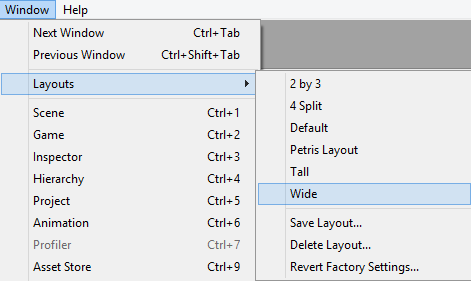
My layout is based on the Wide layout. You can change it like this.
image

Creating our game

Our first game will be very simple just to get your started. Later parts will create more advanced games.

A game consits of different scenes that you can use to “split” up the game in to different parts. In our game we are going to have three screens. One for the main menu, one for the game itself and one for the game over screen.

Game Design

The game will be in space, and your job is to defend your space ship from invaders. It will have a top down view. A canon will shoot a laser beam towards the location on the screen where you tap.

image

When your laser hits an enemy, it will die and you get score.

If an enemy hits the space ship, it’s game over.

Goal: survive as long as possible.

Implementing the game

The game will be in space, so we will need a black backdrop with some stars on it. We are going to need many textures so lets create a folder that will contain all of them. Right-click the Assets folder on the Project tab and click Create->Folder and name it Textures.

image

Now download this texture and save it in this new folder.

space

New, we are going to add this to our scene as a backdrop. To add our texture to any object on the scene, we will need to create a material, and apply the texture to this material. Create another folder called Materials under Assets.
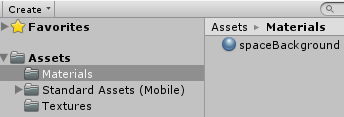
image

In the materials folder, add a new Material and name it spaceBackground:
image

You should have something like this:
image

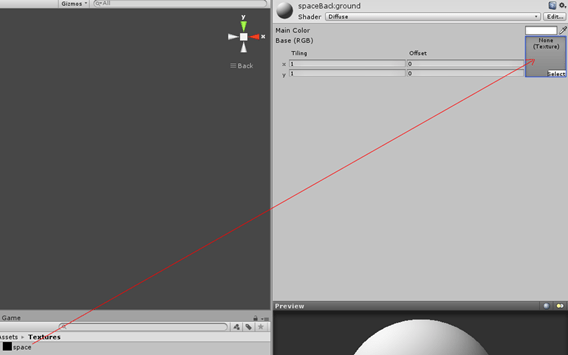
Click the spaeBackground material and some properties will be displayed, and then click the Texture folder and drag the texture space to the Texture property on the material.
image

Now the preview will show how a sphere will look like with the new material on it.
image


Now, our background can be created in many ways. In this tutorial we will simply create a plane that will dispaly our new material. To add a plane to the scene, click GameObject->Create Other->Plane

image

A new plane is added to the scene. This can be seen in the Hierarchy view.

image

The Hierarchy view contains two items. One is the Plane and another is Main Camera. Main Camera is what the player will see in the game.

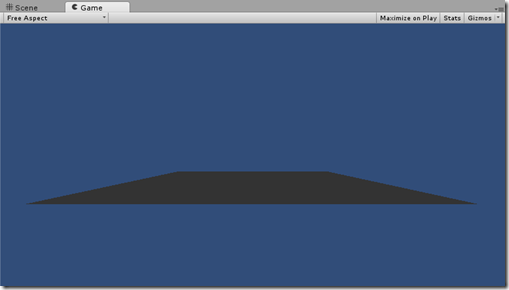
Right now, what we see is the Scene view that is used to create the scene. You can always check what the Main Camera sees by changing the view to Game.

image

Do this now, and you will see a blue scene with a gray plane in the bottom.
image

First of all, we will need to rotate the plane so it covers the camera (we don’t want to see the blue stuff).

Change back to Scene view and click on the plane in the Hierarchy to display the properties. First of all, make sure the Position property is all set to zero.

image

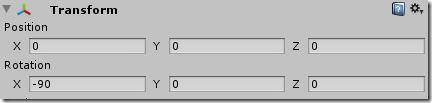
Now, set the rotation property of the X-axis to –90
image

And then we need to scale it so it covers the entire screen. Set the scale on all axises to 5.
image

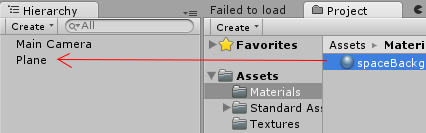
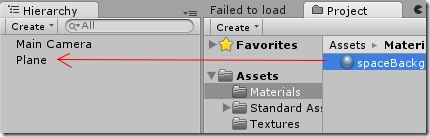
Now, let’s add our space texture to our new plane! Just drag the material from the Materials folder on to the plane in the Hierarchy view.
image

It still doesnt look good. The texture is very screched since the size of the plane is a lot bigger than the background texture. Click the spaceBackground material to bring up the properties, and change the tiling property to 8,8 (X,Y):

image

This will tile the texture 8 times in the x direction and 8 times in the y direction.

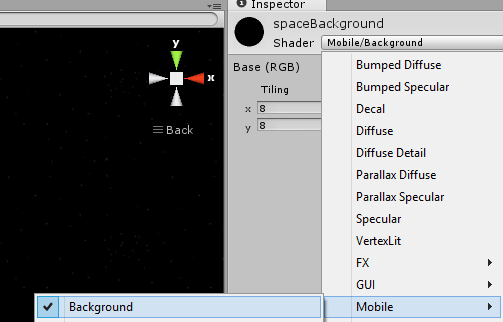
Now, this is better – but it’s still very dark! This is because the plane is using a Shader that calculates the diffuse light. And since we don’t have a lightsource in the scene, it will not be very visible.. let’s change the shader of the background from diffuse to background.

Click on the material to see the properties and change the Shader property (top) to Mobile->Background
image

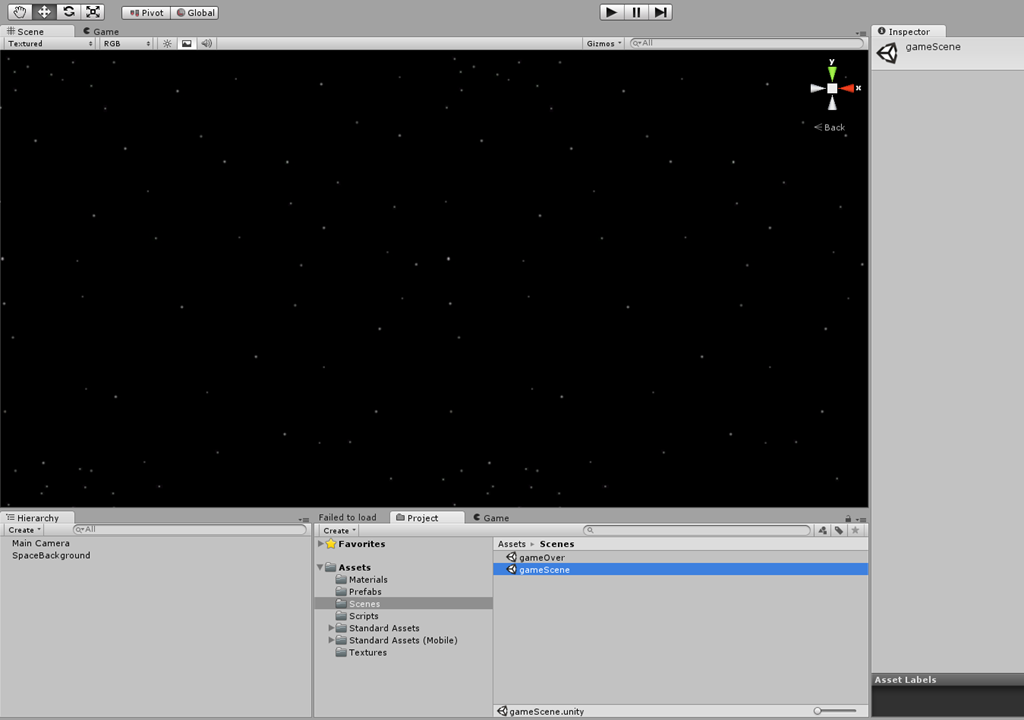
It’s time to save the scene. Press Ctrl-S or File->Save Scene. Since this scene havent been saved yet, a save dialogue is displayed. Create a new folder called Scenes and name the scene “gameScene” and click Save.

Also, let’s change the Main Cameras position to be located at 0,0,-10 (X,Y,Z). Click the Main Camera and change the Position property:
image

This will set the camera to the center of the world and then 10 back on the Z axis (making us look in to the scene).

Creating the enemies
Next thing up is to create the enemies. We are going to create one enemy that will travel across the screen in a give speed.

First of all, we need the texture. Add the SpaceInvader.png file to your textures folder. You can find the texture in the tutorials assets zip file (download here).

SpaceInvader

When we added the space background plane, we created a Game Object that was a plane. A unity game is built up on different Game Objects. A Game Object is simply an object of any sort that is used to create the game.

A Game Object can be build up on many different game object. Our enemy will be created by having an empty game object as parent (hierarchy), and then a plane that will be the texture, and a particle engine that will be the enemys engine.

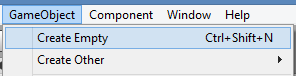
Click GameObject->Create Empty
image

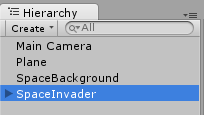
A new GameObject is added to the scene. Click this to bring up the properties and change the name of the Game Object to “SpaceInvader”.

image

Also, set the position of the SpaceInvader to 0,0,-2
image

Also, rename the Plane that is our background to SpaceBackground by clicking on the Plane in the hierarchy overview and then changing the name property.

Now, we will add a material that will be the texture of the invader. Create a new material in the Materials folder and name it spaceInvader. Drag the SpaceInvader.png file from the textures folder to the texture property of the material and change the shader to Mobile->Transparent->Vertex Color

image

This shader will make the material alpha transparent based on the data in the png file (we do not want a black color on the parts of the texture where we are supposed to see through it).

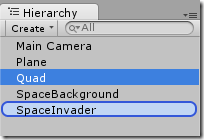
Now, we will create a quad ( a plane but built up with less vertices) that will have the spaceInvader material, and it will be under the SpaceInvader Game Object we created earlier.

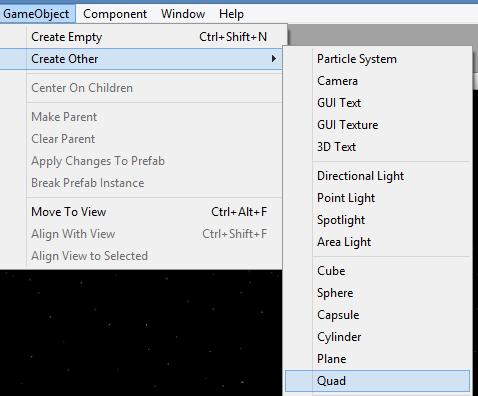
Click GameObject->Create Other->Quad

A new empty Quad is added to the scene. Now, we must drag the new quad to the SpaceInvader game object so the new Quad is located under the SpaceInvader hierarchy:
image
Drag Quad to SpaceInvader

image

The Quad is now inside the SpaceInvader Game Object and an arrow is displayed in front of it meaning something is inside it and it can be opened.

Clicking the arrow will open it, and you can see that the Quad is inside.
image

Rename the Quad to Spaceship, and drag the spaceInvader material on the new quad that now is named Spaceship and located inside the SpaceInvader object.

Since the Spaceship quad is inside the SpaceInvader, it’s X,Y,Z position will be relative to the parent game object (SpaceInvader). We want the quad to be in the middle of the SpaceInvader game object. So go ahead and change the Spaceship quads position to 0,0,0:

image

If you double click on a game object, the Scene view will zoom to the bounds of the object and put it in the center of the view. Double click the SpaceInvader object to set the focus to it.

It should look like this:

image

If you go to the Game View, it should be visible in the middle (since the camera is poining towards the middle and the invader is positioned there).

image

Notice that you can also see through the texture around the spaceship since we are using the alpha channel and a transparency shader on the material.

Making the enemy move

Ok, we have the enemy. But we need to make it move!

Create a new folder in the assets folder named Scripts.
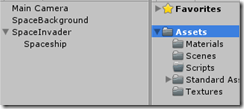
image

Right click it and click Create->C# Script.
image

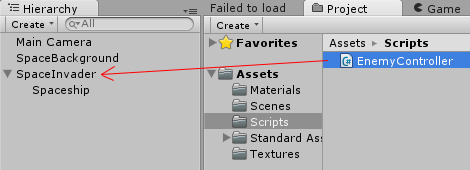
Name it “EnemyController”. A new C# script is added to the folder. First thing we want to do is to add this script to the SpaceInvader game object. Do this by draging the script on the SpaceInvader object in the hierarchy view.

image

If you click on the SpaceInvader game object to see the properties, you can see that the script is there as a new component to the SpaceInvader game object. A Game Object can be controlled and defined by adding different components. A script component can be used to script the behaviour of the SpaceInvader game object.

Now, double click the EnemyController to open the script in an editor. The MonoDevelop environement came with Unity and is used by default. I have changed this from the Unity perferences to Visual Studio 2012 since this is my perfered development environment.

You can also do this by clicking Edit->Preferences and change it from the External Tools tab:
image

The project is now opened in the development environment of your choice and the script can be modified to your likes.

What we will see is a script that contains two functions. One named Start() and another named Update(). Start() is called when the GameObject is loaded or added to the scene (when the scene starts), and Update() is called every frame.

using UnityEngine;
using System.Collections;

public class EnemyController : MonoBehaviour {

    // Use this for initialization
    void Start () {
   
    }
   
    // Update is called once per frame
    void Update () {
   
    }
}

Let’s add a variable that will contain the speed of the enemy.

using UnityEngine;
using System.Collections;

public class EnemyController : MonoBehaviour {
    public float speed;
    // Use this for initialization
    void Start () {
   
    }
   
    // Update is called once per frame
    void Update () {
   
    }
}

We want to move the SpaceInvader towards the left side of the screen. This means that we need to change the X-position of the invader with a small modification every time the Update() function is called. Remember, this needs to be small since the Update() function is called many times pr. second.

The reason we added the speed variable as a float is that we want to control the speed of each enemy (to be impleneted through scripting). Since the variable is public, it can be set directly in the unity environement! Save the script and click on the SpaceInvader object to view the properties.

You can see the Speed property in the script component of the game object. Set this to 5:

image

Moving the enemy based on time

We also need to think about how we move the enemy. If we move the enemy with –1 pixel pr. frame, the enemy will move faster on a computer that can render more frames pr. second than on a another one that doesn’t have the same performance.

Let me show you. If an enemy moves –2 pixels pr. frame, and a computer renders 60 frames pr. second, it will move –120 pixels pr. second. If another device renders the game at 30 frames pr. second, it will move –60 pixels in one second.

We want it to move the same distance on all devices, and fortunately the solution is very simple. We move the enemy based on the time – the clock!

Unity comes with a built in timer that contains the time of many things, including the amount of time it takes to render a frame in seconds!

Go to the Update() function and add the following line:

using UnityEngine;
using System.Collections;

public class EnemyController : MonoBehaviour {
    public float speed;
    // Use this for initialization
    void Start () {
   
    }
   
    // Update is called once per frame
    void Update () {
        this.transform.position -= new Vector3(speed, 0, 0) * Time.deltaTime;
    }
}

What we are doing here is to modify the transform property of the Game Object the script is attached to with code. Since this scrit is attached to the SpaceInvader Game Object, it will transform the game object and everything inside the game object.

We change the position (X,Y,Z) by subtracting the position with a direction vector poining in the X direction. The magnitud is based on speed and then multiplied with the delta time it takes to render a frame.

If the frame is rendered slowly, this time will be greater and the movement will be bigger. If the frame is rendered quickly, the time will be shorter and the movement will be smaller.

Press play to see how the game runs! Smilefjes

image

Adding particles to the enemy

To create a better looking enemy in space, we need to add an engine to it. It’s moveing right? Well then it need the engine!

We can simulate a pretty good engine with a particle engine. Unity proveds a great tool on creating particle engines for all kinds of effects like explosions, fire, smoke, ressurection, level ups and everything you can imagine.

This part will not cover the particle editor in detail. A standard asset package (remember the packages we included in the project when we created it?) comes with Unity containing many particle engines that you can use and test out. Let’s add this pacakge to the project.

Go to Asset Store (the package is free) by clicking on Window->Assert Store
image

We already have the asset, so click on the Download/Import asset icon in the Asset Store menu:
image

Scroll down untill you find the Particles package and click Import. This will import the library to the project.
image

This will decomress the package and show you all the content of it. Everything is checked by default so just click Import again and there you go!

A new folder is added to the projects Assets folder called Standard Assets, with another folder in it called Particles:
image

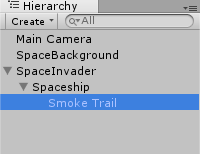
Open the Particles folder, then the Smoke folder and drag the Smoke Trail prefab on the Spaceship game object inside the SpaceInvader game object.
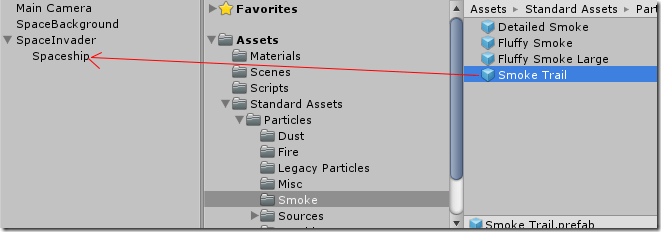
image

A new particle engine is added to the SpaceInvader hierarchy:
image

If you press play now you can see the enemy creating a trail of particles behind it as it moves.

image

A prefab is a game object can be used many times in a scene. You can think of it as a factory that creates the a defined object. The enemy we now have created will be converted to a prefab later because we want to add many of the same enemy. We dont want to change all of them to make changes to them – so we change the prefab (the blueprint that we put in the factory) and all the items created with the prefab will be changed.

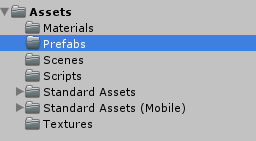
Let’s create a new folder to our project under Assets named Prefabs.

image

Think of what we have done with the SpaceInvader game object this far. We have created the blueprint of how we want the enemy to look based on putting together game objects, adding scripts, adding particles and materials. Now, we want to take this blueprint and get the factory ready to prouce them.

Do do this, simply drag the Game Object you want to create a prefab of to the Prefabs folder (or whatever other folder you want to put them in, it doesnt NEED to be named “Prefabs”). In other words – Drag the SpaceInvader game object form the Herarchy to the Prefabs folder:
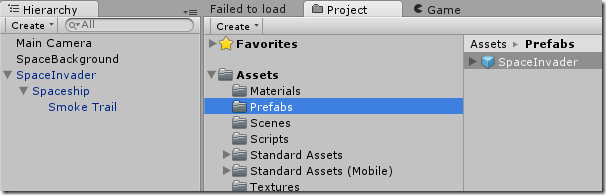
image

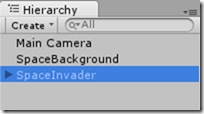
The SpaceInvader object will appear as a name with a blue box in front of it, and the SpaceInvader in the Hierarcy view turns blue. This is because it’s based on a prefab!

Now, click the SpaceInvader object in the scene (from the hierachy view) and delete it.
image

Now it is gone..
image

Now, drag the SpaceInvader prefab to the herarchy view again:

image

It’s back!

Note: If you some time later (dont do anything now) go in and do changes to the item based on the prefab that you have added to the scene, like adding more components, game objects, particles, scripts, whatever to it, that part will become black since its not in the prefab. To update the prefab (and all items based on the prefab) with the new changes, just click the SpaceInvader object in the scene to view its properties, and click apply – all changes is then made to the blueprint that was used to spawn the object in the first place (the prefab).

Now, delete the SpaceInvader game object again since we want to spawn it with code later.

Creating a laser!

Next we want to create a laser gun that will shoot lasers when you tap/click on the screen. We will create the laser prefab! Create a new empty GameObject again:
image

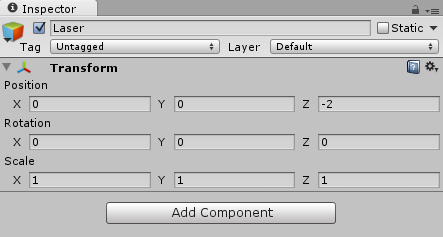
Name the new GameObject “Laser” and make sure the position property of the new empty game object is set to 0,0,-2
image

Now, add the laser.jpg (from the tutorials assets zip file) texture to the Textures folder, create a new Material and drag the texture to it. Name the material “laser”.

laser

Change the Shader to Mobile->Particles/Additive (It will make it a bit transparent and they blend on to of other laser shots).

image

image

Now, add a new Quad to the scene by clicking GameObjects->Create Other->Quad
image

Rename the new Quad to LaserBody, and drag it to the Laser game object so it becomes a part of it.
image

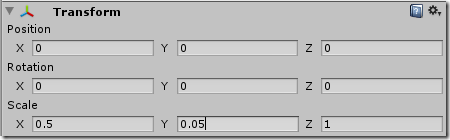
Now, drag the laser material on the LaserBody quad and to give it color, and change the position and scale of the LaserBody properties to this:
image

This will position the LaserBody quad to 0,0,0 relative to the partent game object (Laser) and scale it so it becomes more laser looking than a square.

image

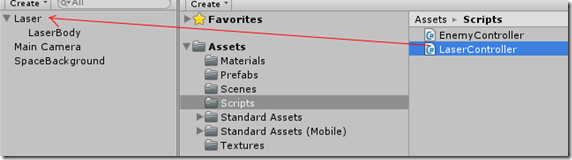
Now go to the scripts folder and create a new C# Script named LaserController, and drag it on the Laser game object.
image

Now, double click the LaserController script to edit it.

using UnityEngine;
using System.Collections;

public class LaserController : MonoBehaviour {

    // Use this for initialization
    void Start () {
   
    }
   
    // Update is called once per frame
    void Update () {
   
    }
}

Now, we will do the same thing for the laser as we did for the enemy. We want to move it towards the right side of the screen in a constant speed. We dont want our lasers to have different speeds so we can leave that out as well..

using UnityEngine;
using System.Collections;

public class LaserController : MonoBehaviour {

    // Use this for initialization
    void Start () {
   
    }
   
    // Update is called once per frame
    void Update () {
        this.transform.position += new Vector3(10, 0, 0) * Time.deltaTime;
    }
}

Should not be anything new. We move the laser based on a direction vector multiplied by the time it takes to draw a frame to sync it with the clock.

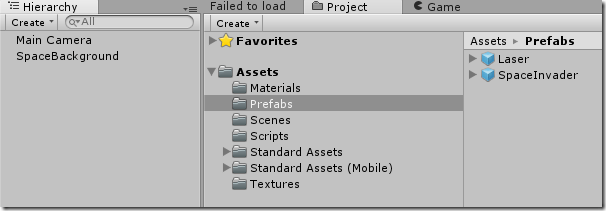
If you press play, you can see the laser moving over the screen. Now, let’s make a prefab out of it. Drag the Laser game object form the scene hierarchy to the Prefabs folder and delete the Laser game object that is in the scene (we spawn it by code later).
image

Spawning many enemies!

Next we need to spawn the enemies. I want to spawn an enemy with a random speed between 4 and 8, and at a random position in front of us.

Go to the Scripts folder and create a new script called GameController. Double click the script to open it in your development environment.

First of all we need to create two variables that will hold the Prefabs to our lasers and enemies.

using UnityEngine;
using System.Collections;

public class GameController : MonoBehaviour {
   
public GameObject enemy;
    public GameObject laser;

    // Use this for initialization
    void Start () {
   
    }
   
    // Update is called once per frame
    void Update () {
   
    }
}

Then we need a timer variable that will time when a new enemy will be spawned.

using UnityEngine;
using System.Collections;

public class GameController : MonoBehaviour {
    public GameObject enemy;
    public GameObject laser;

    float spawnTimer;

    // Use this for initialization
    void Start () {
   
    }
   
    // Update is called once per frame
    void Update () {
   
    }
}

Then when the scene starts, we want to set the spawn timer to 1.0f and the in the Update() function reduce this based on the deltaTime variable, making the spawn timer to be reduced by seconds. This means that if the spawnTimer is set to 1.0f, it will take 1 second untill the spawnTimer is 0.0f.

using UnityEngine;
using System.Collections;

public class GameController : MonoBehaviour {
    public GameObject enemy;
    public GameObject laser;

    float spawnTimer;

    // Use this for initialization
    void Start () {
        spawnTimer = 1.0f;
    }
   
    // Update is called once per frame
    void Update () {
        spawnTimer -= Time.deltaTime;
    }
}

Now, next we need to spawn a new enemy every second. We do this with a function that comes with Unity called Instansiate. I’ll show you the code first:

using UnityEngine;
using System.Collections;

public class GameController : MonoBehaviour {
    public GameObject enemy;
    public GameObject laser;

    float spawnTimer;

    // Use this for initialization
    void Start () {
        spawnTimer = 1.0f;
    }
   
    // Update is called once per frame
    void Update () {
        spawnTimer -= Time.deltaTime;
      
if (spawnTimer <= 0.0f)
        {
            GameObject instance = (GameObject)Instantiate(enemy,
                new Vector3(10,Random.Range(-4.0f,4.0f),-2.0f),
                transform.rotation);
            spawnTimer = 1.0f;
        }
    }
}

So, if spawnTimer goes equal or below 0.0f, we will create a new GameObject based on the prefab that is in the enemy GameObject variable defined earlier in the script (it is empty now) to a position of 10 units in front of us (thats outside the right side of the screen) and then having a random height between –4 and 4 (Y-axis). We also set the spawnTimer to 1.0f since we only want to spawn it once pr. second.

Now, let’s put this script in to use (remember to save it).

In Unity, go to the Scripts folder and drag the GameController script on the Main Camera in the herarchy view:
image

Now, click the Main Camera Game Object to view its properties. You can see that the script component is there and that the two GameObject variables laser and enemy is there:
image

Now, go to the Prefabs folder and drag the Laser prefab to the Laser property in the Game Controller (Script) component of Main Camera, and the same with SpaceInvader to enemy:
image

The reason we added the GameController script to the camera is a bit random. You can place it on a player object or anything, but since we dont have that I deviced to add it to the Camera and just use the camera as the main scene controller.. Smilefjes

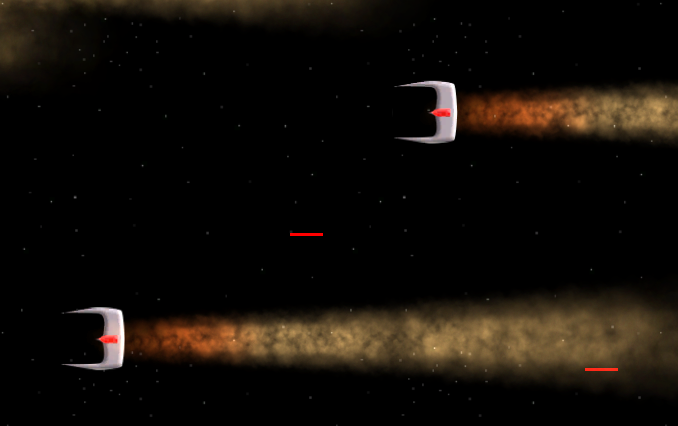
Pressing play will start the game and you can see the enemies fly by the screen in different positions:
image

Pretty cool right?

Shooting lasers
Next, we want to shoot these invaders with lasers! To do this, we tap the screen and the laser will be shot to that location.

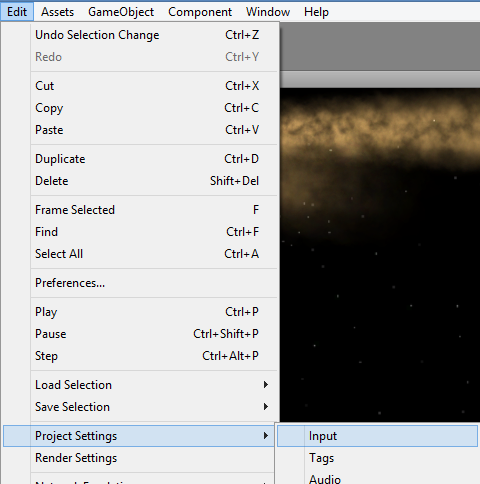
Unity lets you control Input very easily. Click Edit-Project Settings-Input to view the projects input properties…

image

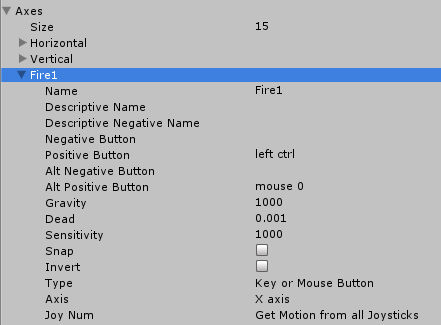
…and open Axes and the Fire1 property.

image

Change the Positive Button from left ctrl to space:
image

You can also see that we have an Alt Positive Button that is set to mouse 0. This means that we can either use space or the left mouse button to let Unity know that the “Fire1” input has been made.

Now, back in the GameController script, we listen for the Fire1 event in the Update() function:

using UnityEngine;
using System.Collections;

public class GameController : MonoBehaviour {
    public GameObject enemy;
    public GameObject laser;

    float spawnTimer;

    // Use this for initialization
    void Start () {
        spawnTimer = 1.0f;
    }
   
    // Update is called once per frame
    void Update () {
        spawnTimer -= Time.deltaTime;
        if (spawnTimer <= 0.0f)
        {
            GameObject instance = (GameObject)Instantiate(enemy,
                new Vector3(10,Random.Range(-4.0f,4.0f),-2.0f),
                transform.rotation);
            spawnTimer = 1.0f;
        }
       
if (Input.GetButton(“Fire1”))
        {
            Vector3 spawnLaserPos = Camera.main.ScreenToWorldPoint(
                new Vector3(-5.0f,
                    Input.mousePosition.y,
                    8));

            Instantiate(laser, spawnLaserPos, Quaternion.identity);
        }
    }
}

What we do here is to check if Fire1 is hit, and if yes, we spawn a new laser at the left side of the screen, the height of where the player touched/pressed the mouse button using a handy function from the main camera that converts the touch/click location to world coordinates that can be used in the game.

And then we instansiate the laser.

Pressing play now, we can see that its possible to shoot a lot of lasers. We must limit this using a similar timer as in spawnEnemy.

using UnityEngine;
using System.Collections;

public class GameController : MonoBehaviour {
    public GameObject enemy;
    public GameObject laser;

    float spawnTimer;
   
float shootTimer;

    // Use this for initialization
    void Start () {
        spawnTimer = 1.0f;
    }
   
    // Update is called once per frame
    void Update () {
        spawnTimer -= Time.deltaTime;
       
shootTimer -= Time.deltaTime;

        if (spawnTimer <= 0.0f)
        {
            GameObject instance = (GameObject)Instantiate(enemy,
                new Vector3(10,Random.Range(-4.0f,4.0f),-2.0f),
                transform.rotation);
            spawnTimer = 1.0f;
        }
       
if (shootTimer <= 0.0f)
        {

            if (Input.GetButton(“Fire1”))
            {
                Vector3 spawnLaserPos = Camera.main.ScreenToWorldPoint(
                    new Vector3(-5.0f,
                        Input.mousePosition.y,
                        8));

                Instantiate(laser, spawnLaserPos, Quaternion.identity);
                shootTimer = 0.4f;
            }
        }
    }
}

Now, if we try to run it again, we can shoot but just every minimum 0.4 seconds! Smilefjes

image

Making explosions

Now, we have to deal with the collisions. We need to check if a enemy is hit by a laser.

Unity have a system where you can tag GameObjects. This is used to handle all objects with a given tag in a special way.

We are going to tag our lasers with a new laser tag, and our enemies with new enemy tag.

Go to the Prefabs folder and click on the Laser prefab to view the properties:image

Now, in the top you can see the tag property.

image

Click “Add Tag…”

In the Tag Manager, add the following two tags:
image

Now, click the Laser prefab again from the Prefabs folder and change the tag to Laser.
image
image

Do the same for SpaceInvader my clicking it and changing the Tag property to Enemy.

image

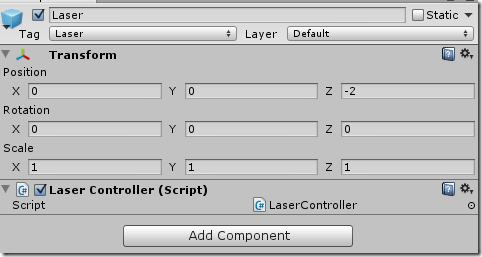
First, we need to add a collider to our laser prefab and our enemies. We can ue a bounding box that defines the collision range of our objects. Go to the Prefabs folder, click the Laser prefab and click Add Components in the property view:
image

Search for “box” and click on the BoxCollider.
image

This will add a Box Collider component to the prefab.

If we drag the prefab to the scene now, we can see in the Scene view that the object now contains a green box around it.

image

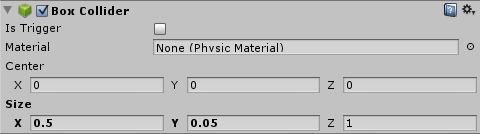
Click on the Laser GameObject in the Hierarchy, and change the box colliders scale property so it got the following values:

image

This will make the bounding box more correct based on the size of the LaserBody.

Again, click the Laser prefab again and add a new component called Rigidbody.

image

Now, a Ridgidbody component is added to the Prefab – giving it physics. We don’t want to use gravity so uncheck the Use Gravity property on the Rigidbody component of the Laser prefab:

image

To apply these changes to our Prefab object, click the Laser GameObject that we just changed to view the properties, and click “apply”:
image

This will save the changes we did with to the prefab.

Let’s do the same for our SpaceInvader prefab:
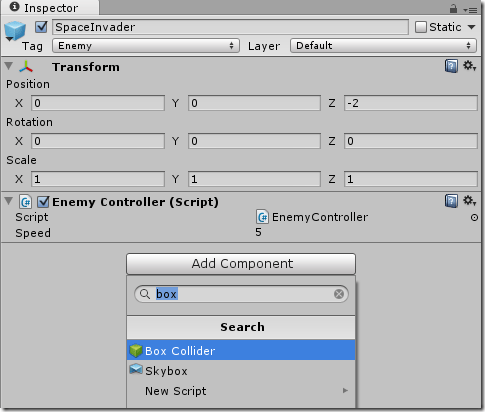
image

This box collider will be perfect since the default size is 1,1,1 on the box, and the size of the enemy is also 1,1 (X,Y).

Also here, add a Rigidbody component and uncheck the Use Gravity checkbox.

Now, while having a tag, a box collider and a rigdibody component to the prefabs, we can handle collisions between them.

Scripting the collision

Let’s edit the EnemyController script so it can handle collisions. First of all, if there is a collision between a laser and an enemy, we just want to remove them from the game.

Unity comes with a function on all GameObjects called OnCollisionEnter() that will trigger when a collision between this object and an other object happen. Let’s add this to our script:

using UnityEngine;
using System.Collections;

public class EnemyController : MonoBehaviour {
    public float speed;
    // Use this for initialization
    void Start () {
    }

    void OnCollisionEnter(Collision collision)
    {
    }

    // Update is called once per frame
    void Update () {
        this.transform.position -= new Vector3(speed, 0, 0) * Time.deltaTime;
    }
}

Now, we need to just handle the collision between this object (tagged “Enemy”) and objects tagged with “Laser”, and if this is the case – destroy both:

using UnityEngine;
using System.Collections;

public class EnemyController : MonoBehaviour {
    public float speed;
    // Use this for initialization
    void Start () {
    }

    void OnCollisionEnter(Collision other)
    {
       
if (other.gameObject.tag.Equals(“Laser”))
        {
            Destroy(other.gameObject);
            Destroy(this.gameObject);
        }

    }

    // Update is called once per frame
    void Update () {
        this.transform.position -= new Vector3(speed, 0, 0) * Time.deltaTime;
    }
}

Simple right? Smilefjes

Now, what happens to the lasers that miss an invader? It continues to fly forever. Let’s fix this as well. Open the LaserController script and add the following if-statement to the Update() function:

using UnityEngine;
using System.Collections;

public class LaserController : MonoBehaviour {

    // Use this for initialization
    void Start () {
   
    }
   
    // Update is called once per frame
    void Update () {
        this.transform.position += new Vector3(10, 0, 0) * Time.deltaTime;

        if (this.transform.position.x > 20.0f)
        {
            Destroy(this.gameObject);
        }

    }
}

Adding the explosion

There isn’s much fun without the explosions! Let’s add a GameObject to the EnemyController script. Edit the EnemyController script so it includes a GameObject for the explosion prefab, and then instansiate if in the OnCollisionEnter function:

using UnityEngine;
using System.Collections;

public class EnemyController : MonoBehaviour {
    public float speed;
    public GameObject explosion;
    // Use this for initialization
    void Start () {
    }

    void OnCollisionEnter(Collision other)
    {
        if (other.gameObject.tag.Equals(“Laser”))
        {
            Destroy(other.gameObject);
            Destroy(this.gameObject);
            Instantiate(explosion, this.transform.position, this.transform.rotation);
        }
    }

    // Update is called once per frame
    void Update () {
        this.transform.position -= new Vector3(speed, 0, 0) * Time.deltaTime;
    }
}

Now, we must set the explosion GameObject variable. This is done in Unity (as you might remember). Go to the Prefabs folder and click the SpaceInvader prefab so view the properties. Now, go to the Particles folder in the Standard Assets folder, then Legacy Particles and drag the explosion prefab to the Explosion property of the Enemy Controller Script Component of SpaceInvader prefab:

image

Press play again, and shoot a SpaceInvader, and you will see the explosion!

image

Game Over?

If an invader survives and manages to fly to the left side of the screen, it’s game over and we will be brought to a Game Over screen.

First of all, we need to create the Game Over scene. Click File->New Scene and a new scene is added to the project. Save the scene to the Scenes folder named gameOver.

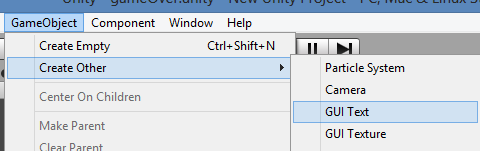
Now, just to keep things simple, add a GUI Text Game Component to the scene:

image

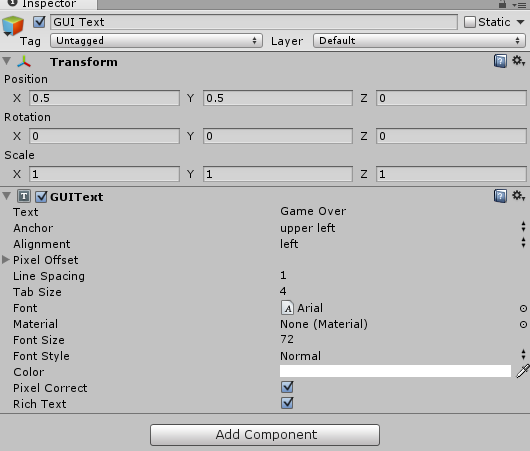
And change the properties like this:

image

Also, change the Main Cameras properties so the background color is black:

image

Now, we need to add the scenes we have build to the project so they can find eachother.  Open the gameScene by double clicking it in the Scenes folder. Then Click File->Build Settings:

image

And then click Add Current to add the gameScene, notice it got an ID of 0:

image

Let’s also add the Game Over Scene the same way. Open the game over scene and add it:

image

Now, go to the EnemyController script:


using UnityEngine;
using System.Collections;

public class EnemyController : MonoBehaviour {
    public float speed;
    public GameObject explosion;
    // Use this for initialization
    void Start () {
    }

    void OnCollisionEnter(Collision other)
    {
        if (other.gameObject.tag.Equals(“Laser”))
        {
            Destroy(other.gameObject);
            Destroy(this.gameObject);
            Instantiate(explosion, this.transform.position, this.transform.rotation);
        }
    }

    // Update is called once per frame
    void Update () {
        this.transform.position -= new Vector3(speed, 0, 0) * Time.deltaTime;

        if (this.transform.position.x <= -10.0f)
        {
            GameOver();
        }
    }

    void GameOver()
    {
        Application.LoadLevel(1);
    }

}

We create a function that is called if an enemy hits the left side of the screen and Load the Game Over level that got the ID of 1.


Restarting the game when it’s Game Over

When the game over screen is visible, we want to restart the game so the player can try again. Here, we can just display the scene for 5 seconds and then restart the game level again.

To do this, create a new script called GameOverController and put it on the Main Camera in the gameOver scene.

Edit the GameOverController script and make it like this:

using UnityEngine;
using System.Collections;

public class GameOverController : MonoBehaviour {
    float gameOverTimer;
    // Use this for initialization
    void Start () {
        gameOverTimer = 5.0f;
    }
   
    // Update is called once per frame
    void Update () {
        gameOverTimer -= Time.deltaTime;
        if(gameOverTimer <= 0.0f)
            Application.LoadLevel(0);
   
    }
}

Nothing new here, we just change the scene after 5 seconds.

Now, run the game and you will see the game working as it should!

Are you able to add a main menu too? Smilefjes som blunker

In a later tutorial we will add SFX, Audio, UI and highscore.

Download the project and assets here:
http://sdrv.ms/19KfIUa

Posted in Uncategorized | 38 Comments

Creating an app for both Windows 8 and Windows Phone 8

So you want to create an app for the Windows platform, targeting both WP8 and Win8?

Well, let me walk you through one way of doing this. There are many other ways, so feel free to experiment yourself.

Getting started
We will start with the Windows 8 app implementation – a simple app where you have to guess a number between 0 and 10.

1) Install the tools from http://www.visualstudio.com

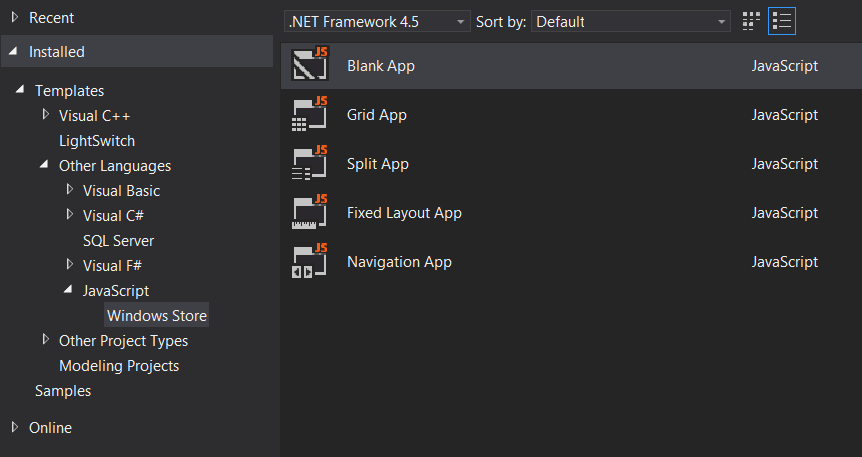
2) Create a new project in Visual Studio 2012/2013, and select the Windows Store Blank App template.

image

3) Name the solution “GuessTheNumber”
image


Implementing the “Guess the number app”

Start with changing the already existing Grid XAML code in MainPage.xaml with this:

   1: <Grid Background="{StaticResource ApplicationPageBackgroundThemeBrush}">

   2:     <StackPanel HorizontalAlignment="Center" VerticalAlignment="Center">

   3:         <TextBlock HorizontalAlignment="Center" TextWrapping="Wrap" Text="I'm thinking of a number between 0 and 10, what is it?" VerticalAlignment="Top" FontFamily="Global User Interface" FontSize="28"/>

   4:         <TextBox HorizontalAlignment="Center" TextWrapping="Wrap" Text="0" Name="tbGuessedNumber" VerticalAlignment="Top" FontSize="28" />

   5:         <Button Content="Guess!" HorizontalAlignment="Center" VerticalAlignment="Top" FontSize="28" Margin="0 10 0 0" Click="Button_Click_1"/>

   6:         <TextBlock HorizontalAlignment="Center" TextWrapping="Wrap" Name="tbMessage" Text="" VerticalAlignment="Top" FontSize="28" Margin="0 20 0 0"/>

   7:     </StackPanel>

   8: </Grid>


Your design should now look something like this:
image

All we did here is to create a StackPanel inside the Grid to align all controls correctly.

Next, we need to add the logic. Go to the code behind of MainPage (MainPage.cs) and replace all the content with this:

   1: using System;

   2: using System.Collections.Generic;

   3: using System.IO;

   4: using System.Linq;

   5: using Windows.Foundation;

   6: using Windows.Foundation.Collections;

   7: using Windows.UI.Xaml;

   8: using Windows.UI.Xaml.Controls;

   9: using Windows.UI.Xaml.Controls.Primitives;

  10: using Windows.UI.Xaml.Data;

  11: using Windows.UI.Xaml.Input;

  12: using Windows.UI.Xaml.Media;

  13: using Windows.UI.Xaml.Navigation;

  14:  

  15: // The Blank Page item template is documented at http://go.microsoft.com/fwlink/?LinkId=234238

  16:  

  17: namespace GuessTheNumber

  18: {

  19:     /// <summary>

  20:     /// An empty page that can be used on its own or navigated to within a Frame.

  21:     /// </summary>

  22:     public sealed partial class MainPage : Page

  23:     {

  24:         int numberImGuessing = 0;

  25:  

  26:         public MainPage()

  27:         {

  28:             this.InitializeComponent();

  29:         }

  30:  

  31:         void RollNewNumber()

  32:         {

  33:             Random rnd = new Random(DateTime.Now.Millisecond);

  34:             numberImGuessing = rnd.Next(0, 10);

  35:         }

  36:  

  37:         /// <summary>

  38:         /// Invoked when this page is about to be displayed in a Frame.

  39:         /// </summary>

  40:         /// <param name="e">Event data that describes how this page was reached.  The Parameter

  41:         /// property is typically used to configure the page.</param>

  42:         protected override void OnNavigatedTo(NavigationEventArgs e)

  43:         {

  44:             RollNewNumber();

  45:         }

  46:  

  47:         private void Button_Click_1(object sender, RoutedEventArgs e)

  48:         {

  49:             int myInputNumber = Convert.ToInt32(tbGuessedNumber.Text);

  50:             if (myInputNumber == numberImGuessing)

  51:             {

  52:                 tbMessage.Text = "Correct! Now I'm thinking of another one!";

  53:                 RollNewNumber();

  54:             }

  55:             else if (myInputNumber < numberImGuessing)

  56:             {

  57:                 tbMessage.Text = "Higher!";

  58:             }

  59:             else if (myInputNumber > numberImGuessing)

  60:             {

  61:                 tbMessage.Text = "Lower!";

  62:             }

  63:         }

  64:     }

  65: }

It’s a simple logic: When you start the app, a number between 0 and 10 will be placed in numberImGuessing. Every time you press the Guess! button, a check will happen based on if the input number is higher, lower or equal to the one that is inside numberImGuessing.

If it’s correct, a new number will be placed in numberImGuessing.

Now, run the app to see if it’s working! It should be good, but if not – download the source here and check what’s wrong! Source: http://sdrv.ms/10IJrKf

This is the implementation of the Windows 8 app. Next is the Windows Phone 8 implementation.

Implementing the Windows Phone 8 version
This will basically be the same:

1) Add a new blank Windows Phone project based on the Windows Phone template to the same solution:
image


2) Name the Project “GuessTheNumberWP” and create the project

3) Open MainPage.xaml and find the grid. This grid is more advanced than the one in the Windows 8 template because of the split. Find the following part of the grid:
<Grid x:Name=”ContentPanel” Grid.Row=”1″ Margin=”12,0,12,0″>

This is where we add the design, the exact same code as we had in the W8-implementation.

   1: <Grid x:Name="ContentPanel" Grid.Row="1" Margin="12,0,12,0">

   2:     <StackPanel HorizontalAlignment="Center" VerticalAlignment="Center">

   3:         <TextBlock HorizontalAlignment="Center" TextWrapping="Wrap" Text="I'm thinking of a number between 0 and 10, what is it?" VerticalAlignment="Top" FontFamily="Global User Interface" FontSize="28"/>

   4:         <TextBox HorizontalAlignment="Center" TextWrapping="Wrap" Text="0" Name="tbGuessedNumber" VerticalAlignment="Top" FontSize="28" />

   5:         <Button Content="Guess!" HorizontalAlignment="Center" VerticalAlignment="Top" FontSize="28" Margin="0 10 0 0" Click="Button_Click_1"/>

   6:         <TextBlock HorizontalAlignment="Center" TextWrapping="Wrap" Name="tbMessage" Text="" VerticalAlignment="Top" FontSize="28" Margin="0 20 0 0"/>

   7:     </StackPanel>

   8: </Grid>


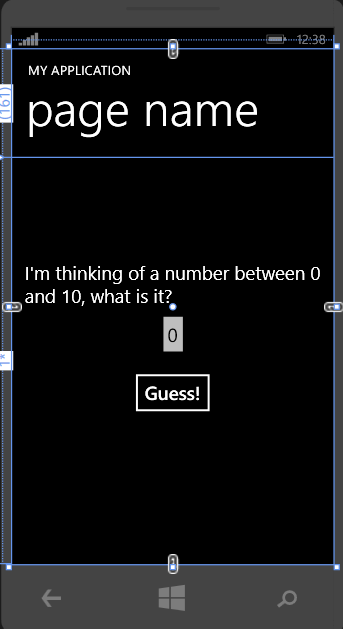
The design should look similar to the W8-version, but this time it’s adjusted to the layout of the Windows Phone screen:

image

Next, we need to add the logic! This is also the same as in the W8-app Smile The only difference is that the libraries we use are for WP and not for Win8.

Add the following logic below the MainPage constructor you find in the code behind file:

   1: int numberImGuessing = 0;

   2:  

   3: void RollNewNumber()

   4: {

   5:     Random rnd = new Random(DateTime.Now.Millisecond);

   6:     numberImGuessing = rnd.Next(0, 10);

   7: }

   8:  

   9: /// <summary>

  10: /// Invoked when this page is about to be displayed in a Frame.

  11: /// </summary>

  12: /// <param name="e">Event data that describes how this page was reached.  The Parameter

  13: /// property is typically used to configure the page.</param>

  14: protected override void OnNavigatedTo(NavigationEventArgs e)

  15: {

  16:     RollNewNumber();

  17: }

  18:  

  19: private void Button_Click_1(object sender, RoutedEventArgs e)

  20: {

  21:     int myInputNumber = Convert.ToInt32(tbGuessedNumber.Text);

  22:     if (myInputNumber == numberImGuessing)

  23:     {

  24:         tbMessage.Text = "Correct! Now I'm thinking of another one!";

  25:         RollNewNumber();

  26:     }

  27:     else if (myInputNumber < numberImGuessing)

  28:     {

  29:         tbMessage.Text = "Higher!";

  30:     }

  31:     else if (myInputNumber > numberImGuessing)

  32:     {

  33:         tbMessage.Text = "Lower!";

  34:     }

  35: }

As you can see, this is the exact same code as for Windows 8, event the OnNavigatedTo-event. Smile

Now, right-click on the new GuessMyNumberWP project, find Debug and run it:

image

The WP project will build, and the emulator will start and the app will be installed. Play around with it, but here you go – a simple app for both Windows 8 and Windows Phone 8!

What you can do different is to instead of having most of the logic in each of the apps, you can create a new class library that contains the logic that is the same for both apps, and then just call these functions from the OnNavigatedTo events and Button Click events. This will spare you a lot of time when it comes to having to change the code two places if you wanted to add more logic and functions to the app.

The reason I did it this way here was to show you how similar it is and how easy it is to have two projects in one solution.

Now, go create som WP and Win8 apps! Smile

Download the source here: http://sdrv.ms/10IJrKf

image

Posted in Uncategorized | 1 Comment

Resources from my Windows 8 presentation @ NDC 2013

Thanks for attending my presentation at NDC 2013!

To install and get MonoGame up and running:
http://www.billreiss.com/monogame-for-windows-8-step-2-content/

Download the examples here:
http://sdrv.ms/15Z4jgQ

Check the tutorials section of this blog for content, source code and tutorials

The making of Bad Piggies

The making of Bad Piggies
Posted in Uncategorized | 3 Comments

Game Starterkit for Windows 8 with leaderboard in Windows Azure

image

This Game Starter Kit for Windows 8 contains what you need to get started with game programming for Windows 8, including online high score in Windows Azure. The game kit is written in HTML and JavaScript.

image
Download now – follow instructions below to make it work.

Before we start, let me show you what you get with this solution.

Example game
The kit comes with an example game that you can modify and play with. The code is all in one file so it’s easy to play with for beginners. Feel free to use it however you like.

The kit will get updated with cooler and more advanced game that you can use as a basis when developing your own. Follow this blog to get the updates!

image

If you want to learn how to create this game that comes with this starter kit, you can read the guide here (slightly different graphics):

Part I:
https://digitalerr0r.wordpress.com/2012/09/19/html5-game-development-for-windows-8-1-getting-started/

Part II:
https://digitalerr0r.wordpress.com/2012/09/20/html5-game-development-for-windows-8-2-adding-a-player/

Part III:
https://digitalerr0r.wordpress.com/2012/09/20/html5-game-development-for-windows-8-3-finishing-your-first-game/

Implementation of high score in Windows Azure
The kit also enables support for Windows Azure and handles the connection, and got functions to check if you are having a internet connection. You need to have your own Windows Azure account, and set up the service/datatable yourself.


imageSnap view

The snap view is required for a store app. Your app needs to have this implemented in one way or another. This kit simply renders another div tag with an image saying it isn’t supported. Be creative with this – show your leaderboard here?

Remember to change this image so it suits your own app.

Insert your logo or something.

Tiles

The starter kit comes with basic tiles, change these to your own when you create a new game. Also a splash screen is included.

logosmalllogosplashscreenstorelogowidelogo


Settings charm implementation
image

Every app needs a Privacy Policy, an About page and it’s nice to have a settings page where you can set spesific settings for your game like enable online highscores and so on.

The starter kit comes with an about page, change this so it fits your game.

It also comes with a basic pricay policy, change this so it fits your game.

It also comes with a settings page with a toggle that enables you to disable or enable the online highscore system (some players would prefer to just play offline).

imageimageimage


Let’s get you up and running!

Follow this guide to get everything up and running with the starter kit.

1) Install the tools

To get started, you need Visual Studio 2012 for Windows 8, so go ahead and download the package now if you don’t have this already.

2) Get an account on Windows Azure

Next, you will need to get an account for Windows Azure. There is a free trial where you can try it out, or if you are a BizSpark member (free membership), or an MSDN subscriper, you get a lot for free so check out your possibilities. But the cost of this solution ( a simple mobile service with 1gb SQL database) is very cheap.

The following is a guide that you need to follow in order to set up your Windows Azure solution correctly, so it works with the starter kit. When you get this up and running, and get to build/play the example game in the Starter Kit, you are ready to start modifying the code and create your own games!

This will usually only take about 10 minutes, so follow along and I’ll make sure to get you up and running in no time!

Once you are registered for Windows Azure, go to http://manage.windowsazure.com and log in with your shiny new fresh account.

3) Create your Mobile Service and Database

What we want is to have a mobile service that’s available for our app to use. It will consist of one Mobile Service, and one table in a database – all up in the modern cloud arcitecture.

Click the New button.

image_thumb6

new menu will pop up. Select Compute –> Mobile Service –> Create to start a wizard where you can implement your mobile service.

image_thumb9

A wizard will pop up and take you through the steps. Set the name of the URL to htmlstarerkit or anything you like, choose to create a new database on the subscription you just set up, and locate it in a region near you. Click the next arrow.

Next, you need to configure the database.
image_thumb16

Once you have filled out your details (fill inn whats good for you, it doesnt matter for this solution – you need something you can use yourself), click the OK tick!
Your new database and mobile service will be set up within a few minutes.

4) Configure

Once it’s ready, click on the Mobile Services tab, and click the arrow on your new service.
image_thumb19

It will take you to the mobile services menu for the selected service.

image_thumb22

We don’t need to create a new app as we got an existing one (you will download the solution soon). So, go ahead and click on the “Connect an existing Windows Store app”.

A list of steps that you can follow to implement everything will be shown:
image_thumb27

The first is installing the SDK. Click the link and install what you need.

Next, we need to download the solution. You can download the project from here:

image
Download now

Now, open the solution you just downloaded and make sure the references are OK and right according to Step 2 in the Mobile Services step. It should have been added in the solution, but there might be some differences in your paths and mine so check that it’s correct.

image

The next thing we need to do is to set the correct Application Key in our app.

If you take another look at Step 2 in the Mobile Services step, you see your URL and the Application key of your service. Take a note of these two, we will insert them to your game now.

Go to the solution in Visual Studio and open game.js:

image

Locate the client variable near the top of your solution and insert the URL you created for the Mobile Service, and the Application Key that got generated (as noted in the previous step).

image

Now, our client is ready, but the Mobile Service is still missing one thing: the table that will contain our data!

Let’s create that (this is the last thing we need to do):

Locate the Data link on the top of the page you are at now.
image_thumb37

Click it.

You will now be taken in to the Data page of the service. Click Create.

image

A popup will show.

Create a new table named starterkittable:

image

Now we have a new table called starterkittable, and by default your table should have a dynamic schema. This means that if you try to insert anything into the table, and that insert contains columns that doesnt exist in our table, the service will create it for you.

So right now, your new table consists only of an Id column.

5) Build your solution and make sure it works

Go back to the solution, make sure you have the correct URL and Application Key in your solution, and then Build and run the project.

The game starts up, and when you die, your score will be uploaded to this table. Check that the column Score is created, and that it contains the correct score value you wanted.


image

Go to the Data tab and the table to see your scores:

image

Now, be creative. There are a lot of funny little games you can create by just modifying this simple template.

Enjoy!

image
Download now

Posted in Tutorial | 14 Comments

Using Windows Azure Mobile Services in your apps

image

Windows Azure Mobile Services makes it really easy (almost too easy) to implement services like online leaderboards, services/compute, databases, server side logic and so on that can be used in your apps!

I would recommend everyone to take a look at Windows Azure and the Mobile Services. There is a free trial where you can try it out, or if you are a BizSpark member (free membership), or an MSDN subscriper, you get a lot for free so check out your possibilities. But the cost of this solution ( a simple mobile service with 1gb SQL database) is very cheap.

You can follow this guide to implement Windows Azure Mobile Services in any of your own solutions.

First of all, I needed a Windows Azure subscription. Since I had one from before, it was just about signing in at manage.windowsazure.com/.

Next, I needed a mobile service that my app could use. When logged in to the portal I was presented with my Azure Account, an overview and the possibility to add a new service.

Click the New button.
image_thumb6

A new menu will pop up. Select Compute –> Mobile Service –> Create to start a wizard where you can implement your mobile service.
image_thumb9

The wizard will take you through everything you need to set it up:

image_thumb14

In the first screen, set the URL to something spesific for your project, like the name of the game. You can create a new database (if you dont have one from before), select your supscription (if you have multiple like I do) and what region you want your service to be in.

image_thumb16

Hit the tick to create your new service and database. It will take a few seconds for Azure to set everything up for you but THAT’S IT for creating a new service and a database (no need to install and set this up for yourself and spend a day on doing that).

Now, when the service is ready, you can see it in the overview, or in the Mobile Services tab.

image_thumb19

Click on the arrow next to the name of the newly created service to start confiuring it and implement it.

You will be presented with a screen like this:
image_thumb22

Now, I already had my app created so I clicked on the “Connect an existing Windows Store app”.

A short list of steps that you can follow to implement everything will be shown:
image_thumb27

The first is installing the SDK. Click the link and install what you need.

image_thumb26

The next thing you need is to Add the Windows Azure Mobile Services Javascript Client extention to your project in Visual Studio 2012. I chose JavaScript here because my solution is JavaScript and HTML5 based.

To do this, just add a reference like you normally do in Visual Studio.

image_thumb31

Then I added the client object that is used to invoke our Mobile Service currently running in the cloud.

var client = new Microsoft.WindowsAzure.MobileServices.MobileServiceClient( “https://yoursite.azure-mobile.net/&#8221;, “your own key” );

That’s what you need in your app in order to invoke whatever you have in your Mobile Service. Smilefjes

Now, we need a table in our SQL database that will contain our data.

image_thumb34

Click the “Create Item Table” button and a new table is created.

Now, let’s change the table so it fits our needs. Go to the Databases tab from the main overview of the Azure Portal.
image_thumb43

Press the arrow of your databse to go to the database tools. From there, press Manage.
image_thumb46

Now you have to log in to your database. Enter the creadentials you proveded when you created the database and log in.

When in, click on the Design tab and select the Item table you created above.
image_thumb48

Change the table so it looks like this, but make sure it fits your needs.
image_thumb51

Press Save! We are now ready to invoke our mobile service. Let’s just take a quick look at it just so you know where you can find it.

From the Mobile Services project page in Azure, find the Data tab and click it.
image_thumb37

Open the Item table by clicking the arrow:
image_thumb40

Click on the Scripts tab to see all the scripts that are available for this table.
image_thumb54

You can also add functionality here. Select Insert or Read or Update or Delete and change the code based on your needs (You might want Read() to only return X number of results, sorted in one way ++).

Ok, let’s add data to this table. Open your solution in Visual Studio 2012 and add the two fucntions below (modify to make it fit your table in Azure):

The getScoreBoardfromAzure funtion gets all results that fits the current GameMode (could be a spesific Level also), ordered by Score, and take the top 10. Once this function is done, it adds the results to a list.

   1: getScoreBoardFromAzure: function () {

   2:     var _that = this;

   3:     this.scoreTable.where({ GameMode: this.gameMode })

   4:         .orderByDescending("Score").take(10)

   5:         .read()

   6:         .done(function (results) {

   7:             _that.scoreItems = new WinJS.Binding.List(results);

   8:         });

   9: },

The insertScoreToAzure function adds an item to the table in Windows Azure. Once a new entry is added, update the table in your local client.

   1: insertScoreToAzure: function (scoreItem) {

   2:     var _that = this;

   3:     this.scoreTable.insert(scoreItem).done(function () {

   4:         _that.getScoreBoardFromAzure();

   5:     });

   6: },

Go to the code where you want a new entry to Windows Azure to be added and call the function above like this (change so it fits your table):

   1: this.insertScoreToAzure({

   2:     Name: this.playerName,

   3:     Score: this.score,

   4:     GameMode: this.gameMode

   5: });

Go back to Windows Azure and see your new data in action!

Make sure to crate a screen that renders the content of the list that contains the data the server returns to you when needed, or have a seperate page show it, or the snap view mode of the game.

So, this is how I imlemented the first version of my Online Leaderboards hosted in Windows Azure for Lumilight.

Posted in Uncategorized | 2 Comments

The Making of Lumilight, a game for Windows 8

lumilight

Lumilight is a very simple game created for Windows 8, with Online Leaderboards hosted in Windows Azure. Your main goal is to gather as much light as possible from fireflies within 60 seconds.

The game is all about reacting quickly, and hitting the target as soon as possible.

You can download the game here: Download now

Note: The latest release will be out in a few days (Written on: April 3rd 2013)

1 – How the game works

The game comes with 3 different game modes:

screenshot_03222013_041203

The single fly mode will only have one fly visible at the same time. It’s all about having one target and following that. A fly will spawn when another looses all light.

The multi fly mode got multiple flies you can take out, and more will spawn as the time goes. A new fly will also spawn when another looses all light.

The Chaos mode is what it says, chaos. It spawns a lot of flies. How many can you take out? Get help from friends and tap those flies!

To get light, you just have to tap them. Each firefly needs to be tapped 5 times before you gather the light.

firefly_0

This image show the different stages, from full light on the left, to almost depleted on the right.

When the firefly it all out of light it will disapare, and you will get +1 light.
pluss

When you hit a firefly, a bonus combo will start. The more fireflies you hit without missing, the higher the bonus multiplier will get.

comboPieSet

If you miss, the combo multiplier will reset, and the amount of points you get will go back to normal.

Each tap will give you some points, and for each light you gather you will get a lot of points. You will also loose a small amount of points if you miss (also resetting the multiplier).

Screenshot (3)

The interface gives you some information like who the player is (can be set from the settings charm in Windows 8), the time left, your current combo, how many lights you have gathered and your total score.

When the round is over, you get to a screen that shows you some stats like how many lights you got, the total score, your longest combo streak this round and the accuracy. Also, you will see both the local highscore and the online leaderboard. Can you beat the best?

Screenshot (4)
Local leaderboard

Screenshot (5)
Online leaderboard

2 – Game logic

The game logic is simple. When you tap a fly, it will give you points. When you gather a light, you will get more points. And if you have a bonus multiplier, that score will be multiplied.

For each fly you take out, another will spawn. The faster and more accurate you are, the more points will you get.

You got 60 seconds.

A.I: The life of a firefly
The fly will randomly move based on a simple A.I (Artificial Intelligence) routine. When it spawns, a random coordinate on the screen will be given as the “spawnpoint”, and a random starting direction will be given. Then the fly flies around on the screen in “jumpy” movements, and might decide to change the direction along the X-axis, or how much it will move up or down.

If the fly is hit, a sound effect is played and the fly might decide to change the direction, or follow the same path it had.

image

3 – Technical details

The game is implemented using HTML5 and JavaScript with addition of the ImpactJS Library modified for Windows 8. The online leaderboard is implemented in Windows Aure and JavaScript.
Sound effects are simply recorded in a silent room using human voices.

4 – Online highscores in Windows Azure

The most awesome part of this game is the implementation of Windows Azure and how simple it was. It took me about 50 minutes to get my online leaderboard for the game set up and working from in game.

I would recommend everyone to take a look at Windows Azure and the Mobile Services. There is a free trial where you can try it out, or if you are a BizSpark member (free membership), or an MSDN subscriper, you get a lot for free so check out your possibilities. But the cost of this solution ( a simple mobile service with 1gb SQL database) is very cheap.

I decided to add how I implemented Windows Azure in this solution as it’s so simple. So here comes a guide on how I added support for Windows Azure in this solution!

You can follow this guide to implement Windows Azure Mobile Services in any of your own solutions.

First of all, I needed a Windows Azure subscription. Since I had one from before, it was just about signing in at manage.windowsazure.com/.

Next, I needed a mobile service that my app could use. When logged in to the portal I was presented with my Azure Account, an overview and the possibility to add a new service.

Click the New button.
image

A new menu will pop up. Select Compute –> Mobile Service –> Create to start a wizard where you can implement your mobile service.
image

The wizard will take you through everything you need to set it up:

image

In the first screen, set the URL to something spesific for your project, like the name of the game. You can create a new database (if you dont have one from before), select your supscription (if you have multiple like I do) and what region you want your service to be in.

image

Hit the tick to create your new service and database. It will take a few seconds for Azure to set everything up for you but THAT’S IT for creating a new service and a database (no need to install and set this up for yourself and spend a day on doing that).

Now, when the service is ready, you can see it in the overview, or in the Mobile Services tab.

image

Click on the arrow next to the name of the newly created service to start confiuring it and implement it.

You will be presented with a screen like this:
image

Now, I already had my app created so I clicked on the “Connect an existing Windows Store app”.

A short list of steps that you can follow to implement everything will be shown:
image

The first is installing the SDK. Click the link and install what you need.

image

The next thing you need is to Add the Windows Azure Mobile Services Javascript Client extention to your project in Visual Studio 2012. I chose JavaScript here because my solution is JavaScript and HTML5 based.

To do this, just add a reference like you normally do in Visual Studio.

image

Then I added the client object that is used to invoke our Mobile Service currently running in the cloud.

var client = new Microsoft.WindowsAzure.MobileServices.MobileServiceClient( “https://yoursite.azure-mobile.net/&#8221;, “your own key” );

That’s what you need in your app in order to invoke whatever you have in your Mobile Service. Smilefjes

Now, we need a table in our SQL database that will contain our data.

image

Click the “Create Item Table” button and a new table is created.

Now, let’s change the table so it fits our needs. Go to the Databases tab from the main overview of the Azure Portal.
image

Press the arrow of your databse to go to the database tools. From there, press Manage.
image

Now you have to log in to your database. Enter the creadentials you proveded when you created the database and log in.

When in, click on the Design tab and select the Item table you created above.
image

Change the table so it looks like this, but make sure it fits your needs.
image

Press Save! We are now ready to invoke our mobile service. Let’s just take a quick look at it just so you know where you can find it.

From the Mobile Services project page in Azure, find the Data tab and click it.
image

Open the Item table by clicking the arrow:
image

Click on the Scripts tab to see all the scripts that are available for this table.
image

You can also add functionality here. Select Insert or Read or Update or Delete and change the code based on your needs (You might want Read() to only return X number of results, sorted in one way ++).

Ok, let’s add data to this table. Open your solution in Visual Studio 2012 and add the two fucntions below (modify to make it fit your table in Azure):

The getScoreBoardfromAzure funtion gets all results that fits the current GameMode (could be a spesific Level also), ordered by Score, and take the top 10. Once this function is done, it adds the results to a list.

   1: getScoreBoardFromAzure: function () {

   2:     var _that = this;

   3:     this.scoreTable.where({ GameMode: this.gameMode })

   4:         .orderByDescending("Score").take(10)

   5:         .read()

   6:         .done(function (results) {

   7:             _that.scoreItems = new WinJS.Binding.List(results);

   8:         });

   9: },

The insertScoreToAzure function adds an item to the table in Windows Azure. Once a new entry is added, update the table in your local client.

   1: insertScoreToAzure: function (scoreItem) {

   2:     var _that = this;

   3:     this.scoreTable.insert(scoreItem).done(function () {

   4:         _that.getScoreBoardFromAzure();

   5:     });

   6: },

Go to the code where you want a new entry to Windows Azure to be added and call the function above like this (change so it fits your table):

   1: this.insertScoreToAzure({

   2:     Name: this.playerName,

   3:     Score: this.score,

   4:     GameMode: this.gameMode

   5: });

Go back to Windows Azure and see your new data in action!

Make sure to crate a screen that renders the content of the list that contains the data the server returns to you when needed, or have a seperate page show it, or the snap view mode of the game.

So, this is how I imlemented the first version of my Online Leaderboards hosted in Windows Azure for Lumilight.

5 – Get the game

The game is NOT YET updated with the Online Leaderboards but the game can be found for free in Windows Store. If you install it, you will get a notification/update when the newest (Release 3) version of the game is out.

Get the game now!

You can also follow Wilhelmsen Studios on facebook to get the latest news.

Posted in Uncategorized | 4 Comments

HTML5 Game Starter Kit for Windows 8

image

Want to create a game for Windows 8? And publish it to the new Windows Store?

Many of the apps that are submitted to the Windows Store are failing certification because they didn’t know that a Privacy Policy was needed, or that the game/app had to implement a snap view and so on. This kit will help you with the most important things.

I have created a simple HTML5 Game starter kit that will help you set up a new Windows 8 game project in short time.

For a game te be certified in Windows Store it must contain a given set of functionality like:
– Minimum resolution: 1024 x 768
– Snap view
– Implement the Settings charm with an About page and a Privacy Policy page.
– Tiles in various sizes.

By using this starter kit you can get most of this functionality ready,  just change the text and the images you want to show!

Updates

Version 0.1
This is the first release. It contains the most important functionalities to get you started. Also an example game comes with it (not really a part of the Starter Kit) just to show it runs and that you can see how Touch is working and so on.


How to use the HTML5 Game Stater Kit
It’s very simple to get started.

You can either read how to use this below by following the 5 steps, or see this video:

If you want to learn how to create the example game that comes with this starter kit, you can read the guide here:

Part I:
https://digitalerr0r.wordpress.com/2012/09/19/html5-game-development-for-windows-8-1-getting-started/

Part II:
https://digitalerr0r.wordpress.com/2012/09/20/html5-game-development-for-windows-8-2-adding-a-player/

Part III:
https://digitalerr0r.wordpress.com/2012/09/20/html5-game-development-for-windows-8-3-finishing-your-first-game/


Step 1a. You need to have Visual Studio 2012 installed on a Windows 8 device to use this. If you are a student and have access to Dreamspark.com (MSDNAA) or a MSDN Subscription you can download both products from there.

You can use the free version of Visual Studio 2012 (express) and can be downloaded here:
http://www.microsoft.com/visualstudio/eng/downloads

The Release Preview can be downloaded for free here:
http://windows.microsoft.com/en-US/windows-8/release-preview


Step 1b. Download HTML5 Game Starter Kit for Windows 8

Step 2. Start Visual Studio 2012 and create a “Blank App” Windows 8 JavaScript project:

Click on File->New->Project…

image

Choose JavaScript as the language and the template “Blank App”:
image

Give your project a name (here: Mitt Spill) and press OK.

A new project is generated and the structure will look like this:
image


Step 3. What we will do now is to add the HTML5 Game Starter Kit files to the newly created project. We just copy the content of the HTML5 Game Starter Kit folder to the project folder.

So, copy thse files from the HTML5 Game Starter Kit:
image

Navigate to your new game soludtion and open the project folder. Paste the files here, and replace if asked:

image

The project folder will look somewhat like this:
image

Step 4. Go back to your Visual Studio 2012 project and update if needed:

image

Step 5. Include the new files in your project.
The last thing you need to do is to include the new files in your project structure from Visual Studio 2012.

Click on the button highlighted in the red circle below. It will show the files that exist in the filestructure but not in the project structure(dark gray).

image

Select the following files (hold control and click them):
image

Right click one of the files and select “Include in project”:
image

6. Test if it works.
Congratulations, you are now having a working game project! Run the app and test that it works.


Whats in the starter kit?

smalllogostorelogologowidelogo

Tiles


image
Full screen mode

image
Snap view mode

image
Full screen with other app in snap view.

image
About page

image
Privacy Policy

Remember!   The example game is using CreateJS. It’s located under js/CreateJS. You can remove this folder if it’s not needed in your project. But if you do so, the example game will not compile.

Posted in Game programming, Windows 8 | 15 Comments