Fundamentals of Fractals 1: Introduction to Complex Numbers

image
This series aims to teach you the basics of programming fractals. Let’s start with introducing Complex Numbers, which is a topic within algebra and the fundamental for everything that is related to fractals. In the next tutorial, we will move more towards the theory of fractals.

z=x+yi
All complex numbers are represented by the form x+yi, where x and y are real numbers (positive, negative or zero), and the symbol for the set of complex numbers is C. This can be represented in a two dimensional coordinate system, the complex plane (C):

image

Say we have the function z = x+yi. In this function, x is what we call the real (R) part of z, and y is called the imaginary(i) part of z. In other words, in our graph above, the x axis is the real axis, and the y axis is the imaginary axis. A real number 8 is a function of the complex plane where y = 0 and x = 8. The formula z = x + yi = 8 + 0*i = 8, z = 8 shows us this.

Let’s take a look at the complex plane between -4+3i to 4-3i, filling out every function on the grid.
image

The imaginary i
Let’s take a closer look at this imaginary i:
image

So what’s happening here? We take the square root of a negative number? But that’s not possible! Sure, but this is where the i comes in. Everyone knows that i isn’t real, so that’s why it’s imaginary. It brings a few handy things to us, one is that it makes it possible to take the square root of a negative number:
image

in other words, i2 = –1! But.. wait, can’t i be –1 and 1 then?
image

That’s correct, and that’s what gives us the benefits of being able to take the square root of negative number. But, it will also require you to keep this in mind when dealing with the imaginary number.

Let’s take an example. We all know that the square root of 25 is 5. Lets see what the square root of –25 is:

image


Addition/Subtraction of Complex numbers
It is very simple to add or subtract two complex numbers together. Say we got two complex numbers where one is z=-3+2i and another is w=4+3i, and we want to add these together (z+w):

image

image

As you can se, the result will be a parallelogram from origo.
image


Multiplication of Complex Numbers
Multiplying complex numbers is a bit more complex than addition/subtraction.
The general rule of multiplying complex numbers:
image

If yi*vi = 3i2, it’s result will be –3.
(x + yi)(u + vi) = (xu – yv) + (xv + yu)i

The product of (1+2i)(3+4i) is: (3 + 4i + 6i + 8i2) = (3 + 1oi –8) = (-5+10i)

If you want to multiply a complex number by a real number u, the general rule is:
image

Simply multiply both parts of the complex number by the real number.

The power of i
The last thing I want to cover is the power of i. As we know, our imaginary number got some strange behaviors, and this accounts the power of i as well:image

Let’s continue with the 8 first:
image

This is just a brief introduction to complex numbers, but enough to get you started with fractals.

Any feedback and sources of confusion/mistakes are very welcome, see you next time! Smilefjes

Posted in DirectX11, Math, Tutorial | Tagged | 1 Comment

Trip to the center of a hybrid fractal

I came across a few nice videos on mandelboxes. I find them really beautiful, so enjoy this trip to the center of a hybrid fractal.

For more information, and if you want to generate your own, visit http://sourceforge.net/projects/mandelbulber/.

A great forum on resources and discussions regarding fractals:
http://www.fractalforums.com/3d-fractal-generation/

Posted in Uncategorized | Leave a comment

Realtime Invitation for The Gathering 2011 is released

The invitation for The Gathering 2011, a computerparty here in Norway where gamers, gameprogrammers, demosceners, artists and musicans meet every year, is released. It’s really a realtime applications so if you want the full experience, you can download it from here. If a video is good enough, scroll down and press play (on tape) Smilefjes

Posted in Uncategorized | Leave a comment

Parallel Computing using the GPU – Tutorial 2, Functions

image
As we got out first application running, it’s time to write more spesific CUDA applications. In this tutorial, we will see how functions work, and how to decide if a function should run on the CPU(the host) or the GPU(the device).

Running a function on the host
To run a function on the host, we simply do what we usually do. Create a function and call that function from anywhere in our program.

Let’s try this it. First of all, start you favorite text editor and type the following code:

#include <stdio.h>

void hostFunction()
{
    printf( “writing from hostFunction()!\n” );
}

int main( void )
{
    printf( “Starting application!\n” );
    hostFunction();
    return 0;
}

Now, save the file as “fHost.cu”, compile the code as we did in the previous tutorial by typing the following command:
image

The application will now compile and create an EXE file named fHost.exe. If you run the example, you will see the (hopefully expected) output:
image

This application simply just calls the function hostFunction(), do what it should do and exit.

Running a function on the device
A function that will run from a device is often called a “Kernel”. A kernel got some limits on what you are allowed to do in it, like calling functions (so printf is not allowed). Let’s take a look at an example:

#include <stdio.h>

__global__ void kernelFunction()
{
}

int main( void )
{
    printf( “Starting application!\n” );
    kernelFunction<<<1,1>>>();
    return 0;
}

Now, this is more interessting! First of all, you will probably notice the abnormal looking __global__ definition? Well, it’s not very hard, all this does is to say “Hey, this function will run on a device”. Basically, main() will run on the host, and kernelFunction() will run on the device.

The next thing you will notice is that calling the kernelFunction() doesn’t look very healthy. The angular brackets with the two parameters is influencing how the device will run and handle this function, but we will cover this more closely soon.

Now, compile this code and run it. Congratulations, you’ve just run your first kernel call! Let’s make this more advanced.

Passing parameters to a kernel
To make it more interessting, it’s time to make the kernel DO something, like multiplying x with y. First of all, a kernel cannot return anything from the function using the “return” keyword. You will need to store the result in the memory. But wait? What memory? The device got it’s own memory on the GPU and the host is using another memory in a galaxy far far away! How do we combat this problem? Luckily, CUDA got some helper functions for this. Let’s just see the code, and work with that.

#include <stdio.h>

__global__ void kernelFunction( int x, int y, int *r)
{
    *r=x*y;
}

int main( void )
{
    printf( “Starting application!\n” );
    int result;
    int *device_result;
    cudaMalloc((void**)&device_result, sizeof(int));
    kernelFunction<<<1,1>>>(5,4, device_result);
    cudaMemcpy( &result,
                device_result,
                sizeof(int),
                cudaMemcpyDeviceToHost );
    printf(“5 * 4 = %d”, result);
    cudaFree(device_result);
    return 0;
}

Diving into the code
The kernelFunction should not look very strange, all it does is to multiply x with y, storing the result into r, a memory location on the GPU.

But we are introduced with three new functions, the cudaMalloc, the cudaMemcpy and cudaFree. These functions are used to handle memory allocation on the device, and copy it to/from the host or a device.

cudaMalloc((void**)&device_result, sizeof(int));
This code works the same way as we are used to, allocating space for an integer, device_result, on the device.

cudaMemcpy( &result,device_result,sizeof(int),cudaMemcpyDeviceToHost );
This code will copy the content of device_result from the device memory, and store it in result. The last parameter, cudaMemcpyDeviceToHost, is telling the function that it will copy the content of a memorylocation on the device, to a memory location on the host.
You can also do the reverse, copy data from the Host to the Device by instead of using cudaMemcpyDeviceToHost, use cudaMemcpyHostToDevice. Also, you can copy data from one location on the device to another by using cudaMemcpyDeviceToDevice. If you want to copy data from the host to another location on the host, just use the normal memcpy function.

It’s important to not mix these as the compiler won’t notice this, and make debugging really hard!

cudaFree(device_result);

The last code will simply free the allocated data from the device, remember to do this!

Moving on, this application stores an integer at the device, calls the kernel that stores the result of x*y in this memory. Once the function is done, we copy the content from the device to the host and print it.

Now, compile and run this application. It will multiply 5 with 4, store the result, 20, on the device, copy it to the host, and the host will print this out.
image
image

Thats it, you have now done your first calulation on the GPU! Smilefjes Wasn’t too hard, was it?

See you in the next tutorial!

Posted in CUDA, Parallel Computing | 3 Comments

Simulator racer Greger Huttu meets the real thing!

What happens if you put probably the best simulator racer (he has only been playing racing games) in a real formula car?

Greger Huttu from Finland have been playing racing games for a decade, but never in the real life. According to this video, he doesn’t even have a driver’s licence.

Well, thanks to iRacing and the Skip Barber School, we just found out. Watch this video where the whole process is filmed. I found it really amazing and interessting! Smilefjes

Watch the video here:
http://www.iracing.com

Posted in Gaming, Racing | Leave a comment

Parallel Computing using the GPU – Tutorial 1, Getting started

image
A large problem can usually be devided into smaller tasks that operate together in order to create a solution. This includes painting the house. Say you need to buy 5 liters of paint and 5 brushes before having to paint the whole house. You can either run out and buy everything and paint the whole house yourself, or you can get help by friends or rent painters.

You probably want to do the latter, get help. In order to save time, you go out and buy the paint, and another person gets the brushes. Then you get help from 4 persons that will paint one wall of the house, each. This will save you time because you get help from many persons, working on the same solution in parallel.

This applies to computing as well. Say you want to add two vectors v(x,y,z) and u(x,y,z), where v=(1,2,3) and u=(4,5,6). You do this by saying v + u = x, (1,2,3)+(4,5,6)=(1+4, 2+5, 3+6)=(5,7,9). You can do this yourself, one calculation at a time, but as you probably can see, this problem can be devided into smaller problems. You can have one “person” adding the x components together, another adding the y components together and a third adding the z components together:

Who Task
Person 1 1+4=5
Person 2 2+5=7
Person 3 3+6=9

Each person in the table above got the exact same procedure on doing their tasks: a+b=c, but each with different numbers and results.

This isn’t new. Parallel computing (wikipedia) have existed in many years, and PCs got multiple CPUs to handle tasks in parallel, increasing the execution speed of the different applications that implement parallel processes. Above, you can think of a person as a process, or a thread, but don’t think too much about these words just yet as these will be covered later. The computer can then send each of these processes to different processors, each executing a task(calculation) in parallel.

Nowdays, most computers got multiple processors that can handle multitasking. Heavy applications can run with great performance using the available resources on a computer. But what if you need additional power in your applications? Should you get another processors, or upgrade your system in a way? It all depends on what solution and requirements your application have, but one solution could be the use of a GPU (wikipedia).

The GPU what? Its the Graphics processing unit that handles all the graphics on your desktop or in many games, offloading your CPU with the heavy processing of graphical applications. The CPU got enough by having to calculate Artificial Intelligence and Collision detection in games, so any help is welcome. The GPU got a heavy parallel architecture, making the really effective for arithmetic operations and calculations, and a great friend of the CPU.
Multiple Cores
(Image taken from nVidia)

The purpose of this tutorial is to help you get started with parallel computing on the GPU using a language named CUDA C. CUDA C is created by nVidia and is a C-like programming language created spesifically for creating applications using the GPU for parallel computing. A few other languages does also exist like OpenCL and DirectCompute(DirectX 11), but as CUDA C is the only language i know, it’s the natural selection for this tutorial. They all base on the same principles, so it really doesn’t matter what you learn.

Prerequisites
But before deviding into the programming, let’s get your computer up and running with CUDA! First of all, you will need a pretty new GPU (from 2007+ with more than 256MB of memory will probably work, but check www.nvidia.com/cuda if unsure) that is CUDA-enabled. I got the nVidia GeForce 480GTX, but the newest 500 series looks amazing.
Important: Make sure to also install the latest driver!!

Installing
Then, you will need the tools! This is where the CUDA Development Toolkit comes into the picture. You can download it from here: http://developer.nvidia.com/object/gpucomputing

(Direct link to the download page for “CUDA Toolkit 3.2”: Download the CUDA Toolkit 3.2 http://developer.nvidia.com/object/cuda_3_2_downloads.html)

On the downloads page, find the “CUDA Toolkit” and download either the 32bit or the 64bit, based on what system you got. Once download completes, install the software.

Optional step, but really handy: Once this is downloades, download and install the “GPU Computing SDK code samples” from the same page as the CUDA Toolkit.
image

The GPU Computing SDK comes with many handy code samples and documents that will kickstart you GPU Compute skills.

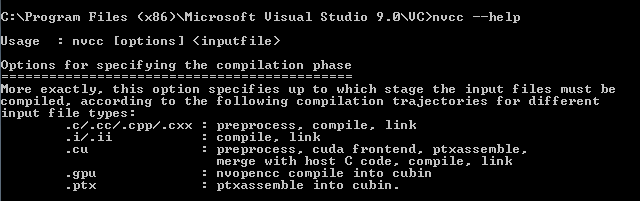
Now, once the CUDA Toolkit is installed, you can write CUDA C applications using your favorite text editor application. I use notepad. To compile an application, you can use the Visual Studio 2008 command prompt (to get the right paths to VS and linkers), and use nvcc.exe to compile.

image

image

Test if the installation is a success
Let’s try this out. A really really simple CUDA application that is working looks like any other C code:

#include <stdio.h>

int main( void )
{
    printf( “Hello, World!” );
    return 0;
}

This source might come as a supprise for you. Acctually, you can type any C application using CUDA. The real magic happens when we start deciding what functions we want to execute on the CPU and what we want to execute on the GPU.

Ok, let’s compile this example. Write the code above in your favorite texteditor, and save it as “TestCUDA.cu”.

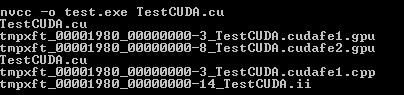
Next, lets compile and build our application. Still in the Console Window, on the same path as where you saved “TestCUDA.cu”, type the following command:
nvcc –o test.exe TestCUDA.cu

and hit [ENTER]. This will build the application and create a EXE file named “test.exe”.
image
Now, if you type “test.exe”, your first CUDA C application will run and print “Hello, World” on the screen. Pretty neat, huh?
image

If you got any problems compiling, copy the errormessage and make a search. Most of the common mistakes and errors got solutions out there. Good luck! (if you downloaded the 64bit version of the CUDA Toolkit, try uninstalling this and test the 32bit version.)

Thats it for now, see you in Tutorial 2 of this series.

Inspiration for learning CUDA

Posted in CUDA, Parallel Computing | 1 Comment

Moved to wordpress!

Finally moved over to wordpress, changed a bit on the blog design and ready to be more active on blogging again! 🙂

Posted in Uncategorized | 1 Comment

Free Windows Phone 7 Jump Start Training

WP7 MVPs have created 12 video tutorials on how to develop on the Windows Phone 7. Each video is about 50minutes long, and will take you from a beginner to an advanced Windows Phone 7 developer.
 
Get up to speed on Windoes Phone 7 for free, now! 🙂
 
Posted in Windows Phone | Leave a comment

Windows Phone 7 Sample applications

http://channel9.msdn.com/posts/LauraFoy/Windows-Phone-7-Apps–Tools/

Windows Phone 7 Program Manager, Sean Mckenna, swung by the Channel 9 studio to give us a demo of some Windows Phone 7 applications. The idea is that these are some core applications, for which the source code will be made available HERE, that developers can integrate into their more complex and intricate original applications. Check out what he’s offering and get to developing!

 
Posted in Windows Phone | Leave a comment

Want to learn Windows Azure?

If you are one of many developers who want to move up to the clouds, be sure to check out the newest update to Windows Azure Platform Training Kit.
 
 
Posted in Technology | Leave a comment