HTML5 Game Development for Windows 8 #3: Finishing your first game

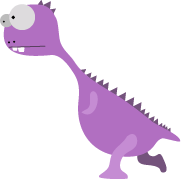
image

Welcome back to my HTML5 game programming series. In this part of the tutorial we are going to finish our first HTML5 game for Windows 8.

Note: This tutorial was written on the plane to Las Vegas, will fix typos at a later time.

If you havent completed my previous tutorials, now is the time 🙂

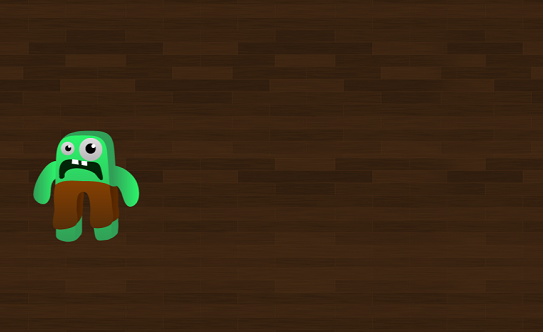
Anyhow. Last time we were left of with a playfield where you could move the hero around the screen, a main menu where you had to tap the screen to start the game, but no enemies. This is what we are going to implement today.

First of all, we need a few global variables for the ghost.

   1: var ghosts = [];

   2: var ghostSpeed = 1.0;

The first variable is an array including all the ghosts thats currently alive, and the 2nd one is the speed the ghosts will have when moving towards you.

We also need a global variable for the image and the bitmap of the ghost:
var ghostImage, ghostBitmap;

Next, we need a class for the ghost:

   1: function Ghost(gfx) {

   2:     this.positionX = Math.random() * 5000 - 2500;

   3:     this.positionY = Math.random() * 3000 - 1500;

   4:  

   5:     this.setStartPosition = function () {

   6:         if (this.positionX >= 0 && this.positionX <= window.innerWidth) {

   7:             this.positionX = -500;

   8:         }

   9:  

  10:         if (this.positionY >= 0 && this.positionY <= window.innerHeight) {

  11:             this.positionY = -500;

  12:         }

  13:     }

  14:  

  15:     this.targetX = 0;

  16:     this.targetY = 0;

  17:  

  18:     this.move = function (tX, tY) {

  19:         this.targetX = tX;

  20:         this.targetY = tY;

  21:  

  22:         if (this.targetX > this.positionX) {

  23:             this.positionX += ghostSpeed;

  24:         }

  25:         if (this.targetX < this.positionX) {

  26:             this.positionX -= ghostSpeed;

  27:         }

  28:         if (this.targetY > this.positionY) {

  29:             this.positionY += ghostSpeed;

  30:         }

  31:         if (this.targetY < this.positionY) {

  32:             this.positionY -= ghostSpeed;

  33:         }

  34:     };

  35:  

  36:     this.isCollision = function (playerX, playerY, playerW, playerH) {

  37:         var centerX = this.positionX + (this.ghostBitmap.image.width * scaleW / 2);

  38:         var centerY = this.positionY + (this.ghostBitmap.image.height * scaleH / 2);

  39:  

  40:         if ((centerX >= playerX - playerW / 2) && (centerX < playerX + playerW / 2)) {

  41:             if ((centerY >= playerY - playerH / 2) && (centerY < playerY + playerH / 2)) {

  42:                 return true;

  43:             }

  44:         }

  45:  

  46:         return false;

  47:     }

  48:  

  49:     this.ghostBitmap = gfx;

  50: }

  51:  

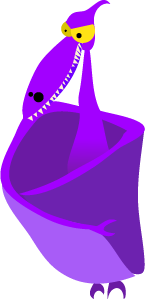
This class looks a bit like the player class – it got a variable for the current position of one ghost and the target. But this class also contains a function that moved the ghost towards the target, and a function that checks if the ghost is colliding with the player sprite.

The position of a new ghost will be randomly selected – but if it spawns in the middle of the playscreen, we move it outside so he wont spawn on top of the player making it impossible to avoid it. All ghosts must spawn outside the playfield, and move towards the player at all time.

Now, we load the image for the ghost like we did with the player in loadContent() – but we only load the image from the preload object:

   1: ghostImage = preload.getResult("ghost").result


Spawning a ghost

We will use a timer to spawn a ghost, so go ahead and create a new global variable that will contain the spawntime untill a new ghost is spawned:
var timeToAddNewGhost = 0;

In the update loop, just below the code that moves the player towards the target, we add the code that will add a new ghost to the ghosts array:

   1: timeToAddNewGhost -= 1;

   2: if (timeToAddNewGhost < 0) {

   3:     timeToAddNewGhost = 1000

   4:     ghosts.push(new Ghost(new createjs.Bitmap(ghostImage)));

   5:     ghosts[ghosts.length - 1].setStartPosition();

   6:     gameStage.addChild(ghosts[ghosts.length - 1].ghostBitmap);

   7: }

Every frame, we subtract one from the timeToAddNewGhost variable. If this is below 0, we set the timer to 1000 and add a new ghost to the array using the ghostImage we loaded earlier. We also make sure that the start position isn’t on the visible playfield.

For every 1000 frame, a new ghost is spawned and the game gets a bit harder. But an array wont do us much good without updating the position of the image file (or else the ghost will be invisible). So for each active ghost in the array, we set the image position, move the ghost towards the player and check for collision:

   1: for (var i = 0; i < ghosts.length; i++)

   2: {

   3:     ghosts[i].ghostBitmap.x = ghosts[i].positionX;

   4:     ghosts[i].ghostBitmap.y = ghosts[i].positionY;

   5:     ghosts[i].ghostBitmap.visible = true;

   6:     ghosts[i].move(player.positionX, player.positionY);

   7:     ghosts[i].isCollision(player.positionX, player.positionY, player.width, player.height);

   8: }

Just to make sure you got everything right, below is a listing of the entire source this far:

   1: // For an introduction to the Blank template, see the following documentation:

   2: // http://go.microsoft.com/fwlink/?LinkId=232509

   3: (function () {

   4:     "use strict";

   5:  

   6:     WinJS.Binding.optimizeBindingReferences = true;

   7:  

   8:     var app = WinJS.Application;

   9:     var activation = Windows.ApplicationModel.Activation;

  10:  

  11:     var canvas, context;

  12:     var gameStage;

  13:     var preload;

  14:  

  15:     var logoScreenImage, logoScreenBitmap;

  16:     var floorImage, floorBitmap;

  17:     var playerIdleImage, playerIdleBitmap;

  18:     var ghostImage, ghostBitmap;

  19:  

  20:     var newGame = true;

  21:  

  22:     var player;

  23:  

  24:     var ghosts = [];

  25:     var ghostSpeed = 1.0;

  26:     var timeToAddNewGhost = 0;

  27:  

  28:     var scaleW = window.innerWidth / 1366;

  29:     var scaleH = window.innerHeight / 768;

  30:  

  31:  

  32:     app.onactivated = function (args) {

  33:         if (args.detail.kind === activation.ActivationKind.launch) {

  34:             if (args.detail.previousExecutionState !== activation.ApplicationExecutionState.terminated) {

  35:                 // TODO: This application has been newly launched. Initialize

  36:                 // your application here.

  37:             } else {

  38:                 // TODO: This application has been reactivated from suspension.

  39:                 // Restore application state here.

  40:             }

  41:             args.setPromise(WinJS.UI.processAll());

  42:         }

  43:     };

  44:  

  45:     // The player class

  46:     function Player() {

  47:         this.positionX = window.innerWidth / 2;

  48:         this.positionY = window.innerHeight / 2;

  49:  

  50:         this.targetX = this.positionX;

  51:         this.targetY = this.positionY;

  52:  

  53:         this.width = playerIdleBitmap.image.width * scaleW;

  54:         this.height = playerIdleBitmap.image.height * scaleH;

  55:     }

  56:  

  57:     // The ghost class

  58:     function Ghost(gfx) {

  59:         this.positionX = Math.random() * 5000 - 2500;

  60:         this.positionY = Math.random() * 3000 - 1500;

  61:  

  62:         this.setStartPosition = function () {

  63:             if (this.positionX >= 0 && this.positionX <= window.innerWidth) {

  64:                 this.positionX = -500;

  65:             }

  66:  

  67:             if (this.positionY >= 0 && this.positionY <= window.innerHeight) {

  68:                 this.positionY = -500;

  69:             }

  70:         }

  71:  

  72:         this.targetX = 0;

  73:         this.targetY = 0;

  74:  

  75:         this.move = function (tX, tY) {

  76:             this.targetX = tX;

  77:             this.targetY = tY;

  78:  

  79:             if (this.targetX > this.positionX) {

  80:                 this.positionX += ghostSpeed;

  81:             }

  82:             if (this.targetX < this.positionX) {

  83:                 this.positionX -= ghostSpeed;

  84:             }

  85:             if (this.targetY > this.positionY) {

  86:                 this.positionY += ghostSpeed;

  87:             }

  88:             if (this.targetY < this.positionY) {

  89:                 this.positionY -= ghostSpeed;

  90:             }

  91:         };

  92:  

  93:         this.isCollision = function (playerX, playerY, playerW, playerH) {

  94:             var centerX = this.positionX + (this.ghostBitmap.image.width * scaleW / 2);

  95:             var centerY = this.positionY + (this.ghostBitmap.image.height * scaleH / 2);

  96:  

  97:             if ((centerX >= playerX - playerW / 2) && (centerX < playerX + playerW / 2)) {

  98:                 if ((centerY >= playerY - playerH / 2) && (centerY < playerY + playerH / 2)) {

  99:                     return true;

 100:                 }

 101:             }

 102:  

 103:             return false;

 104:         }

 105:  

 106:         this.ghostBitmap = gfx;

 107:     }

 108:  

 109:  

 110:     function pointerUp(event) {

 111:         if (newGame) {

 112:             newGame = false;

 113:         }

 114:         else {

 115:             player.targetX = event.x;

 116:             player.targetY = event.y;

 117:         }

 118:     }

 119:  

 120:     function pointerDown(event) {

 121:         if (newGame) {

 122:         }

 123:         else {

 124:             player.targetX = event.x;

 125:             player.targetY = event.y;

 126:         }

 127:     }

 128:  

 129:     function pointerMove(event) {

 130:         if (newGame) {

 131:         }

 132:         else {

 133:             player.targetX = event.x;

 134:             player.targetY = event.y;

 135:         }

 136:     }

 137:  

 138:     function initialize() {

 139:         canvas = document.getElementById("gameCanvas");

 140:         canvas.width = window.innerWidth;

 141:         canvas.height = window.innerHeight;

 142:         context = canvas.getContext("2d");

 143:  

 144:         canvas.addEventListener("MSPointerUp", pointerUp, false);

 145:         canvas.addEventListener("MSPointerMove", pointerMove, false);

 146:         canvas.addEventListener("MSPointerDown", pointerDown, false);

 147:  

 148:         gameStage = new createjs.Stage(canvas);

 149:  

 150:         loadContent();

 151:     }

 152:  

 153:     function loadContent() {

 154:         preload = new createjs.PreloadJS();

 155:         preload.onComplete = prepareStage;

 156:  

 157:         var manifest = [

 158:             { id: "logoScreen", src: "images/GFX/LogoScreen.png" },

 159:             { id: "floor", src: "images/GFX/floor.png" },

 160:             { id: "ghost", src: "images/GFX/Ghost.png" },

 161:             { id: "playerIdle", src: "images/GFX/PlayerIdle.png" }

 162:         ];

 163:  

 164:         preload.loadManifest(manifest);

 165:     }

 166:  

 167:     function prepareStage() {

 168:         logoScreenImage = preload.getResult("logoScreen").result;

 169:         logoScreenBitmap = new createjs.Bitmap(logoScreenImage);

 170:         logoScreenBitmap.scaleX = scaleW;

 171:         logoScreenBitmap.scaleY = scaleH;

 172:         gameStage.addChild(logoScreenBitmap);

 173:  

 174:         floorImage = preload.getResult("floor").result;

 175:         floorBitmap = new createjs.Bitmap(floorImage);

 176:         floorBitmap.visible = false;

 177:         floorBitmap.scaleX = scaleW;

 178:         floorBitmap.scaleY = scaleH;

 179:         gameStage.addChild(floorBitmap);

 180:  

 181:         playerIdleImage = preload.getResult("playerIdle").result;

 182:         playerIdleBitmap = new createjs.Bitmap(playerIdleImage);

 183:         playerIdleBitmap.visible = false;

 184:         playerIdleBitmap.scaleX = scaleW;

 185:         playerIdleBitmap.scaleY = scaleH;

 186:         gameStage.addChild(playerIdleBitmap);

 187:  

 188:         ghostImage = preload.getResult("ghost").result

 189:  

 190:         player = new Player();

 191:  

 192:         createjs.Ticker.setInterval(window.requestAnimationFrame);

 193:         createjs.Ticker.addListener(gameLoop);

 194:     }

 195:  

 196:     function gameLoop() {

 197:         update();

 198:         draw();

 199:     }

 200:  

 201:     function update() {

 202:         if (newGame) {

 203:             logoScreenBitmap.visible = true;

 204:             playerIdleBitmap.visible = false;

 205:             floorBitmap.visible = false;

 206:         }

 207:         else {

 208:             logoScreenBitmap.visible = false;

 209:             playerIdleBitmap.visible = true;

 210:             floorBitmap.visible = true;

 211:  

 212:             if (player.targetX > player.positionX) {

 213:                 player.positionX += 3;

 214:             }

 215:             if (player.targetX < player.positionX) {

 216:                 player.positionX -= 3;

 217:             }

 218:             if (player.targetY > player.positionY) {

 219:                 player.positionY += 3;

 220:             }

 221:             if (player.targetY < player.positionY) {

 222:                 player.positionY -= 3;

 223:             }

 224:  

 225:             timeToAddNewGhost -= 1;

 226:             if (timeToAddNewGhost < 0) {

 227:                 timeToAddNewGhost = 1000

 228:                 ghosts.push(new Ghost(new createjs.Bitmap(ghostImage)));

 229:                 ghosts[ghosts.length - 1].setStartPosition();

 230:                 gameStage.addChild(ghosts[ghosts.length - 1].ghostBitmap);

 231:             }

 232:  

 233:             for (var i = 0; i < ghosts.length; i++) {

 234:                 ghosts[i].ghostBitmap.x = ghosts[i].positionX;

 235:                 ghosts[i].ghostBitmap.y = ghosts[i].positionY;

 236:                 ghosts[i].ghostBitmap.visible = true;

 237:                 ghosts[i].move(player.positionX, player.positionY);

 238:                 ghosts[i].isCollision(player.positionX, player.positionY, player.width, player.height);

 239:             }

 240:  

 241:             playerIdleBitmap.x = player.positionX - (player.width / 2);

 242:             playerIdleBitmap.y = player.positionY - (player.height / 2);

 243:         }

 244:     }

 245:  

 246:     function draw() {

 247:         gameStage.update();

 248:     }

 249:  

 250:     app.oncheckpoint = function (args) {

 251:         // TODO: This application is about to be suspended. Save any state

 252:         // that needs to persist across suspensions here. You might use the

 253:         // WinJS.Application.sessionState object, which is automatically

 254:         // saved and restored across suspension. If you need to complete an

 255:         // asynchronous operation before your application is suspended, call

 256:         // args.setPromise().

 257:     };

 258:  

 259:     document.addEventListener("DOMContentLoaded", initialize, false);

 260:  

 261:     app.start();

 262: })();

 263:  

 264:  

 265:  

If you run the game now, the game will start, you can move around and more and more ghosts will try to attack you.

Implementing Game Over
The ghosts aren’t really dangerous right now, if the ghost hit you – nothing happens. Yes, we are checking for collision, but haven’t yet created any rules that will happen when the collision is true.

To do this we need to define a new global variable:

   1: var isGameOver = false;

In the loop where we go through each of the ghosts, replace this line:
ghosts[i].isCollision(player.positionX, player.positionY, player.width, player.height);

with this:

   1: isGameOver = ghosts[i].isCollision(player.positionX, player.positionY, player.width, player.height);

Also, add this code below so when a collision is happening, we break the for-loop:

   1: if (isGameOver)   

   2:     break;

In the top of the update() function, inside the else statement of if(newGame), add the following code:

   1: if (isGameOver) {

   2:     isGameOver = false;

   3:     ghosts.length = 0;

   4:     gameStage.clear();

   5:  

   6:     gameStage.addChild(logoScreenBitmap);

   7:     gameStage.addChild(floorBitmap);

   8:     gameStage.addChild(playerIdleBitmap);

   9:     gameStage.addChild(scoreText);

  10:  

  11:     gameStage.update();

  12: }

  13:  

Just to make sure you are in thr right place, the update function looks like this:

   1: function update() {

   2:     if (newGame) {

   3:         logoScreenBitmap.visible = true;

   4:         playerIdleBitmap.visible = false;

   5:         floorBitmap.visible = false;

   6:     }

   7:     else {

   8:         if (isGameOver) {

   9:             isGameOver = false;

  10:             ghosts.length = 0;

  11:             gameStage.clear();

  12:  

  13:             gameStage.addChild(logoScreenBitmap);

  14:             gameStage.addChild(floorBitmap);

  15:             gameStage.addChild(playerIdleBitmap);

  16:  

  17:             gameStage.update();

  18:         }

  19:         logoScreenBitmap.visible = false;

  20:         playerIdleBitmap.visible = true;

  21:         floorBitmap.visible = true;

  22:  

  23:         if (player.targetX > player.positionX) {

  24:             player.positionX += 3;

  25:         }

  26:         if (player.targetX < player.positionX) {

  27:             player.positionX -= 3;

  28:         }

  29:         if (player.targetY > player.positionY) {

  30:             player.positionY += 3;

  31:         }

  32:         if (player.targetY < player.positionY) {

  33:             player.positionY -= 3;

  34:         }

  35:  

  36:         timeToAddNewGhost -= 1;

  37:         if (timeToAddNewGhost < 0) {

  38:             timeToAddNewGhost = 1000

  39:             ghosts.push(new Ghost(new createjs.Bitmap(ghostImage)));

  40:             ghosts[ghosts.length - 1].setStartPosition();

  41:             gameStage.addChild(ghosts[ghosts.length - 1].ghostBitmap);

  42:         }

  43:  

  44:         for (var i = 0; i < ghosts.length; i++) {

  45:             ghosts[i].ghostBitmap.x = ghosts[i].positionX;

  46:             ghosts[i].ghostBitmap.y = ghosts[i].positionY;

  47:             ghosts[i].ghostBitmap.visible = true;

  48:             ghosts[i].move(player.positionX, player.positionY);

  49:             isGameOver = ghosts[i].isCollision(player.positionX, player.positionY, player.width, player.height);

  50:             if (isGameOver)

  51:                 break;

  52:         }

  53:  

  54:         playerIdleBitmap.x = player.positionX - (player.width / 2);

  55:         playerIdleBitmap.y = player.positionY - (player.height / 2);

  56:     }

  57: }

  58:  

What we do in this code is to check if it’s game over. If this is true (a collision is happened), we set the gameOver flag to false again, clear all the active ghosts in the array and remove everything from the gameState (because its filled with ghosts). We then add back the logoScreen, the floor and the player and restart the game.

If you run the game again, you can see that we have a working game! 🙂

Adding a score

But, something is missing – a score!
The longer you stay alive, the more score you will get.

To add a score, define a new global variable called playerScore and a a new global variable called scoreText:

   1: var scoreText;

   2: var playerScore = 0;

scoreText will contain the font and position of the text.

In the game over “routine”, add a line that sets the playerScore to 0 – when it’s game over, we want to reset the score:

   1: playerScore = 0;

Back in loadContent(): We create a new font object using CreateJS containing the text we want to display, the position (we want it to be on the top center of the screen) and add it to the gameStage:

   1: scoreText = new createjs.Text("Score: " + playerScore, "30px sans-serif", "yellow");

   2: scoreText.x = canvas.width / 2 - (scoreText.getMeasuredWidth() * scaleW / 2);

   3: scoreText.scaleX = scaleW;

   4: scoreText.scaleY = scaleH;

   5: scoreText.y = 30 * scaleH;

   6: scoreText.visible = false;

   7: gameStage.addChild(scoreText);

The function getMeasuredWidth() simply returns how wide the string that we want to render is – making it simple to calculate where to render it based on how long the text is.

Back again to the gameOver rules: Add a new line that adds the scoreText object back to the stage:

   1: gameStage.addChild(scoreText);

Still in the update() function, just below the code that moves the player – add these two lines of code:

   1: playerScore += 1;

   2: scoreText.text = ("Score: " + playerScore);

This increases the score for each frame and updates the text in scoreText.

We also must make sure that the score text is visible or invisible based on if we are in game or not.

image

And thats it, we got a working game! If something isn’t working, you can check your solution with the code below, it contains all the code for the game:

   1: // For an introduction to the Blank template, see the following documentation:

   2: // http://go.microsoft.com/fwlink/?LinkId=232509

   3: (function () {

   4:     "use strict";

   5:  

   6:     WinJS.Binding.optimizeBindingReferences = true;

   7:  

   8:     var app = WinJS.Application;

   9:     var activation = Windows.ApplicationModel.Activation;

  10:  

  11:     var canvas, context;

  12:     var gameStage;

  13:     var preload;

  14:  

  15:     var logoScreenImage, logoScreenBitmap;

  16:     var floorImage, floorBitmap;

  17:     var playerIdleImage, playerIdleBitmap;

  18:     var ghostImage, ghostBitmap;

  19:  

  20:     var newGame = true;

  21:     var isGameOver = false;

  22:  

  23:     var player;

  24:  

  25:     var scoreText;

  26:     var playerScore = 0;

  27:  

  28:     var ghosts = [];

  29:     var ghostSpeed = 1.0;

  30:     var timeToAddNewGhost = 0;

  31:  

  32:     var scaleW = window.innerWidth / 1366;

  33:     var scaleH = window.innerHeight / 768;

  34:  

  35:  

  36:     app.onactivated = function (args) {

  37:         if (args.detail.kind === activation.ActivationKind.launch) {

  38:             if (args.detail.previousExecutionState !== activation.ApplicationExecutionState.terminated) {

  39:                 // TODO: This application has been newly launched. Initialize

  40:                 // your application here.

  41:             } else {

  42:                 // TODO: This application has been reactivated from suspension.

  43:                 // Restore application state here.

  44:             }

  45:             args.setPromise(WinJS.UI.processAll());

  46:         }

  47:     };

  48:  

  49:     // The player class

  50:     function Player() {

  51:         this.positionX = window.innerWidth / 2;

  52:         this.positionY = window.innerHeight / 2;

  53:  

  54:         this.targetX = this.positionX;

  55:         this.targetY = this.positionY;

  56:  

  57:         this.width = playerIdleBitmap.image.width * scaleW;

  58:         this.height = playerIdleBitmap.image.height * scaleH;

  59:     }

  60:  

  61:     // The ghost class

  62:     function Ghost(gfx) {

  63:         this.positionX = Math.random() * 5000 - 2500;

  64:         this.positionY = Math.random() * 3000 - 1500;

  65:  

  66:         this.setStartPosition = function () {

  67:             if (this.positionX >= 0 && this.positionX <= window.innerWidth) {

  68:                 this.positionX = -500;

  69:             }

  70:  

  71:             if (this.positionY >= 0 && this.positionY <= window.innerHeight) {

  72:                 this.positionY = -500;

  73:             }

  74:         }

  75:  

  76:         this.targetX = 0;

  77:         this.targetY = 0;

  78:  

  79:         this.move = function (tX, tY) {

  80:             this.targetX = tX;

  81:             this.targetY = tY;

  82:  

  83:             if (this.targetX > this.positionX) {

  84:                 this.positionX += ghostSpeed;

  85:             }

  86:             if (this.targetX < this.positionX) {

  87:                 this.positionX -= ghostSpeed;

  88:             }

  89:             if (this.targetY > this.positionY) {

  90:                 this.positionY += ghostSpeed;

  91:             }

  92:             if (this.targetY < this.positionY) {

  93:                 this.positionY -= ghostSpeed;

  94:             }

  95:         };

  96:  

  97:         this.isCollision = function (playerX, playerY, playerW, playerH) {

  98:             var centerX = this.positionX + (this.ghostBitmap.image.width * scaleW / 2);

  99:             var centerY = this.positionY + (this.ghostBitmap.image.height * scaleH / 2);

 100:  

 101:             if ((centerX >= playerX - playerW / 2) && (centerX < playerX + playerW / 2)) {

 102:                 if ((centerY >= playerY - playerH / 2) && (centerY < playerY + playerH / 2)) {

 103:                     return true;

 104:                 }

 105:             }

 106:  

 107:             return false;

 108:         }

 109:  

 110:         this.ghostBitmap = gfx;

 111:     }

 112:  

 113:  

 114:     function pointerUp(event) {

 115:         if (newGame) {

 116:             newGame = false;

 117:         }

 118:         else {

 119:             player.targetX = event.x;

 120:             player.targetY = event.y;

 121:         }

 122:     }

 123:  

 124:     function pointerDown(event) {

 125:         if (newGame) {

 126:         }

 127:         else {

 128:             player.targetX = event.x;

 129:             player.targetY = event.y;

 130:         }

 131:     }

 132:  

 133:     function pointerMove(event) {

 134:         if (newGame) {

 135:         }

 136:         else {

 137:             player.targetX = event.x;

 138:             player.targetY = event.y;

 139:         }

 140:     }

 141:  

 142:     function initialize() {

 143:         canvas = document.getElementById("gameCanvas");

 144:         canvas.width = window.innerWidth;

 145:         canvas.height = window.innerHeight;

 146:         context = canvas.getContext("2d");

 147:  

 148:         canvas.addEventListener("MSPointerUp", pointerUp, false);

 149:         canvas.addEventListener("MSPointerMove", pointerMove, false);

 150:         canvas.addEventListener("MSPointerDown", pointerDown, false);

 151:  

 152:         gameStage = new createjs.Stage(canvas);

 153:  

 154:         loadContent();

 155:     }

 156:  

 157:     function loadContent() {

 158:         preload = new createjs.PreloadJS();

 159:         preload.onComplete = prepareStage;

 160:  

 161:         var manifest = [

 162:             { id: "logoScreen", src: "images/GFX/LogoScreen.png" },

 163:             { id: "floor", src: "images/GFX/floor.png" },

 164:             { id: "ghost", src: "images/GFX/Ghost.png" },

 165:             { id: "playerIdle", src: "images/GFX/PlayerIdle.png" }

 166:         ];

 167:  

 168:         preload.loadManifest(manifest);

 169:     }

 170:  

 171:     function prepareStage() {

 172:         logoScreenImage = preload.getResult("logoScreen").result;

 173:         logoScreenBitmap = new createjs.Bitmap(logoScreenImage);

 174:         logoScreenBitmap.scaleX = scaleW;

 175:         logoScreenBitmap.scaleY = scaleH;

 176:         gameStage.addChild(logoScreenBitmap);

 177:  

 178:         floorImage = preload.getResult("floor").result;

 179:         floorBitmap = new createjs.Bitmap(floorImage);

 180:         floorBitmap.visible = false;

 181:         floorBitmap.scaleX = scaleW;

 182:         floorBitmap.scaleY = scaleH;

 183:         gameStage.addChild(floorBitmap);

 184:  

 185:         playerIdleImage = preload.getResult("playerIdle").result;

 186:         playerIdleBitmap = new createjs.Bitmap(playerIdleImage);

 187:         playerIdleBitmap.visible = false;

 188:         playerIdleBitmap.scaleX = scaleW;

 189:         playerIdleBitmap.scaleY = scaleH;

 190:         gameStage.addChild(playerIdleBitmap);

 191:  

 192:         scoreText = new createjs.Text("Score: " + playerScore, "30px sans-serif", "yellow");

 193:         scoreText.x = canvas.width / 2 - (scoreText.getMeasuredWidth() * scaleW / 2);

 194:         scoreText.scaleX = scaleW;

 195:         scoreText.scaleY = scaleH;

 196:         scoreText.y = 30 * scaleH;

 197:         scoreText.visible = false;

 198:         gameStage.addChild(scoreText);

 199:  

 200:  

 201:         ghostImage = preload.getResult("ghost").result

 202:  

 203:         player = new Player();

 204:  

 205:         createjs.Ticker.setInterval(window.requestAnimationFrame);

 206:         createjs.Ticker.addListener(gameLoop);

 207:     }

 208:  

 209:     function gameLoop() {

 210:         update();

 211:         draw();

 212:     }

 213:  

 214:     function update() {

 215:         if (newGame) {

 216:             logoScreenBitmap.visible = true;

 217:             playerIdleBitmap.visible = false;

 218:             floorBitmap.visible = false;

 219:             scoreText.visible = false;

 220:         }

 221:         else {

 222:             if (isGameOver) {

 223:                 isGameOver = false;

 224:                 ghosts.length = 0;

 225:                 playerScore = 0;

 226:                 gameStage.clear();

 227:  

 228:                 gameStage.addChild(logoScreenBitmap);

 229:                 gameStage.addChild(floorBitmap);

 230:                 gameStage.addChild(playerIdleBitmap);

 231:                 gameStage.addChild(scoreText);

 232:  

 233:                 gameStage.update();

 234:             }

 235:             logoScreenBitmap.visible = false;

 236:             playerIdleBitmap.visible = true;

 237:             floorBitmap.visible = true;

 238:             scoreText.visible = true;

 239:  

 240:             if (player.targetX > player.positionX) {

 241:                 player.positionX += 3;

 242:             }

 243:             if (player.targetX < player.positionX) {

 244:                 player.positionX -= 3;

 245:             }

 246:             if (player.targetY > player.positionY) {

 247:                 player.positionY += 3;

 248:             }

 249:             if (player.targetY < player.positionY) {

 250:                 player.positionY -= 3;

 251:             }

 252:  

 253:             playerScore += 1;

 254:             scoreText.text = ("Score: " + playerScore);

 255:  

 256:             timeToAddNewGhost -= 1;

 257:             if (timeToAddNewGhost < 0) {

 258:                 timeToAddNewGhost = 1000

 259:                 ghosts.push(new Ghost(new createjs.Bitmap(ghostImage)));

 260:                 ghosts[ghosts.length - 1].setStartPosition();

 261:                 gameStage.addChild(ghosts[ghosts.length - 1].ghostBitmap);

 262:             }

 263:  

 264:             for (var i = 0; i < ghosts.length; i++) {

 265:                 ghosts[i].ghostBitmap.x = ghosts[i].positionX;

 266:                 ghosts[i].ghostBitmap.y = ghosts[i].positionY;

 267:                 ghosts[i].ghostBitmap.visible = true;

 268:                 ghosts[i].move(player.positionX, player.positionY);

 269:                 isGameOver = ghosts[i].isCollision(player.positionX, player.positionY, player.width, player.height);

 270:                 if (isGameOver)

 271:                     break;

 272:             }

 273:  

 274:             playerIdleBitmap.x = player.positionX - (player.width / 2);

 275:             playerIdleBitmap.y = player.positionY - (player.height / 2);

 276:         }

 277:     }

 278:  

 279:     function draw() {

 280:         gameStage.update();

 281:     }

 282:  

 283:     app.oncheckpoint = function (args) {

 284:         // TODO: This application is about to be suspended. Save any state

 285:         // that needs to persist across suspensions here. You might use the

 286:         // WinJS.Application.sessionState object, which is automatically

 287:         // saved and restored across suspension. If you need to complete an

 288:         // asynchronous operation before your application is suspended, call

 289:         // args.setPromise().

 290:     };

 291:  

 292:     document.addEventListener("DOMContentLoaded", initialize, false);

 293:  

 294:     app.start();

 295: })();

 296:  

Thanks for following! In the next tutorial, we are going to look at other important aspects of game programming on Windows 8 like storeing data and so on.

Download the source of the game here:
http://sdrv.ms/T2KTFg
Posted in Game programming, Tutorial, Windows 8 | 10 Comments

HTML5 Game Development for Windows 8 #2: Adding a player

image

Hi, and welcome back to the HTML5 game programming tutorial series. In this tutorial we will continue on the previous tutorial, so if you havent done so yet, now is the time! 🙂

Note: This was written on the plane to Las Vegas in a tired condition. Will fix typos at a later stage.

Last time, we got the main menu up and running. Now we are going to make the main menu screen wait for a touch input, and when that happens, it will start the game and a player is rendered.

The first thing we need is a boolean that tells if we are going to show the main menu or not.

Define the newGame global variable:

   1: var canvas, context;

   2: var gameStage;

   3: var preload;

   4:  

   5: var logoScreenImage, logoScreenBitmap;

   6:  

   7: var newGame = true;

The newGame variable will be used to let our stage know what elements it should display. When we are in the main menu, we hide the game elements and only show the main menu screen.

This will be handled in the update() function (remeber, this is where the game logic is handled). You can use the visible-property of the Bitmap you want to control to make it visible or invisible:

   1: function update() {

   2:     if (newGame) {

   3:         logoScreenBitmap.visible = true;

   4:     }

   5:     else {

   6:         logoScreenBitmap.visible = false;

   7:     }

   8: }

New, the last thing we need in order to acctually change the scene is to wait for the user to touch the screen so the game can start:

In the initialize() function, after the context = canvas.getContext(“2d”); line of code, add the following line:

   1: canvas.addEventListener("MSPointerUp", pointerUp, false);

This function creates an event listener that will trigger when the user lifts up his finger (or release the mouse pointer). When this triggers, the function pointerUp is executed.

Let’s take a look at the pointerUp function:

   1: function pointerUp(event) {

   2:     if (newGame) {

   3:         newGame = false;

   4:     }

   5:     else {

   6:     }

   7: }

This function sets the newGame boolean to false when it triggers a new release of the funger/mouse pointer.

Now it’s time to add the player character and the ghost house floor. To do this, we need a few global variables and a class that contains the player logic.

Add the following global variables:

   1: var player;

   2:  

   3: var floorImage, floorBitmap;

   4: var playerIdleImage, playerIdleBitmap;

We also need a variable that will help us keep track of scaling. When the game is deployed to various devices, it’s important that we scale the playfield to make sure it works on all devices.

All the games GFX is made with the 1366 x 768 resolution as the basis. If the resolution changes, we also want to make sure to scale everything. To do this we create two variables :

   1: var scaleW = window.innerWidth / 1366;

   2: var scaleH = window.innerHeight / 768;


Now, let’s make sure that the main menu screen scales.

Add the lines with the scale properties to your loadContent() function, where you define and load the mainMenuBitmap:

   1: logoScreenBitmap.scaleX = scaleW;

   2: logoScreenBitmap.scaleY = scaleH;

Also, load the floor texture and the playerIdle texture:

   1: logoScreenImage = preload.getResult("logoScreen").result;

   2: logoScreenBitmap = new createjs.Bitmap(logoScreenImage);

   3: logoScreenBitmap.scaleX = scaleW;

   4: logoScreenBitmap.scaleY = scaleH;

   5: gameStage.addChild(logoScreenBitmap);

   6:  

   7: floorImage = preload.getResult("floor").result;

   8: floorBitmap = new createjs.Bitmap(floorImage);

   9: floorBitmap.visible = false;

  10: floorBitmap.scaleX = scaleW;

  11: floorBitmap.scaleY = scaleH;

  12: gameStage.addChild(floorBitmap);

  13:  

  14: playerIdleImage = preload.getResult("playerIdle").result;

  15: playerIdleBitmap = new createjs.Bitmap(playerIdleImage);

  16: playerIdleBitmap.visible = false;

  17: playerIdleBitmap.scaleX = scaleW;

  18: playerIdleBitmap.scaleY = scaleH;

  19: gameStage.addChild(playerIdleBitmap);


We load the needed graphics, and also set the visibility properties to invisible, making sure we don’t draw them on the main menu.

Also, update the update() function so it hides/shows player and floor:

   1: function update() {

   2:     if (newGame) {

   3:         logoScreenBitmap.visible = true;

   4:         playerIdleBitmap.visible = false;

   5:         floorBitmap.visible = false;

   6:     }

   7:     else {

   8:         logoScreenBitmap.visible = false;

   9:         playerIdleBitmap.visible = true;

  10:         floorBitmap.visible = true;

  11:     }

  12: }


If you run the game now, you will see the main screen showing. Tapping this will make the main screen go away and you will get in to the playfield.

The player needs a position where it will be rendered, and a target to where he is heading. Also, we need to keep track of the bitmap size in order to calculate collision detection later:

   1: // The player class

   2: function Player() {

   3:     this.positionX = window.innerWidth / 2;

   4:     this.positionY = window.innerHeight / 2;

   5:  

   6:     this.targetX = this.positionX;

   7:     this.targetY = this.positionY;

   8:  

   9:     this.width = playerIdleBitmap.image.width * scaleW;

  10:     this.height = playerIdleBitmap.image.height * scaleH;

  11: }

Let’s make sure we can move our guy. We want to make him move to the last location the user eiter touched or moved the finger (mousepointer).

In the prepareStage function we create a new instance of the player, add this line above the Ticker.setInterval line of code:
player = new Player();

To make the player move you could either create a function in the player class that moves it based on his target, or put the logic in the update function. I will do both, the player class will get updated directly in the update() function, and the ghosts will be moved with a function on the ghost class level.

At every frame, we check if we should move our guy. It his position is different than the target, move it towards the target. One way to do this is to use a vector, or by directly checking the X and Y values of the position. I will do the latter:

   1: function update() {

   2:     if (newGame) {

   3:         logoScreenBitmap.visible = true;

   4:         playerIdleBitmap.visible = false;

   5:         floorBitmap.visible = false;

   6:     }

   7:     else {

   8:         logoScreenBitmap.visible = false;

   9:         playerIdleBitmap.visible = true;

  10:         floorBitmap.visible = true;

  11:  

  12:         if (player.targetX > player.positionX) {

  13:             player.positionX += 3;

  14:         }

  15:         if (player.targetX < player.positionX) {

  16:             player.positionX -= 3;

  17:         }

  18:         if (player.targetY > player.positionY) {

  19:             player.positionY += 3;

  20:         }

  21:         if (player.targetY < player.positionY) {

  22:             player.positionY -= 3;

  23:         }

  24:     }

  25: }


Now, we add a few more event listeners that will make our character move:

   1: function initialize() {

   2:     canvas = document.getElementById("gameCanvas");

   3:     canvas.width = window.innerWidth;

   4:     canvas.height = window.innerHeight;

   5:     context = canvas.getContext("2d");

   6:  

   7:     canvas.addEventListener("MSPointerUp", pointerUp, false);

   8:     canvas.addEventListener("MSPointerMove", pointerMove, false);

   9:     canvas.addEventListener("MSPointerDown", pointerDown, false);

  10:  

  11:     gameStage = new createjs.Stage(canvas);

  12:  

  13:     loadContent();

  14: }


Let’s start by updating the pointerUp function. We need it to take in a parameter that will contain the touch position, and set the players target to this:

   1: function pointerUp(event) {

   2:     if (newGame) {

   3:         newGame = false;

   4:     }

   5:     else {

   6:         player.targetX = event.x;

   7:         player.targetY = event.y;

   8:     }

   9: }

Also, lets add the two others as well:

   1: function pointerDown(event) {

   2:     if (newGame) {

   3:     }

   4:     else {

   5:         player.targetX = event.x;

   6:         player.targetY = event.y;

   7:     }

   8: }

   9:  

  10: function pointerMove(event) {

  11:     if (newGame) {

  12:     }

  13:     else {

  14:         player.targetX = event.x;

  15:         player.targetY = event.y;

  16:     }

  17: }


The last thing we need to do is to update the player image to be rendered at the player positon. Add the following lines in the update function, below the code that makes the player move:

   1: playerIdleBitmap.x = player.positionX - (player.width / 2);

   2: playerIdleBitmap.y = player.positionY - (player.height / 2);

We want the center of the guy to move towards the location of the finger, not the top-left. thats why we subtract half of the height and width of the character.

The update() function should look like this:

   1: function update() {

   2:     if (newGame) {

   3:         logoScreenBitmap.visible = true;

   4:         playerIdleBitmap.visible = false;

   5:         floorBitmap.visible = false;

   6:     }

   7:     else {

   8:         logoScreenBitmap.visible = false;

   9:         playerIdleBitmap.visible = true;

  10:         floorBitmap.visible = true;

  11:  

  12:         if (player.targetX > player.positionX) {

  13:             player.positionX += 3;

  14:         }

  15:         if (player.targetX < player.positionX) {

  16:             player.positionX -= 3;

  17:         }

  18:         if (player.targetY > player.positionY) {

  19:             player.positionY += 3;

  20:         }

  21:         if (player.targetY < player.positionY) {

  22:             player.positionY -= 3;

  23:         }

  24:  

  25:         playerIdleBitmap.x = player.positionX - (player.width / 2);

  26:         playerIdleBitmap.y = player.positionY - (player.height / 2);

  27:     }

  28: }


If you run the app now, you should be able to move the guy!

Below is the entire source for this game:

   1: // For an introduction to the Blank template, see the following documentation:

   2: // http://go.microsoft.com/fwlink/?LinkId=232509

   3: (function () {

   4:     "use strict";

   5:  

   6:     WinJS.Binding.optimizeBindingReferences = true;

   7:  

   8:     var app = WinJS.Application;

   9:     var activation = Windows.ApplicationModel.Activation;

  10:  

  11:     var canvas, context;

  12:     var gameStage;

  13:     var preload;

  14:  

  15:     var logoScreenImage, logoScreenBitmap;

  16:     var floorImage, floorBitmap;

  17:     var playerIdleImage, playerIdleBitmap;

  18:  

  19:     var newGame = true;

  20:  

  21:     var player;

  22:  

  23:     var scaleW = window.innerWidth / 1366;

  24:     var scaleH = window.innerHeight / 768;

  25:  

  26:  

  27:     app.onactivated = function (args) {

  28:         if (args.detail.kind === activation.ActivationKind.launch) {

  29:             if (args.detail.previousExecutionState !== activation.ApplicationExecutionState.terminated) {

  30:                 // TODO: This application has been newly launched. Initialize

  31:                 // your application here.

  32:             } else {

  33:                 // TODO: This application has been reactivated from suspension.

  34:                 // Restore application state here.

  35:             }

  36:             args.setPromise(WinJS.UI.processAll());

  37:         }

  38:     };

  39:  

  40:     // The player class

  41:     function Player() {

  42:         this.positionX = window.innerWidth / 2;

  43:         this.positionY = window.innerHeight / 2;

  44:  

  45:         this.targetX = this.positionX;

  46:         this.targetY = this.positionY;

  47:  

  48:         this.width = playerIdleBitmap.image.width * scaleW;

  49:         this.height = playerIdleBitmap.image.height * scaleH;

  50:     }

  51:  

  52:  

  53:     function pointerUp(event) {

  54:         if (newGame) {

  55:             newGame = false;

  56:         }

  57:         else {

  58:             player.targetX = event.x;

  59:             player.targetY = event.y;

  60:         }

  61:     }

  62:  

  63:     function pointerDown(event) {

  64:         if (newGame) {

  65:         }

  66:         else {

  67:             player.targetX = event.x;

  68:             player.targetY = event.y;

  69:         }

  70:     }

  71:  

  72:     function pointerMove(event) {

  73:         if (newGame) {

  74:         }

  75:         else {

  76:             player.targetX = event.x;

  77:             player.targetY = event.y;

  78:         }

  79:     }

  80:  

  81:     function initialize() {

  82:         canvas = document.getElementById("gameCanvas");

  83:         canvas.width = window.innerWidth;

  84:         canvas.height = window.innerHeight;

  85:         context = canvas.getContext("2d");

  86:  

  87:         canvas.addEventListener("MSPointerUp", pointerUp, false);

  88:         canvas.addEventListener("MSPointerMove", pointerMove, false);

  89:         canvas.addEventListener("MSPointerDown", pointerDown, false);

  90:  

  91:         gameStage = new createjs.Stage(canvas);

  92:  

  93:         loadContent();

  94:     }

  95:  

  96:     function loadContent() {

  97:         preload = new createjs.PreloadJS();

  98:         preload.onComplete = prepareStage;

  99:  

 100:         var manifest = [

 101:             { id: "logoScreen", src: "images/GFX/LogoScreen.png" },

 102:             { id: "floor", src: "images/GFX/floor.png" },

 103:             { id: "ghost", src: "images/GFX/Ghost.png" },

 104:             { id: "playerIdle", src: "images/GFX/PlayerIdle.png" }

 105:         ];

 106:  

 107:         preload.loadManifest(manifest);

 108:     }

 109:  

 110:     function prepareStage() {

 111:         logoScreenImage = preload.getResult("logoScreen").result;

 112:         logoScreenBitmap = new createjs.Bitmap(logoScreenImage);

 113:         logoScreenBitmap.scaleX = scaleW;

 114:         logoScreenBitmap.scaleY = scaleH;

 115:         gameStage.addChild(logoScreenBitmap);

 116:  

 117:         floorImage = preload.getResult("floor").result;

 118:         floorBitmap = new createjs.Bitmap(floorImage);

 119:         floorBitmap.visible = false;

 120:         floorBitmap.scaleX = scaleW;

 121:         floorBitmap.scaleY = scaleH;

 122:         gameStage.addChild(floorBitmap);

 123:  

 124:         playerIdleImage = preload.getResult("playerIdle").result;

 125:         playerIdleBitmap = new createjs.Bitmap(playerIdleImage);

 126:         playerIdleBitmap.visible = false;

 127:         playerIdleBitmap.scaleX = scaleW;

 128:         playerIdleBitmap.scaleY = scaleH;

 129:         gameStage.addChild(playerIdleBitmap);

 130:  

 131:         player = new Player();

 132:  

 133:         createjs.Ticker.setInterval(window.requestAnimationFrame);

 134:         createjs.Ticker.addListener(gameLoop);

 135:     }

 136:  

 137:     function gameLoop() {

 138:         update();

 139:         draw();

 140:     }

 141:  

 142:     function update() {

 143:         if (newGame) {

 144:             logoScreenBitmap.visible = true;

 145:             playerIdleBitmap.visible = false;

 146:             floorBitmap.visible = false;

 147:         }

 148:         else {

 149:             logoScreenBitmap.visible = false;

 150:             playerIdleBitmap.visible = true;

 151:             floorBitmap.visible = true;

 152:  

 153:             if (player.targetX > player.positionX) {

 154:                 player.positionX += 3;

 155:             }

 156:             if (player.targetX < player.positionX) {

 157:                 player.positionX -= 3;

 158:             }

 159:             if (player.targetY > player.positionY) {

 160:                 player.positionY += 3;

 161:             }

 162:             if (player.targetY < player.positionY) {

 163:                 player.positionY -= 3;

 164:             }

 165:  

 166:             playerIdleBitmap.x = player.positionX - (player.width / 2);

 167:             playerIdleBitmap.y = player.positionY - (player.height / 2);

 168:         }

 169:     }

 170:  

 171:     function draw() {

 172:         gameStage.update();

 173:     }

 174:  

 175:     app.oncheckpoint = function (args) {

 176:         // TODO: This application is about to be suspended. Save any state

 177:         // that needs to persist across suspensions here. You might use the

 178:         // WinJS.Application.sessionState object, which is automatically

 179:         // saved and restored across suspension. If you need to complete an

 180:         // asynchronous operation before your application is suspended, call

 181:         // args.setPromise().

 182:     };

 183:  

 184:     document.addEventListener("DOMContentLoaded", initialize, false);

 185:  

 186:     app.start();

 187: })();

 188:  

In the next tutorial, we will finish the game. This includes handling all the ghosts and keeping track of the score, and a game over function.

image

Download the source of the game here:
http://sdrv.ms/T2KTFg

Posted in Game programming, Tutorial, Windows 8 | 5 Comments

HTML5 Game Development for Windows 8 #1: Getting started

image

Hi and welcome to the first part of the HTML5 Game Development for Windows 8 tutorial series.

Note: This was written on the plane to Las Vegas in a tired condition. Will fix typos at a later stage.

This tutorial will cover how you can get started by creating a working game, and requires that you have Windows 8 installed, with Visual Studio 2012.

Also, to aid the development, we will use a library called CreateJS. This is a very powerfull library that helps you with common tasks that’s needed when creating rich interactive apps like games.

Let’s get started!

Start Visual Studio 2012 and click File->New->Project, and create a new blank Windows Store JavaScript app:
image

Give it a name and click OK to generate a new project based on the Blank template.

The project now contains a lot of different files in a project tree. The first folder is css, containing the apps css stylesheet. It’s quite empty, consisting only of an empty body tag and elements for handling the different layout-modes the app can have.

image

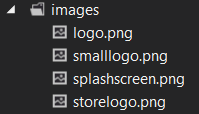
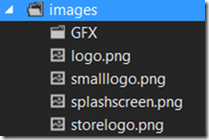
The next folder is the images. It contains the default tile-graphics for the app (change these to modify how the app tile looks like).
image

We will use this folder to include more images when we create the game.

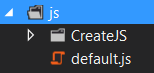
Next we have the js folder. This includes the JavaScript files we want to use in the app.

image

By default this contains one file called “default.js”, it contains the basic startup code-behind for the app.

Last we have the default.html file that contains the markup for the app. Change this to add more content and controlls.

First of all, we want to include the CreateJS library files. In this project, we only need two libraries: PreloadJS and EaselJS. Download these from CreateJS.org.

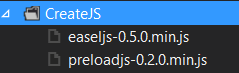
While these download, create a subfolder in “js” called CreateJS:

image

Unzip the two newly downloaded CreateJS libraries. In the filestructure of each library you will find a lib folder containing a js:

lib/easeljs-0.5.0.min.js
lib/preloadjs-0.2.0.min.js

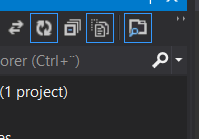
Copy these two files into the CreateJS folder. Now back in Visual Studio, click on the “Show All Files” icon:
image

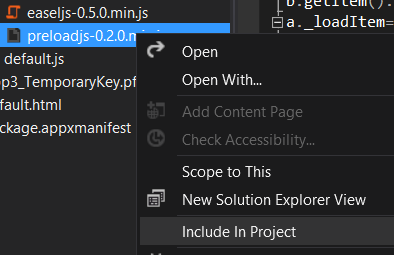
Now you can see the entire filesctructure, including the two library files you copied earlier. Rightclick on these and include them in the project:

image

image

Next, we will need to include these two libraries in the default.html file. Open this and you will see the following default code:

   1: <!DOCTYPE html>

   2: <html>

   3: <head>

   4:     <meta charset="utf-8" />

   5:     <title>App3</title>

   6:  

   7:     <!-- WinJS references -->

   8:     <link href="//Microsoft.WinJS.1.0/css/ui-dark.css" rel="stylesheet" />

   9:     <script src="//Microsoft.WinJS.1.0/js/base.js"></script>
   1:  

   2:     <script src="//Microsoft.WinJS.1.0/js/ui.js">

   1: </script>

   2:  

   3:     <!-- App3 references -->

   4:     <link href="/css/default.css" rel="stylesheet" />

   5:     <script src="/js/default.js">

</script>

  10: </head>

  11: <body>

  12:     <p>Content goes here</p>

  13: </body>

  14: </html>

Click and drag the new library files into the <!—AppName references –> section in default.html (or you can type it in yourself):

   1: <!DOCTYPE html>

   2: <html>

   3: <head>

   4:     <meta charset="utf-8" />

   5:     <title>App3</title>

   6:  

   7:     <!-- WinJS references -->

   8:     <link href="//Microsoft.WinJS.1.0/css/ui-dark.css" rel="stylesheet" />

   9:     <script src="//Microsoft.WinJS.1.0/js/base.js"></script>
   1:  

   2:     <script src="//Microsoft.WinJS.1.0/js/ui.js">

   1: </script>

   2:  

   3:     <!-- App3 references -->

   4:     <link href="/css/default.css" rel="stylesheet" />

   5:     <script src="/js/default.js">

   1: </script>

   2:     <script src="js/CreateJS/easeljs-0.5.0.min.js">

   1: </script>

   2:     <script src="js/CreateJS/preloadjs-0.2.0.min.js">

</script>

  10: </head>

  11: <body>

  12:     <p>Content goes here</p>

  13: </body>

  14: </html>

Now, the libraries are included and ready to ait your quest for game programming! Smilefjes

PreloadJS is a library that will help us load content like images that will be used in the app.

Making the game “Escape!”

Escape is a very simple game where you control a guy trapped in a ghost house. The objective is simple. Stay alive as long as possible! You must control the guy so he doesnt crash into the ghosts. You get points as long as you are awake!

So creating a game requires you to have some graphics. You can download a .zip file containing what you need for this tutorial here.

It contains the images our game will use.

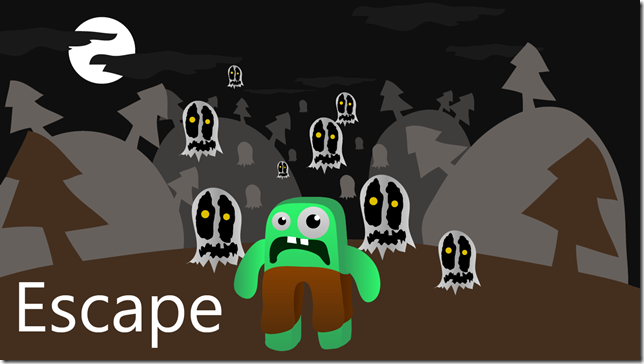
First of all, we need the apps main screen:

LogoScreen_thumb2

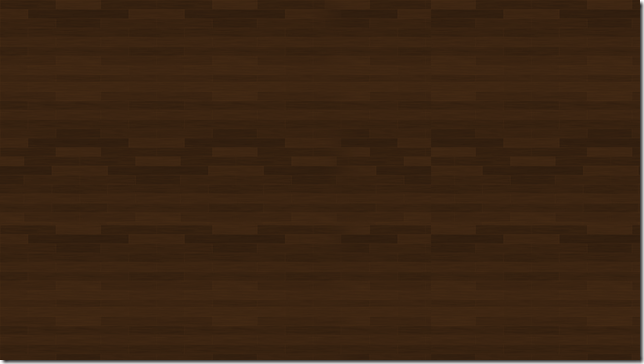
The next thing we need is a floor. The game is using a top-down view:

floor_thumb1

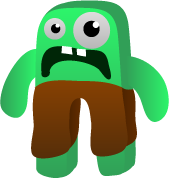
Then we need the player:

PlayerIdle_thumb1

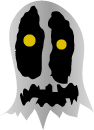
And the ghosts that will chase you:

Ghost_thumb1

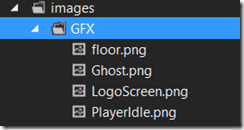
And thats it for the graphics! Under the images folder in the project tree, add a new folder called “GFX”:

image_thumb

And in the same way as we did earlier, copy the imagefiles in to the GFX folder and include them in the project.

image_thumb1

Creating the game loop
The game loop in games is quite different that what you normally have in a game project. We will need to create a function that will initialize the app, then a function that will load the content and prepare everything, and then lastly enter a loop that renders and updates frames every second.

The default.js file will contain the game loop. Initially the default.js code will look like this:

   1: // For an introduction to the Blank template, see the following documentation:

   2: // http://go.microsoft.com/fwlink/?LinkId=232509

   3: (function () {

   4:     "use strict";

   5:  

   6:     WinJS.Binding.optimizeBindingReferences = true;

   7:  

   8:     var app = WinJS.Application;

   9:     var activation = Windows.ApplicationModel.Activation;

  10:  

  11:     app.onactivated = function (args) {

  12:         if (args.detail.kind === activation.ActivationKind.launch) {

  13:             if (args.detail.previousExecutionState !== activation.ApplicationExecutionState.terminated) {

  14:                 // TODO: This application has been newly launched. Initialize

  15:                 // your application here.

  16:             } else {

  17:                 // TODO: This application has been reactivated from suspension.

  18:                 // Restore application state here.

  19:             }

  20:             args.setPromise(WinJS.UI.processAll());

  21:         }

  22:     };

  23:  

  24:     app.oncheckpoint = function (args) {

  25:         // TODO: This application is about to be suspended. Save any state

  26:         // that needs to persist across suspensions here. You might use the

  27:         // WinJS.Application.sessionState object, which is automatically

  28:         // saved and restored across suspension. If you need to complete an

  29:         // asynchronous operation before your application is suspended, call

  30:         // args.setPromise().

  31:     };

  32:  

  33:     app.start();

  34: })();


Let’s start by adding the nessesary functions required by the game loop. I will follow the structure that I’m used to from programming directx and XNA.

Add the following lines into the default.js file, just above the app.oncheckpoint = function (args) { line of code.

   1: function initialize() {

   2: }

   3:  

   4: function loadContent() {

   5: }

   6:  

   7: function gameLoop() {

   8: }

   9:  

  10: function update() {

  11: }

  12:  

  13: function draw() {

  14: }

The entire default.js file now looks like this:

   1: // For an introduction to the Blank template, see the following documentation:

   2: // http://go.microsoft.com/fwlink/?LinkId=232509

   3: (function () {

   4:     "use strict";

   5:  

   6:     WinJS.Binding.optimizeBindingReferences = true;

   7:  

   8:     var app = WinJS.Application;

   9:     var activation = Windows.ApplicationModel.Activation;

  10:  

  11:     app.onactivated = function (args) {

  12:         if (args.detail.kind === activation.ActivationKind.launch) {

  13:             if (args.detail.previousExecutionState !== activation.ApplicationExecutionState.terminated) {

  14:                 // TODO: This application has been newly launched. Initialize

  15:                 // your application here.

  16:             } else {

  17:                 // TODO: This application has been reactivated from suspension.

  18:                 // Restore application state here.

  19:             }

  20:             args.setPromise(WinJS.UI.processAll());

  21:         }

  22:     };

  23:  

  24:     function initialize() {

  25:     }

  26:  

  27:     function loadContent() {

  28:     }

  29:  

  30:     function gameLoop() {

  31:     }

  32:  

  33:     function update() {

  34:     }

  35:  

  36:     function draw() {

  37:     }

  38:  

  39:     app.oncheckpoint = function (args) {

  40:         // TODO: This application is about to be suspended. Save any state

  41:         // that needs to persist across suspensions here. You might use the

  42:         // WinJS.Application.sessionState object, which is automatically

  43:         // saved and restored across suspension. If you need to complete an

  44:         // asynchronous operation before your application is suspended, call

  45:         // args.setPromise().

  46:     };

  47:  

  48:     app.start();

  49: })();

Now, after initialize is done doing his work, loadContent should start. Once all the content is loaded, we will start the game loop. The gameLoop() will first call the update function, and then call the draw() function. update() will contain the game logic, and draw will handle the drawing.

Update the gameLoop() function to call update() and draw():

   1: function gameLoop() {

   2:     update();

   3:     draw();

   4: }

The last thing we need to do here before creating a drawable canvas is to make sure that our game loop starts once the OS has booted up our app and got the system ready to run it. We do this by using the DOMContentLoaded event. Once the app is ready, it will call the initialize function.

document.addEventListener(“DOMContentLoaded”, initialize, false);

   1: app.oncheckpoint = function (args) {

   2:     // TODO: This application is about to be suspended. Save any state

   3:     // that needs to persist across suspensions here. You might use the

   4:     // WinJS.Application.sessionState object, which is automatically

   5:     // saved and restored across suspension. If you need to complete an

   6:     // asynchronous operation before your application is suspended, call

   7:     // args.setPromise().

   8: };

   9:  

  10: document.addEventListener("DOMContentLoaded", initialize, false);

  11:  

  12: app.start();


Creating a drawable surface using the Canvas

Before we can do any drawing, we must add a canvas that we will use to draw on. The canvas will fill the entire screen width and height, making this into a fullscreen app.

Open “default.js” and replace the line <p>Content goes here</p> in the <body> tag with <canvas id=”gameCanvas”></canvas>:

   1: <body>

   2:     <canvas id="gameCanvas"></canvas>

   3: </body>

This gives us a canvas with the id gameCanvas. We can use gameCanvas to reference to this canvas from default.js. But how do we draw to it?

Move back to the default.js file and add a few global variables, put these somewhere in the top of the file like below the line var activation = Windows.ApplicationModel.Activation; :

   1: var canvas, context;

Next we need to create a reference to the canvas element gameCanvas and grab the context to it.

This is done in the initialize() function. Make it look like this:

   1: function initialize() {

   2:     canvas = document.getElementById("gameCanvas");

   3:     canvas.width = window.innerWidth;

   4:     canvas.height = window.innerHeight;

   5:     context = canvas.getContext("2d");

   6: }


This gets the element gameCanvas, sets the resolution to fill the entire screen and gets the 2d context of it.

Next, we need a stage for our game. A stage is class that comes with CreateJS and helps you create “your world”. It needs a reference to the canvas it will draw to and is used to add items like images and soundeffects to your game.

Add a new variable called gameStage as a global variable:

   1: var canvas, context;

   2: var gameStage;

Below the code that gets the canvas and context, we will create the stage object:

   1: function initialize() {

   2:     canvas = document.getElementById("gameCanvas");

   3:     canvas.width = window.innerWidth;

   4:     canvas.height = window.innerHeight;

   5:     context = canvas.getContext("2d");

   6:  

   7:     gameStage = new createjs.Stage(canvas);

   8: }


Loading images

Now that we got a canvas and a stage to draw to, we can start loading images and drawing them in the canvas.

Once the initialize() function is done, it must call loadContent. This function will use PreloadJS to load images, and create objects that you can insert on your gameStage.

Make initialize() call the loadContent() function:

   1: function initialize() {

   2:     canvas = document.getElementById("gameCanvas");

   3:     canvas.width = window.innerWidth;

   4:     canvas.height = window.innerHeight;

   5:     context = canvas.getContext("2d");

   6:  

   7:     gameStage = new createjs.Stage(canvas);

   8:  

   9:     loadContent();

  10: }

Before we can load anything, we need to create a new global variable called “preload”.

   1: var canvas, context;

   2: var gameStage;

   3: var preload;

In loadContent(), we create an instance of the PreloadJS class:

   1: function loadContent() {

   2:     preload = new createjs.PreloadJS();

   3: }

The PreloadJS library works this way. It will need a function that it will call once all the content has been loaded. It will also need a manifest array that contains all the filenames it will load.

   1: function loadContent() {

   2:     preload = new createjs.PreloadJS();

   3:     preload.onComplete = prepareStage;

   4:  

   5:     var manifest = [

   6:         { id: "logoScreen", src: "images/GFX/LogoScreen.png" },

   7:         { id: "floor", src: "images/GFX/floor.png" },

   8:         { id: "ghost", src: "images/GFX/Ghost.png" },

   9:         { id: "playerIdle", src: "images/GFX/PlayerIdle.png" }

  10:     ];

  11:  

  12:     preload.loadManifest(manifest);

  13: }

Once the manifest has been loaded, a function called prepareStage will be called. In this function I will simply use the preload object to get images and create instances of them.

Once the stage is ready, we can start the gameLoop() function.

To add images to the stage, we must create a few more global variables:

   1: var canvas, context;

   2: var gameStage;

   3: var preload;

   4:  

   5: var logoScreenImage, logoScreenBitmap;

The logoScreenImage will containg the file, and the logoScreenBitmap will contain the image the file contained. Create we create a new function called prepareStage. To load an image and insert it into the canvas, we use the preload instance and grab what we want from it:

   1: function prepareStage() {

   2:     logoScreenImage = preload.getResult("logoScreen").result;

   3:     logoScreenBitmap = new createjs.Bitmap(logoScreenImage);

4: gameStage.addChild(logoScreenBitmap);

   5: }


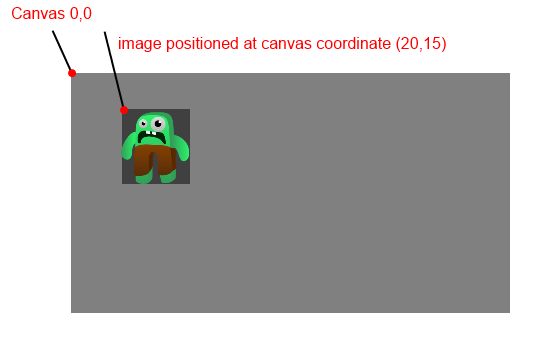
Now, the stage contains one image and it’s default located at the position 0,0 (top-left corner of the screen. When you render an image, the top-left corner of the image is rendered at the given coordinate, not the center of the image.

image

The final part of our rendering engine is to make sure that the gameLoop function ticks at a framerate that good enough for a game.

To do this, we can use the Ticker-class from CreateJS. It will help us with the timing of our game.

   1: function prepareStage() {

   2:     logoScreenImage = preload.getResult("logoScreen").result;

   3:     logoScreenBitmap = new createjs.Bitmap(logoScreenImage);

   4:     gameStage.addChild(logoScreenBitmap);

   5:  

   6:     createjs.Ticker.setInterval(window.requestAnimationFrame);

   7:     createjs.Ticker.addListener(gameLoop);

   8: }

This creates a new interval. At each tick of this interval, the gameLoop function is called. the windows.requestAnimationFrame makes sure that we only draw the frames that we need to draw.

Now, the final thing we need to do to render our stage is to update our draw() function so it updates the stage:

   1: function draw() {

   2:     gameStage.update();

   3: }


And thats it!

Now you got a working game engine template. You should save this away as a different project, so you wont need to do this entire thing again when you create a new game. Smilefjes

If you compile and run your app, you will first see the splashscreen and then the main screen image rendered accross the entire screen (but it will not scale to all resolutions yet. More on this in the next tutorial).

image

Listing 1 – the entire default.js file containing the engine that makes our game go around and around:

   1: // For an introduction to the Blank template, see the following documentation:

   2: // http://go.microsoft.com/fwlink/?LinkId=232509

   3: (function () {

   4:     "use strict";

   5:  

   6:     WinJS.Binding.optimizeBindingReferences = true;

   7:  

   8:     var app = WinJS.Application;

   9:     var activation = Windows.ApplicationModel.Activation;

  10:  

  11:     var canvas, context;

  12:     var gameStage;

  13:     var preload;

  14:  

  15:     var logoScreenImage, logoScreenBitmap;

  16:  

  17:     app.onactivated = function (args) {

  18:         if (args.detail.kind === activation.ActivationKind.launch) {

  19:             if (args.detail.previousExecutionState !== activation.ApplicationExecutionState.terminated) {

  20:                 // TODO: This application has been newly launched. Initialize

  21:                 // your application here.

  22:             } else {

  23:                 // TODO: This application has been reactivated from suspension.

  24:                 // Restore application state here.

  25:             }

  26:             args.setPromise(WinJS.UI.processAll());

  27:         }

  28:     };

  29:  

  30:     function initialize() {

  31:         canvas = document.getElementById("gameCanvas");

  32:         canvas.width = window.innerWidth;

  33:         canvas.height = window.innerHeight;

  34:         context = canvas.getContext("2d");

  35:  

  36:         gameStage = new createjs.Stage(canvas);

  37:  

  38:         loadContent();

  39:     }

  40:  

  41:     function loadContent() {

  42:         preload = new createjs.PreloadJS();

  43:         preload.onComplete = prepareStage;

  44:  

  45:         var manifest = [

  46:             { id: "logoScreen", src: "images/GFX/LogoScreen.png" },

  47:             { id: "floor", src: "images/GFX/floor.png" },

  48:             { id: "ghost", src: "images/GFX/Ghost.png" },

  49:             { id: "playerIdle", src: "images/GFX/PlayerIdle.png" }

  50:         ];

  51:  

  52:         preload.loadManifest(manifest);

  53:     }

  54:  

  55:     function prepareStage() {

  56:         logoScreenImage = preload.getResult("logoScreen").result;

  57:         logoScreenBitmap = new createjs.Bitmap(logoScreenImage);

  58:         gameStage.addChild(logoScreenBitmap);

  59:  

  60:         createjs.Ticker.setInterval(window.requestAnimationFrame);

  61:         createjs.Ticker.addListener(gameLoop);

  62:     }

  63:  

  64:     function gameLoop() {

  65:         update();

  66:         draw();

  67:     }

  68:  

  69:     function update() {

  70:     }

  71:  

  72:     function draw() {

  73:         gameStage.update();

  74:     }

  75:  

  76:     app.oncheckpoint = function (args) {

  77:         // TODO: This application is about to be suspended. Save any state

  78:         // that needs to persist across suspensions here. You might use the

  79:         // WinJS.Application.sessionState object, which is automatically

  80:         // saved and restored across suspension. If you need to complete an

  81:         // asynchronous operation before your application is suspended, call

  82:         // args.setPromise().

  83:     };

  84:  

  85:     document.addEventListener("DOMContentLoaded", initialize, false);

  86:  

  87:     app.start();

  88: })();


In the next tutorial, we will start on the logic of the game. This means implementing the game itself, input and handling of the player and enemies.

Download the source of the game here:
http://sdrv.ms/T2KTFg
Posted in Game programming, Tutorial, Windows 8 | 12 Comments

How to install Windows Phone SDK with XNA support in Windows 8

A common problem for Windows Phone developers moving to Windows 8 is the support for XNA. XNA is not part of the “Metro” types of apps, but you can still develop XNA using Windows 8 (like you do in Windows 7). Installing the SDK directly in Windows 8 will make the XNA part of the installation to fail.

The solution is very simple. Make sure you have the latest version of Games for Windows Marketplace Client installed.

Follow these steps to install Windows Phone SDK 7.1.1 with XNA on Windows 8:

1. Install Games for Windows Marketplace Client
http://xbox.com/en-us/live/pc/downloadclient

2. Install Windows Phone 7.1 SDK
https://dev.windowsphone.com/en-us/downloadsdk

3. Install Windows Phone 7.1.1. SDK Update
https://dev.windowsphone.com/en-us/downloadsdk


Enjoy! Smilefjes

image

Posted in Windows 8, Windows Phone | 6 Comments

Windows 8 Development #2: Implementing Split-View

image

Welcome back to the Windows 8 Development tutorial series. Last time we started with a simple Windows 8 “Hello World” app.

Today I will teach you how to implement a split view functionality to your app. This is a requirement to get your app published in the Windows Store.

First of all, what is Split View?

A split view is a great functionality that enables the user to “Snap” your app on the left of right side of the screen, making it possible to use your app simultaniously to using another app.

image

As you can see in the image above, the app runs normally showing one particular design. When the user decides to snap the app, the entire user interface layout changes.

This is all handled by something called States. You can decide what state the app (controllers) is on, and change the behaviour based on that. So first of all, we need to handle an event that reacts when the user changes the size of the app – meaning that the user rotated the device (Landscape –> Portrait) or snapped it to one of the sides.

Once this works, we must write some logic that sets the controllers to the right state. Using Blend, this will be easy. You can add as many states as you like, record “animations” that will happen when the state is changed (what controllers will be visible, and what will be invisible ++).

Let’s get started.

First of all, you need an app that should implement snapping. It can be anything, a simple template app with a single textbox in it or whatever. I will use the app that we created in the previous tutorial. Source can be found on the bottom of the tutorial.

image

The first thing we need to do is to listen to the event that reacts when the app/page that will have snapped mode – is loaded. In this case, it’s the MainPage. This app only got one page, but if you have more, you should add this to all of them.

   1: public MainPage()

   2: {

   3:     this.InitializeComponent();

   4:     Loaded += MainPage_Loaded;

   5: }

This will execute the function “MainPage_Loaded” once the app is ready and loaded (happens when the user starts the app).

The MainPage_Loaded function at this time will only add a new event handler that will react when the user changes the resolution of the app (Landscape, Portrait, Snapped).

If you want your app to be published in the marketplace, it must implement Landscape mode (default) and Snapped.

   1: void MainPage_Loaded(object sender, RoutedEventArgs e)

   2: {

   3:     Window.Current.SizeChanged += Current_SizeChanged;

   4: }

Now, before implementing the SizeChanged function, we need to add a list that will containg the controller that will change view state when the resolution is changed. When the app is loaded, we must take the controller (the page) and store it in a list, so we can change the view state on it at a later stage.

As a global variable in the MainPage.xaml.cs file, add the following:

   1: private List<Control> _layoutAwareControls;

Now, we must populate this list when the Loaded-event is executed.

   1: void MainPage_Loaded(object sender, RoutedEventArgs e)

   2: {

   3:     var control = sender as Control;

   4:     if (control == null) return;

   5:  

   6:     // Set the initial visual state of the control

   7:     VisualStateManager.GoToState(control, ApplicationView.Value.ToString(), false);

   8:     if (this._layoutAwareControls == null)

   9:     {

  10:         this._layoutAwareControls = new List<Control>();

  11:     }

  12:     this._layoutAwareControls.Add(control);

  13:  

  14:     Window.Current.SizeChanged += Current_SizeChanged;

  15: }

What we are doing here is to set the view state to what state the device is having when the app is loading using the ApplicationView.Value. This contains the current state of the device at all time. Next, we add the control that will be aware of the layout changes.

Now we are able to change the state at any time since we have stored the controller in a list. This means that we are ready to implement the SizeChanged evnet handler:

   1: void Current_SizeChanged(object sender, Windows.UI.Core.WindowSizeChangedEventArgs e)

   2: {

   3:     string visualState = ApplicationView.Value.ToString();

   4:  

   5:     if (this._layoutAwareControls != null)

   6:     {

   7:         foreach (var layoutAwareControl in this._layoutAwareControls)

   8:         {

   9:             VisualStateManager.GoToState(layoutAwareControl, visualState, false);

  10:         }

  11:     }

  12: }

This gets the new state that the device is in, and sets the controls in the list to the new state.

Now that the app is handling the states correctly, we just need to add the states. Open the project in Expression Blend. What we will do now is to add the UX that will be visible when the app enters the snapped view.

Now, add a new TextBlock on the top left side of the app that got the text “Snapped Mode”. Click on the new TextBlock and set the Visiblity property to “Collapsed”.

image

Then, go the the States tab and add the following states:
– Snapped
-FullScreenLandscape
-Filled

It’s important that you keep these names as these are the same names that the ApplicationView.Value contains.

You can also add more, based on you’r needs. You can always go into a custom state by writing the state directly instead of using the ApplicationView.Value property.

image

What we want to do is to hide the other layout of the app that is visible under the FullScreenLandscape-state, and make the snapped UX visible. In this case, i just want to hide everything in snapped mode and show a new controller, a TextBlock with the text SnappedMode.

Click on the Snapped View State and make sure it’s recording (you can see this by the red light in front of the state):
image

Now, click on the new textBlock in the UX Tree:
image

and change the Visibility-property to Visible:

image

Then, set the Visibility-property on the other controllers (while in record mode) and set it to Collapsed. In my case this is the HeaderTextBlock, WriteHereTextBox,ClickMeButton and backButton.

Stop the recording by clicking on the red recording light.

Build and run the application. First the app will load normally and show you the design you made for landscape mode:

image

then, drag the app to the left side of the screen to snap it:

image

Thats it!
I have attached the HelloWorld example with the source before and after these changes. There are other changes in the example that we will cover in the next tutorial (Settings charms, back button and so on)

Enjoy!

Source:
HelloWorldApp.zip

Posted in Windows 8 | 1 Comment

Windows 8 Development #1: Getting Started with Windows 8

image

Windows 8 has gone RTM. Windows Store and Windows 8 give developers great opportunities to build apps, be first in the marketplace and earn money.

This post will help you get started with Windows 8 development using C# and XAML, and Visual Studio 2012 as the development environment.

Getting the tools

1) Install Windows 8
You can get Windows 8 from your MSDN Subscription, or download the release preview.

image
2) Install Visual Studio 2012
You can get Visual Studio 2012 from your MSDN Subscription, or download it here. It can be any version, from Visual Studio 2012 Express to Visual Studio 2012 Ultimate.


Creating your first application

1) Create the project
The first thing we will do is to create the project. This means using Visual Studio to create a basic blank app which contains the minimal logic to make it run.

If you haven’t done so, fire up Visual Studio 2012.

When you load Visual Studio for the first time you can select what language you will be using the most. I usually code in C++ so that was my choice, but your choise might be C# (for this tutorial) or any other language. This can be changed later.

When Visual Studio has loaded, you will see the Visual Studio Start Screen (your colors might be different. I use the Dark Theme).
image

From here you can either load existing projects or create new ones. Click New Project.image

Now you can choose what programming language you want to create your app with. Press the triangle/arrow in front of Visual C#. This will show all the categories containing project templates. If you just press Visual C#, you will get a view that contains all the C# project templates in the same list.
image

Now, choose the Windows Store template category.
image

And in the final list of project templates, select a Blank App (XAML).
image

Give it a name like “HelloWorldApp” and hit [OK].
image

This will make Visual Studio generate a blank C# XAML app that only contains what’s nessesary to run it. Let’s try!

To run the app, click the Run symbol on your tools panel (the green Play-button with the text “Local Machine” behind it), highlighted below.
image

The app will build. Once the app is built, Visual Studio will run the app. You will see your apps splash screen followed by a empty dark gray screen.

Note, the splash screen is displayed a few seconds.

Now, to close the app you can either ALT-Tab back to Visual Studio and press “Stop”, or using your thumb (if you are on a touch-device) or click and hold the left mouse button on the top of the screen, and drag it down to the bottom.

Congratulations! You just had your first Windows 8 app running! It was not very interesting, but it’s still running fine. Smilefjes

Now, let’s try to simulate this app on a tablet. Press the drop-down menu on the Run section and select Simulator.
image

Run the app.
This will launch a tablet simulator that connects to your desktop with a Remote Desktop Connection, and the app will start.
image

image

Next, we will give the app some functionality.

2) Make the User Interface

When the project was created, a number of files were generated.
image

The first line is the Solution. A solution can contain multiple projects. In a game you might have one project for the Windows Phone version, one for the Windows 8 version and a Level Editor, all in one solution.

Next is the project. In this case, it’s the project for “HelloWorldApp”. One project usually generates an EXE file, a DLL, a service, cloud and so on.

Next we have the content of the app. That is properties, references (references to libraries), Assets (images, data..), Common (common code, style), and then App.xaml (with a code behind file) that can contain global styles, settings, data, variables and so on, a key, MainPage.xaml (with a code behind file) that contains the current app logic. This is the page that is rendered after the app has loaded, and last an app mainfest file.

Double click the MainPage.xaml file. This will load the page in to the built-in designer for Visual Studio.

image

Here, you see two views. One is the design-view, where you can see how the app looks like. Here you can select controls and make modifications. You also see the code-view, where you can write markup code that defines the UI.

Logic will be made in the code-behind file.

Let’s try to add a label, a textbox and a button. First, find the Toolbox and make it visible. I pinned it during the design-phase of the project.

image

From here, drag a TextBlock, a TextBox and a Button from the selection and in to the design-view.

It doesn’t matter where you place the items, just get them out in the field Smilefjes

image

Now, press the TextBlock and open the properties pane (found where you found the Toolbox pane).
image

Change the Text (under Common) to “Hello World”, and then open the Text tab and change the font size to 48.
image

Do some modifications to the other controls as well, and try to get a design that looks a bit like this:
image

3) Adding functionality

This is where we bind everything togehter by writing some C#.

What we want to make is that whatever you type in the TextBox will be displayed in the TextBlock above (where Hello World! is written) when the user clicks the button.

To do this, we need to give all the controls a name, and create an event that fires when the user clicks on the button.

Click on the control in design-view and check the properties-panel.

image

Change the Name from <No Name> to HeaderTextBlock, the textbox to WriteHereTextBox and the Button to ClickMeButton.

Once this is done, double-click the button. This will autogenerate a click event for the button and take you to the Code Behind for MainPage, the MainPage.cs file.

The fuction you see is the function that will fire when the user clicks on the button.
image

Now, write the following line of code in the function:
HeaderTextBlock.Text = WriteHereTextBox.Text;

The final function will look like this:
image

This will take the Text that exist in the HeaderTextBlock control and replace it with the content of the WriteHereTextBox text.

Now, run the app again (either on your local system, or using the simulator). The UX will be presented. Try typing some text in to the textbox and click the button.

image

If it works, the text you worte should be replicated in the header.

image

Thats it!

I know this wasn’t much, but it’s a good start and you got the tools you need to create apps. Smilefjes

Thanks for reading!

Posted in Windows 8 | 5 Comments

Mini Games in Bandinos

Get the game here
BandinosThe game (v.1.3) is currently in the Marketplace. The next version (v.1.4) is expected to be out during this week including the new Egg Out! mini game.

You can download the game here:
http://windowsphone.com/s?appid=62d35a2f-fb44-428d-a071-5d14a3b4e6bf

Mini Games
Bandinos currently (v.1.4 – submitted, will be out in a few days) consists of two mini games (more in the making, provided as free updates), where each mini game got 8 unlockable levels. By tapping on the locked egg, you can see what you have to do to unlock the mini game (getting X number of five stars, completing a certain level and so on).

5_1

5_2

Online Scores
Each mini game come with an online high score list. You can change your name from the Mini Game Main Menu screen by tapping on the “SET NAME” button. This will be the name you use online.

Mini Game #1 – Baby on a roll! (v.1.0)
5_4

Ever played one of the side scrolling driving games where you have to either give gas, break or drive backwards? This is the same. Here, you are rolling the egg either left, or right. You control the speed, direction and breaking of the egg. Your goal is to roll the egg over the landscape and get the egg to a full stop at the Commandosaur’s legs (finish) as fast as possible.

Mini Game #2 – Egg Out! (v.1.4)
5_3

Remember the game Breakout where you have to bounce a ball and break blocks, while also avoid making the ball drop below the bottom of the screen?

In this mini game, you control Gaposaur who works like a trampoline. You most move him so the egg doesn’t fall below the bottom of the screen, and also get down as many of the boxes as possible. When the egg hits a box, the egg will bounce and the box will fall down. Now, the more boxes the egg hits, the more points you get. You can also bounce the boxes around. How many boxes can you keep in the screen while at the same time keep the egg under control?


Many more mini games are in the making, but while we are waiting for the next update (v.1.5) feel free to compete online with these two!

Posted in Bandinos | 2 Comments

The Making of Bandinos–a game for Windows Phone

image

My new Windows Phone game Bandinos was just released and I thought it was a good time to write another Making of Guide for those of you who are interested in how the game was created.

gameTile400

1. What is “Bandinos”?
65 million years ago, the world was ruled by dinosaurs. They all had one problem (except the meteor) – their babies are gone!

Luckily – the dinosaur age had superheroes.

Your job is to control the Bandinos, a dinosaur gang, to help dino-eggs find their way home. Using their various talents, they get the egg to roll across the environment.

50 LEVELS TO SOLVE
The game consists of 50 mind-bending levels for you to solve, with different ways to solve the puzzles. Each level contains collectable items – find them all and get a good ratings and unlockable mini-games! Getting the best rating on all levels unlocks new possibilities with the game, giving you an endless gaming experience.

ACHIEVEMENTS
Solve the puzzles and get achievements for your hard work. Who knows, maybe you will be able to roll a total of 2000 km? Or find the hidden ancient artifacts in each world?

MINI GAMES
The game consists of various unlockable mini-games, each with an online highscore list so you can compete with fellow gamers.

SCREENSHOTS

image

image

image

image

image

2. The Making of Bandinos

Bandinos is my 2nd game on the Windows Phone platform. After creating Binary Man I decided that I want to take a break from creating games and get some free evenings after work to do other stuff than coding. The issue was that I had a great flow finishing Binary Man so when that game finally was released and I had finished the “Making of Binary Man” guide, I just simply got another idea I just really wanted to make. My girlfriend did a search on “Cute Dinosaur” and that’s when the idea just kicked in – the entire logic at once.

I did some drawing and formed the idea. I wanted something simpler than Binary Man, where Dinosaurs was the main topic, and the game should be playable even for younger kids and grownups.

The idea was to roll an egg down the hill, across obstacles and landscape blocks and land at the mothers nest.

WP_000906 (2)
The first game concept

This image is my first sketch and shows the general layout. First of all, you have the egg. If you tap it, you roll it down the hill. Then you need to use helper-dinos to get the egg safely to the goal. If you can do this, you complete the level.

This meant that I needed some dinosaurs with different abilities. Combining the right dinosaurs at the correct positions will bring the egg home. I drew some dinos and cut them out so I could place them on the level I drew above.
image
Some early dinos

By creating these dinos, I could place them on the level and simulate how it should work, try to drag the dinos from different positions on the screen in order to understand where the menu should be and so on.
image

image
Positioning of the user interface

The logic of the game is pretty simple. The egg should use physics and roll correctly. Then you modify and apply forces and collisions from the landscape and the helper-dinos to control how the egg is rolling.

To make each level a bit more complex I decided to add some bugs that the player can collect. Each level got 5 bugs. Each of the bugs reward you with one star – so collecting five gives you a rating of 5 when you complete the level.

image

In addition to the normal game I decided to add mini-games. By getting some achievements and completing some levels you unlock new mini-games and mini-game levels. One of the mini-games is a typical “use acceleration and breaking to drive a Car through a landscape and the finish line as fast as possible” game. But in here, you have to use the dino inside the egg to run – To the left will roll the egg left and vice-versa.

babyDino
imageimage

Each of the unlockable mini-games and levels got an online leaderboard so you can compete with the rest of the world on getting the best time.

In addition to this there are multiple of achievements you can try to unlock while getting through the game. These are all about completing worlds, getting five-stars, rolling the egg 10km, finding hidden artifacts and so on – just to give the player some extra motivation.

image

When completing the game with a five-star on each level you unlock the “Artifact Hunter” mode. This will turn your egg glowing-golden and you can try to locate artifacts hidden around in the worlds.

artifact2
The hidden artifact


3 – Creating the game

Bandinos was a really fun game to implement. I did a better job building up the game and designing everything before starting the implementation this time. I also created better and more complete tools that was a great aid when designing the levels.

First of all, I wanted physics. I knew Farseer Physics is pretty good so I just used that since I knew how it worked (I also created a tutorial on how you can implement Farseer, read it here) and it builds on Box2D. Using Farseer it was pretty simple to create the egg, the landscape using lines and the dinosaurs using polygons.

Each of the various physics-obstacles in the game got different physics properties like friction and collision categories, making it possible to control what’s collidable with what. The levels is built up using lines so it was easy to implemented an Ear-Clipping Triangulation that takes in a set of lines and generates a polygon.

image

This will make the world look solid, even though each levels is just a set of lines.

Each level got various properties like geometry-lines, start position, goal-position, bug-locations, hidden artifact locations, decorations and so on. Knowing this, it was easy to create a level editor where I could simply draw each level and store it as XML.

Creating the levels

The level editor is not very pretty, but it works. I want to create an online HTML5 version of this, and implement a Community-Driven world where the players can create their own levels online and play it in game. Hopefully I will get there if people enjoy the game.

image

This is a simple WPF applications I created from scratch using only 4 hours. It contains a canvas that represents the world. You can scroll around in it and build up the levels. First of all, you want to draw a landscape. Since the landscape was only lines, it was easy to use the WPF Line tool to draw lines from where you click on the field. I always follow a clockwise order when drawing the lines. This is because I wanted to draw grass on all lines that got a normal that goes upwards.

image

Once the landscape is done, you can set the start position and end position. This is simply just setting two coordinates, and a sprite is rendered on those locations:

image

Then you place the collectables, colored in red – to make them visible:

image

And then the decorations of each level like backgrounds and items. This is simply just an array of integers, each representing an integer on what GraphicsID it should render. This ID is used to look up into an array-list of sprites, and render it.

image

And lastly we specify what dinos should be available, grass color and background IDs – and general level settings you want to use:

image

When running the game, the game itself will render everything based on the graphics ID each item got. It will also check the normal of each line and render a grass sprite where the normal of the surface points towards the sky.

4- The Dinosaurs
The game consists of 6 different dinosaurs, where you control 4 of them.

579882_10150952247141329_556141328_12127254_832866228_n[1] 

The Hillosaur is a dinosaur that you can use to create jumps in the environment. It will basically make the egg jump. The more speed the egg have, the longer it will jump. If the egg is moving downwards when hitting the jump – it will get a penalty on the jump.

The Gaposaur is used to build bridges. You can place them between gaps and other places you might see it fit. Smile

The Phatosaur will bounce the egg and give it a better speed. It the egg is moving slowly when hitting the dino, it will get greater speed. If the egg hit’s it in high speed, the egg might only stop when hitting it – make sure to place it correctly.

The Aerosaur is a flying dino. You can place it in the air, and use it as a blocker for the egg or other smart things Winking smile

The Commandosaur is what first was represented as the mother, the goal of each level. But now it’s the commander. He got a long neck and can spot where the eggs are located. Then it’s the other dinos job to get the egg to him.

artifact
The Terrordactyl is the bad guys of the game.


5 – The Graphics

The graphics was drawn by myself. I’m not an artist and I didn’t have any budget to hire one so I decided to create the art myself. It was probably this games greatest challenge for me. I had to think of a very simple type of graphics, make it look funny rather than good and try to get the colors to fit at least a bit.

All the graphics is drawn with a drawing pad (Wacom BAMBOO FUN).

I needed a lot of GFX, a sprite for each level decoration, worlds, icons, buttons and all the dinosaurs as well. I wanted to make it all animated but due to limited memory on the 256 MB devices I had to keep it all very simple. Instead I made all the animations move based on the BPM of the music. So if you listen to the music while checking out the animations, you can see that it’s all in Sync Smile

bones2collectableBug2tree5

world3
Some GFX-elements from the game


6 – Download the game

The game was published on 29.5.2012 and is available for download. I’d appreciate if you could give me a rating, and if you find any bugs or issued – contact me so I can correct them.

Thanks for reading, and I hope you enjoyed this little guide and will enjoy my newest game.

Download the game here:
http://windowsphone.com/s?appid=62d35a2f-fb44-428d-a071-5d14a3b4e6bf


7 – Thanks to
Thanks to Tuuli Savolainen for a lot of support, Thomas Beswick and Egil Hasting for helping me with ideas and general game design. Also to Lars Olav Wilhelsmen and Paul Henrik Wilhelmsen for a lot of testing, and making sure the levels are possible to solve.

Posted in Bandinos | 5 Comments

Project “Dinomites”

Just decided to share some screenshots from my upcoming game “Dinomites” (yes, it’s a project name). I participated in the Game Development Competition @ The Gathering 2012 and got 2nd place. Smile


image

imageimage
2nd place at The Gathering – me with the star wars t-shirt Smile with tongue out

The game
The goal is to roll the egg from the start position to the scout (long neck):

image
Image is from my sketches using PowerPoint

You have to use different dinosaurs to get to the goal. Each dinosaur got a different functionality like throwing the egg in the air, bridge builders, inverse gravity and so on.

Each level is rated by a star. You can complete a level without getting any stars at all. But if you want to do the “little extra” in each level, you can hunt for bugs.

Each bug you collect give you a star, and each level contains five bugs.
image
Image is from my sketches using PowerPoint


In-game screenshots

clip_image002

image

clip_image002[4]

clip_image002[6]

clip_image002[8]

clip_image002[10]

clip_image002[12]

clip_image002[14]

Posted in Game programming, Windows Phone | 4 Comments

Content from the XNA Demo Programming session @ The Gathering 2012

Loading

Download the free developer tools, Visual Studio Express with XNA here:
http://create.msdn.com/

(Yes, download the WIndows Phone SDK, it includes XNA for Windows, Xbox and Windows Phone)

Download the Simple XNA Demo Engine and start playing around!

Link to a shader tutorial for beginners:
https://digitalerr0r.wordpress.com/tutorials/


Feel free to contact me if you have any questions.

Use your skills and participate in the creative competitions!

Posted in Demoscene | Leave a comment