Note: This tutorial is still a WIP, but I decided to release it just in case anyone needs it. Enjoy! 
In this tutorial we are going through the process of creating a simple game from A to Z using Visual Studio 2010 and the Windows Phone 7.1 SDK – Targeting Windows Phone 7.5.
This game was created during a presentation and took about 45 minutes, and patched as the session went on by feedback from the audience. I just documented the process and shared it on this blog. ![clip_image002[1]](https://digitalerr0r.net/wp-content/uploads/2012/03/clip_image0021_thumb.png?w=19&h=19 "clip_image002[1]")
First of all, if you haven’t done so yet – you will need to download the Windows Phone SDK.

1. Designing the game
The first thing you should do when creating a game is to come up with an idea, story and how you should go through that story. It’s important to be able to explain the game in one sentence – if you can’t, the players/gamers/consumers will have trouble understanding the game. If you can, it will be much easier to market and sell the game!
This game will be quite simple: I want a player to move around on a field and avoid the enemies as long as possible. If hit, it’s game over and you have to restart. The longer you stay alive, the higher will the score be.
The setting
You are inside and lost in a hostile ghost house.
One-Sentence Marketing Description
”Run around on the playfield without getting caught by evil ghosts and survive as long as possible.”
2. Creating the graphics
Most games require some graphics. In this game I want to have a playfield that represents the floor in a ghost house, a ghost, a player, some text that display high scores and some dot’s that show where I just walked (path).
Note: The textures and the source for the game can be downloaded here:
Source for Windows Phone 7.1 and XNA 4.0
Texture: Floor

Texture: Ghost

Texture: Player

Texture: Footstep

(added shadow as the image is white, just so you can see it’s a round thing)
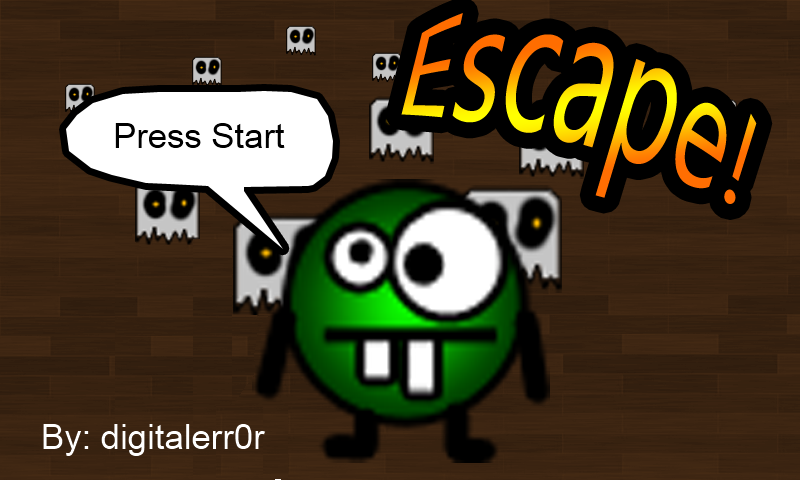
Texture: Main menu screen

3. Game logic
Next we should think how we should play the game, what’s the logic, how is the enemies moving, how should the player move and so on.
Player movment
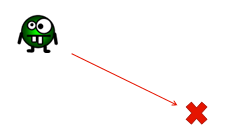 Tap position
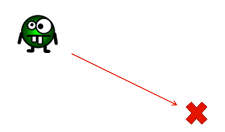
The player should move towards a point on the screen. The point is set each time the player taps on the screen. This enables the player to both move by tapping on spots, or hold the finger on the screen to move.
Enemy movment

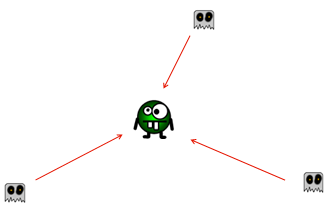
All the enemies active in the game should move towards the players location. If the player moves, the target to where the enemies are moving should be updated. This will make the enemies follow the player.
Flow
Every second:
– Add new enemy to the game
– Increase the score with the number of active enemies
If the player is hit by an enemy
– Initiate Game Over process
– Set high score if better than previous
– Reset and restart the game
I don’t want the player to be able to get a resting-pause when game over (thus, not going back to the main menu or “tap to restart” or anything), but instead just let the player continue from where he died, just reset the score and remove “living” ghosts. I also want to motivate the player by showing him/her that he got a new record, or that “Almost there, just X points away from high score, you can do it!!”
Player
The player will have a class that contains a target-positions. In the update loop, the player will move towards this target. Target is set by tapping on the screen.
Enemy
The enemy is the same as the player, but the target will be set to the players location instead of a tap on the screen.
Enemy Handler
There will be many enemies, so we create a List that will contain all the enemies and place it in a Enemy Handler. The handler will loop through each enemy, update and draw then, and also check for collisions with the player.

Offline and Online High score
There will be both an offline local high score and a online high score. The local high score is stored to the App’s Isolated Storage. The online high score is stored to a free service that hosts online high scores for both free and commercial games; Mogade. You can read more about Modage here, and sign up for a free account.
http://www.mogade.com/
The highscores will show when you start the game and when it’s game over. After playing a few seconds, the high score will not be visible.
Walking steps
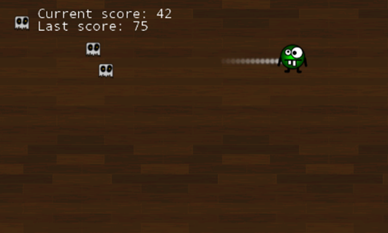
A path of steps will follow the player, showing the walked path. Each step should slowly fade out after a while. This is done by adding steps to a list with the players position, and in the update, fade them out and remove them from the list.
The game screen
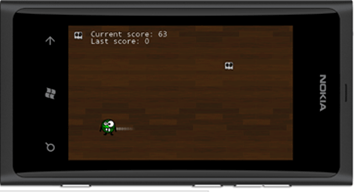
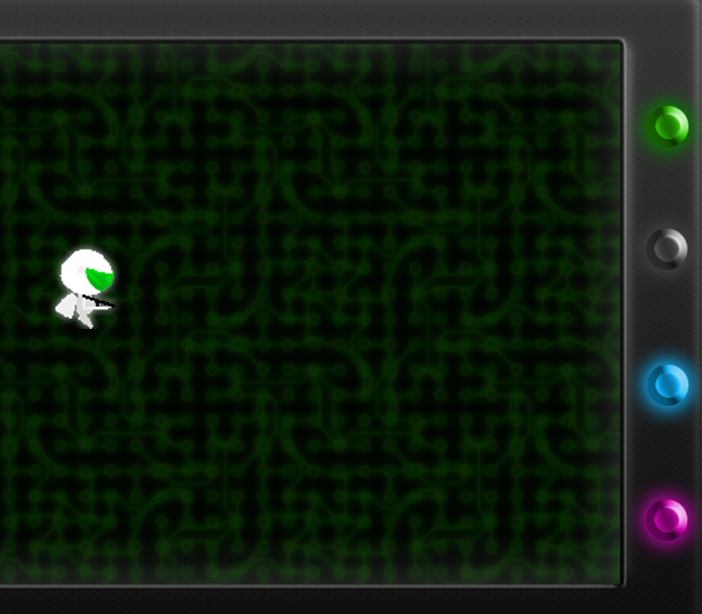
This is how the game will look in the end:

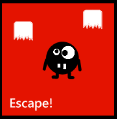
Game icons for the phone app-menus
The games need a logo and app tile image. They will have alpha as background, making the tile for the app use the same background color as the phones theme. The red below is the color of the Theme.
Little icon:

Large icon:
4. Implementing the game
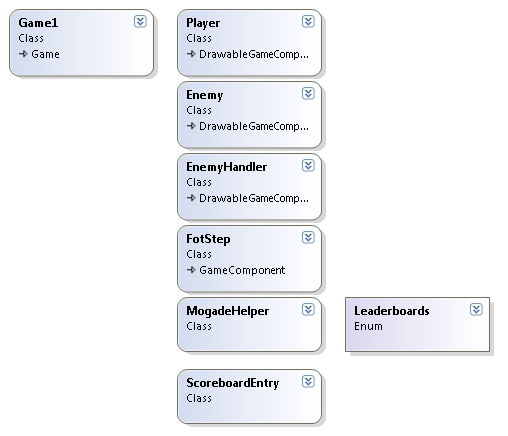
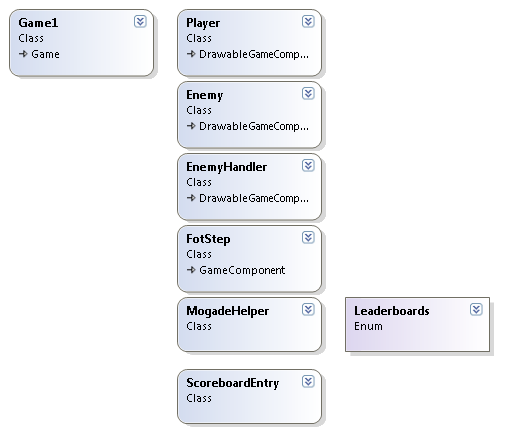
The games classes we will implement
Be sure do download the source for the applications so you can follow the implementations. Or you can follow the steps below and create the game as we go, but not all details will be covered.
Download source here: Source for Windows Phone 7.1 and XNA 4.0
Next, we need to create a new project. Make sure you select XNA Game Studio 4.0 and Windows Phone Game (4.0)
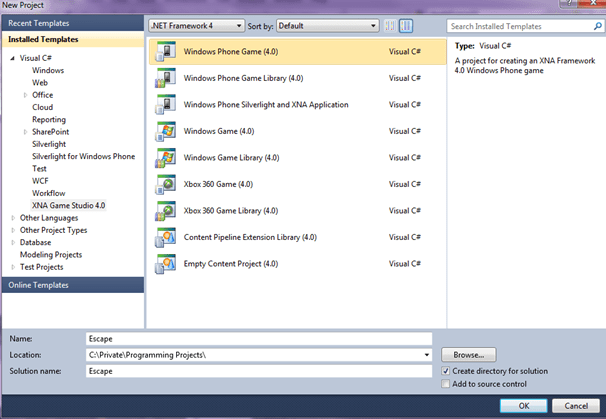
Now you should have a empty game project. Don’t add anything yet, I will explain some logic first. We will add the Game1 logic last, so just read until we start adding the Player class. ![clip_image002[2]](https://digitalerr0r.net/wp-content/uploads/2012/03/clip_image0022_thumb.png?w=19&h=19 "clip_image002[2]")
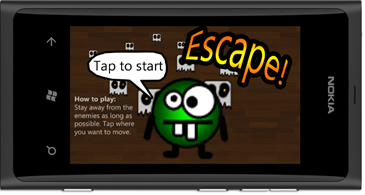
Main Menu State
When starting the app, the player should see the main menu. All it will do is to wait for some input and start the game. When the player taps the screen, the game should ask for a name and start the game.
In this case the scenes will be very simple. It’s either in-game or main menu. So to handle the scene state we simply use a boolean variable. We also create a boolean variable to check if the player has typed in his/her name yet.
bool inMainMenu = true;
bool nameTyped = false;
In the Draw() function of the game we check if these indicate if we should show the game or draw the main menu, and in Update() we use these to update the game accordingly.
Draw()
if (inMainMenu || !nameTyped)
{
    spriteBatch.Begin();
    spriteBatch.Draw(mainMenu, new Vector2(), Color.White);
    spriteBatch.End();
}
else
{
    spriteBatch.Begin(SpriteSortMode.Immediate, BlendState.NonPremultiplied);
    spriteBatch.Draw(floor, new Vector2(), Color.White);
    enemyHandler.Draw(gameTime, spriteBatch);
    player.Draw(gameTime, spriteBatch);
    spriteBatch.DrawString(font, "Current score: " + player.Score.ToString(), new Vector2(80, 10), Color.White);
    spriteBatch.DrawString(font, "Last score: " + player.LastScore, new Vector2(80, 35), Color.White);

     // and so on....
Update()
if (inMainMenu)
{
    TouchCollection touchStateMain = TouchPanel.GetState();
    if (touchStateMain.Count > 0)
    {
        object stateObj;
        try
        {
            Guide.BeginShowKeyboardInput(PlayerIndex.One, "Enter name", "Please enter a name for the scoreboard (Minimum 3 and no longer than 20 characters)", username, GetText, stateObj = (object)"GetText for Input PlayerOne");
        }
        catch (Exception ex)
        {
        }

        inMainMenu = false;
    }
    return;
}

// Don't update the name if we have moved away from menu, but not typed username yet
if (!nameTyped)
    return;
We check for a touch on the screen. If we touch, we set the first boolean to false making the game only wait for the player to have completely set the name. We do this by using the built in function Guide.BeginShowKeybaordInput(..). This will call the function GetText when the player clicks OK/Cancel.
private void GetText(IAsyncResult result)
{
    try
    {
        string resultString = Guide.EndShowKeyboardInput(result); ;

        if (resultString != null)
        {

            if (resultString.Length > 20)
            {
                resultString = resultString.Remove(20);
            }

            if (resultString.Length < 3)
            {
                inMainMenu = true;
                return;
            }
            username = resultString;
        }
        else
        {
            username = "Player";
            inMainMenu = true;
        }
    }
    catch (Exception ex)
    {
        username = "Player";
        inMainMenu = true;
        return;
    }

    try
    {
        IsolatedStorageSettings.ApplicationSettings["Username"] = username;
    }
    catch
    {
        IsolatedStorageSettings.ApplicationSettings.Add("Username", username);
    }

    nameTyped = true;

    //reset scoreboard list, since it will be loaded again when starting the game
    sblist.Clear();
}
This function gets the written name and stores it both in memory, and in the IsolatedStorage for later use. Once the name is set, we set the final boolean that the name is typed. The next time we visit update and draw, it will execute the code that represent “in-game” – you start playing the game.
In-Game
This is where all the fun is happening. Let’s just take a look at the logic from section 3.
Every second:
– Add new enemy to the game
– Increase the score with the number of active enemies
The Update() function will now bypass the main menu and instead start updating the game logic. It will increase the total score each second by using a scoreTimer. If the scoreTimer is above 1000 (ms), it should be set to 0 (restarting the timer) and also increase the score and add a new ghost (logic soon to be implemented).
scoreTimer += gameTime.ElapsedGameTime.Milliseconds;

if (scoreTimer >= 1000)
{
    scoreTimer = 0;
    player.Score += enemyHandler.NumberOfEnemies();
    enemyHandler.AddEnemy();
}
We also check for a touch by the player. If the player touches the screen, we should update the players target so the player moves towards the new location.
TouchCollection touchState = TouchPanel.GetState();
foreach (TouchLocation t in touchState)
{
    player.Target = t.Position-(new Vector2(32,32));
}
Starting the development!
Let’s move out from the main Update() for a while and instead create the Player Game Component class, Enemy Game Component, the Enemy Handler and the rest of the classes we want to have in the game.
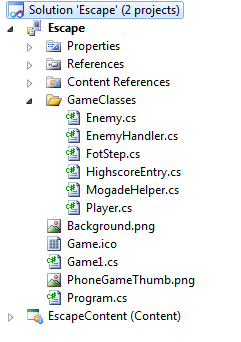
In other words, it’s time to start writing some code. For each of the classes below, add a new class to your game. I created a folder named GameClasses (just to show the audience that it’s possible) and added the classes into it. Feel free to make a better architecture once you are comfortable with the logic and the implementation, refactor and revisit the code where needed.
So, go ahead an add a new folder named GameClasses to your project, and then we will add the classes one-by-one as we follow the tutorial. in the end, the project might look something similar to below.

Player
The player class is a small and simple class. Add a new class to your project by rightclicking the GameClasses foler and select Add new item, make sure it’s a GameComponent and name it Player.
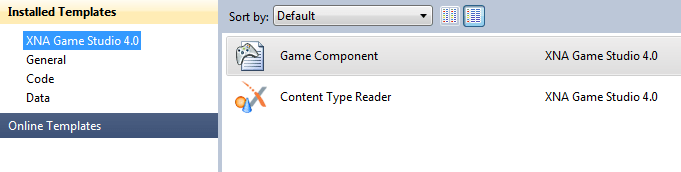
An empty Game Component class named Player is generated and added to your project. Now, go to the class and change the inheritance from being GameComponent to DrawableGameComponent. This should be done for each class except the FotStep (more on this later) as it will be a GameComponent since the player-class will draw them directly.
So change this:

to this:


The code can be seen below, but let me first explain how the Player class works.
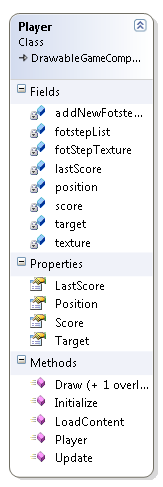
The player class contains the current score for the player, the previous score if any, a position and a target. It also contains a texture that represents the player, a footstep texture and a footstep list.
The constructor just sets the target to 0,0 and the position to 0,0. The player will then start in the upper corner of the screen.
LoadContent will load both the player texture and the footStepTexture.
We have a foot step timer that will add a new footstep to the footstep list once it hit the timer. Each footstep will be added at the center of the player. Also, for each Update() we remove each footstep that is inactive.
The key part of Update() is that the position of the player must move towards the target position. We simply do this by checking the position of the player and the target, and it they don’t match with an offset of 5 pixels, we should move the player. This can be done in a smarter way but hey, I only had 45 minutes to create what the audience wanted 
The Draw() will take a spriteBatch as an input (so I don’t have to create a new one for the player and each enemy, and also use the same spriteBatch only once for each frame), and render all the footsteps – using the alpha channel as the fadeout for a footstep, and also draw the player.
The entire player class can be seen below:
public class Player : Microsoft.Xna.Framework.DrawableGameComponent
{
    Texture2D fotStepTexture;
    Texture2D texture;
    Vector2 position;
    Vector2 target;

    int addNewFotstepTimer = 200;

    List<FotStep> fotstepList = new List<FotStep>();

    int score = 0;
    int lastScore = 0;

    public int LastScore
    {
        get { return lastScore; }
        set { lastScore = value; }
    }

    public int Score
    {
        get { return score; }
        set { score = value; }
    }

    public Vector2 Target
    {
        get { return target; }
        set { target = value; }
    }

    public Vector2 Position
    {
        get { return position; }
        set { position = value; }
    }

    public Player(Game game)
        : base(game)
    {
        // TODO: Construct any child components here
        position = new Vector2();
        target = new Vector2();
    }

    /// <summary>
    /// Allows the game component to perform any initialization it needs to before starting
    /// to run.  This is where it can query for any required services and load content.
    /// </summary>
    public override void Initialize()
    {
        // TODO: Add your initialization code here

        base.Initialize();
    }

    public void LoadContent()
    {
        texture = Game.Content.Load<Texture2D>("player");
        fotStepTexture = Game.Content.Load<Texture2D>("fotstep");

        base.LoadContent();
    }

    /// <summary>
    /// Allows the game component to update itself.
    /// </summary>
    /// <param name="gameTime">Provides a snapshot of timing values.</param>
    public override void Update(GameTime gameTime)
    {
        addNewFotstepTimer -= gameTime.ElapsedGameTime.Milliseconds;
        if (addNewFotstepTimer < 0)
        {
            Vector2 p = this.Position;
            p.X += texture.Width/2;
            p.Y += texture.Height/2;
            fotstepList.Add(new FotStep(Game) { Position = p });
            addNewFotstepTimer = 1;
        }


        List<int> deleteInactiveFotsteps = new List<int>();
        int index = 0;
        foreach (FotStep step in fotstepList)
        {
            step.Update(gameTime);
            if (!step.IsActive)
            {
                deleteInactiveFotsteps.Add(index);
            }
            index++;
        }

        foreach (int delInd in deleteInactiveFotsteps)
        {
            fotstepList.RemoveAt(delInd);
        }

        if(position.X < target.X-5)
        {
            position.X += gameTime.ElapsedGameTime.Milliseconds * 0.3f;
        }
        else if(position.X > target.X+5)
        {
            position.X -= gameTime.ElapsedGameTime.Milliseconds * 0.3f;
        }
        else
        {
            position.X = target.X;
        }

        if (position.Y < target.Y-5)
        {
            position.Y += gameTime.ElapsedGameTime.Milliseconds * 0.3f;
        }
        else if (position.Y > target.Y+5)
        {
            position.Y -= gameTime.ElapsedGameTime.Milliseconds * 0.3f;
        }
        else
        {
            position.Y = target.Y;
        }

        if (position.Y >= 480 - texture.Width)
        {
            position.Y = 480 - 64;
        }

        if (position.X >= 800 - 64)
        {
            position.X = 800 - 64;
        }


        base.Update(gameTime);
    }

    public override void Draw(GameTime gameTime)
    {
        base.Draw(gameTime);
    }

    public void Draw(GameTime gameTime, SpriteBatch spriteBatch)
    {
        foreach (FotStep step in fotstepList)
        {
            Color c = new Color(255, 255, 255, step.Alpha);

            spriteBatch.Draw(fotStepTexture, step.Position, c);
        }

        spriteBatch.Draw(texture, position, Color.White);

        base.Draw(gameTime);
    }
}
Enemy
The enemy class is very similar to the player class.

If contains a texture that represents the enemy, a position and a target.
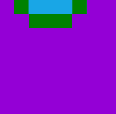
The constructor generates a initial position to the player somewhere outside the play area (so he won’t spawn on the player if unlucky). Using random numbers, we place the enemies between the coordinates –1000,-1000 and 1000,1000. If the player is within 0,0 and 800,480 (the playfield), we place the enemy outside to –32, –32.
In other words, if the player is spawned in the green area below, proceed. If it’s in the red area, put the enemy at –32,-32. This will make a more flow of enemies come from the top-left corner, implementing possibilities for strategies when the player is playing the game ![clip_image019[1]](https://digitalerr0r.net/wp-content/uploads/2012/03/clip_image0191_thumb.png?w=23&h=23 "clip_image019[1]")

The Update() will only move the player to the Target-position and Draw() simply draws the ghost-texture at it’s position.
The listing below is the entire code for the enemy-class:
public class Enemy : Microsoft.Xna.Framework.DrawableGameComponent
{
    Texture2D texture;
    Vector2 position;
    Vector2 target;

    public Vector2 Target
    {
        get { return target; }
        set { target = value; }
    }

    public Vector2 Position
    {
        get { return position; }
        set { position = value; }
    }

    public Enemy(Game game)
        : base(game)
    {
        // TODO: Construct any child components here
        Random rnd = new Random();

        int posX = rnd.Next(-1000, 1000);
        int posY = rnd.Next(-1000, 1000);

        if (posX >= 0 && posX <= 800)
        {
            posX = -32;
        }

        if (posY >= 0 && posY <= 480)
        {
            posY = -32;
        }

        position = new Vector2(posX, posY);
        target = new Vector2();

        LoadContent();
    }

    /// <summary>
    /// Allows the game component to perform any initialization it needs to before starting
    /// to run.  This is where it can query for any required services and load content.
    /// </summary>
    public override void Initialize()
    {
        // TODO: Add your initialization code here

        base.Initialize();
    }

    public void LoadContent()
    {
        texture = Game.Content.Load<Texture2D>("ghost");
        base.LoadContent();
    }

    /// <summary>
    /// Allows the game component to update itself.
    /// </summary>
    /// <param name="gameTime">Provides a snapshot of timing values.</param>
    public override void Update(GameTime gameTime)
    {
        // TODO: Add your update code here

        if(position.X < target.X-5)
        {
            position.X += gameTime.ElapsedGameTime.Milliseconds * 0.04f;
        }
        else if(position.X > target.X+5)
        {
            position.X -= gameTime.ElapsedGameTime.Milliseconds * 0.04f;
        }
        else
        {
            position.X = target.X;
        }

        if (position.Y < target.Y-5)
        {
            position.Y += gameTime.ElapsedGameTime.Milliseconds * 0.04f;
        }
        else if (position.Y > target.Y+5)
        {
            position.Y -= gameTime.ElapsedGameTime.Milliseconds * 0.04f;
        }
        else
        {
            position.Y = target.Y;
        }


        base.Update(gameTime);
    }

    public override void Draw(GameTime gameTime)
    {
        base.Draw(gameTime);
    }

    public void Draw(GameTime gameTime, SpriteBatch spriteBatch)
    {
        spriteBatch.Draw(texture, position, Color.White);

        base.Draw(gameTime);
    }
}
Enemy Handler
The enemy handler will handle all the enemies that are active in the game.

It contains a list over the active enemies, if it’s game over or not and a function for Adding new enemies to the list, Clearing the list and checking how many active enemies we have.
The AddEnemy() function adds a new enemy to the list. The Enemy’s constructor randomly places the enemy on the screen, making it easy for us to just add a new enemy to the list, and it will magically get a correct position, start getting updated and drawn.
The Clear() function will remove all enemies in the list, and also set gameOver to false as the Clear() function is called when it’s game over.
The Update()-loop will check if one enemy hits the player. This is done by creating a rectangle around each enemy, and around the player and then checking if any of the enemy-rectangles intersects with the players rectangle. If they do, it’s game over.
The Draw()-loop will simply just iterate through all enemies and draw them.
The listing below is the code for the enemy handler:
public class EnemyHandler : Microsoft.Xna.Framework.DrawableGameComponent
{
    List<Enemy> enemies = new List<Enemy>();
    bool gameOver = false;

    public bool GameOver
    {
        get { return gameOver; }
        set { gameOver = value; }
    }

    public EnemyHandler(Game game)
        : base(game)
    {
        // TODO: Construct any child components here
    }

    public int NumberOfEnemies()
    {
        return enemies.Count;
    }

    public void AddEnemy()
    {
        enemies.Add(new Enemy(Game));
    }
    /// <summary>
    /// Allows the game component to perform any initialization it needs to before starting
    /// to run.  This is where it can query for any required services and load content.
    /// </summary>
    public override void Initialize()
    {
        // TODO: Add your initialization code here

        base.Initialize();
    }

    public void Clear()
    {
        gameOver = false;
        enemies.Clear();
    }

    /// <summary>
    /// Allows the game component to update itself.
    /// </summary>
    /// <param name="gameTime">Provides a snapshot of timing values.</param>
    public void Update(GameTime gameTime, Vector2 target)
    {
        // TODO: Add your update code here
        Rectangle playerRect = new Rectangle((int)target.X, (int)target.Y, 64, 64);

        foreach (Enemy e in enemies)
        {
            e.Target = target;
            e.Update(gameTime);
            Rectangle enemyRect = new Rectangle((int)e.Position.X+7, (int)e.Position.Y+7, 32-7, 32-7);

            if (playerRect.Intersects(enemyRect))
            {
                gameOver = true;
            }
        }

        base.Update(gameTime);
    }

    public void Draw(GameTime gameTime, SpriteBatch spriteBatch)
    {
        foreach (Enemy e in enemies)
        {
            e.Draw(gameTime, spriteBatch);
        }

        base.Draw(gameTime);
    }
}
FotStep
The FotStep represents one footstep for the player class.
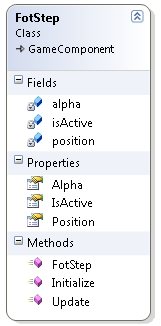
It contains a position, the alpha channel and if it’s active or not. The alpha value starts at 255 and is slowly reduced to 0. If it hit’s 0, it’s isActive flag is set to false and will be removed the next time the player.Update() function is called.
The Update()-function handles the alpha calculations.
The FotStep does not have a Draw()-function. This is because I didn’t want to load a texture for each foot step. Instead, the texture is loaded at the players class, and just rendered multiple times during the players Draw()-loop.
The code for the FotStep class can be seen below:
public class FotStep : Microsoft.Xna.Framework.GameComponent
{
    Vector2 position;

    public Vector2 Position
    {
        get { return position; }
        set { position = value; }
    }

    int alpha;

    public int Alpha
    {
        get { return alpha; }
        set { alpha = value; }
    }
    bool isActive;

    public bool IsActive
    {
        get { return isActive; }
        set { isActive = value; }
    }

    public FotStep(Game game)
        : base(game)
    {
        position = new Vector2();
        alpha = 255;
        isActive = true;
    }

    /// <summary>
    /// Allows the game component to perform any initialization it needs to before starting
    /// to run.  This is where it can query for any required services and load content.
    /// </summary>
    public override void Initialize()
    {
        // TODO: Add your initialization code here

        base.Initialize();
    }

    /// <summary>
    /// Allows the game component to update itself.
    /// </summary>
    /// <param name="gameTime">Provides a snapshot of timing values.</param>
    public override void Update(GameTime gameTime)
    {
        // TODO: Add your update code here

        alpha -= gameTime.ElapsedGameTime.Milliseconds / 2;
        if (alpha <= 0)
            isActive = false;

        base.Update(gameTime);
    }
}
HighscoreEntry
The HighscoreEntry class contains one entry to the Online high score system in Mogade. It requires you to have added a reference to the Mogade-library:

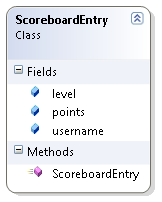
The class is very simple. It contains the level name (we just have one here), the score and the username. These fields are required by mogade.
Remember to add the correct using statements (Mogade, Mogade.WindowsPhone) in this class as the property Score in the constructor is a class in Mogade.
The complete listing for the ScoreboardEntry can be seen below:
public class ScoreboardEntry
{
    public string username;
    public string level;
    public int points;

    public ScoreboardEntry(Score score)
    {
        username = score.UserName;
        level = score.Data;
        points = score.Points;
    }
}
MogadeHelper
The MogadeHelper-class is a class that is used to simplify the implementation of Mogade for online highscore.

It contains an Enum that is used to select what highscore-list will be used by Mogade. You can have more than one, but in this game, we simply just use one: Main.
It contains a gameKey and a secret key that is received when you add a new game on your account at the Mogade website. It also creates an instance of the MogadeClient and contains a list of our ScoardboardEntry. Each leaderboard got a unique key, so when creating a new game at Mogade, make sure to add a new leaderboard to the game, name it (follow the enum), in this case Main, and copy-paste the generated Leaderboard key.
The complete code can be seen below:
public enum Leaderboards
{
    Main = 1,
}
public class MogadeHelper
{
    //Your game key and game secret
    private const string _gameKey = "4f30358d563d8a4acf00000d";
    private const string _secret = "PnW5:VdK=ENl]gpb?nS3q[]rIdyCL[]nluw";
    private static readonly IDictionary<Leaderboards, string> _leaderboardLookup = new Dictionary<Leaderboards, string>
    {
        {Leaderboards.Main, "4f3036d5563d8a4c25000010"}
    };

    public static string LeaderboardId(Leaderboards leaderboard)
    {
        return _leaderboardLookup[leaderboard];
    }

    public static IMogadeClient CreateInstance()
    {
        //In your own game, when you are ready, REMOVE the ContectToTest to hit the production mogade server (instead of testing.mogade.com)
        //Also, if you are upgrading from the v1 library and you were using UserId (or not doing anything), you *must* change the UniqueIdStrategy to LegacyUserId
        MogadeConfiguration.Configuration(c => c.UsingUniqueIdStrategy(UniqueIdStrategy.UserId));
        return MogadeClient.Initialize(_gameKey, _secret);
    }
}
Making it all work together, revisiting the main-game class
Let’s go back to the main-class of the game and look at the logic.

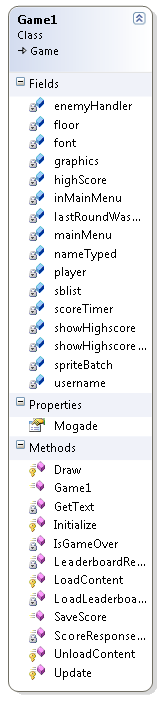
The game starts by Initialize() – the enemy handler and the player is initialized, three new enemies are added(so the game starts with 3 active enemies) and Loads the Loaderboards.
The Update()-loop constantly checks it the player is pressing the backbutton – if so, return to the main menu if in-game, or exit if you are in the main-menu.
It also keeps track of the highscore timer, reducing it every Update(). If it’s above 0, show the highscore, else, hide it.
Then it checks for input, if yes, update the players position.
It also checks if it’s game over by checking the enemy handlers game over property. If it’s game over, save the score, set the highscore timer to 6000 (the high scores will then be visible for 6 seconds). It then clears the enemy list in the enemy hanlder (and setting the game over variable to false), adds 3 new starter enemies and updates the local highscore and saves it to the disc if it’s a new high score… aaand resets the players score to 0.
Mogade got an async function SaveScore. It tries to save the score and calls the ScoreResponseHandler when done.
Mogade.SaveScore(MogadeHelper.LeaderboardId(Leaderboards.Main), userscore, ScoreResponseHandler);
It also contains a GetLarderboard function, also async, that tries to load a Leaderboard and calls LoaderboardReceived when done.
Mogade.GetLeaderboard(MogadeHelper.LeaderboardId(Leaderboards.Main), scope, page, r => LeaderboardReceived(r));
The Draw()-loop draws the floor, player, enemies, renders text and shows the highscore.
The entire Game1 class can be seen below:
using System;
using System.Collections.Generic;
using System.Linq;
using Microsoft.Xna.Framework;
using Microsoft.Xna.Framework.Audio;
using Microsoft.Xna.Framework.Content;
using Microsoft.Xna.Framework.GamerServices;
using Microsoft.Xna.Framework.Graphics;
using Microsoft.Xna.Framework.Input;
using Microsoft.Xna.Framework.Input.Touch;
using Microsoft.Xna.Framework.Media;
using System.IO.IsolatedStorage;
using WindowsPhoneGame135.GameClasses;
using Mogade.WindowsPhone;
using Mogade;

namespace WindowsPhoneGame135
{
    /// <summary>
    /// This is the main type for your game
    /// </summary>
    public class Game1 : Microsoft.Xna.Framework.Game
    {
        GraphicsDeviceManager graphics;
        SpriteBatch spriteBatch;
        Player player;
        EnemyHandler enemyHandler;
        int scoreTimer = 0;
        int highScore = 0;
        bool inMainMenu = true;
        bool nameTyped = false;
        bool showHighscore = true;
        int showHighscoreTimer = 6000;

        bool lastRoundWasHighscore = false;

        Texture2D floor;
        Texture2D mainMenu;

        SpriteFont font;

        List<ScoreboardEntry> sblist = new List<ScoreboardEntry>();


        public IMogadeClient Mogade { get; private set; }


        public Game1()
        {
            graphics = new GraphicsDeviceManager(this);
            Content.RootDirectory = "Content";

            // Frame rate is 30 fps by default for Windows Phone.
            TargetElapsedTime = TimeSpan.FromTicks(333333);

            // Extend battery life under lock.
            InactiveSleepTime = TimeSpan.FromSeconds(1);

            player = new Player(this);
            enemyHandler = new EnemyHandler(this);

            try
            {
                highScore = (int)IsolatedStorageSettings.ApplicationSettings["HighScore"];
            }
            catch
            {
                IsolatedStorageSettings.ApplicationSettings.Add("HighScore", highScore);
            }

            try
            {
                username = (string)IsolatedStorageSettings.ApplicationSettings["Username"];
            }
            catch
            {
                IsolatedStorageSettings.ApplicationSettings.Add("Username", username);
            }

            Mogade = MogadeHelper.CreateInstance();
            Mogade.LogApplicationStart();
        }

        /// <summary>
        /// Allows the game to perform any initialization it needs to before starting to run.
        /// This is where it can query for any required services and load any non-graphic
        /// related content.  Calling base.Initialize will enumerate through any components
        /// and initialize them as well.
        /// </summary>
        protected override void Initialize()
        {
            // TODO: Add your initialization logic here
            enemyHandler.Initialize();
            player.Initialize();

            // Add 3 players to start with
            enemyHandler.AddEnemy();
            enemyHandler.AddEnemy();
            enemyHandler.AddEnemy();

            LoadLeaderboard(LeaderboardScope.Overall, 1);

            base.Initialize();
        }

        /// <summary>
        /// LoadContent will be called once per game and is the place to load
        /// all of your content.
        /// </summary>
        protected override void LoadContent()
        {
            // Create a new SpriteBatch, which can be used to draw textures.
            spriteBatch = new SpriteBatch(GraphicsDevice);

            player.LoadContent();
            font = Content.Load<SpriteFont>("SpriteFont1");

            floor = Content.Load<Texture2D>("floor");

            mainMenu = Content.Load<Texture2D>("mainmenu");

            // TODO: use this.Content to load your game content here
        }

        bool IsGameOver()
        {
            return enemyHandler.GameOver;
        }

        /// <summary>
        /// UnloadContent will be called once per game and is the place to unload
        /// all content.
        /// </summary>
        protected override void UnloadContent()
        {
            // TODO: Unload any non ContentManager content here
        }

        /// <summary>
        /// Allows the game to run logic such as updating the world,
        /// checking for collisions, gathering input, and playing audio.
        /// </summary>
        /// <param name="gameTime">Provides a snapshot of timing values.</param>
        protected override void Update(GameTime gameTime)
        {
            if (GamePad.GetState(PlayerIndex.One).Buttons.Back == ButtonState.Pressed)
            {
                if (inMainMenu)
                {
                    this.Exit();
                }
                else
                {
                    enemyHandler.Clear();
                    enemyHandler.AddEnemy();
                    enemyHandler.AddEnemy();
                    enemyHandler.AddEnemy();

                    player.Score = 0;
                    inMainMenu = true;
                }
            }


            if (inMainMenu)
            {
                TouchCollection touchStateMain = TouchPanel.GetState();
                if (touchStateMain.Count > 0)
                {
                    object stateObj;
                    try
                    {
                        Guide.BeginShowKeyboardInput(PlayerIndex.One, "Enter name", "Please enter a name for the scoreboard (Minimum 3 and no longer than 20 characters)", username, GetText, stateObj = (object)"GetText for Input PlayerOne");
                    }
                    catch (Exception ex)
                    {
                    }

                    inMainMenu = false;
                }
                return;
            }

            if (!nameTyped)
                return;

            showHighscoreTimer -= gameTime.ElapsedGameTime.Milliseconds;
            if (showHighscoreTimer < 0)
            {
                showHighscore = false;
            }
            else showHighscore = true;

            scoreTimer += gameTime.ElapsedGameTime.Milliseconds;

            if (scoreTimer >= 1000)
            {
                scoreTimer = 0;
                player.Score += enemyHandler.NumberOfEnemies();
                enemyHandler.AddEnemy();
            }

            TouchCollection touchState = TouchPanel.GetState();
            foreach (TouchLocation t in touchState)
            {
                player.Target = t.Position-(new Vector2(32,32));
            }

            enemyHandler.Update(gameTime, player.Position);
            player.Update(gameTime);

            if (IsGameOver())
            {
                SaveScore();

                showHighscoreTimer = 6000;
                player.LastScore = player.Score;

                enemyHandler.Clear();
                enemyHandler.AddEnemy();
                enemyHandler.AddEnemy();
                enemyHandler.AddEnemy();

                if (highScore < player.Score)
                {
                    lastRoundWasHighscore = true;
                    highScore = player.Score;
                    try
                    {
                        IsolatedStorageSettings.ApplicationSettings["HighScore"] = highScore;
                    }
                    catch
                    {
                        IsolatedStorageSettings.ApplicationSettings.Add("HighScore", highScore);
                    }
                }
                else lastRoundWasHighscore = false;

                player.Score = 0;
            }

            base.Update(gameTime);
        }

        string username = "Player";
        private void GetText(IAsyncResult result)
        {
            try
            {
                string resultString = Guide.EndShowKeyboardInput(result); ;

                if (resultString != null)
                {

                    if (resultString.Length > 20)
                    {
                        resultString = resultString.Remove(20);
                    }

                    if (resultString.Length < 3)
                    {
                        inMainMenu = true;
                        return;
                    }
                    username = resultString;
                }
                else
                {
                    username = "Player";
                    inMainMenu = true;
                }
            }
            catch (Exception ex)
            {
                username = "Player";
                inMainMenu = true;
                return;
            }

            try
            {
                IsolatedStorageSettings.ApplicationSettings["Username"] = username;
            }
            catch
            {
                IsolatedStorageSettings.ApplicationSettings.Add("Username", username);
            }

            nameTyped = true;

            sblist.Clear();
        }

        public void SaveScore()
        {
            var userscore = new Score { Data = "1", Points = player.Score, UserName = username };
            Mogade.SaveScore(MogadeHelper.LeaderboardId(Leaderboards.Main), userscore, ScoreResponseHandler);
        }


        private void ScoreResponseHandler(Response<SavedScore> r)
        {
            //scoreboardRanks = string.Format("Daily Rank: {0}\nWeely Rank: {1}\nOverall Rank {2}", 0, 0, 0);
            if (!r.Success)
            {
                if (Guide.IsVisible == false)
                {
                    //Guide.BeginShowMessageBox("Error", "Unable to retreive data from the server please check your network connection", new string[] { "OK" }, 0, MessageBoxIcon.Error, null, null);
                    return;
                }
            }
            else
            {
                //scoreboardRanks = string.Format("Daily Rank: {0}\nWeely Rank: {1}\nOverall Rank {2}", r.Data.Ranks.Daily, r.Data.Ranks.Weekly, r.Data.Ranks.Overall);
            }

            LoadLeaderboard(LeaderboardScope.Overall, 1);

        }

        private void LoadLeaderboard(LeaderboardScope scope, int page)
        {
            sblist.Clear();
            Mogade.GetLeaderboard(MogadeHelper.LeaderboardId(Leaderboards.Main), scope, page, r => LeaderboardReceived(r));
        }

        private void LeaderboardReceived(Response<LeaderboardScores> response)
        {
            if (!response.Success)
            {
                if (Guide.IsVisible == false)
                {
                    //Guide.BeginShowMessageBox("Error", "Unable to retreive data from the server, please check your network connection", new string[] { "OK" }, 0, MessageBoxIcon.Error, null, null);
                    return;
                }
            }
            else
            {
                for (var i = 0; i < response.Data.Scores.Count; ++i)
                {
                    sblist.Add(new ScoreboardEntry(response.Data.Scores[i]));
                }
            }
        }

        /// <summary>
        /// This is called when the game should draw itself.
        /// </summary>
        /// <param name="gameTime">Provides a snapshot of timing values.</param>
        protected override void Draw(GameTime gameTime)
        {
            GraphicsDevice.Clear(Color.CornflowerBlue);

            if (inMainMenu || !nameTyped)
            {
                spriteBatch.Begin();
                spriteBatch.Draw(mainMenu, new Vector2(), Color.White);
                spriteBatch.End();
            }
            else
            {
                spriteBatch.Begin(SpriteSortMode.Immediate, BlendState.NonPremultiplied);
                spriteBatch.Draw(floor, new Vector2(), Color.White);
                enemyHandler.Draw(gameTime, spriteBatch);
                player.Draw(gameTime, spriteBatch);
                spriteBatch.DrawString(font, "Current score: " + player.Score.ToString(), new Vector2(80, 10), Color.White);
                spriteBatch.DrawString(font, "Last score: " + player.LastScore, new Vector2(80, 35), Color.White);

                if (showHighscore)
                {
                    spriteBatch.DrawString(font, "-- Local highscore ----", new Vector2(80, 60), Color.White);
                    spriteBatch.DrawString(font, "  " + highScore.ToString(), new Vector2(80, 85), Color.White);

                    if (sblist.Count > 0)
                    {
                        spriteBatch.DrawString(font, "-- Online highscore ----", new Vector2(80, 110), Color.White);
                        spriteBatch.DrawString(font, "  " + sblist[0].username + " / " + sblist[0].points, new Vector2(80, 135), Color.White);
                    }

                    if (player.LastScore > 0)
                    {
                        if (lastRoundWasHighscore)
                        {
                            spriteBatch.DrawString(font, "  " + "NEW HIGHSCORE!", new Vector2(100, 160), Color.Green);
                        }
                        else
                        {
                            spriteBatch.DrawString(font, "Only " + (highScore - player.LastScore) + " points left, you can do it!", new Vector2(80, 160), Color.Red);
                        }
                    }
                }
                spriteBatch.End();
            }

            base.Draw(gameTime);
        }
    }
}
And there you go, a fully working complete game. The game is on the Windows Phone Marketplace and can be seen here:
http://www.windowsphone.com/nb-no/apps/d2115469-3e6a-4bcd-9071-b7c1cf6b78b3
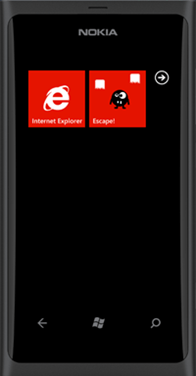
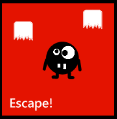
Screenshots of the game we just made

Download the source
Download: Source for Windows Phone 7.1 and XNA 4.0






 ).
).











![clip_image002[1]](https://digitalerr0r.net/wp-content/uploads/2012/03/clip_image0021.png "clip_image002[1]")





![clip_image002[2]](https://digitalerr0r.net/wp-content/uploads/2012/03/clip_image0022.png "clip_image002[2]")




![clip_image019[1]](https://digitalerr0r.net/wp-content/uploads/2012/03/clip_image0191.png "clip_image019[1]")





 Modern art using the GPU