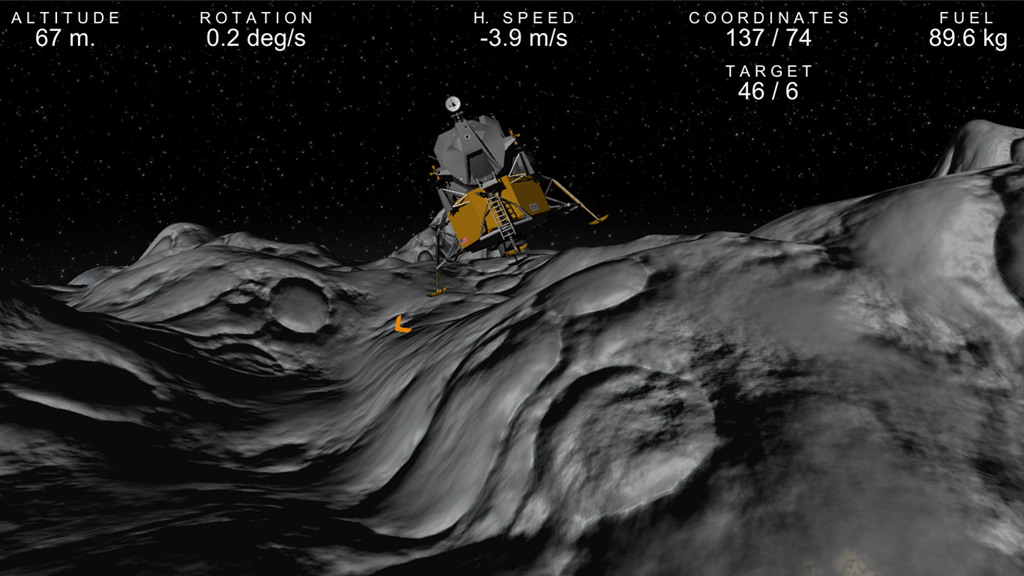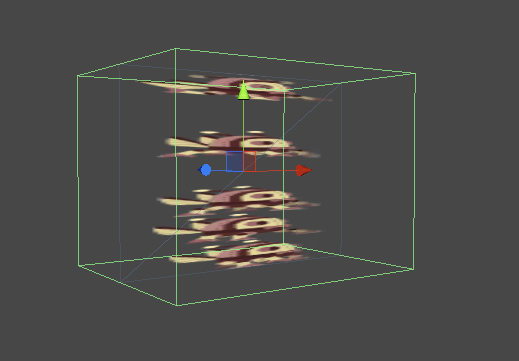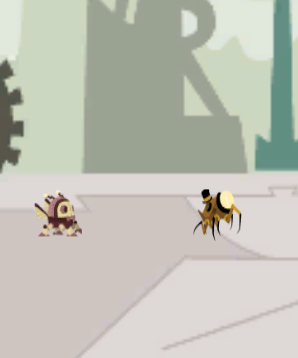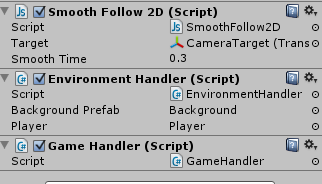
Moon Lander, a Free Windows 8 / Windows game

1

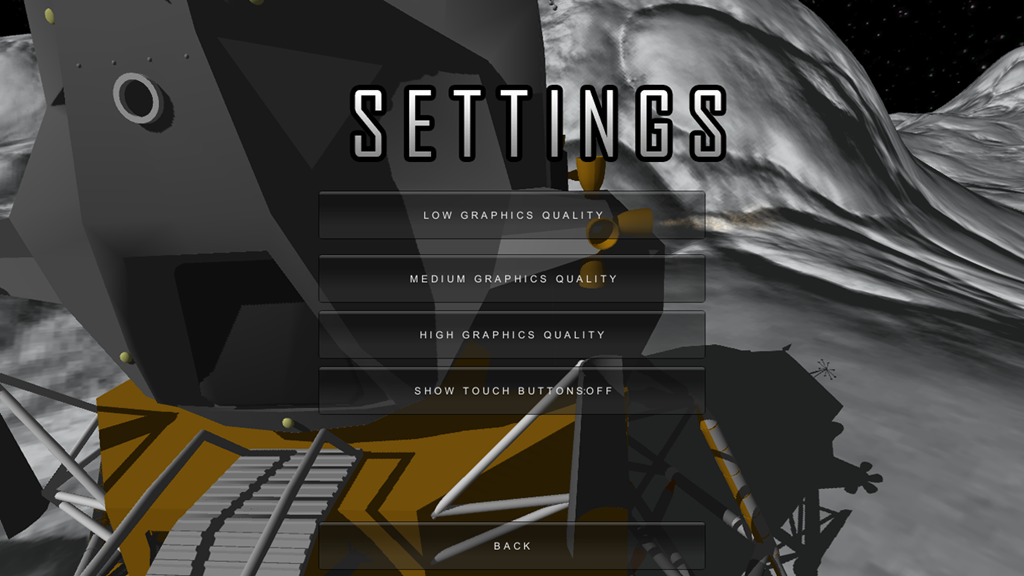
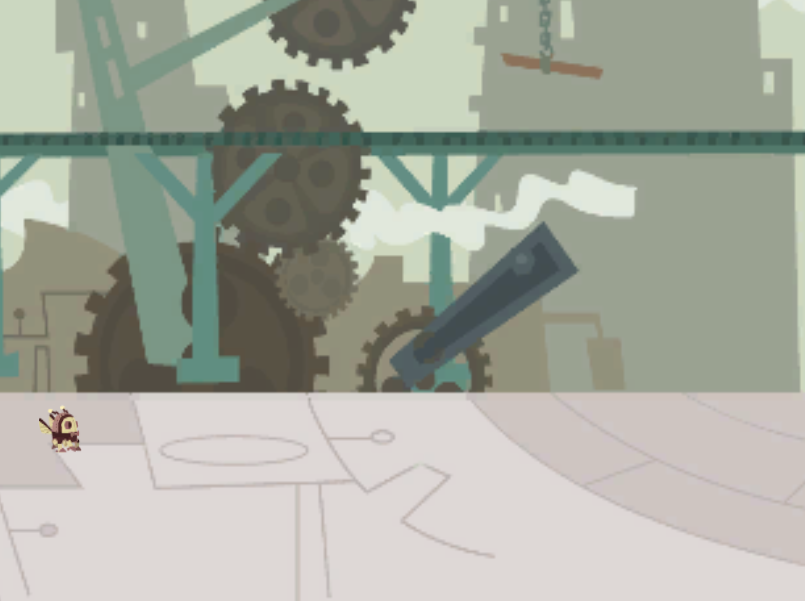
I attended a one evening Game Jam and decided to create a Lunar Lander style game! It’s just a simple game where you need to fly a lunar landing module over the moon, and land at a target coordinate. All this while having to make sure not to spend all the fuel and having control over gravity.

Skjermbilde 6 2 3 4

Downloads

Download the Windows 8 app here:
http://apps.microsoft.com/windows/app/moon-lander/506bc317-0416-476b-8f34-0b0a1f8ffb54

Download the Windows EXE here:
http://sdrv.ms/17TdimH

Posted in Game programming, Unity | Leave a comment

Words for young game developers and Northern Game Summit

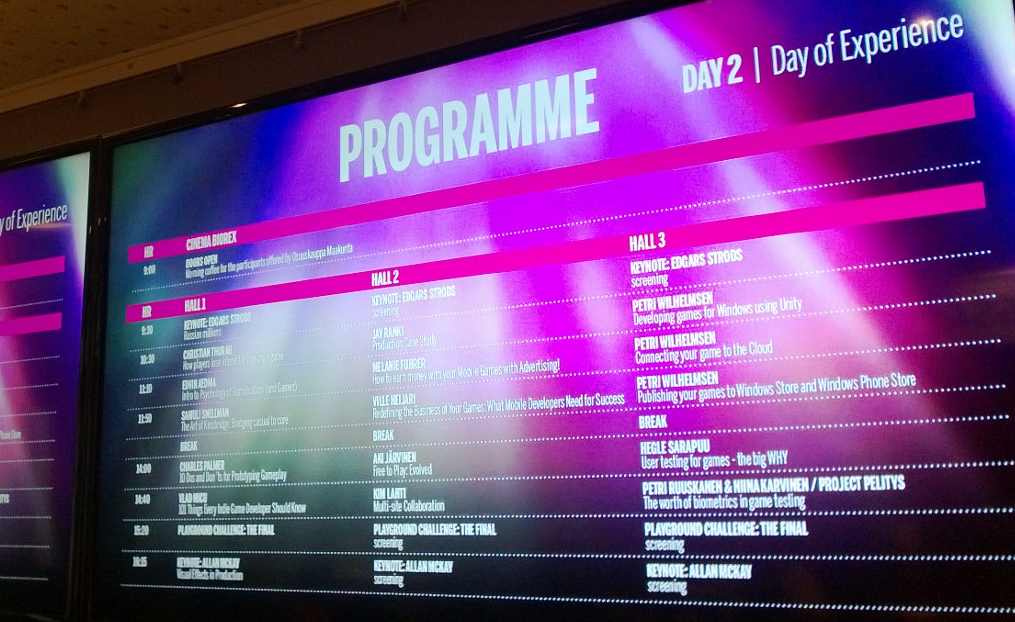
Last week I attended the Northern Game Summit, an awesome event hosted in Kajaani Finland. The event gathered somewhere around 700 attendees who all got one thing in common – creating awesome games.

I was lucky enough to be invited there to keep three presentations around Unity and game development. My talks was around getting started with developing games, getting your games published to Windows Store and Windows Phone Store, and how to get connected using the cloud.

Most of my content was based on my Unity for Windows tutorial series – but the coolest thing was the networking and meeting some of the guys behind Angry Birds, Badland, EVE Online, Alan Wake and a lot of motivated startups and students with one thing on their mind – trying to create good games, and experience worth hours of gameplay for us consumers.

Somehow, Finland manages to create games that the world loves, and the size of this event in little Kajaani really proved that they got the systems and community to really help them reach out. Universities, schools, talented developers and a market helping young talents kickstart a new project/game.

What frustrates me is the amount of people trying to “create the next big thing”, but is just sitting there, waiting for their moment (oh, I just need to greenlight my project or join kickstarter) – instead of participating in the local pitching competitions, Game Jams, normal competitions, sharing their ideas and joining the events the enthusiats are creating.

At a local presentation earlier this week, I asked my audience to raise their hands if they had an idea and a dream to create something cool – most of them raised their hands. When I followed up asking them if they had joined competitions like what Unity had for Windows, or pitching competitions, or if they had asked their local investors for help – most of them lowered their hands.

Why? They didn’t have time, or didn’t think they had the skills\courage to present their idea to a jury. The game business is hard – and if you are lucky, you can make it without any help. Most are not.. There is A LOT of help available right in front of you, so go ahead and join as many competitions as possible, think of them as a way to get visibility and help to get your dream come true! It won’t cost you more than failiure – and even that gives you a lot of learning and feedback!

At NGS, @vgvisionary said “If you win the local market – at least you have conquered something.. something that can make you conquer international markets”. There is some truth in there, don’t underestimate “the local”.

Even in Kajaani, a few teams really struggled with their pitching presentations. You got two minutes to show of your idea and talent and I know its hard – but at least they tried. It could be worth tousands of dollars and give your game a kickstart nobody else can give you.

Anyways, enjoy this trailer from a Finnish Company who just released their game, and some pictures from my trip to Kajaani:

image
image
image
image
image

Posted in Game programming | 1 Comment

Realtime Studios by Outracks Technologies

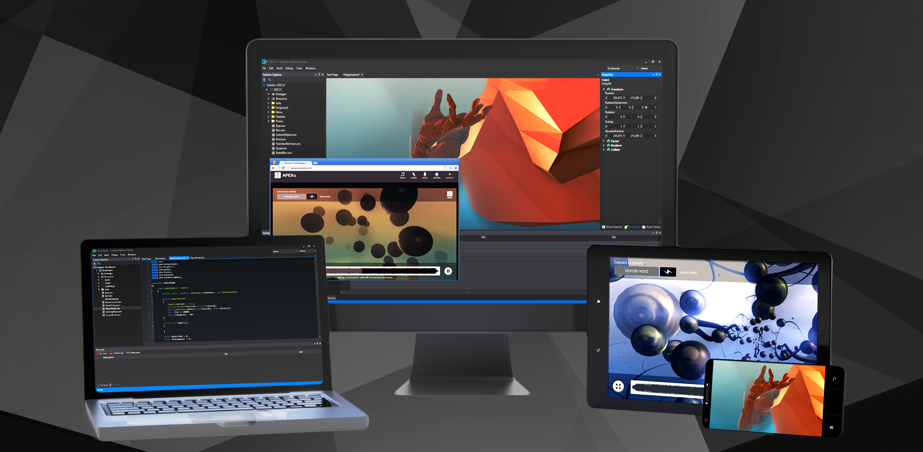
The Norwegian company Outracks Technologies has just released their latest Electron Volt update to their awesome game development and visual synthesis software Realtime Studios.

If you are at all interested in graphics programming or game development, this is a tool you need to check out.

image

A video of the update can be seen here:


If you want to try this out, apply for beta access here: https://beta.outracks.com/

I have been playing around with this tool and I find it awesome and effective, so go ahead and try it out yourself Smilefjes

Posted in Realtime Studios | Leave a comment

Unity Game Starter Kit for Windows Store and Windows Phone Store games

screenshot_09252013_020250

I have created a simple game that you can download, play with and submit to the store – both to Windows Store and Windows Phone Store – reching millions of users world wide. It contains the basic functionality of a 2d sidescrolling shooter game.

This game starts simple, then after level 3 – more enemies will come, and after level 4 there is a possibility that a harder enemy that takes two shots to kill will spawn.

The game supports input of touch, mouse, keyboard and the xbox controller (just connect it to a surce or a computer and play!).

This game is pretty simple, but with your modifications to it, it can be a totally new game with much more content.

Open the game in Windows Store (is soon published)
Open the game in Windows Phone Store

Download

You can download the entire Unity game starter kit here:
http://sdrv.ms/1aE3qfN (~170 mb)

What can I do?

You can open the project using the free or pro version of Unity , modify the game by adding more enemies, bosses, weapons, power ups, character attributes so when you level up you can get more strength, shoot quicker, move quicker ++, add a world map, create levels with different landscapes, add two-player, make it 3d – it’s all up to you, and it’s really simple using Unity! Smilefjes


Changing the GFX

The graphics are taken from http://wootstudio.ca/win8platstarter and the entire eninge is based on this so simply replace the GFX in this starter kit with these to change the graphics (might need to do some cut/paste on some power ups and building), but the character animations and enemies are just a file-replace away from getting changed.

You can also modify these files with your own GFX, or rewrite the routines so it loads your own files the way you want.

image

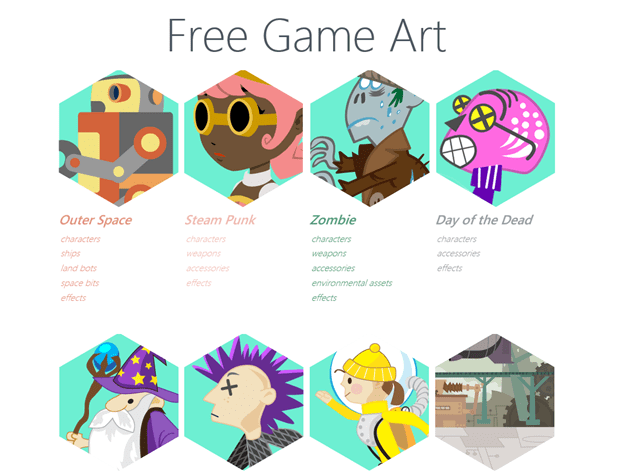
These packs are awesome and contains good and cool GFX free of charge!


Exporting your game to Windows Store and Windows Phone Store

The pack comes with a game that supports both Windows 8 apps and Windows Phone 8 apps. If you make modifications, just export it from Unity (replace the folder that is named Windows8 for Windows Store apps and WindowsPhone8 for Windows Phone Store apps):

image

But don’t delete these, or export to another folder – these folders contains code that handles important Windows Store and Windows Phone Store tasks such as Fast App Resume and Snap View. When exporting from Unity, it will only export the files that are new – so this code will not be overwritten.

In Unity just click File->Build Settings, select Windows Store Apps of Windows Phone 8 as the platform and click Build.
image

Then, you will be asekd where you want to export, select the folder (Windows8 for Windows Store Apps and WindowsPhone8 for Windows Phone 8) and click Select Folder:

image

The app is now exporting, and when done – open it in Visual Studio (free to download here: http://www.visualstudio.com ) and do the process for submitting the app to the store (build it, send it through the WACK to build and test the app packages locally and then submit it to store).

More information:

How to publish to Windows Store
How to publish to Windows Phone Store


Step by step tutorial on how to create this game

I have created a five part tutorial series (it’s a part of a longer Unity for Windows tutorial series) that will create this game using Unity:

image image image

image image


Sound effects and licensing

The sound effects used in this game is licenced based on the Creative Commons Attribution 3.0. If you redistribute them, use them or publish this game, make sure you follow the guidelines here: http://creativecommons.org/licenses/by/3.0/

The SFX is downloaded from the awesome site http://soundbible.com

Posted in Tutorial, Unity, Windows 8, Windows Phone | 11 Comments

Unity for Windows X–Finishing “SteamLands”, Part 5

image

Welcome to the final part of the “SteamLands” tutorial series, where we will complete the game!

In this tutorial, we are going to modify minor stuff to the game, add some power ups and add another enemy. We are also going to handle the main menu. I won’t be as detailed as in the earlier tutorials since you should know these things by now so congratulations! Smilefjes

This tutorial might seem very long – but fear not, there is a lot of source code listings and images. Anyways, hope you will learn a lot! Smilefjes

Download the project, source and assets of the complete game here.

I. Fixing the Intertia Tensor exception

Let’s start with fixing a few issues from the previous tutorials. I waited with fixing them because I didn’t want to give you evertything at once.

The first one is the issue that you propbably have notices – an exception saying there is an issue with some kind of inertia tension:

“Actor::updateMassFromShapes: Compute mesh inertia tensor failed for one of the actor’s mesh shapes! Please change mesh geometry or supply a tensor manually!”

The reason for this is that there is Mesh Colliders attached to all our Quads (except for the background, we removed it alread).

Go to the Players Texture Game Object and remove the Mesh Collider component:
image

Do the same for the Enemy prefab and the Laser prefab.

Play the game again and notice that the exceptions are gone! Smilefjes

II. Fixing the Enemy

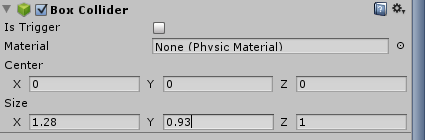
First of all, the size of our enemy is a bit too small. The prefab spawns the enemy at the scale 1,1, but it should be 1.28, 0.93 to reflect the texture size. Change this in the prefab of the Enemy:
image

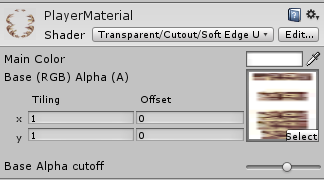
Also, change the shader of the enemys texture game object to the same we used for our player:
image

Then change the collision box for the enemy:
image

The EnemyHandler script was also changed so the enemies won’t spawn outside of the sidewalk, and how they are spawned (so it doesnt get insane).


III. Fixing the player

The players level list is essensial. Right now, the level up system is linear. We will change it so you will need more and more xp before leveling up for each level you get.

Change the level list builder code in the PlayerHandler to this:

void Start () {
    int currentXp = 0;
    int xpToIncrease = 50;

    for (int i = 0; i < 20; i++)
    {
        currentXp += xpToIncrease;
        levelList.Add(currentXp);
        xpToIncrease = (int)(xpToIncrease * 1.25);
    }

    playerHandler = this.GetComponent<PlayerHandler>();

}

The levels list now look like this:

image

This means that we must introduce more enemies as well!

IV. Adding more enemies

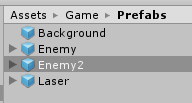
Let’s add a new enemy by duplicating the exsiting enemy and call it enemy2.
image

Let’s also give the enemy HP and the same hit effect that the player got. Open the EnemyHandler and add a new public variable that will keep track of the enemy HP:
public int Hp;

Change the routine that kills the enemy so it subracts the HP. If HP is less or equal zero, we destroy it:

void OnCollisionEnter(Collision collision)
{
    if (collision.rigidbody != null)
    {
        if (collision.rigidbody.name == “Player”)
        {
            Instantiate(explodePrefab, this.transform.position, Quaternion.identity);
            Instantiate(smokePrefab, this.transform.position, Quaternion.identity);
            Destroy(this.gameObject);
        }

        if (collision.rigidbody.tag == “Laser”)
        {
            Hp -= 1;
               
           Instantiate(smokePrefab, this.transform.position, Quaternion.identity);

            if (Hp <= 0)
            {
                isDead = true;
                Destroy(collision.gameObject);

                if (animationHandler != null)
                {
                    animationHandler.playAnimationSetNumber = 2;
                }
            }
        }
    }
}

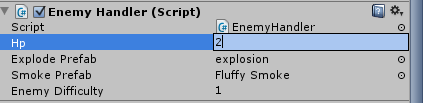
On the Enemy2 prefab, change the Hp to 2:
image

(Notice that we don’t need to set the Hp if the enemy is just having one life. This is because our test for Hp is inside the collision function, so it won’t run before we hit it with a laser).

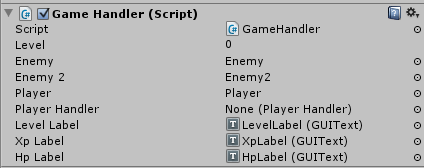
In the GameHandler script, add a new public variable that will contain the Enemy2 prefab:
public GameObject enemy2;

Perfect, now we need to spawn enemy2 randomly after turning level 2.

using UnityEngine;
using System.Collections;
public class GameHandler : MonoBehaviour
{
    public int level;

    public GameObject enemy;
    public GameObject enemy2;

    public GameObject player;

    public PlayerHandler playerHandler;

    public GUIText levelLabel;
    public GUIText xpLabel;

    float colorModifier = 1.0f;

    float spawnNewEnemyTimer = 2;

    // Use this for initialization
    void Start()
    {
        playerHandler = player.GetComponent<PlayerHandler>();
    }

    // Update is called once per frame
    void Update()
    {
        spawnNewEnemyTimer -= Time.deltaTime;
        if (spawnNewEnemyTimer <= 0)
        {
            spawnNewEnemyTimer = 5;

            int spawnNumberOfEnemies = 1 + (level/1);

            for (int i = 0; i < spawnNumberOfEnemies; i++)
            {
                GameObject enemyToSpawn;
                enemyToSpawn = enemy;

                if (level > 2)
                {
                    float rndEnemy = Random.Range(0.0f, 1.0f);
                    if (rndEnemy >= 0.5)
                    {
                        enemyToSpawn = enemy;
                    }
                    else
                    {
                        enemyToSpawn = enemy2;
                    }
                }

                float modifier = Random.Range(-1.0f, 1.0f) * 3;

                Instantiate(enemyToSpawn, new Vector3(player.transform.position.x + 20.0f + i * 3,
                       player.transform.position.y + modifier, 0.0f), Quaternion.identity);
            }

        }

        if (playerHandler != null)
        {
            level = playerHandler.Level;
            levelLabel.text = “Level ” + (level+1);

            int xpInLevel = playerHandler.Xp;
            if (level > 0)
            {
                xpInLevel = playerHandler.Xp – playerHandler.levelList[level – 1];
            }

            int xpForNextLevel = (playerHandler.levelList[level]);
            if(level > 0)
                xpForNextLevel = playerHandler.levelList[level] – playerHandler.levelList[level – 1];

            xpLabel.text = xpInLevel + “/” + xpForNextLevel;
        }
    }
}

Set the enemy2 variable in the editor:
image

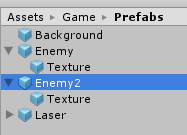
Also, set the Texture vaiable in both Enemy and Enemy2 prefabs to their own Texture Game Object:

image
image

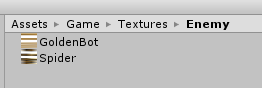
We also want to set the texture of the new Enemy2 prefab to another one. Add this texture to the Enemy Texture folder (can be found in this chapters assets folder):

image

01_bot

Duplicate the enemy material, name it Enemy2Material and assign the new texture to it.

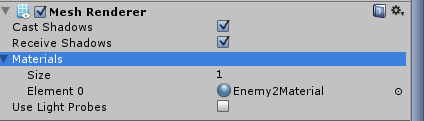
Drag it on the Enemy2Prefabs Texture Game Object, inside the Materials collection:
image

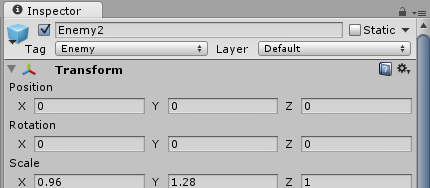
Now, change the size of the Enemy2Prefab main game object:
image

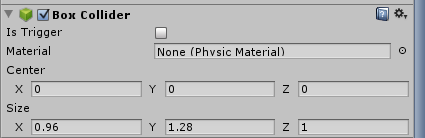
And the collision box:
image


V. Drawing our health bar

The next thing we want to do is to have a UI for the Hp our player got left.

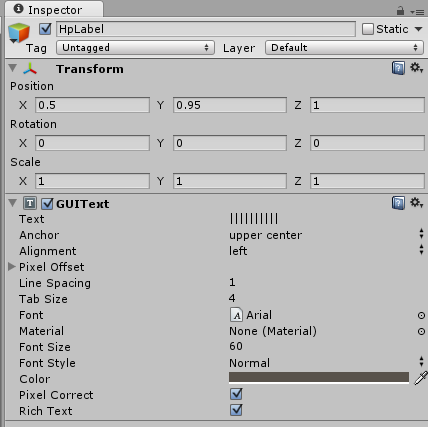
Duplicate the LevelLabel and rename it to HpLabel, and set the following properties:

image


Now, modify the GameHandler script so we take this label and set it to our HP:

using UnityEngine;
using System.Collections;
public class GameHandler : MonoBehaviour
{
    public int level;

    public GameObject enemy;
    public GameObject enemy2;

    public GameObject player;

    public PlayerHandler playerHandler;

    public GUIText levelLabel;
    public GUIText xpLabel;
    public GUIText hpLabel;

    float colorModifier = 1.0f;

    float spawnNewEnemyTimer = 2;

    // Use this for initialization
    void Start()
    {
        playerHandler = player.GetComponent<PlayerHandler>();
    }

    // Update is called once per frame
    void Update()
    {
        spawnNewEnemyTimer -= Time.deltaTime;
        if (spawnNewEnemyTimer <= 0)
        {
            spawnNewEnemyTimer = 5;

            int spawnNumberOfEnemies = 1 + (level/2);

            for (int i = 0; i < spawnNumberOfEnemies; i++)
            {
                GameObject enemyToSpawn;
                enemyToSpawn = enemy;

                if (level > 2)
                {
                    float rndEnemy = Random.Range(0.0f, 1.0f);
                    if (rndEnemy > 0.5)
                    {
                        enemyToSpawn = enemy;
                    }
                    else
                    {
                        enemyToSpawn = enemy2;
                    }
                }

                float modifier = Random.Range(-1.0f, 1.0f) * 3;

                Instantiate(enemyToSpawn, new Vector3(player.transform.position.x + 20.0f + i * 3,
                       player.transform.position.y + modifier, 0.0f), Quaternion.identity);
            }

        }

        if (playerHandler != null)
        {
            level = playerHandler.Level;
            levelLabel.text = “Level ” + (level+1);

            int xpInLevel = playerHandler.Xp;
            if (level > 0)
            {
                xpInLevel = playerHandler.Xp – playerHandler.levelList[level – 1];
            }

            int xpForNextLevel = (playerHandler.levelList[level]);
            if(level > 0)
                xpForNextLevel = playerHandler.levelList[level] – playerHandler.levelList[level – 1];

            xpLabel.text = xpInLevel + “/” + xpForNextLevel;

           hpLabel.text = “[ “;
            for (int i = 0; i < playerHandler.HP; i++)
            {
                hpLabel.text += “|”;
            }
            hpLabel.text += “] “;

            if (playerHandler.HP <= 3)
                hpLabel.color = Color.red;
            else hpLabel.color = new Color(88.0f / 255.0f, 82.0f / 255.0f, 75.0f / 255.0f);

        }
    }
}

Remember to set the label in the Main Cameras properties:

image

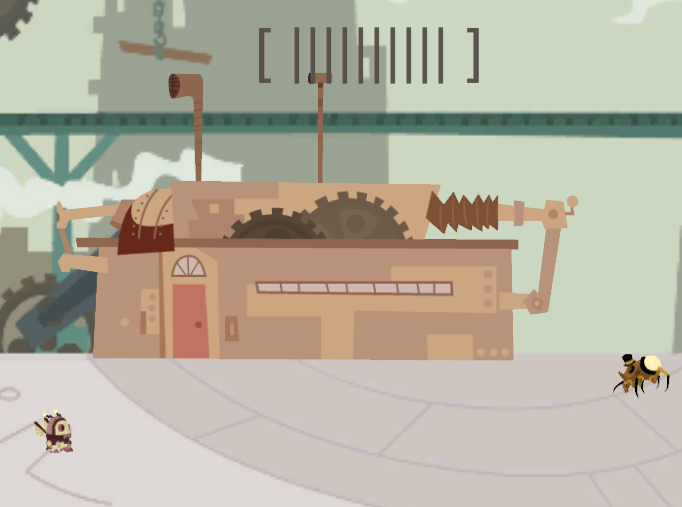
This draws a string of characters (|) based on how much Hp you got left. Then this is set to a color based on how low your hp is.


VI. Adding power-ups

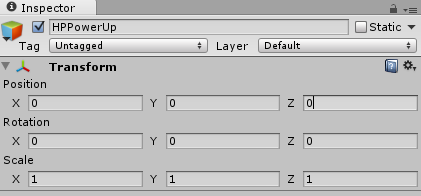
The next thing we want is a power-up that enables us to refill our Hp! Add a new GameObject to the scene and name it “HPPowerUp”.

image


Then create a new Material called HPPowerUp and add this texture to it (can also be found in the assets folder of this tutorial):
image

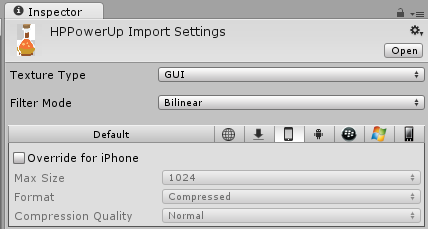
Set the texture to GUI:
image

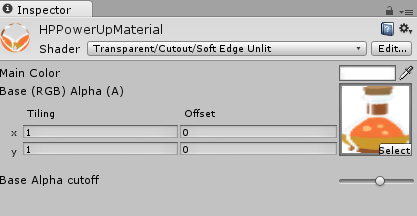
Add a new Quad to the HPPowerUp Game Object and name it Texture. Then apply the new material to it. As for the Materials Shader, choose the same as we did for our player and enemy:

image

Set the size of the game object:


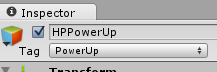
Add a new tag “PowerUp”:
image

And set it to our HPPowerUp:
image

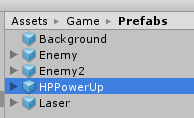
Create a prefab out of it (in the prefrabs folder) and delete it from the scene:
image

Also, set the scale of the transform, remove the Mesh Renderer from the Texture of the powerup, as well as adding a RigidBody and a Box Collider to the HPPowerUp Game Object:

image

In the GameHandler, we are adding a new public variable that holds the powerup, and then create some logic to instanciate at random:

using UnityEngine;
using System.Collections;
public class GameHandler : MonoBehaviour
{
    public int level;

    public GameObject enemy;
    public GameObject enemy2;

    public GameObject player;

    public PlayerHandler playerHandler;

    public GUIText levelLabel;
    public GUIText xpLabel;
    public GUIText hpLabel;

    public GameObject hpPowerUp;

    float colorModifier = 1.0f;

    float spawnNewEnemyTimer = 2;

    // Use this for initialization
    void Start()
    {
        playerHandler = player.GetComponent<PlayerHandler>();
    }

    // Update is called once per frame
    void Update()
    {
        spawnNewEnemyTimer -= Time.deltaTime;
        if (spawnNewEnemyTimer <= 0)
        {
            spawnNewEnemyTimer = 5;

            int spawnNumberOfEnemies = 1 + (level/2);

            for (int i = 0; i < spawnNumberOfEnemies; i++)
            {
                GameObject enemyToSpawn;
                enemyToSpawn = enemy;

                if (level > 2)
                {
                    float rndEnemy = Random.Range(0.0f, 1.0f);
                    if (rndEnemy > 0.5)
                    {
                        enemyToSpawn = enemy;
                    }
                    else
                    {
                        enemyToSpawn = enemy2;
                    }
                }

                float modifier = Random.Range(-1.0f, 1.0f) * 3;

                Instantiate(enemyToSpawn, new Vector3(player.transform.position.x + 20.0f + i * 3,
                       player.transform.position.y + modifier, 0.0f), Quaternion.identity);

            }

            float rndPowerupHp = Random.Range(0.0f, 1.0f);
            if (rndPowerupHp < 0.1)
            {
                Instantiate(hpPowerUp, new Vector3(player.transform.position.x + 30.0f,
                       player.transform.position.y, 0.0f), Quaternion.identity);
            }

        }

        if (playerHandler != null)
        {
            level = playerHandler.Level;
            levelLabel.text = “Level ” + (level+1);

            int xpInLevel = playerHandler.Xp;
            if (level > 0)
            {
                xpInLevel = playerHandler.Xp – playerHandler.levelList[level – 1];
            }

            int xpForNextLevel = (playerHandler.levelList[level]);
            if(level > 0)
                xpForNextLevel = playerHandler.levelList[level] – playerHandler.levelList[level – 1];

            xpLabel.text = xpInLevel + “/” + xpForNextLevel;

            hpLabel.text = “[ “;
            for (int i = 0; i < playerHandler.HP; i++)
            {
                hpLabel.text += “|”;
            }
            hpLabel.text += ” ] “;
            if (playerHandler.HP <= 3)
                hpLabel.color = Color.red;
            else hpLabel.color = new Color(88.0f / 255.0f, 82.0f / 255.0f, 75.0f / 255.0f);
        }
    }
}

In the PlayerHandler script, we check for the collision of the powerup and then we destroy it and add Hp (cap at 10 hp).

if (collision.rigidbody.tag == “PowerUp”)
{
    Destroy(collision.gameObject);
    HP += 5;
    if (HP > 10)
        HP = 10;
}

What is the goal of the game? To get as much Xp and Levels as possible. When it’s game over, we will store the best level and score in the PlayerPrefs.

VII. Adding some scenery items

We can use the same technique as we did with the powerups (except we dont need collisions) to spawn buildings.

We add two new Materials, one for the tower and one for the factory:
image

image

(remember to set both textures to GUI)

And then we create a new GameObject with a Texture for each of these two buildings and assign the Materials to them, they way we have been doing in this tutorial.

We then add a new script to the scripts folder that is named GameObjectDestroyer.

This script will automatically destroy the game objects that are outside of the screen:

using UnityEngine;
using System.Collections;

public class GameObjectDestroyer : MonoBehaviour {
    GameObject player;

    // Use this for initialization
    void Start () {
        GameObject _p = GameObject.Find(“Player”);
        if (_p != null)
        {
            player = _p;
        }
    }
   
    // Update is called once per frame
    void Update () {
        if (player != null)
        {
            if (this.transform.position.x <= player.transform.position.x – 20.0f)
            {
                Destroy(this.gameObject);
            }
        }
    }
}

Then we add these as a reference in the GameHandler script and spawn them randomly, as we did with the HP Power Up:

float rndBuilding = Random.Range(0.0f, 1.0f);
if (rndPowerupHp < 0.5)
{
    GameObject whatBuilding = building1;

    float rndWhatBulding = Random.Range(0.0f, 1.0f);

    if (rndWhatBulding > 0.5)
    {
        whatBuilding = building1;
    }
    else
    {
        whatBuilding = building2;
    }

    Instantiate(whatBuilding, new Vector3(player.transform.position.x + 30.0f,
            0.0f, 0.0f), Quaternion.identity);
}

image

image

VIII. Creating the main menu and the Game Over scene

Find the two textures SteamLandsLogo and GameOver, and set them to GUI.

Next, create a new scene and save it as MainMenu.

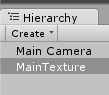
Add a new GUI Texture and name it MainTexture:
image


Now, set the MainMenuLogo as the texture, and set the following properties:

image

Create a new script called MainMenu, add it to the Main Camera and modify it:

using UnityEngine;
using System.Collections;

public class MainMenu : MonoBehaviour {
    float startTimer = 2.0f;
    // Use this for initialization
    void Start () {
   
    }
   
    // Update is called once per frame
    void Update () {
        startTimer -= Time.deltaTime;

        if (startTimer <= 0)
        {
            if (Input.GetMouseButtonDown(0))
            {
                Application.LoadLevel(“Level”);
            }
        }
    }
}

The startTimer is there to make sure we aren’t loading the scene since “as many impatiently tap or click the mouse while loading”.

Also, click the Main Camera and set the background to:
image

image


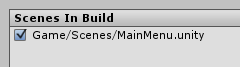
Click File->Build Settings and then Add the current scene:

image

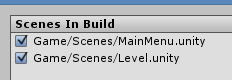
Now, load the Level scene and do the same thing to add it:

image


Add a new scene and save it as GameOver, do the same procedure as when creating the MainMenu scene – but now use the GameOver texture.

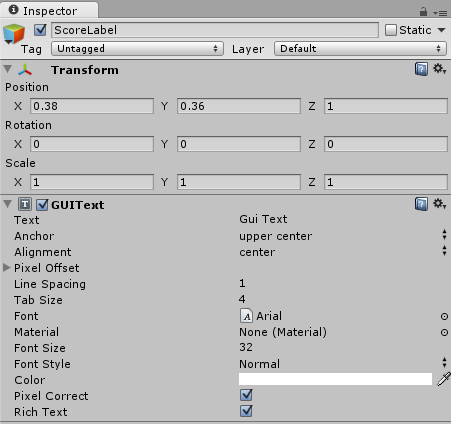
Add a GUI Text Game Object to the scene and name it “ScoreLabel”:

image

Create a GameOver script (instead of MainMenu) and add it to the Main Camera.

using UnityEngine;
using System.Collections;

public class GameOver : MonoBehaviour {
    float gameOverTimer = 5.0f;
    public GUIText scoreLabel;

    int score = 0;
    int level = 0;
    int highscore = 0;

    // Use this for initialization
    void Start () {
        score = PlayerPrefs.GetInt(“Score”, 0);
        level = PlayerPrefs.GetInt(“Level”, 1);
        highscore = PlayerPrefs.GetInt(“HighScore”, 0);

        if (score > highscore)
        {
            highscore = score;
        }

        scoreLabel.text = “Level ” + level + ” / Score: ” + score + “\nHigh score: ” + highscore;
    }
   
    // Update is called once per frame
    void Update () {
        gameOverTimer -= Time.deltaTime;
        if (gameOverTimer <= 0)
        {
            scoreLabel.text = “Tap to restart”;
            if(Input.GetMouseButtonDown(0))
            {
                Application.LoadLevel(“MainMenu”);
            }
        }
    }
}

The last thing we need to do is to check in the PlayerHandler that it’s game over. If it’s game over, set the dead animation, store the score and go to the GameOver scene:

using UnityEngine;
using System.Collections;
using System.Collections.Generic;

public class PlayerHandler : MonoBehaviour {
    float speed = 4.0f;
    public GameObject laserPrefab;
    public GameObject textureObject;

    float shootTimer = 0.0f;
    float setShootTimerTo = 0.5f;

    public int Xp = 0;
    public int Level = 0;

    public List<int> levelList = new List<int>();
    PlayerHandler playerHandler;

    public int HP;
    float colorModifier = 1.0f;

    bool isGameOver = false;
    float gameOverTimer = 3.0f;

    AnimationHandler animationHandler;

    void OnCollisionEnter(Collision collision)
    {
        if (collision.rigidbody != null)
        {
            if (collision.rigidbody.tag == “Enemy”)
            {
                HP -= 1;
                colorModifier = 0.0f;
            }

            if (collision.rigidbody.tag == “PowerUp”)
            {
                Destroy(collision.gameObject);
                HP += 5;
                if (HP > 10)
                    HP = 10;
            }
        }
    }

    // Use this for initialization
    void Start () {
        int currentXp = 0;
        int xpToIncrease = 50;

        for (int i = 0; i < 20; i++)
        {
            currentXp += xpToIncrease;
            levelList.Add(currentXp);
            xpToIncrease = (int)(xpToIncrease * 1.25);
        }

        playerHandler = this.GetComponent<PlayerHandler>();
        animationHandler = this.GetComponent<AnimationHandler>();

    }
   
    // Update is called once per frame
    void Update () {
        if (HP <= 0)
        {
            isGameOver = true;
            animationHandler.playAnimationSetNumber = 2;
            gameOverTimer -= Time.deltaTime;

            if (gameOverTimer <= 0.0f)
            {
                PlayerPrefs.SetInt(“Score”, Xp);
                PlayerPrefs.SetInt(“Level”, Level);

                Application.LoadLevel(“GameOver”);
            }
        }


        if (!isGameOver)
        {

            Vector3 movePlayerVector = Vector3.right;
            shootTimer -= Time.deltaTime;

            textureObject.gameObject.renderer.material.color = new Color(1.0f, colorModifier, colorModifier);

            if (colorModifier < 1.0f)
                colorModifier += Time.deltaTime;

            if (Input.GetMouseButton(0))
            {
                Vector3 touchWorldPoint = Camera.main.ScreenToWorldPoint(
                    new Vector3(Input.mousePosition.x,
                                Input.mousePosition.y,
                                10.0f));

                if (touchWorldPoint.x < this.transform.position.x + 5.0f)
                {
                    if (touchWorldPoint.y > this.transform.position.y)
                    {
                        movePlayerVector.y = 1.0f;
                    }
                    else movePlayerVector.y = -1.0f;
                }
                else
                {
                    if (shootTimer <= 0)
                    {
                        Vector3 shootPos = this.transform.position;
                        shootPos.x += 2;
                        Instantiate(laserPrefab, shootPos, Quaternion.identity);
                        shootTimer = setShootTimerTo;
                    }
                }
            }

            this.transform.position += movePlayerVector * Time.deltaTime * speed;

            if (transform.position.y > -2.0)
            {
                transform.position = new Vector3(transform.position.x,
                                                -2.0f,
                                                transform.position.z);
            }

            if (transform.position.y < -5.5)
            {
                transform.position = new Vector3(transform.position.x,
                                                -5.5f,
                                                transform.position.z);
            }

            if (playerHandler.Xp >= levelList[Level])
            {
                Level++;
            }
        }
    }
}


This script is now disabling player input if game over, and then start counting for a few seconds so the player can understand he died and then we store the scores and redirect to to game over scene.

Be sure to add the GameOver scene too:
image

Additional stuff to do with this game:
You can also add a lable the show the Xp (Score) the player have revieved:
image

IX. Fun stuff to add – and is added in this projects tutorial solutiuon

This is a few minor things you can add to your game – it’s easy to implement and you should be capable to do it. Are you ready for some excerises?

And you could add more enemies and change how the levels affects spawing new stuff.

Also, refactoring of the Game Logic and code would be a good ide – I wrote it as simple as possible so it would be easier to understand the conecpts. You should put more stuff in functions and follow good programming practices and arcitecture.

You can change how much the potion gives you in Hp, 5 is a lot.

Also, when you crash in to another player – some times you

X. Publishing your game

Follow tutorial 3 and/or 4 to publish your game to Windows Store or Windows Phone Store. Do it now, and grab the potential of a new and growing market!

Good luck with your game development! Smilefjes


XI. Conclusion

This concludes the “SteamLands” tutorial. The next tutorial in this series will cover how you can write plugins to add the functionality of InApp purchases and programming the Live Tile!


Download the project, source and assets of the complete game here.

Posted in Tutorial, Unity | 1 Comment

Unity for Windows IX–Creating a more advanced game, Part 4

image

This tutorial will continue from the previous tutorial in this series.

Today we are going to add explosions, level ups and a UI.

Download the source and assets here.

I. Creating explosions

When a player dies, we want to make it dead, and make it explode!

First of all, we will make the movement stop and play the death animation. And then after one second, we will make it explode.

To do this, we need to edit the EnemyHandler script. What we will do is to add two prefabs that represent the explosion and smoke, then a boolean that indicates of the enemy is dead or not, and then a timer that will be set and counted after it is dead – resulting in an explosion after 0.5 seconds.

To change the animation that our enemy is playing, we need a reference to the AnimationHandler component of the current player. The can be found using GetComponent – it returns a component attached to the current Game Object.

Then, when the enemy is hit, we set the animation to dead, and then set the boolean isDead to true.

When this is true, we will start spawning the smokePrefab, and start the timer.

After 0.5 seconds, the timer is over and the enemy is dead + spawning an explosion.

Also, if the enemy hits the player, it will explode instantly. We also stop the enemy movement when the dead animation is playing.

Here is the code, try to see if you can understand it – it should not be anything new (except for GetComponent), just new ways to combine our rules to make our logic the way we want Smilefjes

using UnityEngine;
using System.Collections;

public class EnemyHandler : MonoBehaviour
{
    float speed = 4.0f;
    GameObject player;

    public GameObject explodePrefab;
    public GameObject smokePrefab;
    bool isDead = false;
    float isDeadTimer = 0.5f;

    AnimationHandler animationHandler;

    void OnCollisionEnter(Collision collision)
    {
        if (collision.rigidbody != null)
        {
            if (collision.rigidbody.name == “Player”)
            {
               
Instantiate(explodePrefab, this.transform.position, Quaternion.identity);
                Instantiate(smokePrefab, this.transform.position, Quaternion.identity);

                Destroy(this.gameObject);
            }

            if (collision.rigidbody.tag == “Laser”)
            {
               
isDead = true;
                Instantiate(smokePrefab, this.transform.position, Quaternion.identity);

                Destroy(collision.gameObject);

                if (animationHandler != null)
                {
                    animationHandler.playAnimationSetNumber = 0;
                }
            }
        }
    }
    // Use this for initialization
    void Start()
    {
        GameObject _p = GameObject.Find(“Player”);
        if (_p != null)
        {
            player = _p;
        }

        animationHandler = this.GetComponent<AnimationHandler>();
       
    }

    // Update is called once per frame
    void Update()
    {
       
if (isDead)
        {
            isDeadTimer -= Time.deltaTime;
        }

       if (!isDead)
        {

            Vector3 moveVector = Vector3.left;
            transform.position += moveVector * speed * Time.deltaTime;
        }

        if (player != null)
        {
            if (this.transform.position.x <= player.transform.position.x – 10.0f)
            {
                Destroy(this.gameObject);
            }
        }

       if (isDeadTimer <= 0.0f)
        {
            Instantiate(explodePrefab, this.transform.position, Quaternion.identity);
            Destroy(this.gameObject);
           
        }

    }
}

Ok! Try to play the gama again now, and it suddenly feels much better – more action!


II. Adding hitpoints to the player

When we hit a player, it will explode – but we also want this to reduce the current health the player is having.

Open the PlayerHandler script and make the following modifications:

using UnityEngine;
using System.Collections;

public class PlayerHandler : MonoBehaviour {
    float speed = 4.0f;
    public GameObject laserPrefab;

    float shootTimer = 0.0f;
    float setShootTimerTo = 0.5f;

    public int HP;

    void OnCollisionEnter(Collision collision)
    {
        if (collision.rigidbody != null)
        {
            if (collision.rigidbody.tag == “Enemy”)
            {
                HP -= 1;
            }
        }
    }

    // Use this for initialization
    void Start () {
   
    }
   
    // Update is called once per frame
    void Update () {
        Vector3 movePlayerVector = Vector3.right;
        shootTimer -= Time.deltaTime;

        if (Input.GetMouseButton(0))
        {
            Vector3 touchWorldPoint = Camera.main.ScreenToWorldPoint(
                new Vector3(Input.mousePosition.x,
                            Input.mousePosition.y,
                            10.0f));

            if (touchWorldPoint.x < this.transform.position.x + 5.0f)
            {
                if (touchWorldPoint.y > this.transform.position.y)
                {
                    movePlayerVector.y = 1.0f;
                }
                else movePlayerVector.y = -1.0f;
            }
            else
            {
                if (shootTimer <= 0)
                {
                    Vector3 shootPos = this.transform.position;
                    shootPos.x += 2;
                    Instantiate(laserPrefab, shootPos, Quaternion.identity);
                    shootTimer = setShootTimerTo;
                }
            }
        }

        this.transform.position += movePlayerVector * Time.deltaTime * speed;

        if (transform.position.y > -2.0)
        {
            transform.position = new Vector3(transform.position.x,
                                            -2.0f,
                                            transform.position.z);
        }

        if (transform.position.y < -5.5)
        {
            transform.position = new Vector3(transform.position.x,
                                            -5.5f,
                                            transform.position.z);
        }
    }
}

Now, click the Player game object in the scene hierarchy and set the HP property to 10.

image

Press play and click the Player Game Object in the scene hierarchy. Take a look at the HP property and see that it will be reduced when we hit an enemy.

image


The last thing (for now) that we will do on the player is to show that we took damage when an enemy hits us. Then the enemy hits us, we set the color of our material to red, and then slowly fade back to white (white = original colors in the texture).

Modify the PlayerHandler script with the following changes:

using UnityEngine;
using System.Collections;

public class PlayerHandler : MonoBehaviour {
    float speed = 4.0f;
    public GameObject laserPrefab;
    public GameObject textureObject;

    float shootTimer = 0.0f;
    float setShootTimerTo = 0.5f;

    public int HP;
    float colorModifier = 1.0f;

    void OnCollisionEnter(Collision collision)
    {
        if (collision.rigidbody != null)
        {
            if (collision.rigidbody.tag == “Enemy”)
            {
                HP -= 1;
                colorModifier = 0.0f;
            }
        }
    }

    // Use this for initialization
    void Start () {
    }
   
    // Update is called once per frame
    void Update () {
        Vector3 movePlayerVector = Vector3.right;
        shootTimer -= Time.deltaTime;

        textureObject.gameObject.renderer.material.color = new Color(1.0f, colorModifier, colorModifier);

        if(colorModifier < 1.0f)
            colorModifier += Time.deltaTime;

        if (Input.GetMouseButton(0))
        {
            Vector3 touchWorldPoint = Camera.main.ScreenToWorldPoint(
                new Vector3(Input.mousePosition.x,
                            Input.mousePosition.y,
                            10.0f));

            if (touchWorldPoint.x < this.transform.position.x + 5.0f)
            {
                if (touchWorldPoint.y > this.transform.position.y)
                {
                    movePlayerVector.y = 1.0f;
                }
                else movePlayerVector.y = -1.0f;
            }
            else
            {
                if (shootTimer <= 0)
                {
                    Vector3 shootPos = this.transform.position;
                    shootPos.x += 2;
                    Instantiate(laserPrefab, shootPos, Quaternion.identity);
                    shootTimer = setShootTimerTo;
                }
            }
        }

        this.transform.position += movePlayerVector * Time.deltaTime * speed;

        if (transform.position.y > -2.0)
        {
            transform.position = new Vector3(transform.position.x,
                                            -2.0f,
                                            transform.position.z);
        }

        if (transform.position.y < -5.5)
        {
            transform.position = new Vector3(transform.position.x,
                                            -5.5f,
                                            transform.position.z);
        }
    }
}

As you can see, we also grabed the Texture component in a public variable, so this needs to be set.

Set the Texture Object of the Player to the Texture Game Object inside the player:

image

image

Also, click on the Texture of the Player game object and change the shader to:
image

This is because we want to be able to change the color of the material and see it in the texture in-game.

Now, the code works like this. We set the modifier to 0.0f, and whenever this is not 1.0f, we increase it so it becomes 1.0f (white). Then we set the color using this. When hit, the value of the modifier is 0.0f, thus the color of the material is 1,0,0 (red). Then we slowly increase the zeroes untill its 1,1,1 (white) again.

Press play now and let an enemy hit you. You can see that you also turn red and fade back to the normal color.
image


III. Giving the player Xp

When we kill an enemy, we want to reward the player with experience points, that will be used to level up (and increase how hard the game is).

Still in the PlayerHandler script, we create a new integer that is our current xp and another one that keeps track of the players level (the other level that is in the game handler is the current game level we are playing (how frequent and how enemies should spawn):

using UnityEngine;
using System.Collections;

public class PlayerHandler : MonoBehaviour {
    float speed = 4.0f;
    public GameObject laserPrefab;
    public GameObject textureObject;

    float shootTimer = 0.0f;
    float setShootTimerTo = 0.5f;

    public int Xp = 0;
    public int Level = 0;

    public int HP;
    float colorModifier = 1.0f;

    void OnCollisionEnter(Collision collision)
    {
        if (collision.rigidbody != null)
        {
            if (collision.rigidbody.tag == “Enemy”)
            {
                HP -= 1;
                colorModifier = 0.0f;
            }
        }
    }

    // Use this for initialization
    void Start () {
    }
   
    // Update is called once per frame
    void Update () {
        Vector3 movePlayerVector = Vector3.right;
        shootTimer -= Time.deltaTime;

        textureObject.gameObject.renderer.material.color = new Color(1.0f, colorModifier, colorModifier);

        if(colorModifier < 1.0f)
            colorModifier += Time.deltaTime;

        if (Input.GetMouseButton(0))
        {
            Vector3 touchWorldPoint = Camera.main.ScreenToWorldPoint(
                new Vector3(Input.mousePosition.x,
                            Input.mousePosition.y,
                            10.0f));

            if (touchWorldPoint.x < this.transform.position.x + 5.0f)
            {
                if (touchWorldPoint.y > this.transform.position.y)
                {
                    movePlayerVector.y = 1.0f;
                }
                else movePlayerVector.y = -1.0f;
            }
            else
            {
                if (shootTimer <= 0)
                {
                    Vector3 shootPos = this.transform.position;
                    shootPos.x += 2;
                    Instantiate(laserPrefab, shootPos, Quaternion.identity);
                    shootTimer = setShootTimerTo;
                }
            }
        }

        this.transform.position += movePlayerVector * Time.deltaTime * speed;

        if (transform.position.y > -2.0)
        {
            transform.position = new Vector3(transform.position.x,
                                            -2.0f,
                                            transform.position.z);
        }

        if (transform.position.y < -5.5)
        {
            transform.position = new Vector3(transform.position.x,
                                            -5.5f,
                                            transform.position.z);
        }
    }
}

Then in the Enemy script, if we kill the enemy, we add Xp to the player based on how difficlt the enemy is. Open the EnemyHandler script and do the following changes:

using UnityEngine;
using System.Collections;

public class EnemyHandler : MonoBehaviour
{
    float speed = 4.0f;
    GameObject player;

    public GameObject explodePrefab;
    public GameObject smokePrefab;
    bool isDead = false;
    float isDeadTimer = 0.5f;
    public int enemyDifficulty;

    AnimationHandler animationHandler;
    PlayerHandler playerHandler;

    void OnCollisionEnter(Collision collision)
    {
        if (collision.rigidbody != null)
        {
            if (collision.rigidbody.name == “Player”)
            {
                Instantiate(explodePrefab, this.transform.position, Quaternion.identity);
                Instantiate(smokePrefab, this.transform.position, Quaternion.identity);
                Destroy(this.gameObject);
            }

            if (collision.rigidbody.tag == “Laser”)
            {
                isDead = true;
                Instantiate(smokePrefab, this.transform.position, Quaternion.identity);

                Destroy(collision.gameObject);

                if (animationHandler != null)
                {
                    animationHandler.playAnimationSetNumber = 0;
                }
            }
        }
    }
    // Use this for initialization
    void Start()
    {
        GameObject _p = GameObject.Find(“Player”);
        if (_p != null)
        {
            player = _p;

            playerHandler = player.GetComponent<PlayerHandler>();
        }

        animationHandler = this.GetComponent<AnimationHandler>();
       
    }

    // Update is called once per frame
    void Update()
    {
        if (isDead)
        {
            isDeadTimer -= Time.deltaTime;
        }

        if (!isDead)
        {
            Vector3 moveVector = Vector3.left;
            transform.position += moveVector * speed * Time.deltaTime;
        }

        if (player != null)
        {
            if (this.transform.position.x <= player.transform.position.x – 10.0f)
            {
                Destroy(this.gameObject);
            }
        }

        if (isDeadTimer <= 0.0f)
        {
            Instantiate(explodePrefab, this.transform.position, Quaternion.identity);
            Destroy(this.gameObject);
            playerHandler.Xp += enemyDifficulty * 10;
        }
    }
}

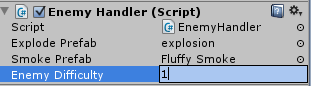
What we are doing here is to create a new public variable for the enemy, the difficulty in Level. Then in the Start() function, we find the PlayerHandler component of the player object and if the enemy is dead, we add 10 x the level of our enemy (difficulty) to the players Xp.

Go to the enemy prefab and set the difficulty to 1:
image

image

Play the game and make sure you are getting Xp! Smilefjes


IV. Increasing the players level

The next thing we want to do is to increase the players level based on the Xp he gets.

We do this in the PlayerHandler script. What we will do is to create a lookup list that contains what XP is needed to become a given level.

Then, we set the players level to this level based on the Xp.

using UnityEngine;
using System.Collections;
using System.Collections.Generic;

public class PlayerHandler : MonoBehaviour {
    float speed = 4.0f;
    public GameObject laserPrefab;
    public GameObject textureObject;

    float shootTimer = 0.0f;
    float setShootTimerTo = 0.5f;

    public int Xp = 0;
    public int Level = 0;

    List<int> levelList = new List<int>();

    public int HP;
    float colorModifier = 1.0f;

    void OnCollisionEnter(Collision collision)
    {
        if (collision.rigidbody != null)
        {
            if (collision.rigidbody.tag == “Enemy”)
            {
                HP -= 1;
                colorModifier = 0.0f;
            }
        }
    }

    // Use this for initialization
    void Start () {
       
for (int i = 0; i < 20; i++)
        {
            levelList.Add((int)(50 + (i * 50) + (i * 50 * 0.25)));
        }

    }
   
    // Update is called once per frame
    void Update () {
        Vector3 movePlayerVector = Vector3.right;
        shootTimer -= Time.deltaTime;

        textureObject.gameObject.renderer.material.color = new Color(1.0f, colorModifier, colorModifier);

        if(colorModifier < 1.0f)
            colorModifier += Time.deltaTime;

        if (Input.GetMouseButton(0))
        {
            Vector3 touchWorldPoint = Camera.main.ScreenToWorldPoint(
                new Vector3(Input.mousePosition.x,
                            Input.mousePosition.y,
                            10.0f));

            if (touchWorldPoint.x < this.transform.position.x + 5.0f)
            {
                if (touchWorldPoint.y > this.transform.position.y)
                {
                    movePlayerVector.y = 1.0f;
                }
                else movePlayerVector.y = -1.0f;
            }
            else
            {
                if (shootTimer <= 0)
                {
                    Vector3 shootPos = this.transform.position;
                    shootPos.x += 2;
                    Instantiate(laserPrefab, shootPos, Quaternion.identity);
                    shootTimer = setShootTimerTo;
                }
            }
        }

        this.transform.position += movePlayerVector * Time.deltaTime * speed;

        if (transform.position.y > -2.0)
        {
            transform.position = new Vector3(transform.position.x,
                                            -2.0f,
                                            transform.position.z);
        }

        if (transform.position.y < -5.5)
        {
            transform.position = new Vector3(transform.position.x,
                                            -5.5f,
                                            transform.position.z);
        }


        if (Xp >= levelList[Level])
        {
             Level++;
        }
    }
}

In the GameHandler script, we want to make the game harder and harder over time. There are multiple design choises on how this can be done. You can make the level of the game just as hard as the level you are at, or you can make the game harder and harder over time and then it’s up to who you take out and what you do that you can keep up with how hard the game is.

We are going for the first, we are making the game harder and harder based on what level the player currently is.

In the GameHandler, we create a reference to the PlayerHandler, and then set the level integer of the game to equal the level of the player:

using UnityEngine;
using System.Collections;
public class GameHandler : MonoBehaviour
{
    public int level;

    public GameObject enemy;
    public GameObject player;

    public PlayerHandler playerHandler;

    float spawnNewEnemyTimer = 10;

    // Use this for initialization
    void Start()
    {
        playerHandler = player.GetComponent<PlayerHandler>();
    }

    // Update is called once per frame
    void Update()
    {
        spawnNewEnemyTimer -= Time.deltaTime;
        if (spawnNewEnemyTimer <= 0)
        {
            spawnNewEnemyTimer = 5 – (level * 0.25f);
            if (spawnNewEnemyTimer < 0.5f)
                spawnNewEnemyTimer = 0.5f;

            Instantiate(enemy, new Vector3(player.transform.position.x + 100.0f,
                    player.transform.position.y, 0.0f), Quaternion.identity);
        }

        if (playerHandler != null)
        {
            level = playerHandler.Level;
        }

    }
}

Cool! We now set the game level to reflect the players level.

Now, let’s make the game a bit harder as well (and not just increaseing the frequence of how often the player is spawned).

If you are Level 2 and above, we want to spawn 2 enemies instead of just one.

Modify the GameHandler additionally:

using UnityEngine;
using System.Collections;
public class GameHandler : MonoBehaviour
{
    public int level;

    public GameObject enemy;
    public GameObject player;

    public PlayerHandler playerHandler;

    float spawnNewEnemyTimer = 10;

    // Use this for initialization
    void Start()
    {
        playerHandler = player.GetComponent<PlayerHandler>();
    }

    // Update is called once per frame
    void Update()
    {
        spawnNewEnemyTimer -= Time.deltaTime;
    
   if (spawnNewEnemyTimer <= 0)
        {
            spawnNewEnemyTimer = 5 – (level * 0.25f);
            if (spawnNewEnemyTimer < 0.5f)
                spawnNewEnemyTimer = 0.5f;

            int spawnNumberOfEnemies = 1 + (level/3);
            for (int i = 0; i < spawnNumberOfEnemies; i++)
            {
                float modifier = Random.Range(0.0f, 1.0f);
                Instantiate(enemy, new Vector3(player.transform.position.x + 100.0f + i*10,
                       player.transform.position.y + modifier, 0.0f), Quaternion.identity);
            }

        }

        if (playerHandler != null)
        {
            level = playerHandler.Level;
        }
    }
}

The logic here is that we are spawning a given number of enemies based on what level we are. If we are level 1 and 2, we spawn 1 enemy. And then every thirst level from there spawns an additional enemy.

If you play the game for a while now, you can see this change in the game.

V. Adding the User Interface

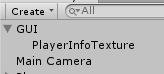
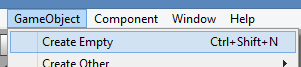
We do the same as in tutorial 4. Add a new and empty game object to the scene and name it GUI:

image

Then add a GUITexture Game Object to it, and name it PlayerInfoTexture:
image

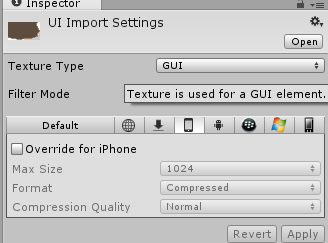
Then, click the UI Texture in the Textures folder (can be found in this projects assets folder) and change it to GUI:

image

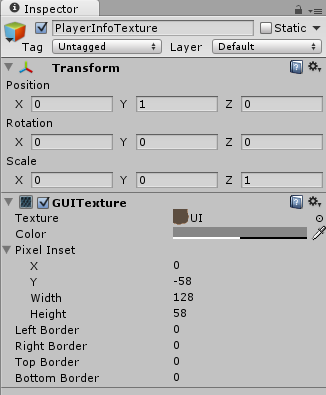
Click Apply to save the changes. Then drag this texture on the GUI Texture we just added to the GUI Game Object and set the properties to the following:
image

Next, we want to add a text that shows our level and the Xp that we got left untill we get to a new level.

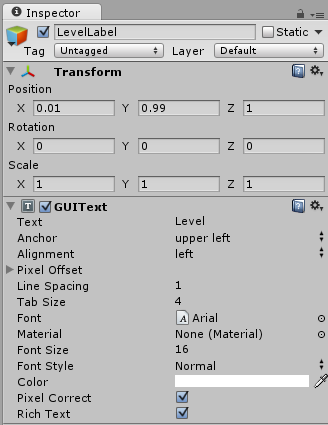
Add a new GUI Text game object to the scene and name it “LevelLabel”:
image

Set the properties to the following:
image


Duplicate the LevelLabel and rename it to XpLabel:
image


And modify the properties to the following:
image

Cool! We got our simple UI working! The last thing we need to do is to set the labels from our GameHandler script.

First, we need to make the levelList in the PlayerHandler public. Modify the script so it looks like this (one line):

using UnityEngine;
using System.Collections;
using System.Collections.Generic;

public class PlayerHandler : MonoBehaviour {
    float speed = 4.0f;
    public GameObject laserPrefab;
    public GameObject textureObject;

    float shootTimer = 0.0f;
    float setShootTimerTo = 0.5f;

    public int Xp = 0;
    public int Level = 0;

    public List<int> levelList = new List<int>();
    PlayerHandler playerHandler;

    public int HP;
    float colorModifier = 1.0f;

    void OnCollisionEnter(Collision collision)
    {
        if (collision.rigidbody != null)
        {
            if (collision.rigidbody.tag == “Enemy”)
            {
                HP -= 1;
                colorModifier = 0.0f;
            }
        }
    }

    // Use this for initialization
    void Start () {
        for (int i = 0; i < 20; i++)
        {
            levelList.Add((int)(50 + (i * 50) + (i * 50 * 0.25)));
        }
        playerHandler = this.GetComponent<PlayerHandler>();

    }
   
    // Update is called once per frame
    void Update () {
        Vector3 movePlayerVector = Vector3.right;
        shootTimer -= Time.deltaTime;

        textureObject.gameObject.renderer.material.color = new Color(1.0f, colorModifier, colorModifier);

        if(colorModifier < 1.0f)
            colorModifier += Time.deltaTime;

        if (Input.GetMouseButton(0))
        {
            Vector3 touchWorldPoint = Camera.main.ScreenToWorldPoint(
                new Vector3(Input.mousePosition.x,
                            Input.mousePosition.y,
                            10.0f));

            if (touchWorldPoint.x < this.transform.position.x + 5.0f)
            {
                if (touchWorldPoint.y > this.transform.position.y)
                {
                    movePlayerVector.y = 1.0f;
                }
                else movePlayerVector.y = -1.0f;
            }
            else
            {
                if (shootTimer <= 0)
                {
                    Vector3 shootPos = this.transform.position;
                    shootPos.x += 2;
                    Instantiate(laserPrefab, shootPos, Quaternion.identity);
                    shootTimer = setShootTimerTo;
                }
            }
        }

        this.transform.position += movePlayerVector * Time.deltaTime * speed;

        if (transform.position.y > -2.0)
        {
            transform.position = new Vector3(transform.position.x,
                                            -2.0f,
                                            transform.position.z);
        }

        if (transform.position.y < -5.5)
        {
            transform.position = new Vector3(transform.position.x,
                                            -5.5f,
                                            transform.position.z);
        }

        if (playerHandler.Xp >= levelList[Level])
        {
            Level++;
        }
    }
}

Then save and open the GameHandler script. Edit the script and make the following modifications:

using UnityEngine;
using System.Collections;
public class GameHandler : MonoBehaviour
{
    public int level;

    public GameObject enemy;
    public GameObject player;

    public PlayerHandler playerHandler;

    public GUIText levelLabel;
    public GUIText xpLabel;

    float spawnNewEnemyTimer = 10;

    // Use this for initialization
    void Start()
    {
        playerHandler = player.GetComponent<PlayerHandler>();
    }

    // Update is called once per frame
    void Update()
    {
        spawnNewEnemyTimer -= Time.deltaTime;
        if (spawnNewEnemyTimer <= 0)
        {
            spawnNewEnemyTimer = 5 – (level * 0.25f);
            if (spawnNewEnemyTimer < 0.5f)
                spawnNewEnemyTimer = 0.5f;

            int spawnNumberOfEnemies = 1 + (level/3);
            for (int i = 0; i < spawnNumberOfEnemies; i++)
            {
                float modifier = Random.Range(0.0f, 1.0f);
                Instantiate(enemy, new Vector3(player.transform.position.x + 100.0f + i*10,
                       player.transform.position.y + modifier, 0.0f), Quaternion.identity);
            }

        }

        if (playerHandler != null)
        {
            level = playerHandler.Level;

            levelLabel.text = “Level ” + (level+1);

            int xpInLevel = playerHandler.Xp;
            if (level > 0)
            {
                xpInLevel = playerHandler.Xp – playerHandler.levelList[level – 1];
            }

            int xpForNextLevel = (playerHandler.levelList[level]);
            if(level > 0)
                xpForNextLevel = playerHandler.levelList[level] – playerHandler.levelList[level – 1];

            xpLabel.text = xpInLevel + “/” + xpForNextLevel;
        }
    }
}

This script simply calculates how much Xp is needed for the current level, how much the player got and then renders it in the xp label. The level label is also updated with the current level.

Set the referneces to the labels on the Main Camera like this:
image

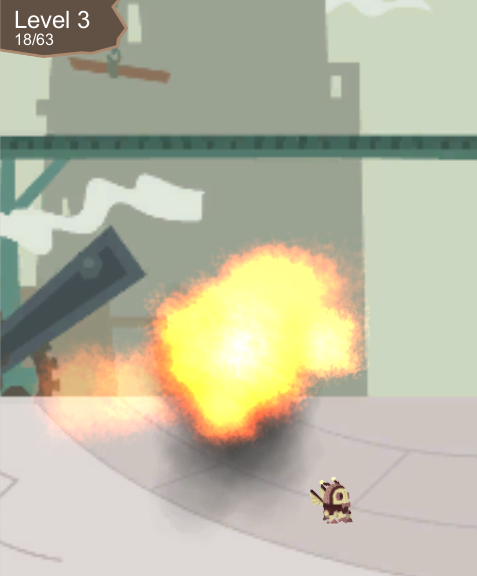
Press play to see our game in action! Smilefjes

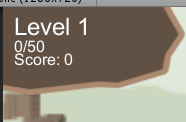
image

The game is now playable and pretty much awesome! You can play, kill stuff, see the explosions and the levels going up!


VI. Fixing the bad performance

There is ONE last thing we need to do in this tutorial.. as you keep playing, you can feel that the game starts lagging after a while. This is because the particles that renders our smoke keeps staying alive forever, resulting in thousands of particles being rendered in the scene.

We do this by adding a cutof script that comes with the standard assets folder.

First, find the Fluffy Smoke particle engine and click it to view the properties:

image


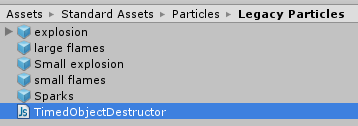
Find the TimedObjectDestructor script in the Legacy Particles script folder:

image

And drag it on the to the components area of the properties (its not very big):

image

(You release it when you see the mouse pointer turn in to something that looks like you can add stuff there)

Set the properties of the component to the following:
image

This means that the smoke system will automatically be destroyed after 5.0 seconds.

Give it a try, the performance of the game is much better! Smilefjes med åpen munn

Now – the game is getting impossible and even more laggy after a while so the next tutorial is all about finetuning, doing some balancing, spawning another type of enemy and picking up power ups and adding the UI for player health. We will also create the main menu, game over scene and publish it to the store.

Download the source and assets here.

Posted in Tutorial, Unity | 2 Comments

Unity for Windows VIII–Creating a more advanced game, Part 3

image

Continuing from Part 2 of the more advanced game tutorial, we will add enemies and the possibility to shoot them with our laser!

You can download the project, source and game assets here.

I. Adding the enemy GameObject

The enemy GameObject will be built up the same as our Player – a main game object, a texture and a script to handle it. Go ahead and create a new empty game object, this will function as the main enemy game object:
image

Give it the name “Enemy”:
image

Set the position to 0,0,0:
image

Now we need to give the enemy a look, a texture. Create a new Quad game object:
image

Give it the name “Texture”:
image

Set the transform position to 0,0,0:
image

Put it inside the enemy game object:
image

Now, we need to create a look for our enemy. We start by creating a new material, assign our texture to it and add it to our enemy texture:
a) Add the Material and name it EnemyMaterial:
image

b) Give it the Enemy texture:
image
image

c) Set the shader to be Unlit/Transparent:
image

d) Assign it to the texture game object inside the enemy:
image

Now, we need to add animations to the enemy. We do this by using the same script we created in the previous tutorial.

Go to the Scripts folder and drag the AnimationHandler script to the enemy game object:
a) Find the AnimationHandler
image

b) Assign it to the enemy game object:
image

c) Set the Animation Set to 1 and drag the Texture Game Object inside the Enemy to the Texture To Animate property:
image


II. Scripting the enemy

The next thing we want to do is to script how the enemy behaves, and how it should spawn. We want it to spawn far out on the left side of our screen and move towards us.

Go ahead and create a new script in the Scripts folder, and name it EnemyHandler:
image

Assign it to the Enemy GameObject:
image
You can see that it’s now a component of the game object:
image

Edit the script in Visual Studio:

using UnityEngine;
using System.Collections;

public class EnemyHandler : MonoBehaviour {
    float speed = 4.0f;

    // Use this for initialization
    void Start () {
   
    }
   
    // Update is called once per frame
    void Update () {
        Vector3 moveVector = new Vector3(-speed, 0.0f, 0.0f);
        transform.position += moveVector * Time.deltaTime;
    }
}

The scripts contains a variable called speed that will be used to control the speed of our enemy. Then we use this to move it towards us (negative A-axis). Shouldn’t be anything new here Smilefjes som blunker

What’s mission is the possibility to add collisions to our Enemy. Let’s fix this by adding a rigidbody component and a box collider component to the Enemy:

a) Add a rigidbody component to the enemy (just clikc Add Component and find Rigidbody inside physics):
image

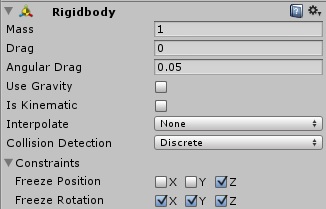
b) Set the Constraints so we freeze rotation, movement on the Z-axis and remove the tick from User Gravity. This is becuse we don’t want any outside forces to change the rotation or Z-position of our enemy.

image

c) Add a box collider to the Enemy:
image

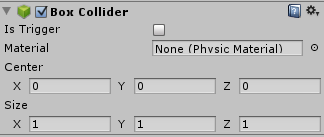
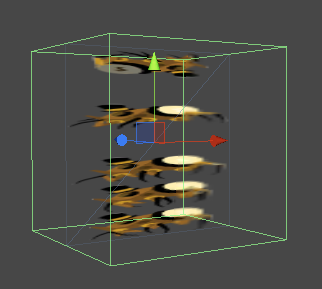
d) Make sure the properties of the box collider so it surrounds our enemy object, including the Z-axis. This should happen automatically:
image
image

The last thing we need to do is to tag the enemy so we can find it and test collisions easily. To do this, we need to create a new tag for the enemy:

a) Do this by clicking the tags property on our enemy and then Add Tag..

image
image

b) Name the tag “Enemy”
image

c) Click the Enemy game object in the hierarchy view and set the tag to the new Enemy-tag:
image

Now, in the enemy script – for now, what we want to do is to remove the enemy form the scene if the position is behind our player (no need for it anymer) and if it hits the player. Make the following changes to our script:

using UnityEngine;
using System.Collections;

public class EnemyHandler : MonoBehaviour
{
    float speed = 4.0f;
    GameObject player;

    void OnCollisionEnter(Collision collision)
    {
        if (collision.rigidbody != null)
        {
            if (collision.rigidbody.name == “Player”)
            {
                Destroy(this.gameObject);
            }
        }
    }
    // Use this for initialization
    void Start()
    {
       
GameObject _p = GameObject.Find(“Player”);
        if (_p != null)
        {
            player = _p;
        }
    }

    // Update is called once per frame
    void Update()
    {
        Vector3 moveVector = Vector3.left;
        transform.position += moveVector * speed * Time.deltaTime;

        if (player != null)
        {
            if (this.transform.position.x <= player.transform.position.x – 10.0f)
            {
                Destroy(this.gameObject);
            }
        }
    }
}


This implements the collision handler, checks it it collides with “Player” and if yes, remove itself from the world!

We also remove it if it walks too far behind us where we don’t need it anymore.

Right now the background is also collidable. Click the background prefab from the prefabs folder:
image

Uncheck the mesh collider:
image

This makes sure our enemies wont collide with the background.


III. Making collisions possible

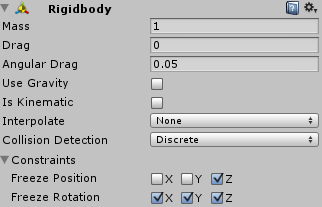
To make collisions possible, we must do the same thing for our player. Go ahead and add a rigidbody to the player, and set the Constraints for the same reasons as with the enemy:

image

Also, add a box collider:
image
image

If you want to test this, move the enemy somewhere a bit in front of the player and press play. When the enemy crash with the player, it is removed. Also, replay the scene to test if the player is removed when walking past you (you can see that the enemy gameobject is removed from the scene hierarchy).

image


IV. Spawning the enemy

We want to create a logic that automatically spawns enemies over time. Let’s create a new script called GameHandler in the Scripts-folder:
image

Attach it to the Main Camera of the scene:

image

Perfect!

Now, we must make the enemy to a prefab so we can spawn with our script. Drag the enemy from the hierarchy to the Prefabs folder as we did with the background:

image

Delete if from the scene:

image

image


The next thing we need is to script the GameHandler so it spawns new enemies. Open the script, it will look like this:

using UnityEngine;
using System.Collections;

public class GameHandler : MonoBehaviour {

    // Use this for initialization
    void Start () {
   
    }
   
    // Update is called once per frame
    void Update () {
   
    }
}

The first thing we want to do is to add a level variable. This will be used to indicate how far in to the game we are.

using UnityEngine;
using System.Collections;

public class GameHandler : MonoBehaviour {
    public int level;
    // Use this for initialization
    void Start () {
   
    }
   
    // Update is called once per frame
    void Update () {
   
    }
}

Now, add another variable that will spawn our enemies based on what the level indicator says.

using UnityEngine;
using System.Collections;

public class GameHandler : MonoBehaviour {
    public int level;

    float spawnNewEnemyTimer = 10;
    // Use this for initialization
    void Start () {
    }
   
    // Update is called once per frame
    void Update () {
       
spawnNewEnemyTimer -= Time.deltaTime;
        if (spawnNewEnemyTimer <= 0)
        {
            spawnNewEnemyTimer = 5 – (level * 0.25f);
        }

    }
}

We start by spawning a new enemy after 10 seconds (to give the player some time to start). Once the level starts increaseing the time it takes before a new enemy is spawned is reduced slightly.

Then we add the enemy prefab and the player variable – we need the enemy to instansiate and then we need the player for other stuff like where to spawn a new enemy:

using UnityEngine;
using System.Collections;

public class GameHandler : MonoBehaviour
{
    public int level;
   
public GameObject enemy;
    public GameObject player;

    float spawnNewEnemyTimer = 10;

    // Use this for initialization
    void Start()
    {
    }

    // Update is called once per frame
    void Update()
    {
        spawnNewEnemyTimer -= Time.deltaTime;
        if (spawnNewEnemyTimer <= 0)
        {
            spawnNewEnemyTimer = 5 – (level * 0.25f);
        }
    }
}

This means that we can instansiate a new enemy whenever we want! Let’s do this next:

using UnityEngine;
using System.Collections;

public class GameHandler : MonoBehaviour
{
    public int level;
    public GameObject enemy;
    public GameObject player;

    float spawnNewEnemyTimer = 10;

    // Use this for initialization
    void Start()
    {
    }

    // Update is called once per frame
    void Update()
    {
        spawnNewEnemyTimer -= Time.deltaTime;
        if (spawnNewEnemyTimer <= 0)
        {
            spawnNewEnemyTimer = 5 – (level * 0.25f);
           
Instantiate(enemy, new Vector3(player.transform.position.x + 50.0f,
                    player.transform.position.y, 0.0f), Quaternion.identity);
        }
    }
}

Go back to the editor and set the missing properties on the Main Cameras GameHandler script:

image

(remember, the Enemy is set to the Enemy prefab)

Press play to see the script in action. A new enemy is spawned every 5 seconds 50 units in front of the player.

We will work more with the logic of levels and so on later. First, we need to be able to make our player shoot.


V. Creating the laser prefab

The laser will be a quad that will move at a speed towards the right side of the screen, untill it hits a player or goes too far.

Start by create an empty gameobject:
image

Add a quad to the Laser GameObject:
image

Resize the laser using scale to the following:
image

Create a new Material called LaserMaterial to the Materials folder:
image

Give it the tint color of red:
image

Now, assign the material to the lasers texture object:
image

It should now look something like this:
image

Next, we must add a rigidbody and a boxcollider to it:

First, add the rigidbody and make the constraits and gravity as the following:
image

Also, add a box collider:
image

It will now look something like this:

image

The last thing we need to do is to is to set the Shader of the LaserMaterial to Mobile/Particles/VertexLit Blend:
image


VI. Scripting the laser

Create a new script called LaserHandler to our Scripts folder:
image

Assign this script to the Laser gameobject:

image
image

Great! It’s time to give the laser some logic. Edit the script and make it move towards the right side of the screen:

using UnityEngine;
using System.Collections;

public class LaserHandler : MonoBehaviour {
    float speed = 16.0f;
    float aliveTimer = 2.0f;

    // Use this for initialization
    void Start () {
   
    }
   
    // Update is called once per frame
    void Update () {
        aliveTimer -= Time.deltaTime;

        if (aliveTimer > 0.0f)
        {
            transform.position += Vector3.right * speed * Time.deltaTime;
        }
        else
        {
            Destroy(this.gameObject);
        }
    }
}

This will make the laser move, and be destroyed after two seconds if it haven’t hit anything yet.

Now, create a prefab out of the laser gameobject by draging it to the Prefabs folder:
image

Delete it from the scene:
imageimage

Now that our Laser is ready for spawning, we must change our player script to enable shooting:

using UnityEngine;
using System.Collections;

public class PlayerHandler : MonoBehaviour {
    float speed = 4.0f;
    public GameObject laserPrefab;

    float shootTimer = 0.0f;
    float setShootTimerTo = 0.5f;

    // Use this for initialization
    void Start () {
   
    }
   
    // Update is called once per frame
    void Update () {
        Vector3 movePlayerVector = Vector3.right;
        shootTimer -= Time.deltaTime;

        if (Input.GetMouseButton(0))
        {
            Vector3 touchWorldPoint = Camera.main.ScreenToWorldPoint(
                new Vector3(Input.mousePosition.x,
                            Input.mousePosition.y,
                            10.0f));

            if (touchWorldPoint.x < this.transform.position.x + 5.0f)
            {
                if (touchWorldPoint.y > this.transform.position.y)
                {
                    movePlayerVector.y = 1.0f;
                }
                else movePlayerVector.y = -1.0f;
            }
           
else
            {
                if (shootTimer <= 0)
                {
                    Vector3 shootPos = this.transform.position;
                    shootPos.x += 2;
                    Instantiate(laserPrefab, shootPos, Quaternion.identity);
                    shootTimer = setShootTimerTo;
                }
            }
        }

        this.transform.position += movePlayerVector * Time.deltaTime * speed;

        if (transform.position.y > -2.0)
        {
            transform.position = new Vector3(transform.position.x,
                                            -2.0f,
                                            transform.position.z);
        }

        if (transform.position.y < -5.5)
        {
            transform.position = new Vector3(transform.position.x,
                                            -5.5f,
                                            transform.position.z);
        }
    }
}

What we do here is to create a variable that holds the laserPrefab, and a timer that controls how frequent we are able to shoot.

Then we change how the input works. If we touch on the left side of the screen it will move our player, if we touch the right side it will shoot. Should not be anything new here!

If you play the scene now, you should be able to shoot the lasers! But when we hit an enemy with a laser, it will just push the enemy away. Let’s open the enemy script again and make sure that if a laser hits it, it will destroy both the laser and the enemy.

Edit the EnemyHandler script with the following modifications:


using UnityEngine;
using System.Collections;

public class EnemyHandler : MonoBehaviour
{
    float speed = 4.0f;
    GameObject player;

    void OnCollisionEnter(Collision collision)
    {
        if (collision.rigidbody != null)
        {
            if (collision.rigidbody.name == “Player”)
            {
                Destroy(this.gameObject);
            }

            if (collision.rigidbody.tag == “Laser”)
            {
                Destroy(this.gameObject);
                Destroy(collision.gameObject);
            }

        }
    }
    // Use this for initialization
    void Start()
    {
        GameObject _p = GameObject.Find(“Player”);
        if (_p != null)
        {
            player = _p;
        }
    }

    // Update is called once per frame
    void Update()
    {
        Vector3 moveVector = Vector3.left;
        transform.position += moveVector * speed * Time.deltaTime;

        if (player != null)
        {
            if (this.transform.position.x <= player.transform.position.x – 10.0f)
            {
                Destroy(this.gameObject);
            }
        }
    }
}

Now, what we are doing here is to check it the laser got the tag Laser, and then if yes, destroy both.

This script won’t work before we set the Laser to the “Laser” tag. Click the Laser prefab:

image

And add a new tag called “Laser”:

image

And set the tag of the Laser prefa to “Laser”:

image


Play the game again, and you will be able to shoot lasers, destroy enemies and move the player! It sure starts looking like a game now! Smilefjes

image


Whats next and download the source

This concludes this tutorial, in the next part we will implement explosions, a system where the player can get XP and Level ups (making the game harder), loose health and die.

We will also create a simple UI so we can see what’s going on.

You can download the project, source and game assets here.


Posted in Tutorial, Unity | 2 Comments

Unity for Windows VII–Creating a more advanced game, Part 2

image

In this tutorial, we will continue on what we created in the previous tutorial.

I. Making the camera follow the player

The first thing we want to do is to make the camera follow the player. Find the Standard Assets (Mobile) script folder:
image

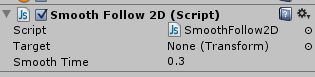
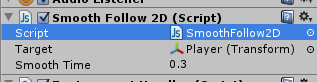
Now, drag the script named SmoothFollow2d and set it on the Main Camera:

image

Put it on Main Camera:
image

You should now see it added as a component of the camera:
image

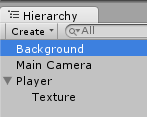
Now, we need to set the target to the player. Drag the Player GameObject from the hierarchy to the target property of the component:

a)
image

b)
image

c)
image

If you press play now, the camera will center on the player object.

II. Controlling the player

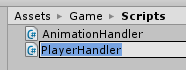
Create a new script in our Scripts folder and name it “PlayerHandler”.
image

Drag it on the Player GameObject in the hierarchy view and make sure it’s added:
image

Now, edit this script. Our goal is to move it up and down by input, and then we are walking forward automatically. How should we control the character? First of all, this is going to be an app for both tablets and phones, so touch/mouse is essential. At a later tutorial, we will add keybaord and Xbox360 controller support too (easy to do! Smilefjes).

This script is a start, covering the touch/mouse input:

using UnityEngine;
using System.Collections;

public class PlayerHandler : MonoBehaviour {
    float speed = 4.0f;
    public GameObject go;
    // Use this for initialization
    void Start () {
   
    }
   
    // Update is called once per frame
    void Update () {
        Vector3 movePlayerVector = Vector3.right;

        if (Input.GetMouseButton(0))
        {
            Vector3 touchWorldPoint = Camera.main.ScreenToWorldPoint(
                new Vector3(Input.mousePosition.x,
                            Input.mousePosition.y,
                            10.0f));

            if (touchWorldPoint.y >= this.transform.position.y)
            {
                movePlayerVector.y = 1.0f;
            }
            else movePlayerVector.y = -1.0f;
        }

        this.transform.position += movePlayerVector * Time.deltaTime * speed;
    }
}

First of all we create a vector that’s pointing right. This vector is then added to the players position later. This means that we are always walking right. This vector is 1.0 on the X-axis and 0.0 on the Y-axis.

We need to modify this vector with the Y-axis to make our character move up and down.

We check for input from the left mouse button (the same as a touch point). If it is being pressed, take the mouse coordinate and convert it to world view (since when we click the mouse/touch the screen, the position of the location we touched is in screen-space (screen resolution). We need to convert it to world space (the same coordinate system that our player is in).

Now, it’s hard to see anything without a background. Let’s add this!

III. Adding the background

This section will cover how to add a background to our game.

a) First, add a new quad to our scene:
image

b) And name it “Background”:
image

c) Set the position to 0,0,0:
image

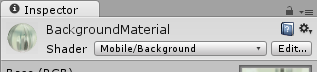
d) Create a new material and name it “BackgroundMaterial”:
image

e) Set the texture of the material to the “Background.png” texture in “Textures\Environment”:
image

f) Set the shader to Mobile/Background:
image
The reason for this is that we don’t want any lighting on our scene, since it’s 2D. This shader will just use the colors set when creating the image using your favorite drawing application.

g) Set the scale of the Background GameObject to the same aspect as the texture resolution, something that fit the scene. We also set the Positions Z azis to one, so it’s a bit behind our player:
image

The result should be something like this:
image


IV. Looping the background

Next we need to loop the background. We want an infinite world. We could duplicate the Background GameObject many times and line them up together, or we can make a prefab out of it, and then use a script to draw a lot of them!

Create a new folder in the Assets/Game folder and name it Prefabs:

image

Next, create a new C# script in the Scripts-folder named EnvironmentHandler:
image

Drag this script on the Main Camera GameObject.

Now, browse to the Prefabs-folder:
image

Then drag the Background GameObject from the scene hierarchy to the Prefabs-folder to create a prefab out of it:
image

Then delete the Background GameObject from the scene hierarchy:

imageimage

Now, open the EnvironmentHandler-script, and write the following code:

using UnityEngine;
using System.Collections;
using System.Collections.Generic;

public class EnvironmentHandler : MonoBehaviour {
    public GameObject BackgroundPrefab;
    public GameObject Player;

    List<GameObject> spawnedBackgrounds = new List<GameObject>();

    int spawnIndex = 2;

    // Use this for initialization
    void Start () {
        for (int i = 0; i < spawnIndex; i++)
        {
            spawnedBackgrounds.Add(
                (GameObject)Instantiate(BackgroundPrefab,
                                        new Vector3(i * 51.2f + 25.6f, 0, 0.01f),
                                        Quaternion.identity)
                );
        }
    }

    // Update is called once per frame
    void Update()
    {
        bool addNewBackground = false;
        foreach (GameObject bgObject in spawnedBackgrounds)
        {
            if (bgObject != null)
            {
                if (bgObject.activeInHierarchy)
                {
                    float distanceFromPlayer =
                          Player.transform.position.x – bgObject.transform.position.x;

                    if (distanceFromPlayer > 51.2f)
                    {
                        Destroy(bgObject);
                        bgObject.SetActive(false);
                        addNewBackground = true;
                    }
                }
            }
        }

        if (addNewBackground)
        {
            spawnedBackgrounds.Add(
                (GameObject)Instantiate(BackgroundPrefab,
                                        new Vector3(spawnIndex * 51.2f + 25.6f, 0, 0.01f),
                                        Quaternion.identity));
            spawnIndex++;
        }
    }
}

Oh, another script that looks complex! Again, I wrote this to have a simple code so it would be easy to understand the goal and logic of it, not efficient so if you need a place to optimize, this is a place to test out (but it should be good enought Smilefjes som blunker).

So… what is this script doing?
It’s simple – what we want is to render two backgrounds on our scene. If one background is behind us, remove it and spawn a new infront of us.

image

When we start the level, two Background GameObjects are spawned. These are positioned at the scenes origin (where the player starts) – 25.6f. This number is the width of the background game object divided by two. This is to make sure that we don’t get half the screen empty in the first run like this:
image

The image shows the blue area where there isnt yet a part of our background object since they havent scrolled there yet (or the player havent moved away from the start position yet). By subtracting this, we move all the background objects 25.6f to the left.

Next, we check the distance of the backgrounds behind the player, and if any of them are further away than 51.2 (that’s the length of the entire background gameobject), we remove it and tell the code that we want to add a new in front.

spawnIndex is used to remember where in the world we are.

On the Main Camera where the EnvironementHandler script is attached, drag the new Background-prefab to the Background Prefab property, and our Player-prefab to the Player property:
image

Now, test to see if we are moving forward, and that you can move the player up and down with the mouse/touch-screen.


V. Making sure the camera is “inside” our environment

As you probably see, we can move the player outside of the invironment. And even if we don’t, some of the environments edges are inside of the view, making it possible to see the blue background color of our scene.

It’s time to remove this artifact, something we will do on the script that we attached to our Main Camera earlier.

Click on the Main Camera GameObject, and edit the script attached to it by doubleclicking it:

image

Change the script with the following modifications:

#pragma strict

var target : Transform;
var smoothTime = 0.3;
private var thisTransform : Transform;
private var velocity : Vector2;

function Start()
{
    thisTransform = transform;
}

function Update()
{
    thisTransform.position.x = Mathf.SmoothDamp( thisTransform.position.x,
        target.position.x, velocity.x, smoothTime);
   
    thisTransform.position.y = -0.5;
}

This will lock the cameras Y-axis to the given position.

Try running the scene again and we can see that the camera is now placed on –0.5 on the Y-axis (this coordinate was found by trail and error based on where the sidewalk on the texture is).

VI. Making sure our player is on the sidewalk

The last thing we will do today is to make sure the player is inside the sidewalk. We do this the same way as with the camera, but inside the PlayerHandler-script. Here we will limit the minimum and maximum value of the players Y-position.

This is very simple. We check that the player is between –2.0 and – 5.5 (found by trial and error). If you press Play on the scene, move the player to the top part of the sidewalk:
imageimage

..and then click the Player in the scene hierarchy to view the properties, you can see that Y is around –2.0. This is the method I used to create these bounds.

using UnityEngine;
using System.Collections;

public class PlayerHandler : MonoBehaviour {
    float speed = 4.0f;
    // Use this for initialization
    void Start () {
   
    }
   
    // Update is called once per frame
    void Update () {
        Vector3 movePlayerVector = Vector3.right;

        if (Input.GetMouseButton(0))
        {
            Vector3 touchWorldPoint = Camera.main.ScreenToWorldPoint(
                new Vector3(Input.mousePosition.x,
                            Input.mousePosition.y,
                            10.0f));

            if (touchWorldPoint.y > this.transform.position.y)
            {
                movePlayerVector.y = 1.0f;
            }
            else movePlayerVector.y = -1.0f;
        }

        this.transform.position += movePlayerVector * Time.deltaTime * speed;

        if (transform.position.y > -2.0)
        {
            transform.position = new Vector3(transform.position.x,
                                            -2.0f,
                                            transform.position.z);
        }

        if (transform.position.y < -5.5)
        {
            transform.position = new Vector3(transform.position.x,
                                            -5.5f,
                                            transform.position.z);
        }
    }
}

Now, pressing play again – you can see that we can move our robot up and down, he is kept between the bounds of the sidewalk and the camera is inside the environment.

The last thing we want to do is to set the target of our player a bit in front of us, so that we can see longer in to the scene than what we can do now.

Right now it’s:

image

This is simple. Add a new empty GameObject to our scene and drag it inside our Player Game Object. Give it the name “CameraTarget” and position position to 6,0,0

a) Create the GameObject, put it inside the player and set the name to CameraTarget
image

b) Set the position to 6,0,0
image


Next, we set this as the target for our SmoothFollow2d script on our Main Camera.

Click the Main Camera GameObject:

image

Drag the CameraTarget from the Hierarchy to the target property of the script:

imageimage

Now, run the game again and you can see that our visibility is much better! Smilefjes

image

In the next tutorial, we will create the enemies and spawn them. We will also make is possible to shoot them with our laser!

Download project, sources and assets here.

Posted in Tutorial, Unity | 2 Comments

Unity for Windows VI–Creating a more advanced game, Part 1

image
Welcome back to the Unity for Windows tutorial series. In this tutorial, we will work with the knowledge we got from the previous tutorials to create a game that is a bit more advanced than earlier.

We are still working the the free assets, so you will not need to buy anything to create this game – it’s free! All tools (Unity Free) and just built in assets.

It is recommended that you got basic knowledge of Unity before doing this tutorial (see Unity for Windows I to learn this).

I. What are we going to make?
image

The complete game will be a game where you move an animated player, and have to take out spiders with your laser. It’s a survival game where we you walk on a scrolling scene, and the world will be infinite. We will also generate random scenery and keep track of our high score.

In this tutorial we will set up the project and create the animated player object for our game.

II. Setting up the environment

Start Unity and create a new project. Name it “SteamLands” and choose to include the standard assets for Particles and Mobile and click Create:

image


In the game, we are going to need a number of assets, so create the following project structure for you game (the assets):

image

III. Adding our assets

We will need a few assets for our game. One is the background and environment, then we need the player, the enemies and pick-up items, as well as the images for our main menu and so on.

Let’s just add everything at once. Download the projects zip file, then find the Assets/Textures folder and add the content of it to the Textures folder.

IV. Creating the level scene

Next, we will create the game level. To do this, we need to create a new scene to our project.

Click File->New Scene and then File->Save Scene As, name it “Level” and save it in the Scenes folder we just created:
image

V. Creating the player game object

We are staring with our player. This will be an animated 2d texture that walks. There are many ways to add animations to a game, but the main idea is to show different images at given times to create an illusion of something (like walking, jumping, shooting..). We will also have one texture that contains all the animations of our player.

Our player looks like this:

Player

What we will do is to create a player GameObject, that contains another GameObject that is a Quad (Plane) with this as a material. Then we will write a script that display the right frame at a given time.

The top image is when our player is dead or stunned, the 2nd is the idle position, and then the 3rd, 4th and 5th are the walking animations.


Start by adding a new GameObject to the scene and name it Player:

a) Create the empty game object
image

b) Rename
image

c) See that it is in the hierarchy
image

This will be the main Player game object, a collection of all the parts that our player is built up from.

Now, add a new Quad-GameObject and name it Texture, and drag it inside the Player-object:
a) Create quad
image

b) Rename
image

c) Drag it on the Player GameObject
image

d) Set the positon of the Texture Game Object to 0,0,0
image


Next, we need to add the texture to the player. To do this, we need to create a new Material in the Materials-folder we created earlier.

a) Browse to Materials
image

b) Create a new material and name it “PlayerMaterial”
image

Use the Player texture (Assets/Game/Textures/Player/Player.png) as the texture for our material, and set the shader to

a) Set the Player texture as the texture we want to use on our material, just drag it inside the Texture property when having the Material selected
image

b) Set the shader to Mobile/Background
image

c) Drag the material and set it on the Texture Game Object for the Player Game Object
image

You can see this reflected in the game:
image


VI. Creating the script that handles animations

Right now, it doesn’t look very good, all the frames are displayed and it’s very shrinked. We will now create a script that makes this look slightly better. Smilefjes

In the scripts folder, create a new script and name it AnimationHandler:
a) Create a new C# script in the Scripts folder
image

b) Name it AnimationHandler

image

c) Drag it on the Player Game Object
image

d) It’s now a component of the Player Game Object
image

e) Let’s also change the scale of our player. One frame of the player will have the size of 128×93 so we scale it so it got the same aspect ratio
image


VII. Implementing the Animation Handler script

Our next job is to implement the animation handler script so it reads the assigned material, sets the correct offset based on what frame we want to render and so on.

Open the AnimationHandler script and make it look like this and then save the script. It looks bad but it’s quite simple. I will walk you through the code later (optional reading):

using UnityEngine;
using System.Collections;
using System.Collections.Generic;

public class AnimationHandler : MonoBehaviour {
    public class AnimationInfo
    {
        public int frameStart;
        public int numerOfFrames;
    };

    public int playAnimationSetNumber;

    int numbersOfTilesY = 7;
    float frameTime = 0.0f;
    float timePrFrame = 0.1f;
    int frameIndex = 0;

    public GameObject textureToAnimate;
    public List<AnimationInfo> animationSets = new List<AnimationInfo>();

    // Use this for initialization
    void Start () {
        frameTime = timePrFrame;
        animationSets.Add(new AnimationInfo() { frameStart = 2, numerOfFrames = 1 });
// Idle
        animationSets.Add(new AnimationInfo() { frameStart = 4, numerOfFrames = 3 });
// Walk
        animationSets.Add(new AnimationInfo() { frameStart = 0, numerOfFrames = 1 }); // Dead
    }
   
    // Update is called once per frame
    void Update () {
        Animate(animationSets[playAnimationSetNumber]);
    }

    void Animate(AnimationInfo animationSet)
    {
        frameTime -= Time.deltaTime;
        if (frameTime <= 0)
        {
            frameTime = timePrFrame;
            frameIndex++;
        }
       
        if (frameIndex < animationSet.frameStart)
        {
            frameIndex = animationSet.frameStart;
        }

        if (frameIndex >= (animationSet.frameStart + (animationSet.numerOfFrames)))
        {
            frameIndex = animationSet.frameStart;
        }

        float sizeY = 1.0f / numbersOfTilesY;
        Vector2 size = new Vector2(1.0f, sizeY);

        var vIndex = frameIndex / numbersOfTilesY;

        float offsetX = 1.0f;
        float offsetY = (1.0f – size.y) – (vIndex + frameIndex) * size.y;
        Vector2 offset = new Vector2(offsetX, offsetY);

        textureToAnimate.renderer.material.SetTextureOffset(“_MainTex”, offset);
        textureToAnimate.renderer.material.SetTextureScale(“_MainTex”, size);
    }
}


Optional reading: Unity is a great engine since it hides a lot of the hard things to implement away, and if the functianlity you want doesn’t exist with Unity, one can buy it from the assets store, or make it yourself (and mabye even sell it on the assets store to make some money). So, if you don’t want to understand this scrip, think of it like a black box that will create an animation. Then skip to VIII just a bit down from here. Or study the code with me!

Walkthrough of the AnimationHandler script

The first thing we do is to set the numbersOfTilesY to 7. This is because our Player.png file contains 7 frames (two of them are blanks, five of them got the player robot).

We also set the frameTime and timePrFrame. frameTime is the current time a frame has been displayed, and the frameIndex contains what frame is currently being displayed.

The Animate() function takes one paramtere, and that is an AnimationInfo object. An AnimationInfo is the information about the current animation we are playing. Since our texture contains 3 differet animations, one for idle (just one frame), one for walking (three frames) and then the death animation (one frame).

Then the code makes sure that our frameIndex is updated based on time (new frame every 0.1 second), and that our frameIndex is kept within the range of the animationSet paramteres (start frame and how many frames the animation will play).

The function will then do some math, and use the materials Texture Offset to choose what part of the texture we want to display based on the math we do.

The math is acctually quite simple, we calculate the height of one frame in persentage (0.0 (0%) – 1.o (100%)). Then we create vIndex that is the coordinates inside the texture (still in percentage) of where the frameIndex we are currently at should be located.

Then we count upwards (since 0,0 is in the bottom-left of the texture), starting at 1.0 – size.y (last frame), then up to vIndex+frameIndex (that will now be the real frame number we currently should grab our texture part) and multiply it with the size of the frame.

Then we set the offset and scale of our material.

image

Don’t worry if you don’t understand the logic. Feel free to experiment, and play around to make sure you know what the different parts does.

VIII. Using the script

This script is simple to use. You have already added this as a script for the Player GameObject. What’s left is that we need set the GameObject (A texture that got a material) we want to animate. In our case, this is the Texture GameObject of the Player GameObject. Then we need to set the index of what animation that exist in the list should be.

Click the Player GameObject in the games hierarchy and set the properties like this:

a) Click on the Player GameObject to see the properties
image

b) Drag the Texture GameObject from the hierarchy view and place it on the TextureToAnimate GameObject.
image

c) Set the Play Animation Set Number to 1 so it plays the Walking animation.
image

d) Press play to view the scene
image

e) While in play mode, click the Player GameObject from the hierarchy view and change the Play Animation Set Number to both 0 and 2 to view the animations.
image


Congratulations, that concludes Part I of the tutorial. In the next tutorial, we will make the camera follow our player, make it controllable and add a background.

Download the project and assets here.


Posted in Tutorial, Unity, Windows 8, Windows Phone | 7 Comments

Unity for Windows V–Connecting To The Cloud with Windows Azure Mobile Services

image

In the previous tutorial, we gave the game a simple user interface and created some logic to store the local high score. What if we could take this high score and store it in the cloud? So we could compete against the world in our very own game?

This tutorial will do just this! We will create a plugin using Visual Studio 2012 that will connect your game with Windows Azure. We will also create a new Mobile Service in Windows Azure that will be available world wide, so anyone who got your game can compete against each other.

We will learn how to create a new service, how to connect to it, and make it behave as we want. We will also learn how to do client side scripting/programming by creating a Unity plugin, and also how to modify the server-side scripts of our service.

I have been using Windows Azure in almost all of my games – server for MMOs, Highscore/Leaderboards, Save games (nice to have online saves right?) and so on.

Part I – Creating a Windows Azure Mobile Service
image
A Windows Azure Mobile Service is basically free to use in low end games and games that doesn’t require too much traffic (up to 10 services/month). If you need more services than this, or need additional storage/performance for high-end games, you can upgrade your services as you want.

I usually use one or two services pr. game.

Here is more details regarding the costs on WAMS (Windows Azure Mobile Services): http://www.windowsazure.com/en-us/pricing/details/mobile-services/

Also, using a free trail let’s you get even more free stuff you can play around with (in case you want to explore Windows Azure even more), so jump in there and try the awesomeness Windows Azure is offering.


a) Get your account (it’s worth it!)

Go to http://www.windowsazure.com/en-us/pricing/free-trial/ and create a new account. Don’t worry if you have to put in your credit card details, it will not charge you unless YOU enables this – if you use more than what’s free, the service will just go to pause.

image


b) Create your Movile Service

Once registered, you will be presented with a pretty nice interface – welcome to Windows Azure.

image

We want to create a new Mobile Service, so go ahead an click the Mobile Serivces tab:

image

Then click the big + NEW button on the bottom-left side of the portal:
image

And create a new Mobile Service:

image

Now, we need to create a URL for the service – this is usually the name of your app, but it’s really up to you (but it needs to be unique).

You can go ahead and put in your name (if one is taken, put in a random number behind it like SpaceBlaz0r837 or something). If you are following this guide to implement WAMS in your own game, put in the game name or something so you remember that it belongs to that game.
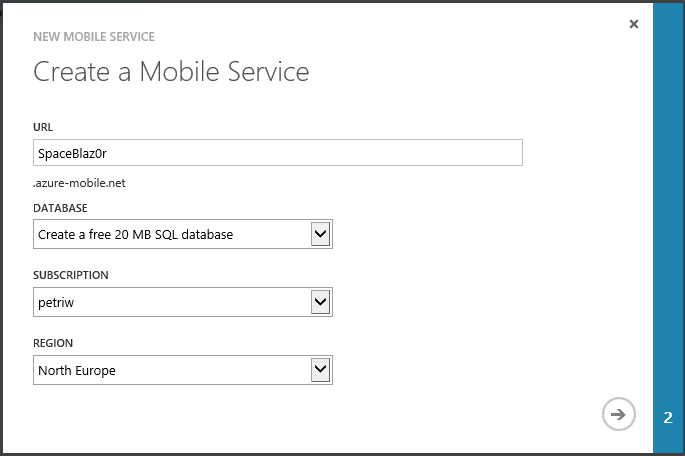
image

You also need to create a new database (or use an existing one if you have this), and then it needs to know that subscription you are using (usually, you got just one subscription – but there are many good reasons for having more so choose the one that is right for you).

Then it needs to know where in the world the service should be hosted.

Click the next arrow to continue.

image

Now it’s time to specify some details around the database we are going to use (SQL) for our service. Just fill out the obvious fields and press the check icon down right to start creating the service.

You will now be redirected back to the portal, where your new service is being created.

image

Click the green “activity” icon indicating that there is one activity currently being processed, and you will see that it is working on your new service.

image

This might take a minute, but when it is complete the message will be something like this:

image

Congratulations! Your new Azure Mobile Service is up and running in the cloud! You can see it in the portal overview:

image


c) Configuring the service

Now, we need to set up the service and make sure everything is working. Click on the service in the overview to be taken to the service settings page:

image

When there, you are presentated with a cool quickstart page that enables you to quicly get started:
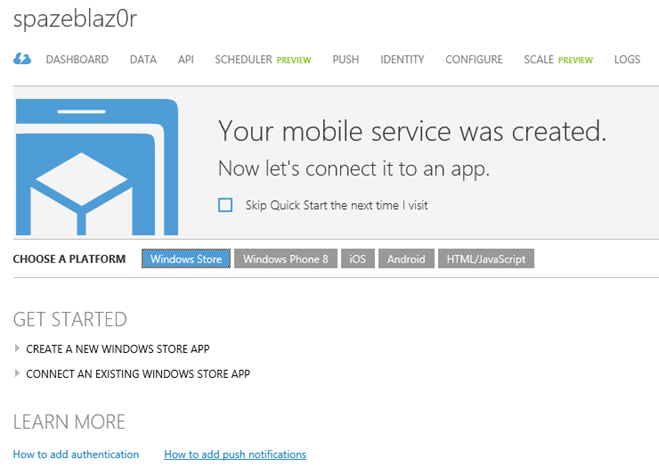
image

On the top, there is firstly the cloud with a flash in it – that’s the page you see in front of you right now. Then there is a dashboard for statistics, data for the services table, and so on.


d) Creating our data table

In this step, we are going to create the data table that our service will be using. Click the DATA button in the menu bar:

image

Now, click ADD A TABLE:

image

Name the table “Leaderboard” and press OK

image

It will now spend 5 seconds on creating the table for you:
image

Move on when it is complete Smilefjes

Click the new table from the overview:

image

Then click the COLUMNS menu bar button:
image

The awesome new table contains just one columnt named id, and it’s and indexed column meaning that we dont need to set it from our service.

image

Congratulations! Your service is up and running, with a table in it!
The service is set to automatically add new columns based on what we insert to it. This is great when we build the app, but it’s good practice to turn this setting off when we publish the game (for security reasons).


Part II – Creating the Unity pluginimage

Windows Azure Mobile Services is not directly supported in Unity, so we need to write a plugin to communicate with it.

Do do this, we need to use Visual Studio 2012. If you don’t yet have it, you can download it for free.


a) Creating a new plugin solution in VS2012

Now, in Visual Studio 2012, create a new solution by clicking File->New->Project..

image

Find the Visual Studio Solutions tab:
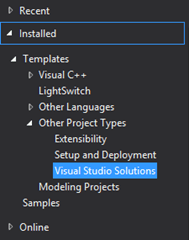
image

And select Blank Solution:
image

Give it a name like Plugin.MobileServices:

image

b) How WP8 and Metro plugins work with Unity

Unity works like this. Each plugin that we want to include in our Unity game project needs to be copied in to Assets/Plugins directory. When you export a game, these plugins will follow the project. When it comes to our case, the issue is that the code we will write isn’t really supported in the Unity editor.

This means that we will create two plugins, one “fake” plugin that contains the same functions (so we won’t get any build errors inside the Unity editor), and then another true plugin that acctualy contains the right functionality – that will be copied when we export our Windows 8 game (and another if we want to support Windows Phone 8, and even more if we want iOS or Android (++) too).

The Unity developers have done this easy for us. When we export for Windows 8 (Windows Store Apps), it will look for plugins in the Assets/Plugins folder and copy these over. Then it will look for a subfolder called “Metro” (for Windows 8, “WP8” for Windows Phone 8) and copy these plugins and overwrite the ones that got the same name.

In other words, we need to create two plugins with the same name, one is editor friendly, and another is the one with the actual functionality of connecting to the cloud.

The functions that exists in the fake editor DLL will be visible when we program our games in Unity. This means that the functions and parameters of this will need to mach the ones we use in the other DLL file.

c) Creating the fake editor plugin

We start with creating the fake editor plugin. In Visual Studio 2012, right click the solution and add a new project:
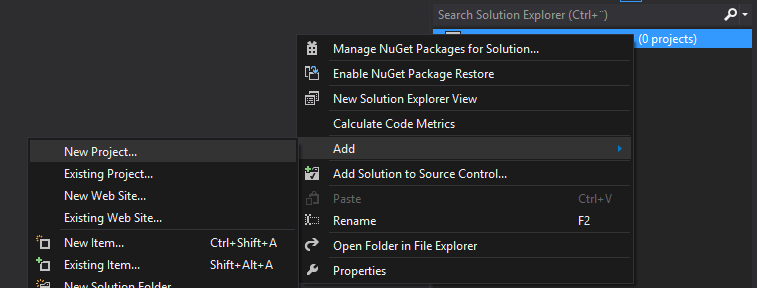
image

Now, find Visual C# (the language we will write the pluing with), choose .NET Framework 3.5 from the top menu and select Class Library:
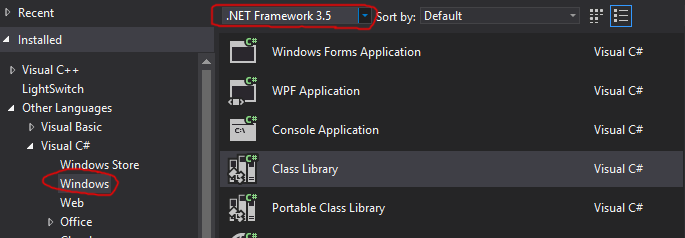
image

Give it the name “Editor” and click OK.

The new project is now added to our solution. Right click the Class1.cs file and rename it to Connector:
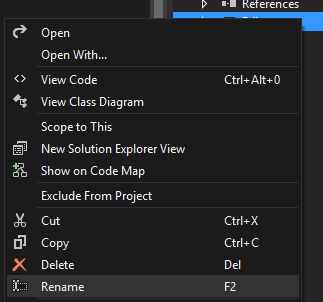
image

The solution now looks something like this:

image

Double click the Connector.cs file to edit the code. The first thing we want it to change the namespace from Editor to: Plugin.MobileServices

using System;
using System.Collections.Generic;
using System.Linq;
using System.Text;

namespace Plugin.MobileServices
{
    public class Connector
    {
    }
}

Now, it’s time to add some functionality. We simply want to do two things, one is to insert a new entry to our service, and then another one that downloads the best result from our service.

That’s two functions!

public void Insert(int score)
{

}

public void GetScore()
{

}

We also want to have an integer that keeps track of the best score available.

Let’s add these to our plugin code:

using System;
using System.Collections.Generic;
using System.Linq;
using System.Text;

namespace Plugin.MobileServices
{
    public class Connector
    {
       
public int BestScore = 0;

        public void Insert(int score)
        {

        }

        public void GetScore()
        {

        }
    }
}

To simulate the plugin that really gets the data from the cloud, we can set the BestScore integer to 1000, just to see some data when we work in the Unity editor:

using System;
using System.Collections.Generic;
using System.Linq;
using System.Text;

namespace Plugin.MobileServices
{
    public class Connector
    {
        public int BestScore = 0;

        public void Insert(int score)
        {

        }

        public void GetScore()
        {
            BestScore = 1000;
        }
    }
}

Thats it for the fake editor dll Smilefjes It basically does nothing – except for making the functions available in the editor (or else you will get build errors – and not be able to play the game in the editor or export it).

d) Creating the real plugin project

Now we are going to create the real stuff! Right click the main solution and add another project:

image

Select the Windows Store catgeroy under Visual C#, make sure to select .Net Framework 4.5 (important!) and select the Class Library (since we are creating a DLL for our Windows 8 game).
Give the new project the name “Windows8” and click OK.

Again, rename the Class1.cs file that automatically gets generated to Connector:
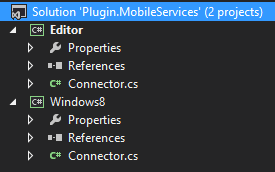
image

Now, open the Connector.cs file in the Windows8 project and implement the same logic as we did in the fake DLL (and make sure the namespace is the same as in the editor plugin):

using System;
using System.Collections.Generic;
using System.Linq;
using System.Text;

namespace Plugin.MobileServices
{
    public class Connector
    {
        public int BestScore = 0;

        public void Insert(int score)
        {

        }

        public void GetScore()
        {
            BestScore = 1000;
        }
    }
}


Now, we must connect this to the service we have in the cloud (isn’t this awesome??)! Smilefjes med åpen munn

e) Adding Windows Azure Mobile Services to our project

To do this we need to install the Windows Azure Mobile Services packages to our project. This is very simple Smilefjes

Right click the Windows8 project and select “Manage NuGet Packages…”
image

This is a service that makes adding libraries and pacakges to our projects very simple.

Now, search for Windows Azure in the search box:

image

A lot of results will be displayed in the result box, find Windows Azure Mobile Services and click Install:
image

This will start the download and installation of the Windows Azure Mobile Services pacakge in our project. Once done, it will be visible in the references folder of the project:
image


f) Adding the logic

Now we are going to use the new package to connect to our service and insert new score items to our service. We also need to make sure that our table contains the right columns.

A Leaderboard entry should consist of an id and the score we just did. We define this by implementing a class in Connector.cs:

using System;
using System.Collections.Generic;
using System.Linq;
using System.Text;
using System.Threading.Tasks;

namespace Plugin.MobileServices
{
    public class Connector
    {
        public int BestScore = 0;

        public void Insert(int score)
        {

        }

        public void GetScore()
        {
            BestScore = 1000;
        }
    }

    public class Leaderboard
    {
        public int Id { get; set; }
        public int Score { get; set; }
    }

}

This class need to have the same name as our table in the service. It contains an id and the score, both integers! Smilefjes

Now, we need to add a variable that will work as the thing that binds this plugin with the mobile service. To set this up correctly, go to the Windows Azure portal again, and open the quickstart screen for our new service:

image

Now, find and click the Connect an existing Windows Store app button:
image

Step 1 contains very important information about the service, the URL of the service and the authentication token (only this with this string will be able to connect to our service – so don’t share it Smilefjes).

image

Now, this is the variable we need to add to our script to be able to connect to our service. So, click the copy button in the top right side of the code view or mark it and press CTRL+C (or however you usually copy text Smilefjes som rekker tunge) and past it in our Connector.cs class:

using System;
using System.Collections.Generic;
using System.Linq;
using System.Text;
using System.Threading.Tasks;

namespace Plugin.MobileServices
{
    public class Connector
    {
       
public static MobileServiceClient MobileService = new MobileServiceClient(
            “
https://spazeblaz0r.azure-mobile.net/”,
            “<your key>”
        );

        public int BestScore = 0;

        public void Insert(int score)
        {

        }

        public void GetScore()
        {
            BestScore = 1000;
        }
    }

    public class Leaderboard
    {
        public int Id { get; set; }
        public int Score { get; set; }
    }
}

Note: Remeber to use your own URL and key for your service

Also, we need to add a using statement for the reference to our Windows Azure Mobile Services library, or else the compliler wont understand what MobileServicesClient is. Smilefjes

using System;
using System.Collections.Generic;
using System.Linq;
using System.Text;
using System.Threading.Tasks;
using Microsoft.WindowsAzure.MobileServices;

namespace Plugin.MobileServices
{
    public class Connector
    {
        public static MobileServiceClient MobileService = new MobileServiceClient(
            “
https://spazeblaz0r.azure-mobile.net/”,
            “<your key>”
        );

        public int BestScore = 0;

        public void Insert(int score)
        {

        }

        public void GetScore()
        {
            BestScore = 1000;
        }
    }

    public class Leaderboard
    {
        public int Id { get; set; }
        public int Score { get; set; }
    }
}

Nice! Let’s work with that Insert() function Smilefjes
What we want to do here is to create a new Leaderboard item, fill the data and send it to our service:

using System;
using System.Collections.Generic;
using System.Linq;
using System.Text;
using System.Threading.Tasks;
using Microsoft.WindowsAzure.MobileServices;

namespace Plugin.MobileServices
{
    public class Connector
    {
        public static MobileServiceClient MobileService = new MobileServiceClient(
            “
https://spazeblaz0r.azure-mobile.net/”,
            “<your key>”
        );

        public int BestScore = 0;

       public async void Insert(int score)
        {
            Leaderboard entry = new Leaderboard { Score = score};
            await MobileService.GetTable<Leaderboard>().InsertAsync(entry);

        }

        public void GetScore()
        {
            BestScore = 1000;
        }
    }

    public class Leaderboard
    {
        public int Id { get; set; }
        public int Score { get; set; }
    }
}

Ok, we should now be able to insert things to our Mobile Services table named Leaderboard. Let’s add this to Unity and try it out!


Part III – Adding the plugins to our Unity game

image

The final part is to add the plugins to Unity and make the functionality available for our games. The first thing we should do is to build the plugin solution so we get the DLLs we need. Right click the Plugin.MovileServices project and click Build Solution:

image

Now, go to the solution directory in Windows Explorer:
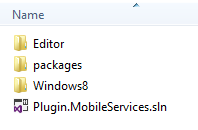
image

First, lets copy the Editor plugin DLL file. Go to the Plugin.MobileServices\Editor\bin\Debug directory:
image

Now, copy the Editor.dll file.

Go to the Unity game project in Windows Explorer and create a new folder called “Plugins” in the Assets folder:
image

Paste the dll file in the Plugins folder:
image

Now, we need to get the real DLL, so go back to the Plugin solution directory and go to the “Plugin.MobileServices\Windows8\bin\Debug” folder:

image

Rename the Windows8.dll file to Editor.dll and copy all the DLL files in this folder.

image

Go to the new Plugins folder in your Unity game using Windows Explorer and create a new folder called Metro:
image

Paste the DLL files in to this Metro folder:

image

Phew!

That’s it! Smilefjes med åpen munn

Now, when we work in the Unity editor, writing scripts and whatever, we can find the functionality in the Editor.dll file located in the Plugins-folder.

When we export our project to Windows Store App, the DLL files in Plugins will be copied, and then replaced (if conflict) by the DLLs in the Metro-folder (overwriting the Editor.dll thats really just the fake Editor.dll with the other Editor.dll (Windows8.dll) ) containing the same functions Smilefjes Smart huh?


Part IV – Adding our score entries to our cloud service

image

Start Unity and open the project we created in part IV of this tutorial series, and open the Game Over scene:

image

Click the Main Camera game object in the scene hierarchy:

image

Now, open the game over controller script by double clicking it from the Main Cameras properties/components list:
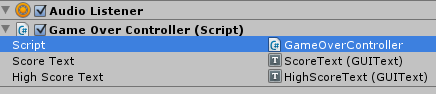
image

The scripts look like this:

using UnityEngine;
using System.Collections;

public class GameOverController : MonoBehaviour {
    float gameOverTimer;

    public GUIText scoreText;
    public GUIText highScoreText;

    void CheckHighscore()
    {
        int _score = PlayerPrefs.GetInt(“CurrentScore”, 0);
        int _highscore = PlayerPrefs.GetInt(“HighScore”, 0);
        if (_score > _highscore)
            PlayerPrefs.SetInt(“HighScore”, _score);
    }

    // Use this for initialization
    void Start () {
        gameOverTimer = 5.0f;
        CheckHighscore();

        scoreText.text = “Score: ” + PlayerPrefs.GetInt(“CurrentScore”, 0);
        highScoreText.text = “Highscore: ” + PlayerPrefs.GetInt(“HighScore”, 0);
    }
   
    // Update is called once per frame
    void Update () {
        gameOverTimer -= Time.deltaTime;
        if(gameOverTimer <= 0.0f)
            Application.LoadLevel(0);
   
    }
}

What we want to do is to modify the CheckHighscore() function so it uploads our own highscore to the cloud (but only if we beat our own – or else it will upload bad scores that wont have any chance anyways):

using UnityEngine;
using System.Collections;

public class GameOverController : MonoBehaviour {
    float gameOverTimer;

    public GUIText scoreText;
    public GUIText highScoreText;
   
Plugin.MobileServices.Connector connector = new Plugin.MobileServices.Connector();

    void CheckHighscore()
    {
        int _score = PlayerPrefs.GetInt(“CurrentScore”, 0);
        int _highscore = PlayerPrefs.GetInt(“HighScore”, 0);
        if (_score > _highscore)
       
{
            PlayerPrefs.SetInt(“HighScore”, _score);
           
connector.Insert(_score);
        }

    }

    // Use this for initialization
    void Start () {
        gameOverTimer = 5.0f;
        CheckHighscore();

        scoreText.text = “Score: ” + PlayerPrefs.GetInt(“CurrentScore”, 0);
        highScoreText.text = “Highscore: ” + PlayerPrefs.GetInt(“HighScore”, 0);
    }
   
    // Update is called once per frame
    void Update () {
        gameOverTimer -= Time.deltaTime;
        if(gameOverTimer <= 0.0f)
            Application.LoadLevel(0);
   
    }
}

When the game is going to the game over scene, it starts with checking if we have a new high score, and if yes – store this in the local PlayerPrefs variable and insert it to the cloud using our own plugin! Smilefjes

Before trying this, we must make sure that the Windows Store App is allowed to connect to the internet. Go to Unity, and then player settings:
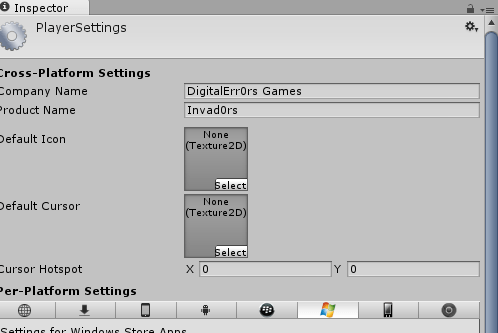
image

Scroll down and check the InternetClient capability:

image

Now, export the game as a Windows Store game and open the solution in Visual Studio 2012:
image

Run the game by pressing the green play icon:
image
(Must be a Windows 8 machine)

Play the game, make a high score and check the cloud services DATA tab:
image

Click it and you can see all the entries:

image

That’s it for sending entries to the cloud! Smilefjes


Part V – Getting the high score from the cloud

image

The last part will use what we know to get the high score from the cloud and to display it in a third text label in Unity.

a) Adding the UI game objects

Let’s fist add the next text label in Unity. Go to the GUI game object in the scene hierarchy and duplicate the high score text game object:
image

Rename it to OnlineLeaderText:
image

Transform the OnlineLeaderText so it’s not on top of the High Score Text:
image

Now, still in the game over controller script, add a new public variable to hold a reference to our GUI item:

using UnityEngine;
using System.Collections;

public class GameOverController : MonoBehaviour {
    float gameOverTimer;

    public GUIText scoreText;
    public GUIText highScoreText;
    public GUIText onlineLeaderText;
    Plugin.MobileServices.Connector connector = new Plugin.MobileServices.Connector();

    void CheckHighscore()
    {
        int _score = PlayerPrefs.GetInt(“CurrentScore”, 0);
        int _highscore = PlayerPrefs.GetInt(“HighScore”, 0);
        if (_score > _highscore)
        {
            PlayerPrefs.SetInt(“HighScore”, _score);
            connector.Insert(_score);
        }
    }

    // Use this for initialization
    void Start () {
        gameOverTimer = 5.0f;
        CheckHighscore();

        scoreText.text = “Score: ” + PlayerPrefs.GetInt(“CurrentScore”, 0);
        highScoreText.text = “Highscore: ” + PlayerPrefs.GetInt(“HighScore”, 0);
    }
   
    // Update is called once per frame
    void Update () {
        gameOverTimer -= Time.deltaTime;
        if(gameOverTimer <= 0.0f)
            Application.LoadLevel(0);
   
    }
}

Now, go back to Unity and drag the GUI Text to the variable on the Main Camera script, and redrag the high score if needed:

image

So it becomes:

image

Now Score, High Score and Online Score is referencing to the correct game objects in our game over scene.

b) Setting the Online UI Text

Time to change more to the script. We want to query the service

and set the text of the Online High Score to the best score integer from our plugin:

using UnityEngine;
using System.Collections;

public class GameOverController : MonoBehaviour {
    float gameOverTimer;

    public GUIText scoreText;
    public GUIText highScoreText;
    public GUIText onlineLeaderText;
    Plugin.MobileServices.Connector connector = new Plugin.MobileServices.Connector();

    void CheckHighscore()
    {
        int _score = PlayerPrefs.GetInt(“CurrentScore”, 0);
        int _highscore = PlayerPrefs.GetInt(“HighScore”, 0);
        if (_score > _highscore)
        {
            PlayerPrefs.SetInt(“HighScore”, _score);
            connector.Insert(_score);
        }
    }

    // Use this for initialization
    void Start () {
        gameOverTimer = 5.0f;
        CheckHighscore();

        connector.GetScore();

        scoreText.text = “Score: ” + PlayerPrefs.GetInt(“CurrentScore”, 0);
        highScoreText.text = “Highscore: ” + PlayerPrefs.GetInt(“HighScore”, 0);
    }
   
    // Update is called once per frame
    void Update () {
        gameOverTimer -= Time.deltaTime;
        if(gameOverTimer <= 0.0f)
            Application.LoadLevel(0);

        onlineLeaderText.text = “Online: ” + connector.BestScore;
   
    }
}

Everything we need to do is to update the online score every frame (since connect.GetScore() is async, so it might take some time untill it is ready), and when the script starts, we check for high score, upload if new, and then download the best score.

c) Changing the Plugin code so it downloads the data

Open the Connector.cs class in the Windows8 project of the Plugin solution and make the following changes:

using System;
using System.Collections.Generic;
using System.Linq;
using System.Text;
using System.Threading.Tasks;
using Microsoft.WindowsAzure.MobileServices;

namespace Plugin.MobileServices
{
    public class Connector
    {
        public static MobileServiceCollection<Leaderboard, Leaderboard> Items = null;

        public static MobileServiceClient MobileService = new MobileServiceClient(
            “
https://spazeblaz0r.azure-mobile.net/”,
            “<your key>”
        );

        public int BestScore = 0;

        public async void Insert(int score)
        {
            Leaderboard entry = new Leaderboard { Score = score};
            await MobileService.GetTable<Leaderboard>().InsertAsync(entry);

        }

        public async void GetScore()
        {
            Items = await MobileService.GetTable<Leaderboard>().ToCollectionAsync();
            if (Items != null)
            {
                if (Items.Count > 0)
                {
                    BestScore = Items[0].Score;
                }
            }
        }
    }

    public class Leaderboard
    {
        public int Id { get; set; }
        public int Score { get; set; }
    }
}

What we are doing here is to add an Items collection that will contain the data we get from the service. Then we set the BestScore integert to equal the Score of the first item we get back from the service. We are going to change the server side script to only send us the best score (less data traffic, less cost from mobile networks Smilefjes som rekker tunge).¨

Right click the Windows8 project, Build it. Copy the new DLL file, and replace the one in the Plugins/Metro folder with this new built dll.

Now, delete the contents of the previously exported Windows Store project and export it again. Run it and see that the entry on the Online UI Text item is set to the first item on our Leaderboard list that exists in the cloud.

Yeah, this is not the best score – it’s the first score ever uploaded to the service..

Let’s fix this!

d) Changing the server side script so it only returns the best score

Go to the DATA tab of your Mobile Service in the Windows Azure portal:
image

Click the table Leaderboard:

image

Now, click the SCRIPTS button on the top menu bar:

Change the drop-down to Read:
image

Modify the script so it looks like this:
function read(query, user, request) {
    query.orderByDescending(‘Score’).take(1);
    request.execute();
}

Click Save and wait for the changes to be saved.

What this code does is to modify how the service are reading items from our table. What we are doing here is to modify the query that came in to the function (it was pretty much blank since we havent sent in anything from the client/game when we asked for the data), so it orders descending on score, and then takes the first item (best score since its ordered by score descending).


This is how it looks in my browser:

image

Since we just modified the server side of the code, we dont need to rebuild or export our solution again. Just press play in Visual Studio to play the Windows 8 game again and see the changes! Smilefjes

And it sure seems a lot better now – just wait for the async operation to finish, might take a second or two Smilefjes

The online score is set to 60:
image

And if we check the high score we can see that the best entry is 60:
image


That is for this tutorial. I know it was a long run, but now that you know it, you can implement Azure services in your own games in less then 10 minutes. Smilefjes


To do for you?

This plugin is very spesific for our purpose, but it wont be too much work to make this general where you can pass in types and classes for our data, and so on.

Also, to make this work for Windows Phone 8, just add a new Windows Phone 8 class library and do the same plugin logic.

Assets and source code

Download tutorial assets and source code: http://sdrv.ms/16B7n4Q

Posted in Cloud, Game programming, Tutorial, Unity, Windows 8, Windows Azure, Windows Phone | 8 Comments