XNA Shader Programming – Tutorial 16, Refraction

XNA Shader Programming
Tutorial 16, Refraction

Welcome to tutorial 16 in the XNA Shader Programming tutorial. Today we are going to learn how to implement refraction. We are going to build on the environment mapping shader we made in tutorial 15, so be sure to understand what’s going on there first! 
 
Source and executable can be found in the end of the tutorial.
 
Refraction
Refraction is the bending of light when light travels from one material into another, based on a change of speed, changeing the light’s direction. The amount of bending is based on the density of the materials( representing how fast the light travels through the material ) and is called "index of refraction". Refraction can be seen in the real world by putting a pen into a glass of water, when swimming, looking on a glass statue, in gems and so on.
 
Every material got an index of refraction, and here is a table of some of them:

Vacuum 1.00000
Air at STP 1.00029
Ice 1.31
Water at 20 C 1.33
Acetone 1.36
Ethyl alcohol 1.36
Sugar solution(30%) 1.38
Fluorite 1.433
Fused quartz 1.46
Glycerine 1.473
Sugar solution (80%) 1.49
Typical crown glass 1.52
Crown glasses 1.52-1.62
 
Snell’s law ( wikipedia ) is a formula used to calculate refraction:
 
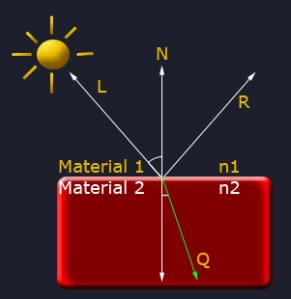
Where n1 and n2 is the index of refraction for each of the two materials, a1 is the angle between L and N, and a2 is the angle between Q and N.
 
                                                           Fig 16.1
 
HLSL got a function named refract, what we will use today. The refract faction applies Snell’s law to compute a refracted vector based on the incomming vector, the normal and the ratio between the two reafraction indices.
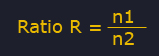
The ratio between n1 and n2 can be computed like this:
 
In our example application, we got light traveling through air and in to glass. If we look at the table, we can see that the index of refraction for air is 1.00029 and for glass, 1.52, resulting in a ratio of 0.66.
 
The refract function will return a vector, that can be used as a lookup vector into our cube mapped environment.
 
Implementing the shader
Let’s start with the vertex shader:
OUT VertexShaderRefract( float4 Pos: POSITION, float2 Tex : TEXCOORD, float3 N: NORMAL )
{
 OUT Out = (OUT) 0;
 Out.Pos = mul(Pos, matWorldViewProj);
 Out.N = normalize(mul(matInverseWorld, N));
 Out.V = vecEye – Pos;
 
 return Out;
}

We need the Normal and the view vector to compute the refraction. We can use the light vector for the refraction as well, but in this case, I wanted to refract the view vector.

 
Next, we write the pixel shader for refraction.
float4 PixelShaderRefract(float2 Tex: TEXCOORD0,float3 L: TEXCOORD1, float3 N: TEXCOORD2, float3 V: TEXCOORD3) : COLOR
{
    float3 ViewDir = normalize(V);
 
    float3 Refract = refract(ViewDir, N, 0.66);
    float3 RefractColor = texCUBE(ReflectionCubeMapSampler, Refract);
 
    // return the color
    return float4(RefractColor,1);
}
 
In the pixel shader, we use refract to get the refraction vector for a material going from air to glass, and put it in a vector named Refract. Then we use Refract to lookup the pixel our view hits after being refracted once.
 
In many cases, you want to just add this functionality into another larger shader, including reflection, colors, bump-mapping and so on. In this tutorial, we are rendering and composing our scene in a post-process shader. We know that the transmittance shader takes a background texture containing the environment surrounding our transmitter, pass it in to our shader and uses this to calculate transmittance, right? Knowing this, we can add the refraction of our transmitter into the background render texture before passing it in to the transmittance shader, making a refraction map.
 
Now, we can use this background texture as the texture that will be displayed behind our transmitted mesh. We could have done this in many other ways, but just to keep things simple and on the point, we did it like this.
 
Also, we need the shaders technique:
technique RefractionMapShader
{
 pass P0
 {
  VertexShader = compile vs_2_0 VertexShaderRefract();
  PixelShader = compile ps_2_0 PixelShaderRefract();
 }
}
 
That’s it for our refraction shader, quite simple ey? If you want to write your own function for refraction, feel free to do so! This gives you full control of your shader, and giving you the ability to refract the different components of RGB differently.
 
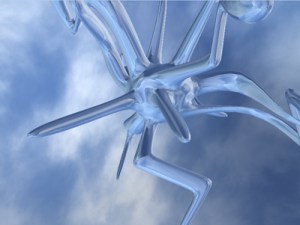
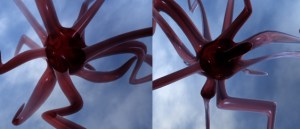
Here is a comparison between our glass objects. One is having reflection/transmittance and the other one is having reflection/transmittance and refraction:
Left: Withour refraction, Right: With refraction.
 
Using the shader
Not much new here. We need to create a rendertarget and texture for our refraction map, and use this texture for our background texture in the transmittance shader.
//////////////////////////////
// render refraction map
graphics.GraphicsDevice.SetRenderTarget(0, RefractionRenderTarget);
graphics.GraphicsDevice.Clear(Color.White);
spriteBatch.Begin(SpriteBlendMode.AlphaBlend, SpriteSortMode.Immediate, SaveStateMode.SaveState);
{
    spriteBatch.Draw(BackGroundRenderTexture, new Rectangle(0, 0, 800, 600), Color.White);
}
spriteBatch.End();
GraphicsDevice.RenderState.CullMode = CullMode.None;
effect.CurrentTechnique = refractMapShader;
DrawScene(true);
graphics.GraphicsDevice.SetRenderTarget(0, null);
RefractionRenderTexture = RefractionRenderTarget.GetTexture();
 
Here we create the refraction map, taking the background texture, adding the refraction and saving it in a new texture named RefractionRenderTexture.
Now, when applying the transmittance post-process shader, we use this texture as the background texture:

effectPost.Parameters["BGScene"].SetValue(RefractionRenderTexture);

NOTE:
You might have noticed that I have not used effect.commitChanges(); in this code. If you are rendering many objects using this shader, you should add this code in the pass.Begin() part so the changed will get affected in the current pass, and not in the next pass. This should be done if you set any shader paramteres inside the pass.

Thats it for refraction! Any feedback is really apprechiated.

Posted in XNA Shader Tutorial | 4 Comments

XNA Shader Programming – Tutorial 15, Dynamic environment mapping

XNA Shader Programming
Tutorial 15, Dynamic environment mapping

Hi and welcome back to my XNA Shader Programming tutorial. Last time we made a transmittance post process shader, making objects look transparent in a more proper way than normal alpha blending. Today we are going to build on Tutorial 13, so if you havent yet done that one, now is the time. But, if you just want to learn dynamic environment mapping using a cube map, here is the place!

Dynamic environment mapping
First of all, what is a dynamic environment map? A dynamic environment map is a texture that represents the environment around a given mesh, and is generated each frame. The texture is a special kind of texture, a cube texture, containing six 2D textures:


                                                               Fig 15.1
As you can see in 15.1, the cube map is a "wrapped up" cube. Each side of the cube represents one picture of the environment. For each side of the cube, we need to set up a camera that looks in the right direction( along the positive X axis, negative X axis, positive Y axis … ), and render the scene from the mesh that will have the envirnoment mapping applied, without the mesh itself! This is because we want to render what will be reflected on the mesh, and not the insides of the mesh.

Once we got the cube map rendered, we can pass this into a shader that will use the environment cube map as a lookup table using a reflection vector. The reflection vector can be created like this ( as we have seen in many of the previous tutorials ):

R = 2 * N.L * N – L


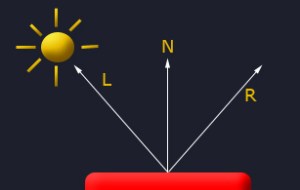
                                                               Fig 15.2
R is the reflection vector, L is the light direction and N is the Normal of the surface the light is reflected on.

Once we have the reflection vector, we can use this as a lookup texture into a cube map. The lookup in a cube map works by passing in a vector. The largest number in the vector will decide what face( one of the six textures ) it will use, and the remaining two components will find what UV coordinate it will pick from the selected face.

In the real world, only 100% reflective objects will reflect all the light. Usually, lights get scattered and refracted inside the mesh, continuing it’s journey inside the mesh untill it finds a way out or is turned in to another for of energy. Today we are going to implement reflection and in the next tutorial I will implement refraction as well.

Implementing the shader
Let’s see how we can implement reflection, using a cube map, in a shader. The shader will need to have the cube texture, and amd calculate the reflection vector. Let’s do this, by first declaring a global cube texture that will be set from the application:
texture ReflectionCubeMap;
samplerCUBE ReflectionCubeMapSampler = sampler_state
{
    texture = <ReflectionCubeMap>;    
};
 
We create a normal texture object, and a samplerCUBE for that texture. the samplerCUBE contains the ability to use a 3D vector as a texture coordinate instead of a 2D vector like we usually use.
 
Now, we got our cube texture, let’s get the reflection vector and use that as a loopup vector in our samplerCUBE.
As you know, we already got the reflection vector in our specular shader, but just to remind you, i’ll post the code:

float Diff = saturate(dot(L, N));

// Calculate reflection vector
float3 Reflect = normalize(2 * Diff * N – L);

Now, we use Reflect to look up a pixel in the cubemap:

float3 ReflectColor = texCUBE(ReflectionCubeMapSampler, Reflect);

Thats it! If you want a 100% reflective object, just return ReflectColor from the pixel shader.
But we want some more, like ambient, diffuse and specular color. It’s the same equation as in tutorial 3, specular mapping, but with the ReflectColor multiplied with ambient, diffuse and specular:

return Color*vAmbient*float4(ReflectColor,1) + Color*vDiffuseColor * Diff*float4(ReflectColor,1) + vSpecularColor * Specular*float4(ReflectColor,1);

Thats if for the environment mapping shader, using cube maps! Not very hard ey’??

Using the shader
To use the shader, we need to generate the cube map texture, render the scene in to it and pass it to the shader.
Luckily for us, XNA got support for Cube maps and have made them really simple to use!
Let’s start by declaring a cube texture and a cube render target. The render target will be used to render our scene, and contains six render targets, one for each face of the cube. Also, we need to copy this, like before, into a texture so we can pass it to the shader.
Let’s start by first declaring two global variables:

RenderTargetCube RefCubeMap;
TextureCube EnvironmentMap;

.. and then initialise them:
RefCubeMap = new RenderTargetCube(this.GraphicsDevice, 256, 1, SurfaceFormat.Color);

The RenderTargetCube function needs the graphics device object, the size of each texture( in this case, 256×256 ), number of levels and the surface format. As the scene is rendered six times pr. frame, we want to set the size of the cube map to as small as possible without loosing visual quality. Also, you only need to set the size of the texture for one of the sides, as the cube texture MUST be a square ( …, 64×64, 128×128, 256×256 … ).

Next, we need to pass the texture to our shader:
effect.Parameters["ReflectionCubeMap"].SetValue(EnvironmentMap);

and finally, render the scene into the different sides of the cube render target, and copy these from the render target and into our environment texture, EnvironmentMap.
for (int i = 0; i < 6; i++)
{
    // render the scene to all cubemap faces
    CubeMapFace cubeMapFace = (CubeMapFace)i;

    switch (cubeMapFace)
    {
        case CubeMapFace.NegativeX:
            {
                viewMatrix = Matrix.CreateLookAt(Vector3.Zero, Vector3.Left, Vector3.Up);
                break;
            }
        case CubeMapFace.NegativeY:
            {
                viewMatrix = Matrix.CreateLookAt(Vector3.Zero, Vector3.Down, Vector3.Forward);
                break;
            }
        case CubeMapFace.NegativeZ:
            {
                viewMatrix = Matrix.CreateLookAt(Vector3.Zero, Vector3.Backward, Vector3.Up);
                break;
            }
        case CubeMapFace.PositiveX:
            {
                viewMatrix = Matrix.CreateLookAt(Vector3.Zero, Vector3.Right, Vector3.Up);
                break;
            }
        case CubeMapFace.PositiveY:
            {
                viewMatrix = Matrix.CreateLookAt(Vector3.Zero, Vector3.Up, Vector3.Backward);
                break;
            }
        case CubeMapFace.PositiveZ:
            {
                viewMatrix = Matrix.CreateLookAt(Vector3.Zero, Vector3.Forward, Vector3.Up);
                break;
            }
    }

    effect.Parameters["matWorldViewProj"].SetValue(worldMatrix * viewMatrix * projMatrix);

    // Set the cubemap render target, using the selected face
    this.GraphicsDevice.SetRenderTarget(0, RefCubeMap, cubeMapFace);
    this.GraphicsDevice.Clear(Color.White);
    this.DrawScene(false);
}
graphics.GraphicsDevice.SetRenderTarget(0, null);
this.EnvironmentMap = RefCubeMap.GetTexture();

The first thing we are doing is to make a loop, iterating through all of the six faces in the cube map ( See Fig 15.1 to see what face belongs to what number in the loop ). The face is stored in a CubeMapFace variable, that can containg a number [0,5].

Now, as we know what face we are currently on, we must set up the camera properly, making it look in the right direction before rendering the scene. We simply use the build in XNA function Matrix.CreateLookAt(Position, Target, Up). We know that the object is located at 0.0, and therefore can use the Vector.Up, Vector.Down++ to set the target so the camera is pointing the correct way.

Once this is done, we can render the scene. Notice that we have a boolean variable in our custom draw method. This indicates if we are drawing the transmitter or the environmen. In the case of rendering the environment, we don’t want to render the transmitter, but the environment around the transmitter. In the draw loop, i simply have a if statement that renders the transmitter if we pass true to our draw function, and the environment if we pass false to it.

Once we have rendered all six faces, we can restore the normal render target, and copy the cubemap we just generated into a texture.

That’s it for this tutorial, hope you found this usefull, and any feedback is apprechiated!

NOTE:
You might have noticed that I have not used effect.commitChanges(); in this code. If you are rendering many objects using this shader, you should add this code in the pass.Begin() part so the changed will get affected in the current pass, and not in the next pass. This should be done if you set any shader paramteres inside the pass.

YouTube – XNA Shader programming, Tutorial 15 – Dynamic environment mapping
  

Download: Executable + Source

Posted in XNA Shader Tutorial | 10 Comments

XNA Shader Programming – Tutorial 14, Transmittance

XNA Shader Programming
Tutorial 14 – Transmittance


Welcome to the 14th tutorial in the XNA Shader Programming tutorial. Last time, we looked at using alpha maps and the alpha channel to make objects look transparent. Today we are going to dive a bit deeper in transparency, by implementing transmittance.

Transmittance
Things like glass, water, crystal, gass, air++ are things that absorb light as light-rays pass through them. In tutorial 13, we used alpha maps to make things look transparent and could create a transparent glass ball by just creating an alphamap with the color RGB(0.5,0.5,0.5) and we got ourself a transparent glassball. This approach works well in many cases, but it makes the transparency quite flat.

Objects in the real world, say a glass sphere, absorb/scatters light as the light-rays pass trough them. The longer the rays are inside the glass-ball, the more light will be scattered and absorbed before comming out. This is called Transmittance( wikipedia ).

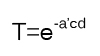
To calculate the transmittance( T ), we can use Beer-Lamberts law ( wikipedia ) on the light-rays that pass trough the transmitter. Lets take a look at Beer-Lamberts law, and understand what we need calculate!

Beer-Lamberts law:
[1]
where T is the transmittance, a’ is the absorbtion factor, c is the consistensy of the absorbing object and d is the thickness of the object.
So, in order to use this, we need to find a’, c and d.

Let’s start with c. c controls how much light is absorbed when traveling through the transmitter. This value can just be set to any user spesific number above 0.0.

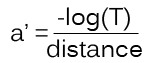
Next is a’. We see a’ in [1], and can use that to find a’:
[2]
There T is the darkest transmitting color, and that is reached at distance.

Finally, we got the c-variable. This variable is set to the thickness of the object, at a given point, and probably is the hardest part to get right.

In this tutorial, we are calculating c quite correct for any non-complex objects( those that does not contain any holes or "arms" sticking out, like a sphere, simple glass figures and so on). The object used in this shader is a complex one, because we are going to get it right in a later tutorial, but let’s start simple!

Now that we got all variables needed to calculate T at a given point, we can use this to see how much light is absorbed. This is done by multiplying the color of the light-ray( pixel behind the transmitter ) with T!

So, how do we calculate the distance each light-ray is traveling through the transmitter? By using the depth buffer( wikipedia )!
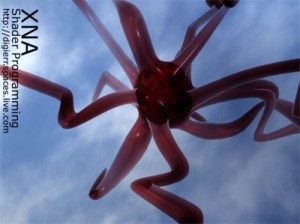
The Depth buffer( Z-Buffer ) can be thought of as a grayscale image containing the scene is black and white, where the grayscale value indicates how far away an object is from the camera. So, if you take a look at the image on top of the article, we see a complex glass object. The scenes depth buffer looks something like this:
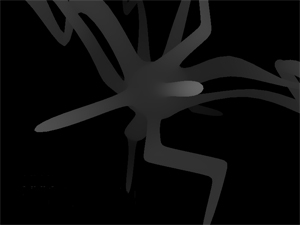
The depth buffer needs to have correct values in the Near and Far clipping plane of the projection matrix. Preferably having Near at the closest( to the view/camera) vertex of the transmitter, and Far at the most distance vertex of the transmitter.

 
So, knowing this, we can find the thickness of the transmitter from any angle of it, by using two depth buffer textures. By using culling, we can render the front faces of the transmitting object in one depth texture, and the backfaces of the transmitter into another depth texture. Taking the difference in these two gives us the distance on every pixel:


Backfaces in one depth texture.


Frontfaces in another depth texture
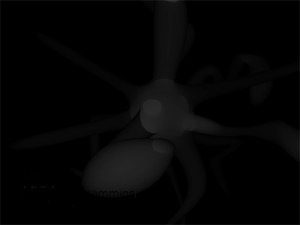

Giving us a texture that can look like this. The grayscale value indicates how far a light-ray have to travel to get through the transmitter. White is far, and black is short/nothing.

We are going to look at how to get the depth buffer and render it to a texture in the "Using the shader" section of the tutorial, but first, let’s see how to implement the shaders.

 
Implementing the Shader
In this tutorial, we got three techniques. One is just rendering the object with specular light( as seen in tutorial 3 ), the other one is rendering the scene to a depth texture, and the last shader is the post process shader that will add transmittance to the objects.

We don’t want ALL objects rendered in a scene to defined as a transmitter. As this is a post process shader, we can first render the scene without the transmitters into one texture( a background texture ), and then render the transmitters alone in a 2nd pass, and then combining these in the post process shader.
Given this information, let’s start with the specular light shader:
float4x4 matWorldViewProj;
float4x4 matInverseWorld;
float4  vLightDirection;
float4  vecLightDir;
float4  vecEye;
float4  vDiffuseColor;
float4  vSpecularColor;
float4  vAmbient;
texture ColorMap;
sampler ColorMapSampler = sampler_state
{
   Texture = <ColorMap>;
   MinFilter = Linear;
   MagFilter = Linear;
   MipFilter = Linear;  
   AddressU  = Clamp;
   AddressV  = Clamp;
};
struct OUT
{
 float4 Pos : POSITION;
 float2 Tex : TEXCOORD0;
 float3 L : TEXCOORD1;
 float3 N : TEXCOORD2;
 float3 V : TEXCOORD3;
};
 
OUT VertexShader( float4 Pos: POSITION, float2 Tex : TEXCOORD, float3 N: NORMAL )
{
 OUT Out = (OUT) 0;
 Out.Pos = mul(Pos, matWorldViewProj);
 Out.Tex = Tex;
 Out.L = normalize(vLightDirection);
 Out.N = normalize(mul(matInverseWorld, N));
 Out.V = vecEye – Pos;
 
 return Out;
}
float4 PixelShader(float2 Tex: TEXCOORD0,float3 L: TEXCOORD1, float3 N: TEXCOORD2, float3 V: TEXCOORD3) : COLOR
{
    float3 ViewDir = normalize(V); 
 
    // Calculate normal diffuse light.
    float4 Color = tex2D(ColorMapSampler, Tex); 
    float Diff = saturate(dot(L, N));
    float3 Reflect = normalize(2 * Diff * N – L); 
    float Specular = pow(saturate(dot(Reflect, ViewDir)), 128); // R.V^n
 
    // I = A + Dcolor * Dintensity * N.L + Scolor * Sintensity * (R.V)n
    return Color*vAmbient + Color*vDiffuseColor * Diff + vSpecularColor * Specular;
}
 
technique EnvironmentShader
{
 pass P0
 {
  VertexShader = compile vs_2_0 VertexShader();
  PixelShader = compile ps_2_0 PixelShader();
 }
}
 
This shader is just a specular light shader, quite similar to the one we made in Tutorial 3 ( using the exact same lighting-algoritm ) so if this is new, you can see the explanation of this there.
 
Let’s continue with our Depth Texture shader. This shader will only render the scene in grayscale, where the depth of each vertex/pixel is represented with a value between 0.0 and 1.0, where 1.0 is near the camera and 0.0 is at the far-plane of our shader( Pos.w ).
 
So, to get the depth vertex, we simply take the Z-value of the given vertex, and devide it with it’s W-value to make it range between the Near and Far clipping plane of our projection matrix.
 
The vertex-shader will calculate two values: position and distance
struct OUT_DEPTH
{
     float4 Position : POSITION;
     float Distance : TEXCOORD0;
};
 
Knowing this, we are ready to implement the Depth texture vertex shader:
OUT_DEPTH RenderDepthMapVS(float4 vPos: POSITION)
{
    OUT_DEPTH Out;
    // Translate the vertex using matWorldViewProj.
    Out.Position = mul(vPos, matWorldViewProj);
   

    // Get the distance of the vertex between near and far clipping plane in matWorldViewProj.


    Out.Distance.x = 1-(Out.Position.z/Out.Position.w); 
 
    return Out;
}

First, we translate our vertex correctly to our world*view*projection matrix. Then we set the distance value to the correct depth-value. This is done by using the Position.z / Position.w, giving us the depth between the projections Near and Far plane.
 
Now, it’s the pixel shaders turn to show her magic! Oh, well, there ain’t much magic in there. All we got left is to convert the Distance-value in OUT_DEPTH to a texture, so we can use this later:
float4 RenderDepthMapPS( OUT_DEPTH In ) : COLOR
{
    return float4(In.Distance.x,0,0,1);
}
 
And the technique:
technique DepthMapShader
{
     pass P0
     {
        ZEnable = TRUE;
        ZWriteEnable = TRUE;
        AlphaBlendEnable = FALSE;
  
        VertexShader = compile vs_2_0 RenderDepthMapVS();
        PixelShader  = compile ps_2_0 RenderDepthMapPS();
 
     }
}
 
Nothing new here, we just have to make sure we got the Z buffer enabled, and have it writeable.
 
And now, the shader this tutorial is really about, the transmittance post process shader!
First of all, we need the Background scene texture, the transmitting objects scene( the texture contianing all of the objects that will be transmitters ) and the two depth buffer textures!
texture D1M;
sampler D1MSampler = sampler_state
{
   Texture = <D1M>;
   MinFilter = Linear;
   MagFilter = Linear;
   MipFilter = Linear;  
   AddressU  = Clamp;
   AddressV  = Clamp;
};
texture D2M;
sampler D2MSampler = sampler_state
{
   Texture = <D2M>;
   MinFilter = Linear;
   MagFilter = Linear;
   MipFilter = Linear;  
   AddressU  = Clamp;
   AddressV  = Clamp;
};
texture BGScene;
sampler BGSceneSampler = sampler_state
{
   Texture = <BGScene>;
   MinFilter = Linear;
   MagFilter = Linear;
   MipFilter = Linear;  
   AddressU  = Clamp;
   AddressV  = Clamp;
};
texture Scene;
sampler SceneSampler = sampler_state
{
   Texture = <Scene>;
   MinFilter = Linear;
   MagFilter = Linear;
   MipFilter = Linear;  
   AddressU  = Clamp;
   AddressV  = Clamp;
};
 
DM1 is the first depth map texture, containing our transmitters back-faces. DM2 is the 2nd depth map texture, containing our transmitters front-faces, BGScene is containing our background scene, and Scene contains our transmitters scene/color.
 
Then, we need to add two variables. One will contain the distance factor used to calculate the absorbtion factor, and the other one will contain the consistency of the transmitter:
float Du = 1.0f;
float C = 12.0f;
 
As this is a post process shader, we won’t need a vertex shader. Let’s start on the pixel shader:
float4 PixelShader(float2 Tex: TEXCOORD0) : COLOR
{
 float4 Color=tex2D(SceneSampler, Tex);
 float4 BGColor=tex2D(BGSceneSampler, Tex);
 float depth1=tex2D(D1MSampler, Tex).r;
 float depth2=tex2D(D2MSampler, Tex).r;

Nothing new here, we are getting the pixels from different textures. depth1 and depth2 contains the r-channel the depth texture shader returned.
Let’s take a look at the formula for transmittance again and see what variables we need to get:
 
 
So far, we only got the c-variable and the distance-variable. Let’s go and get the rest, shall we? 😉
The d-variable, that will contain the thickness of the transmitter object, can easly be calculated using depth1 and depth2:
float distance = ((depth2-depth1));
 
Here we take the difference in depth2 and depth1, resulting in the objects thickness!
 
The T-variable used to find the absorbtion fact at the max in [2], contains the darkest color. This could be a color hardcoded in, or sent to the shader as a parameter. In this tutorial, we are using the value found in Color( the transmitter objects, rendered to a texture ). This gives us the last variable we need to calculate the absorbtion factor a’:
float3 a;
a.r = (-log(Color.r))/Du;
a.g = (-log(Color.g))/Du;
a.b = (-log(Color.b))/Du;
 
This gives us the last variable needed to calculate out transmittance!
float4 T;
T.r = exp((-a.r)*C*distance)+0.000001;
T.g = exp((-a.g)*C*distance)+0.000001;
T.b = exp((-a.b)*C*distance)+0.000001;
T.w = 1;
 
We calculate the transmittance value on each color-channel, using [1]. To avoid the T value of 0( making the object completly black ), we add 0.000001 to each channel.
Once this is done, we can take the pixels that exists behind the transmitter( the light-rays traveling through the transmitter ) and multiply it with T. As this is what we want with this shader, we return it from the pixel shader:
return T*BGColor;
 
And finally, the technique:
technique PostProcess
{
    pass P0
    {
        // A post process shader only needs a pixel shader.
        PixelShader = compile ps_2_0 PixelShader();
    }
}
 
Phew, what a shader. It’s not a very complex shader, but it’s probably more advanced than any of the other shaders in my shader tutorial this far. So, in other words, if you don’t understand it all, play around with parameters and the math, to see how each variable works. 🙂
 
The whole shader look like this:
// Global variables
float Du = 1.0f;
float C = 12.0f;
// This will use the texture bound to the object( like from the sprite batch ).
sampler ColorMapSampler : register(s0);
texture D1M;
sampler D1MSampler = sampler_state
{
   Texture = <D1M>;
   MinFilter = Linear;
   MagFilter = Linear;
   MipFilter = Linear;  
   AddressU  = Clamp;
   AddressV  = Clamp;
};
texture D2M;
sampler D2MSampler = sampler_state
{
   Texture = <D2M>;
   MinFilter = Linear;
   MagFilter = Linear;
   MipFilter = Linear;  
   AddressU  = Clamp;
   AddressV  = Clamp;
};
texture BGScene;
sampler BGSceneSampler = sampler_state
{
   Texture = <BGScene>;
   MinFilter = Linear;
   MagFilter = Linear;
   MipFilter = Linear;  
   AddressU  = Clamp;
   AddressV  = Clamp;
};
texture Scene;
sampler SceneSampler = sampler_state
{
   Texture = <Scene>;
   MinFilter = Linear;
   MagFilter = Linear;
   MipFilter = Linear;  
   AddressU  = Clamp;
   AddressV  = Clamp;
};
// Transmittance
float4 PixelShader(float2 Tex: TEXCOORD0) : COLOR
{
    float4 Color=tex2D(SceneSampler, Tex);
    float4 BGColor=tex2D(BGSceneSampler, Tex);
    float depth1=tex2D(D1MSampler, Tex).r;
    float depth2=tex2D(D2MSampler, Tex).r;
    float distance = ((depth2-depth1));
 
    float3 a;
    a.r = (-log(Color.r))/Du;
    a.g = (-log(Color.g))/Du;
    a.b = (-log(Color.b))/Du;
 
    float4 T;
    T.r = exp((-a.r)*C*distance)+0.000001;
    T.g = exp((-a.g)*C*distance)+0.000001;
    T.b = exp((-a.b)*C*distance)+0.000001;
    T.w = 1;
    return T*BGColor;
}
technique PostProcess
{
 pass P0
 {
  // A post process shader only needs a pixel shader.
  PixelShader = compile ps_2_0 PixelShader();
 }
}
 
Using the shader
Finally, let us see how we can use the shader from code, and how to set up the depth buffers.
Lets start by defining our render targets and render textures:
 
RenderTarget2D depthRT;
DepthStencilBuffer depthSB;
RenderTarget2D depthRT2;
DepthStencilBuffer depthSB2;
 
Texture2D depth1Texture;
Texture2D depth2Texture;
 
We got two render targets, two stencil buffers and two textures that will contain our depth texture. We could use just one depth stencil buffer it we wanted but for simplicity, i’ll do the same thing on both.
 
Also, in this shader, we are going to set the technique we want to enable in a shader using variables:
EffectTechnique environmentShader;
EffectTechnique depthMapShader;
 
Also, we need to set the distance factore used to calculate the absorbtion, and the consitency of our trasmitter:
float Du = 1.0f;
float C = 12.0f;
 
Now we are ready to start making the scene and using the shader. In LoadContent, we need to initate and create our render targets:
// Create our render targets
PresentationParameters pp = graphics.GraphicsDevice.PresentationParameters;
renderTarget = new RenderTarget2D(graphics.GraphicsDevice, pp.BackBufferWidth, pp.BackBufferHeight, 1, graphics.GraphicsDevice.DisplayMode.Format);
depthRT = new RenderTarget2D(graphics.GraphicsDevice, pp.BackBufferWidth, pp.BackBufferHeight, 1, SurfaceFormat.Single); // 32-bit float format using 32 bits for the red channel.
depthRT2 = new RenderTarget2D(graphics.GraphicsDevice, pp.BackBufferWidth, pp.BackBufferHeight, 1, SurfaceFormat.Single); // 32-bit float format using 32 bits for
the red channel.
 
We also need to get our DepthStencilBuffers:
depthSB = CreateDepthStencil(depthRT, DepthFormat.Depth24Stencil8);
depthSB2 = CreateDepthStencil(depthRT2, DepthFormat.Depth24Stencil8);
 
This creates two DepthStencilBuffers using our depth render targets and setting the depth format to Depth24Stencil8, witch sets our DepthBuffer-channel to 24bit and our stencil buffer channel to 8-bit. Here is a list of the different values we can set our DepthFormat to:
Depth15Stencil1 A 16-bit depth-buffer bit depth in which 15 bits are reserved for the depth channel and 1 bit is reserved for the stencil channel.
Depth16 A 16-bit depth-buffer bit depth.
Depth24 A 32-bit depth-buffer bit depth that uses 24 bits for the depth channel.
Depth24Stencil4 A 32-bit depth-buffer bit depth that uses 24 bits for the depth channel and 4 bits for the stencil channel.
Depth24Stencil8 A non-lockable format that contains 24 bits of depth (in a 24-bit floating-point format − 20E4) and 8 bits of stencil.
Depth24Stencil8Single A 32-bit depth-buffer bit depth that uses 24 bits for the depth channel and 8 bits for the stencil channel.
Depth32 a 32-bit depth-buffer bit depth.
Unknown Format is unknown.
 
We use two custom functions to create our depth buffers. CreateDepthStencil(RenderTarget2D target) creates the DepthStencilBuffer using the rendertarget passed in to it:
private DepthStencilBuffer CreateDepthStencil(RenderTarget2D target)
{
    return new DepthStencilBuffer(target.GraphicsDevice, target.Width,
        target.Height, target.GraphicsDevice.DepthStencilBuffer.Format,
        target.MultiSampleType, target.MultiSampleQuality);
}
 
And the 2nd one checks the computers support and uses CreateDepthStencil(RenderTarget2D target) to create the DepthStencilBuffer:
private DepthStencilBuffer CreateDepthStencil(RenderTarget2D target, DepthFormat depth)
{
    if (GraphicsAdapter.DefaultAdapter.CheckDepthStencilMatch(DeviceType.Hardware,
       GraphicsAdapter.DefaultAdapter.CurrentDisplayMode.Format, target.Format,
        depth))
    {
        return new DepthStencilBuffer(target.GraphicsDevice, target.Width,
            target.Height, depth, target.MultiSampleType, target.MultiSampleQuality);
    }
    else
        return CreateDepthStencil(target);
}
 
 
Next we need to get our techniques from our shaders and put them in their variables:
// Get our techniques and store them in variables.
environmentShader = effect.Techniques["EnvironmentShader"];
depthMapShader = effect.Techniques["DepthMapShader"];
 
I also moved the rendering of the scene into a function, as I need to render the scene mulitple times each frame:
void DrawScene(bool transmittance)
{
    // Begin our effect
    effect.Begin(SaveStateMode.SaveState);
    // A shader can have multiple passes, be sure to loop trough each of them.
    foreach (EffectPass pass in effect.CurrentTechnique.Passes)
    {
        // Begin current pass
        pass.Begin();
        foreach (ModelMesh mesh in m_Model.Meshes)
        {
            foreach (ModelMeshPart part in mesh.MeshParts)
            {
                // calculate our worldMatrix..
                worldMatrix = bones[mesh.ParentBone.Index] * renderMatrix;
                // Render our meshpart
                graphics.GraphicsDevice.Vertices[0].SetSource(mesh.VertexBuffer, part.StreamOffset, part.VertexStride);
                graphics.GraphicsDevice.Indices = mesh.IndexBuffer;
                graphics.GraphicsDevice.DrawIndexedPrimitives(PrimitiveType.TriangleList,
                                                              part.BaseVertex, 0, part.NumVertices,
                                                              part.StartIndex, part.PrimitiveCount);
            }
        }
        // Stop current pass
        pass.End();
    }
    // Stop using this effect
    effect.End();
}
 
 
Nothing new here, we draw our tranmitter using a specular lighting shader( EnvironementShader ), and the depth buffer shader( DepthMapShader ) to make the depth buffers:
// create depth-map 1
effect.CurrentTechnique = depthMapShader;
GraphicsDevice.RenderState.CullMode = CullMode.CullClockwiseFace;
depth1Texture = RenderDepthMap(depthSB,depthRT);
// create depth-map 2
effect.CurrentTechnique = depthMapShader;
GraphicsDevice.RenderState.CullMode = CullMode.CullCounterClockwiseFace;
depth2Texture = RenderDepthMap(depthSB2, depthRT2);
 
// render our trasmitting objects
graphics.GraphicsDevice.SetRenderTarget(0, renderTarget);
graphics.GraphicsDevice.Clear(Color.White);
effect.CurrentTechnique = environmentShader;
DrawScene(true);
graphics.GraphicsDevice.SetRenderTarget(0, null);
SceneTexture = renderTarget.GetTexture();
 
Now, we got all our textures containing what we want, and ready to go through our post process transmittance shader. In this tutorial, I only use a texture for the background scene, but this could be a rendertexture as well.
As you probably noticed, we use a custom function to render our DepthMaps. This function is simply just a function that sets the render target to the one we pass in to it, renders the scene, restores the old render target state and returns the DepthBuffer as a texture:
private Texture2D RenderDepthMap(DepthStencilBuffer dsb, RenderTarget2D rt2D)
{
    GraphicsDevice.RenderState.DepthBufferFunction = CompareFunction.LessEqual;
    GraphicsDevice.SetRenderTarget(0, rt2D);
 
   // Save our DepthStencilBuffer, so we can restore it later
    DepthStencilBuffer saveSB = GraphicsDevice.DepthStencilBuffer;
    GraphicsDevice.DepthStencilBuffer = dsb;
    GraphicsDevice.Clear(Color.Black);
 
    DrawScene(true);
 
    // restore old depth stencil buffer
    GraphicsDevice.SetRenderTarget(0, null);
    GraphicsDevice.DepthStencilBuffer = saveSB;
 
    return rt2D.GetTexture();
}
 
Finally, we got what we need to compose our final scene using the transmittance shader:
spriteBatch.Begin(SpriteBlendMode.None, SpriteSortMode.Immediate, SaveStateMode.SaveState);
{
    // Apply the post process shader
    effectPost.Begin();
    {
        effectPost.CurrentTechnique.Passes[0].Begin();
        {
            effectPost.Parameters["D1M"].SetValue(depth1Texture);
            effectPost.Parameters["D2M"].SetValue(depth2Texture);
            effectPost.Parameters["BGScene"].SetValue(m_BGScene);
            effectPost.Parameters["Scene"].SetValue(SceneTexture);
            effectPost.Parameters["Du"].SetValue(Du);
            effectPost.Parameters["C"].SetValue(C);
            spriteBatch.Draw(SceneTexture, new Rectangle(0, 0, 800, 600), Color.White);
            effectPost.CurrentTechnique.Passes[0].End();
        }
    }
    effectPost.End();
}
spriteBatch.End();
 
 
Not much here, we set the shaders parameters, and render the scene with the shader enabled.
 
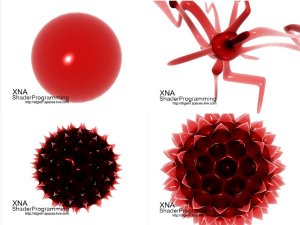
Here are a few other transmitters rendered with this shader:
NOTE:
You might have noticed that I have not used effect.commitChanges(); in this code. If you are rendering many objects using this shader, you should add this code in the pass.Begin() part so the changed will get affected in the current pass, and not in the next pass. This should be done if you set any shader paramteres inside the pass.
Thats if for now. In the next tutorial we will add reflection to the transmitter.
Any feedback is very welcome!


Other ways of doing this
 
1: As very simple solution to the depth buffer issue, Martin Evans have supplied me a source code that uses 4 depth render targets to get the depth.
The soruce code is based on this tutorial but addes this feature.
As I promised you, I will write a tutorial that covers this in depth, but this gives you an idea on how to solve it.

Basically, what he is doing, is to first render the two depth buffers as I do it in this tutorial( Using CompareFunction.LessEqual ), but in addition, Martin is making two new depth render targets, but instead of LessEqual, he uses GreaterEqual to calculate a new distance( from behind ) and adding this to the objects depth.
The source can be found here: Executable + Source

 
2: Matthew Vitelli provided me with another approach to this technique.
What he is doing is to compute the transmission specially for each object. This would allow you to have specialized Du and C components for each object and also reduces the memory usage on the GPU, as well as the pixel overdraw which comes from computing transmission as a fullscreen quad. He has modified the 2-layer transmission approach to include these features. Now, only three render-targets are created in total (1 for near-back face depth, the other 2 for far depth) and each are of half-single (16-bit) precision. The position reconstruction technique works excellently with this. Also, the benefit of doing transmission outside of a post-process lets you have specialized parameters for each object.
Matthew Vitellis technice can be found here: Executable + Source
 
Thanks to both of you for adding this!

Posted in XNA Shader Tutorial | 7 Comments

xblcg.info

If you play any games from XBox Live Community Games, you should take a look at this page!
 
 
This site contains information about XBLX and the games in there, so go there and start browsing for you favorite XBLC games 😉
Posted in XNA | Leave a comment

Transmittance Part IV

Ok, more updates on my transmittance shader!
 
I updated the transmittance app where I fixed some more on my shader, fixed the sync issue between the two depthmaps, and added a specular light.
The result can be seen below:
 
Left: without any light, Right: With light( ambient, diffuse and specular from tutorial 1,2 and 3 )
 
Stay tuned for more updates soon!
 
Posted in Graphics | Leave a comment

Transmittance Part III

Ok, I got a little bit longer this morning, and got the Beer-Lamberts law function correctly implemented, and it looked a LOT better when it worked correctly. I had some issues with distance and how the absorbtion was calculated, but finally its working.
 
I’m still just using the depth buffer to get the distance, using two textures.. I need to render to more depth buffers of the object gets complex( like the spikeball ), and use all of them to get the correct distance. I will post more on this later, but first I want to get the transmittance algorithm working correctly ( Depth peeling ).
 
I decided that I want to devide the transmittance tutorial into three parts. One for the transmittance, one for reflection on our object and one for refraction. I think I will have the first one ready by today or tomorrow so if you think this is interesting, get ready to get some code to play around with! 🙂
 
Anyway, here is todays result, and don’t mind the artifacts on the spikeball and abstract model:
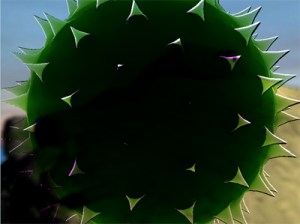
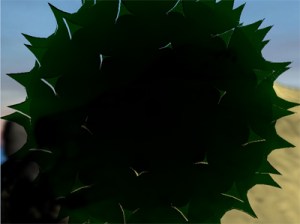
Spikeball got some depth buffer artifacts, and a problem because the depthbuffers aint overlapping 100 correct. I need to find out whats wrong..
Also, Depth-peeling can be used to get a good result on the distance the rays are traveling inside the object.
Sphere is correct at the moment.
 
This is a complex mesh and you can clearly see the depth buffer problem.
 
Looks much better, but still having the depth buffer problem.
Posted in Graphics | 2 Comments

Transmittance Part II

Ok, I started making the Transmittance shader, and this is how far I got:
 

Here we can see a green glass ball absorbing the pixels behind it, and before the rays hit our eyes( camera ) the color is absorbed based on how long/far it travels trough the sphere.

This effect is mostly a post process effect, where I use two depth maps to find out how thick the object is. This is done by first rendering the sphere’s backfaces into one depth buffer, and then rendering the spheres frontbuffer into another buffer; taking the difference of these two textures will give me the thickness of the object.

If you take a look at the spikeball, it contains some artifacts. This is because of the way I find the depth of the object. There are many ways of getting these look better and I will get back to this later! 😉

Then, I use Beer-Lambert’s law to compute the amount of light absortion:
Transmittance =exp(-absotrion*concentration*distance), where the absortion = -log(Transmittance)/distance.

I will post more updates on this as I’m making progress, and give out the source code/executable.
The application is written using DirectX10 right now, but it will be a trivial task to convert it to XNA once it’s done.

Posted in Technology | 1 Comment

XNA Shader Programming – Tutorial 13, Alpha mapping

XNA Shader Programming
Tutorial 13 – Alpha mapping
Welcome to another tutorial in the XNA Shader Programming series. Today we are going to look at a simple, but important shader: The Alpha map!
The Alpha map is very usefull when you want to render a 3D object where some parts are transparent and other parts are solid. This could be a window with some cracks on it, making the cracks solid and the rest transparent! There are many other places you can use alpha maps, like thin/thick ice, skin, flowers, insect wings, and wherever you want to mix solid and transparent part!

Executable + Source can be downloaded from the end of the tutorial


Alpha Mapping
The general idea is to introduce an other texture we can use in our shaders, the alpha map. This texture will be a grayscale texture, where the black parts means the object is fully transparent, a shade of gray means its a mid thing of transparent and solid, and white means it will be 100% solid.
You can think of the grayscale texture as a texture that contains how solid an object is, stored as a grayscale color that represents a percent. A color of 0.0( Black ) means its 0% solid. A color of 0.5( gray ) means its 50% solid, and 1.0( white ) means its 100% solid.
 
So our shader can contain two textures: the ColorMap that represents the objects color, and a AlphaMap that represents the objects opacity.
 
 
Implementing the Shader
In this tutorial, im just using the Diffuse Shader, and making that shader support Alpha Mapping. This could be any shader you want so feel free to implement this in your own shaders!
 
First of all, the shaders need two textures:
  • Color Map
  • Alpha Map

Let us start by adding these to the shader:
texture ColorMap;
sampler ColorMapSampler = sampler_state
{
   Texture = <ColorMap>;
   MinFilter = Linear;
   MagFilter = Linear;
   MipFilter = Linear;  
   AddressU  = Mirror;
   AddressV  = Mirror;
};

texture AlphaMap;
sampler AlphaMapSampler = sampler_state
{
   Texture = <AlphaMap>;
   MinFilter = Linear;
   MagFilter = Linear;
   MipFilter = Linear;  
   AddressU  = Mirror;
   AddressV  = Mirror;
};

Now we got our textures. Then we need to set the alpha channel of the color we return to the value stored in the Alpha map. This is done in the Pixel Shader:
Color = (Ai*Ac*Color)+(Color*Di*Dd);
Color.a = tex2D(AlphaMapSampler, Tex).r;
 
return Color;

Here we calculate the diffuse color as we usually do, and put it in color.
After this, we go in to the Colors .a component, that is the Colors alpha channel, and set it to the value stored in the alpha map. All color-channels in the alpha map are the same( because its a grayscale texture ), so it does not matter if you use the r,g or b channel. I’m just using the .r channel in this example.

Our technique for todays lesson looks like this:
technique DiffuseShader
{
 pass P0
 {
  AlphaBlendEnable = True;
  SrcBlend = SrcAlpha;
  DestBlend = InvSrcAlpha;
  
  Sampler[0] = (ColorMapSampler);
  Sampler[1] = (AlphaMapSampler); 
  
  VertexShader = compile vs_2_0 VertexShader();
  PixelShader = compile ps_2_0 PixelShader();
 }
}

As you can see, we set AlphaBlendEnable to true, and use det SrcAlpha/InvSrcAlpha as the blending function. This means that we use the alphachannel to make things transparent.

Using the shader
Nothing new on how to use the shader. We just got to remember to pass the color and alpha textures to the shader.

I have also added an overlay texture named m_Overlay. This is used to render the overlay in front of the whole screen, using the alpha values found in a .PNG file. These alpha values can be set by using Photoshop or many other picture editor programs.

spriteBatch.Begin(SpriteBlendMode.AlphaBlend, SpriteSortMode.Immediate, SaveStateMode.SaveState);
{
 spriteBatch.Draw(m_Overlay, new Rectangle(0, 0, 800, 600), Color.White);
}
spriteBatch.End();

NOTE:
You might have noticed that I have not used effect.commitChanges(); in this code. If you are rendering many objects using this shader, you should add this code in the pass.Begin() part so the changed will get affected in the current pass, and not in the next pass. This should be done if you set any shader paramteres inside the pass.

YouTube – XNA Shader programming, Tutorial 13 – Alpha mapping
  

Posted in XNA Shader Tutorial | 9 Comments

Transmittance

I had a request on writing a tutorial about Alpha maps using shaders, and this tutorial will be written tomorrow. But after yesterdays workshop, I had some thoughts about transparent objects, reflection and refraction.
 
We usually code a transparent object the following way: Set the color of the object to a desired color, and use blending/aplha to make the pixels located behind the object( relative to the camera ) get the color of the blended object + it’s normal pixel color. This works well in many cases, but what if I have a glassball I want to make transparent?
I could just make the whole sphere transparant using blending/alpha, but this would make it look rather flat. We all know that in the real world, all light-rays hitting a transparent object ( say a yellow glass sphere ) will be reflected and refracted. The refracted light will go through the object, and based on how far the light-ray travels before going out of on the opposite side, the more it will get the color of the transparent object its passing, in the case, yellow.
If the light goes trough a really thick part of the sphere, it will get much more affected of its color than a ray that just passes the side of it:
 
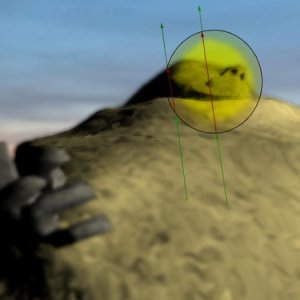
In this picture, lightrays outside the sphere is green. Once they are inside, the vector is red, and then green again when going out from the object. The longer the rays are inside( the length of the vector ), the more will the ray get colored by the object it’s transmitting.
 
So, in our shader, we want to modify the color all pixels we see trough our sphere, with the spheres color and thickness. I have a few challenges including how to find out how thick a object is at each given point and how the formula for coloring transmitting rays will work, but got an idea.
 
I will write this shader using DirectX 10, but once I get it working, I’ll write an XNA tutorial about it, so you can implement the same effect in your applications!
 
 
Anyway, this is for tomorrow. This evening went in the air on a NNUG user group about Silverlight and WPF, and some final reading before taking the MCTS Distributed Applications exam tomorrow.
Posted in Graphics | Leave a comment

XNA as a target platform for Balder3D

I had a meeting with Einar Ingebrigtsen yesterday about Balder and our goals for release 1.
 
So, after the meeting, I started on making XNA as a taget platform for Balder. I have a few challenges on getting it up correctly but I’ll keep you guys updated on my progress, as well as posting some screenshots! So, stay tuned 🙂
 
If you want to know more about Balder and see it in action, take a look at the Balder page on codeplex.
Posted in Balder3D | Leave a comment